Home
» 🎮 Esports
»
How to Fix League of Legends Black Screen After Champ Select
How to Fix League of Legends Black Screen After Champ Select
Champion select ends, but the loading screen never appears. Instead, League of Legends opens a black window, stops responding, or sends you back to a Reconnect button. The useful first question is whether the match process failed to launch or launched without displaying correctly. Those symptoms can look similar, but they call for different checks.
Start with a restart and a game-file repair, then work through compatibility settings, graphics drivers, background applications, security rules, and a clean boot. Reinstall only after the simpler checks fail. This guide focuses on Windows; the Windows executable and Vanguard steps do not apply to macOS.
Documentation checked October 8, 2026: Riot’s champion-selection launch troubleshooting guide was updated June 1, 2026. Its recommendations cover several possible causes; they do not establish one universal cause for every black screen. The interface images below are illustrative examples, not screenshots of a tested fix. Layouts and sample device values may differ on your computer.
Before you change anything: identify the symptom
The League client is the lobby application used for champion selection. The actual match runs in a separate executable, meaning a program file, called League of Legends.exe. A working lobby therefore does not prove that the match can start.
What you observe
Where to begin
A black game window appears, but the desktop still works.
Repair, compatibility settings, drivers, and overlays.
No game window appears; Reconnect keeps returning.
Compatibility settings, security software, and background services.
The entire display goes blank, including the desktop.
Windows display recovery and graphics-driver checks.
An error includes a VAN code.
Record the exact code; use the corresponding Vanguard support guidance.
Vanguard is Riot’s anti-cheat software. A VAN message provides a more specific troubleshooting clue than a black window alone. Do not assume that every launch failure requires changing firmware or security settings.
Prepare a small troubleshooting record
Write down whether you hear game audio, can switch to the desktop, or see Reconnect.
Note when the problem began and any recent game, driver, or security-software update.
Find your League installation folder; a custom installation may use a different drive.
Record each change and its result so you can undo unsuccessful experiments.
Use a custom game without other players for validation. Repeatedly joining ranked matches to test a known launch problem puts teammates into the same failed experiment.
1. Recover the desktop and restart cleanly
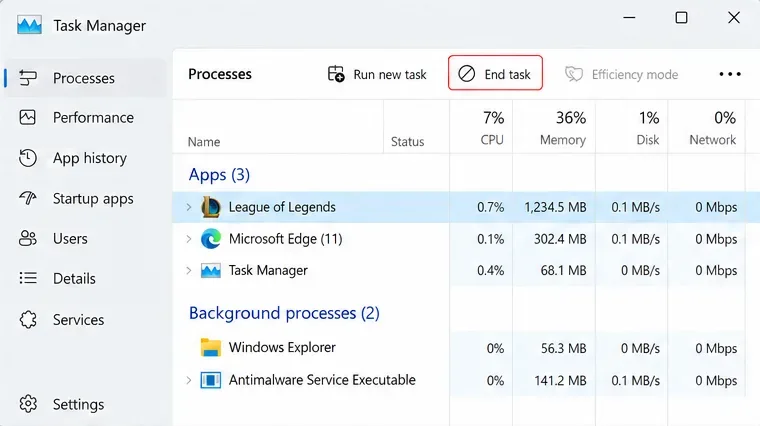
If the game window is black, try Alt + Tab. If Windows responds, press Ctrl + Shift + Esc to open Task Manager, the utility that lists running applications. Select the frozen League match process and choose End task. Return to the client and try Reconnect if the match is still active. This is a recovery attempt, not a permanent repair.
If the entire display is blank, Microsoft recommends Windows + Ctrl + Shift + B to reset the graphics driver. A beep or flicker may follow. If Ctrl + Alt + Delete produces the security screen, Windows is still responding. See Microsoft’s blank-screen troubleshooting instructions.
Once you can safely leave the session, restart the computer normally and reopen Riot Client. Avoid ending unrelated Windows or Vanguard processes. A restart establishes a cleaner starting point than stacking multiple reconnect attempts on a frozen application.
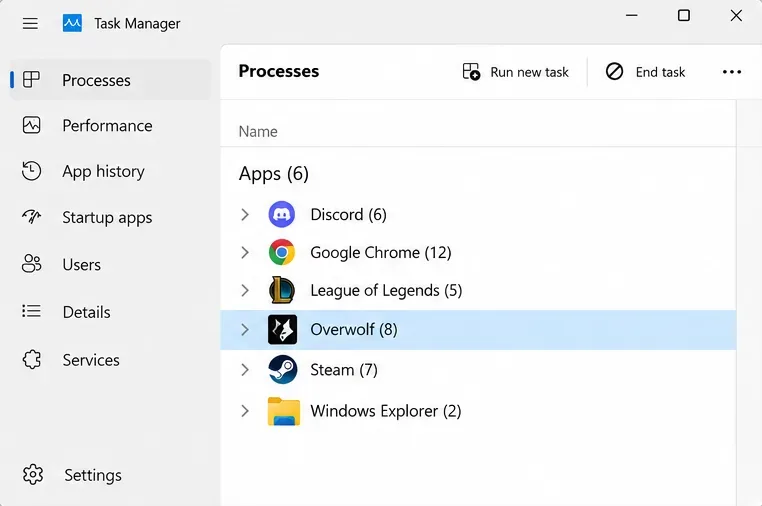
Select the frozen League process in Task Manager before using End task; the resource figures shown are examples.
2. Repair League through Riot Client
A repair checks installed game files and can replace missing or damaged files without a full reinstall. Riot documents the current route in its Riot Client Full Repair Tool instructions.
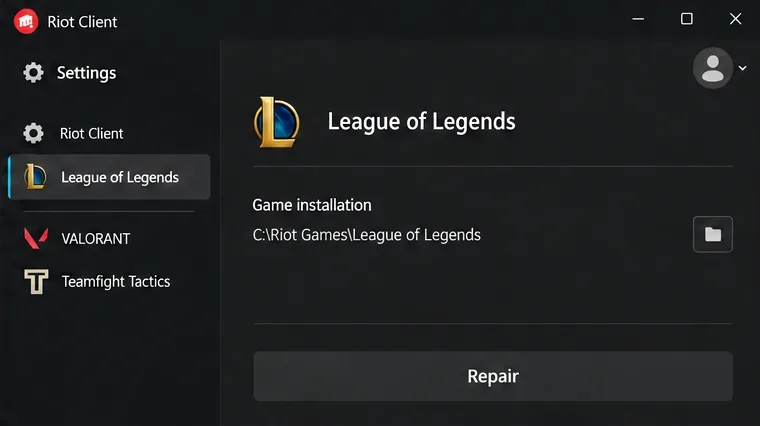
Open Riot Client and sign in.
Click your profile icon in the upper-right corner, then select Settings.
Select League of Legends in the game list.
Click Repair and follow the prompts.
Let the operation finish before launching another test.
This repair function is different from the downloadable Riot Repair Tool used to collect support logs. If a tutorial points to an older launcher gear icon, follow the current profile-menu route instead. After repair, test the same transition from champion select into a custom match.
The League of Legends settings page contains the Repair control used to check game files.
3. Remove compatibility overrides from the match executable
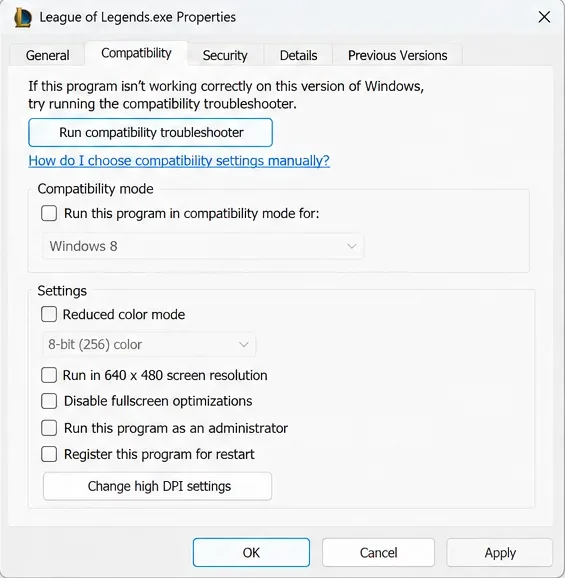
Compatibility mode makes Windows apply behavior intended for older software. Overrides added during previous troubleshooting can themselves interfere with launch. For the Reconnect-after-champion-select symptom, Riot’s Reconnect troubleshooting page recommends clearing the Compatibility-tab checkboxes on the match executable.
Close League and locate C:\Riot Games\League of Legends\Game\League of Legends.exe, or the equivalent path in your installation.
Right-click the file, select Properties, and open Compatibility.
Record the existing settings, then clear the checkboxes, including compatibility mode and Run this program as an administrator.
Click Apply, then OK, and launch through Riot Client again.
Check the file in the Game folder rather than changing a desktop shortcut alone. Do not combine this test with new administrator or fullscreen-optimization overrides: the point is to remove existing overrides and observe the result.
Clear the Compatibility-tab overrides on the match executable, then apply the change.
4. Identify your GPU and update its driver
Your GPU, or graphics processing unit, renders the game. Its driver is the software Windows uses to communicate with that hardware. Riot’s game-crash troubleshooting guide includes black screens at launch among the symptoms and recommends current graphics drivers.
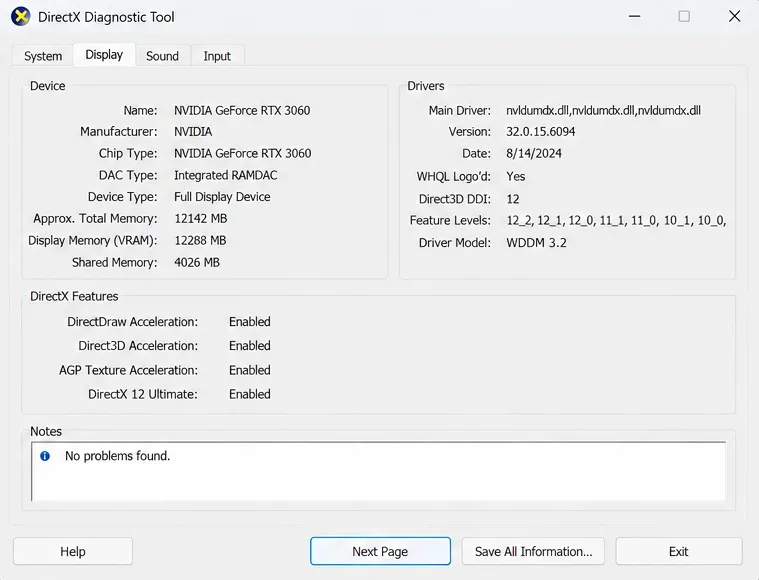
Press Windows + R, type dxdiag, and press Enter.
Open the Display tab and note the graphics-card name and manufacturer.
Use the manufacturer’s official driver route linked in Riot’s guide, or your laptop manufacturer’s supported driver package.
Install the appropriate driver, restart if prompted, and retest.
On a laptop with integrated and dedicated graphics, more than one display entry may appear. Record both rather than guessing which adapter is involved. Do not copy the example driver version in the image or download a random “driver updater.” If the whole-display problem began immediately after a driver update, Microsoft’s blank-screen guide also discusses rolling back the driver.
Use the Device and Drivers sections to identify your own adapter; the sample card and version are not recommended settings.
5. Close overlays and companion apps for one test
An overlay puts another application’s interface on top of a game—for example, a voice-chat indicator, recording panel, or performance counter. Riot’s overlay guidance explains that these applications can introduce compatibility problems.
Save anything important, then fully quit optional voice-chat overlays, capture utilities, performance-monitoring tools, and League companion apps. Closing a window may leave its program running in the system tray, the icon area beside the clock. Use the application’s Quit command or verify its process has stopped in Task Manager.
Test with these applications closed. If League loads, reintroduce them one at a time and test again. That pattern is useful evidence of an application conflict, although one successful match does not prove the cause. Overlay menus change over time, so use your installed application’s current settings rather than copying an outdated toggle location.
Task Manager helps confirm whether a companion application is still running after its window closes.
6. Check security software for blocked Riot files
A firewall controls network access; antivirus software checks files and behavior. Their exception settings are different, so use your security product’s documentation for the relevant rule. Riot’s champion-selection guide lists these default executable locations:
C:\Riot Games\League of Legends\LeagueClient.exe
C:\Riot Games\League of Legends\LeagueClientUx.exe
C:\Riot Games\League of Legends\LeagueClientUxRenderer.exe
C:\Riot Games\League of Legends\Game\League of Legends.exe
C:\Riot Games\Riot Client\RiotClientServices.exe
C:\Program Files\Riot Vanguard\vgc.exe
C:\Program Files\Riot Vanguard\vgm.exe
Adjust the paths to your installation. Check for a recorded block, then configure the relevant exception for legitimate installed files. Keep protection enabled during normal use. On a managed work computer, ask the administrator to inspect the rules.
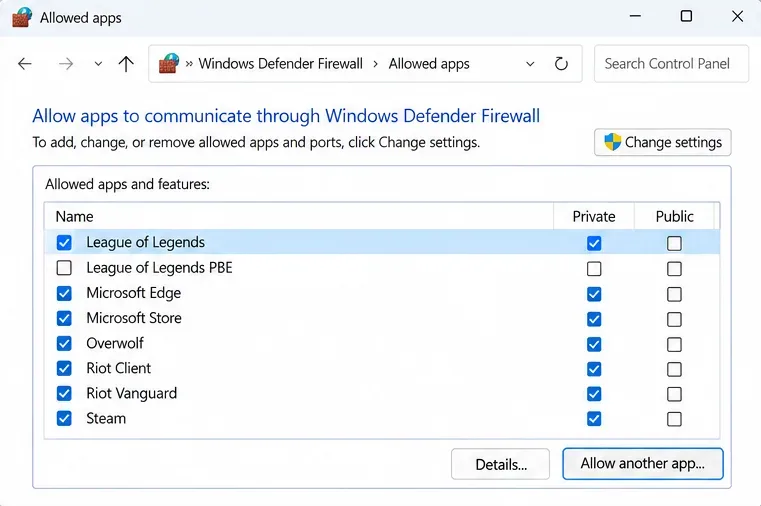
The firewall’s Allowed apps list illustrates a network exception; antivirus exclusions use a separate control, and network-profile choices depend on your connection.
7. Perform a clean boot while keeping Vanguard enabled
A clean boot temporarily reduces background services to help isolate software conflicts. Follow Riot’s current clean-boot instructions, which specifically retain Vanguard:
Record your existing service selections.
Press Windows + R, enter msconfig, and open Services.
Check Hide all Microsoft services before clicking Disable all.
Find vgc and check its box again.
Click Apply and OK, then restart.
Test League, and check whether other third-party services remained active.
Do not use an older generic procedure that leaves vgc disabled. If the launch succeeds, restore previously enabled third-party services in small groups until the conflict returns. Restore your normal configuration when testing ends, keeping the identified problematic software disabled or properly configured. Avoid blindly enabling services that were disabled before you started.
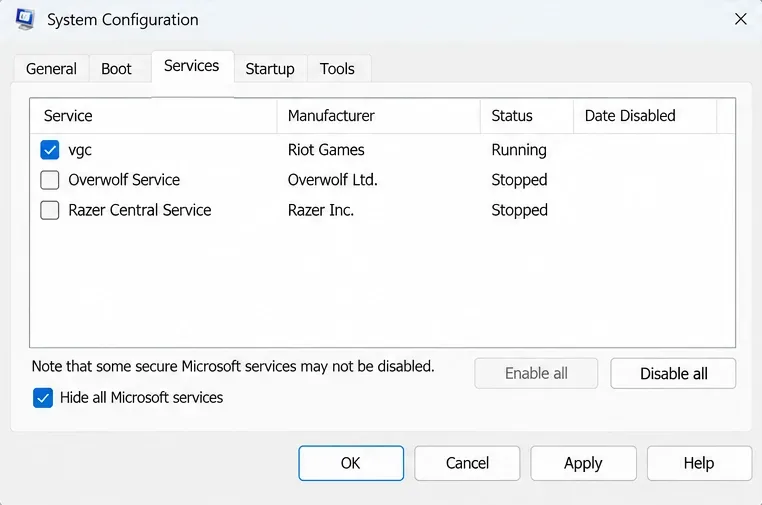
Keep vgc enabled after hiding Microsoft services and disabling optional third-party services for the clean-boot test.
8. Reinstall only after the targeted checks fail
Reinstallation takes more time and bandwidth, so use it after repair and conflict checks. Close Riot Client, open Windows Installed apps, select League of Legends, and choose Uninstall. Restart if Windows or the installer asks you to, then obtain the installer through Riot’s official website.
Back up local replays and any settings you want to preserve first. Riot’s uninstall and reinstall guide distinguishes a standard uninstall from additional cleanup. Do not delete the entire Riot Games directory or the whole AppData folder by guesswork, especially if you have other Riot games installed. If a standard reinstall fails, let support identify which remaining files need attention.
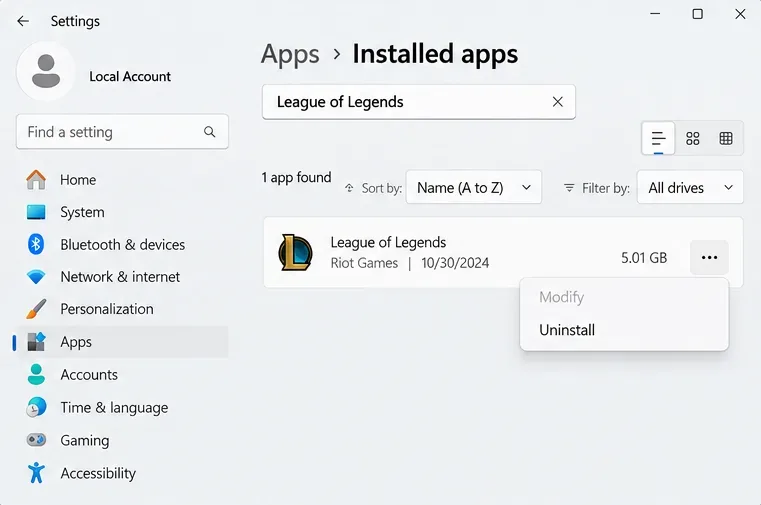
Remove League of Legends from Installed apps before downloading a fresh official installer; the displayed installation date and size are examples.
How to verify the fix and know when to stop
A successful repair should let you complete champion select, see the loading screen, enter the map, and control your champion. Repeat the custom-game test after a normal restart and after restoring the applications you usually run. For an intermittent problem, record several separate launches rather than declaring it solved after one attempt.
If repair changes nothing, stop repeating it and move to the next check.
If the game works only with one application closed, investigate that application’s overlay or service.
If the desktop also goes blank in other programs, widen the investigation to Windows and graphics hardware.
If a specific error code appears, preserve it and follow its dedicated support path.
When the black screen persists, collect logs—diagnostic records of what the software did—using Riot’s official Riot Repair Tool instructions. Download the correct Windows or Mac tool from that page; Riot instructs Windows users to run this log collector as administrator. Select League of Legends and attach the resulting ZIP to a support ticket. This permission applies to the collector and does not reverse the match-executable compatibility advice above.
Include your operating system, GPU and driver version, the failure time and region, any error code, and your change-and-result record. Tell support whether the issue reproduces in a custom game. Those details distinguish a launch failure, rendering problem, and software conflict far more clearly than “League is broken.”