How to Check Real-Time Server Latency in the PUBG HUD

Enable PUBG’s network statistics HUD to monitor ping and packet loss in a match. See where to find it, what the numbers mean, and what they cannot diagnose.
If Honor of Kings shows high ping or sudden lag, first compare one match on Wi-Fi with one on mobile data, then stop background downloads and retest. If only one connection is affected, focus on that network. If both connections spike while other apps work normally, check the game’s network diagnostics and contact its support team; changing phone graphics settings will not repair a network route.
Make one change at a time and test again in a low-stakes match. That makes it easier to tell whether the change helped. The settings images below show representative Android screens; wording and menu locations vary by phone, and iPhone menus look different.
Ping is the time it takes data to travel between your device and the game service and back. A high or unstable ping can make a hero move late, skills trigger after a pause, or other players jump between positions. Jitter means that delay changes rapidly, which can feel worse than a consistently moderate delay. A speed test’s download number measures capacity; it does not guarantee a short, steady route to a game server.
Compare those symptoms with frame-rate stutter. If animation becomes choppy across the whole screen, the phone heats up, or taps feel delayed even in menus, the device may be struggling to render the game. If the picture stays smooth but heroes respond late, investigate the network first. Both issues can happen together.
Before changing settings, note whether you are on Wi-Fi or cellular, your approximate location, the time of the match, and whether the issue starts immediately or only during fights. Check the signal indicator. A weak cellular signal or a Wi-Fi connection that drops between bars can cause interruptions, but a full signal icon does not prove the route to the game is fast. If possible, take a screenshot of the in-game ping display when it spikes.
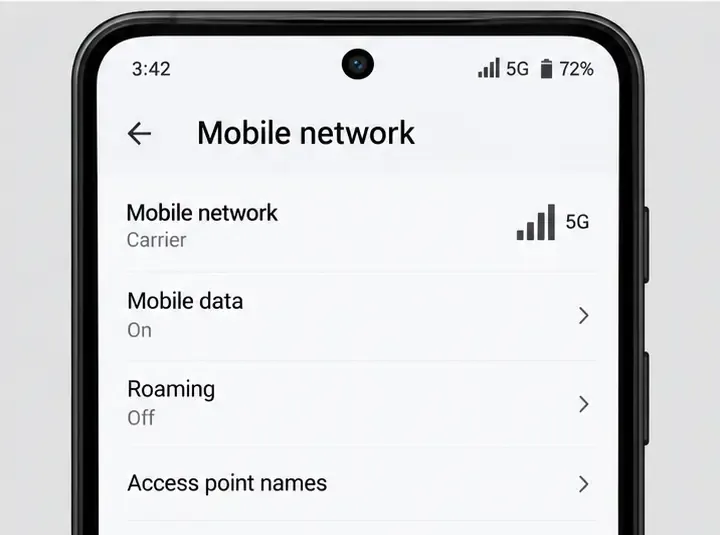
Finish or leave the current match before switching networks. Test the same game mode on Wi-Fi, then on mobile data in the same place, with large downloads paused. Avoid changing several settings between tests. For example, if Wi-Fi spikes but cellular stays steady, the home Wi-Fi or its internet route is the likely place to investigate. If both behave the same while video and other online apps are fine, a game-specific route or service issue becomes more plausible.
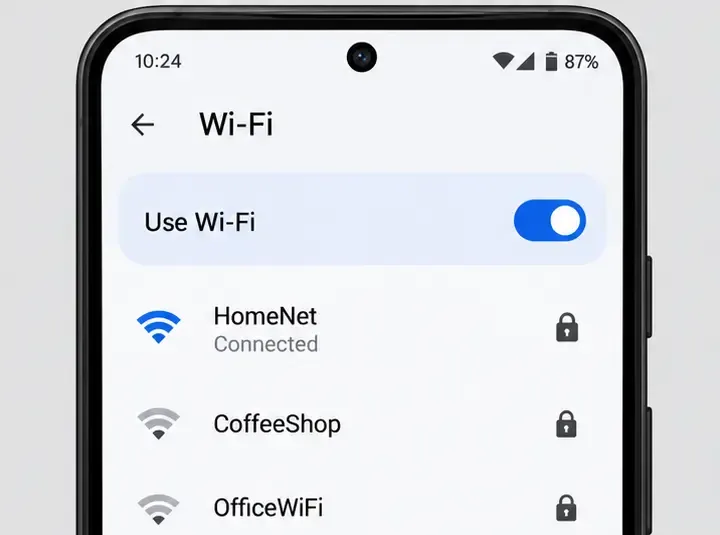
Mobile data can use your plan, so keep the comparison short and check your carrier allowance. If the results vary from match to match, repeat later; congestion and routing can change by time and location.
If Wi-Fi is the weaker connection, move closer to the router and test in the same room. Walls, distance, and interference can weaken a signal. If your router offers both 2.4 GHz and 5 GHz Wi-Fi, try each from the location where you play: 5 GHz can be useful nearby, while 2.4 GHz may reach farther through obstacles. Which one performs better depends on the router and surroundings.
Pause household downloads, cloud backups, and high-resolution streaming during the test. Restart the router only after leaving a match, then wait until its internet connection is restored before launching the game. Do not change advanced router options such as port forwarding or quality-of-service rules unless you know what they do; they are not a universal ping fix.
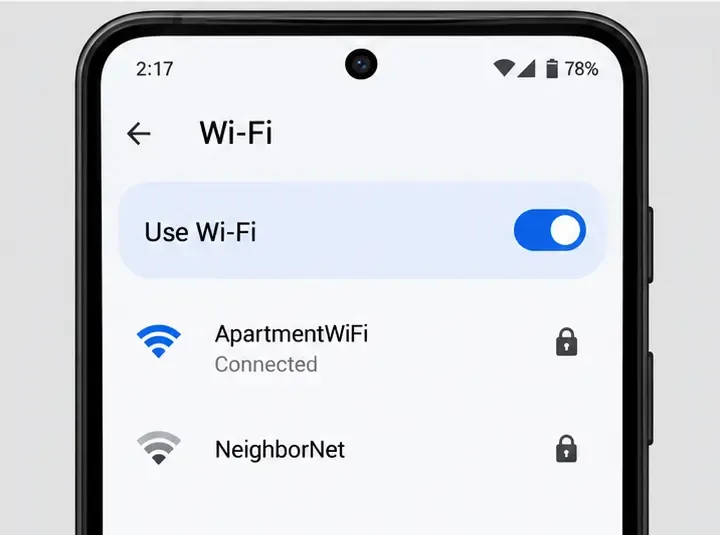
If cellular performs better, check that the phone has a stable signal where you play. A strong signal at a window can behave differently from one in a basement, elevator, or moving vehicle. Try another stationary location and compare again. Do not toggle airplane mode or switch network types during a live match; the brief disconnect can be enough to disrupt play.
If you use a VPN, proxy, or traffic-routing app, turn it off temporarily for a controlled test, then restore it if you need it for privacy or work. Such tools can change the route and are not guaranteed to reduce latency. If cellular ping rises at busy times across several apps, carrier congestion or coverage may be involved; the game cannot fix that local radio connection.
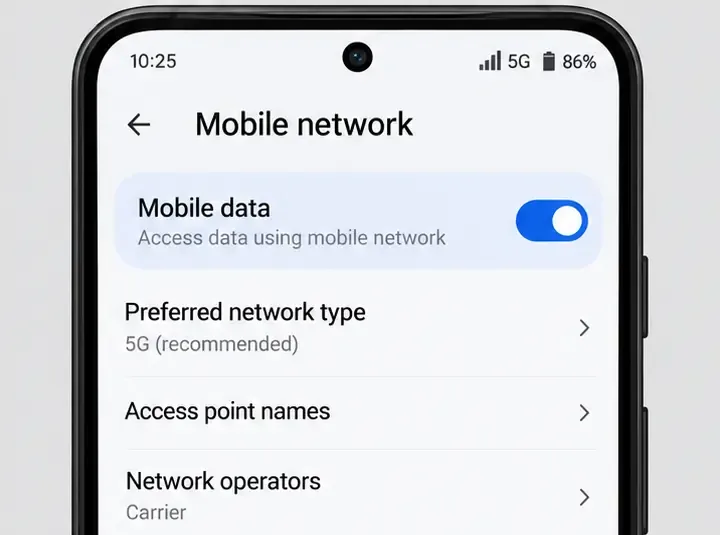
Close or pause active downloads, app updates, cloud photo uploads, and video streams on the phone and, if possible, other devices sharing the connection. These tasks can compete for bandwidth or fill the router’s upload queue. On Android, the Apps or data-usage area may help identify apps using data in the background. Menu names differ by brand. Do not permanently restrict background activity for messaging or security apps just to test one match.
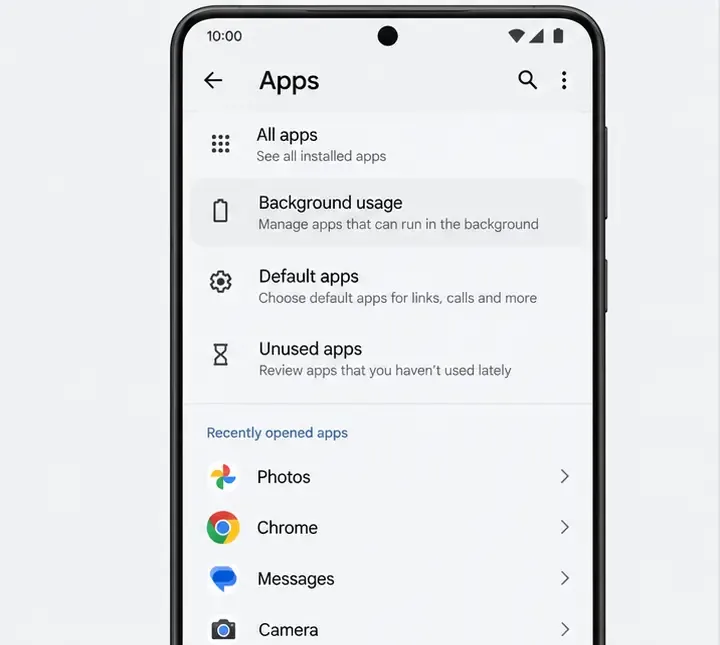
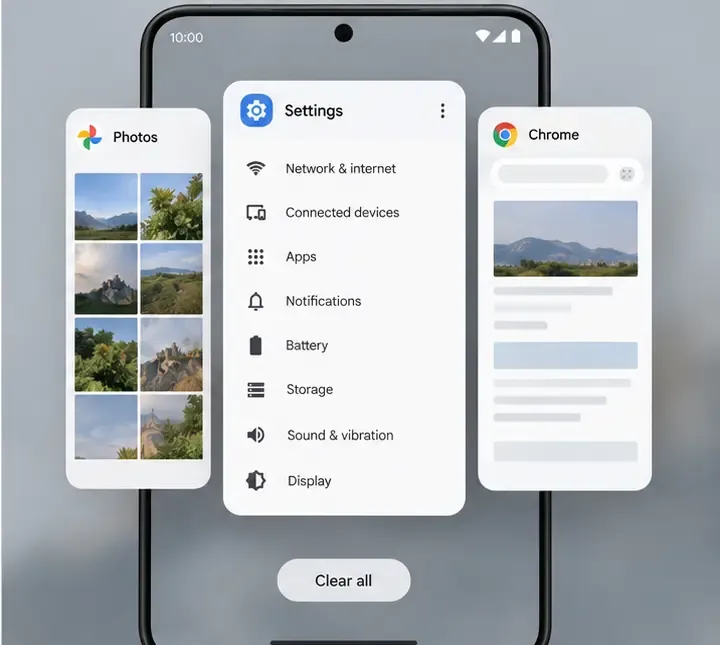
Swipe away apps that are actively streaming or uploading, then retest. Closing every app is not required on every phone, and recent-apps controls do not necessarily stop all background network activity. Check the app’s own download or sync controls when it continues running.
If the game becomes visually choppy or the phone is hot, let it cool, remove a thick case temporarily, lower graphics or frame-rate settings in the game if those options are available, and test again. These steps can help device performance, but they do not shorten internet latency. HONOR’s device guidance also recommends checking background apps and power-saving behavior when performance is affected.
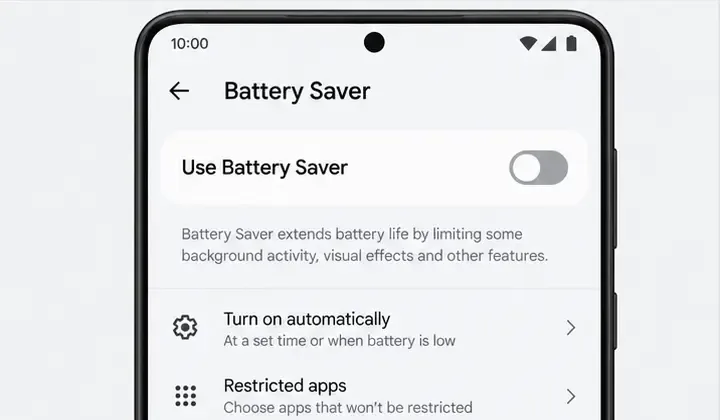
As a short diagnostic, disable Battery Saver or an equivalent low-power mode and play a brief test while the phone is cool and charging is disconnected if it is heating up. If animation improves but the in-game ping reading does not, you likely had two different problems. Restore your preferred battery setting afterward. On some phones the names and effects vary by model.
Check the official app store for an Honor of Kings update and install it over a stable connection. Also install pending operating-system updates when convenient. Updates can fix compatibility or connection bugs, although an update is not guaranteed to resolve a congested or distant network route. After updating, fully close and reopen the game. Avoid clearing app data or reinstalling as an early step: those actions may remove local files or require a large redownload. Confirm that your account is linked before considering reinstalling.
The game’s current privacy policy lists a “NetTool” used to test host reachability. If your installed version exposes NetTool or another network diagnostic, run it and save the result. The public policy confirms the tool’s purpose but does not document a menu path, so use only controls that actually appear in your version; do not follow an assumed Settings path from an unrelated guide.
If other apps work, both Wi-Fi and cellular show similar spikes, and the game diagnostic suggests a reachability problem, collect the region/server information shown in your build, device model, operating-system version, connection type, approximate match time, and screenshots of the ping or diagnostic result. Use in-game Customer Service or the official Honor of Kings support portal. The official app listing also provides publisher support information. Do not post account credentials or verification codes in public forums.
These are clues rather than proof: network routes and service conditions can change, and a single match may not identify the cause. The official Honor of Kings privacy policy describes NetTool’s host-reachability purpose. For device-specific steps, consult your manufacturer’s support page; for example, HONOR’s performance troubleshooting guidance covers background apps, power saving, updates, and heat. If your phone is not a HONOR model, its menu labels may differ.
In most cases, the fastest useful first move is a short Wi-Fi-versus-cellular comparison with background traffic paused. It tells you whether to spend time on the router, cellular coverage, phone performance, or an in-game support report.
Enable PUBG’s network statistics HUD to monitor ping and packet loss in a match. See where to find it, what the numbers mean, and what they cannot diagnose.
Learn how to import VALORANT crosshair codes, compare presets with manual settings and spectator copy, and fix common import issues.
Choose Dota 2 minimap size, hero icons, team colors, and background settings by readability, fewer misclicks, and clear results on your own display.
Fix Fortnite texture pop-in on PC with official steps for GPU drivers, file verification, DirectX 12, high-resolution textures, VRAM, SSDs, and stutter.
Learn what Heroes of the Storm minimap size and position options are verified, improve readability, and choose camera-click controls that suit you.
Set Super Smash Bros. Ultimate Quickplay to prefer hazards-off stages. Follow the Preferred Rules menu steps and learn why matchmaking may not always honor them.
Enable Server Latency and Packet Loss in Warzone to monitor connection quality, read the overlay, and use recurring spikes to guide troubleshooting.
Learn how to carry from mid lane in League of Legends by setting up waves, choosing safe roam windows, reading side lanes, and converting pressure into objectives.
Fix Minecraft Evoker spell problems with a safe vanilla test, version checks, log review, and a step-by-step way to isolate mod or datapack conflicts.
Fix PUBG stuck on Initializing on Steam with a focused checklist for PC service notices, launch options, game files, downloads, and connection issues.








