How to Check Real-Time Server Latency in the PUBG HUD

Enable PUBG’s network statistics HUD to monitor ping and packet loss in a match. See where to find it, what the numbers mean, and what they cannot diagnose.
If Mobile Legends: Bang Bang (MLBB) shows high ping or sudden red ping spikes while you are on Wi-Fi, start by finding out whether the problem is the phone, the home wireless network, or the route to the game. A fast download test by itself cannot prove that a game connection is stable: ping measures response time, while jitter describes how much that response time changes. Brief pauses can also come from packet loss, even when webpages still load.
Use the checks below one at a time. After each change, play a short low-stakes match or use the same in-game connection indicator, if available, and note whether the ping stays steadier. Menu names vary by Android phone, iPhone, router, and game version, so the paths below are intentionally general.
| What you notice | Most useful first check |
|---|---|
| Ping is bad only in one room | Move closer to the router and test again. |
| Ping spikes when others stream or download | Pause other heavy network use for one match. |
| Several devices have trouble on the same Wi-Fi | Restart the router, then contact the ISP if it continues. |
| Only MLBB is affected on Wi-Fi | Compare Wi-Fi with cellular data and report the pattern to game support. |
Move to the same room as the router, keep the phone still, and play or check the connection again. Walls, floors, distance, and interference can weaken a Wi-Fi signal. Android Help recommends moving closer to the router when the Wi-Fi signal is weak. If the game becomes steadier nearby, the likely issue is local wireless coverage rather than the game's graphics settings.
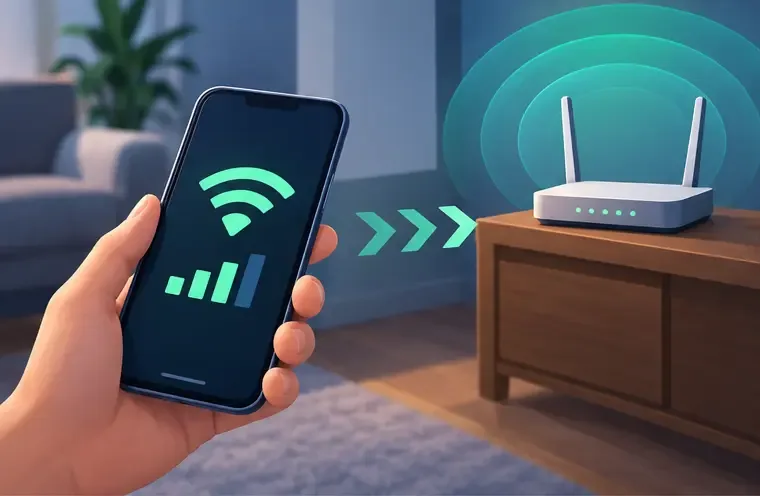
For a home router, restart it using its manufacturer’s instructions. Google’s Android guidance describes unplugging it, waiting about 30 seconds, plugging it back in, and allowing roughly 30 seconds for its lights to return. Do not press the recessed factory-reset button: that can erase the network name, password, and provider settings. On shared or public Wi-Fi, ask the network owner before restarting equipment.
Restart the phone as well if other apps are also losing connectivity. This is a basic connection reset, not a guaranteed ping fix. Google notes that Android network setting names can differ by device; its Android connection troubleshooting steps provide the general sequence.
If your router offers separate network names for different Wi-Fi bands, test the available options one at a time from your normal playing spot. Stay in the same place and compare MLBB’s ping over a similar period. Choose the option that produces the most consistent game connection on your phone. Do not assume that the band with the highest download speed or fullest signal icon will always give the lowest game ping.
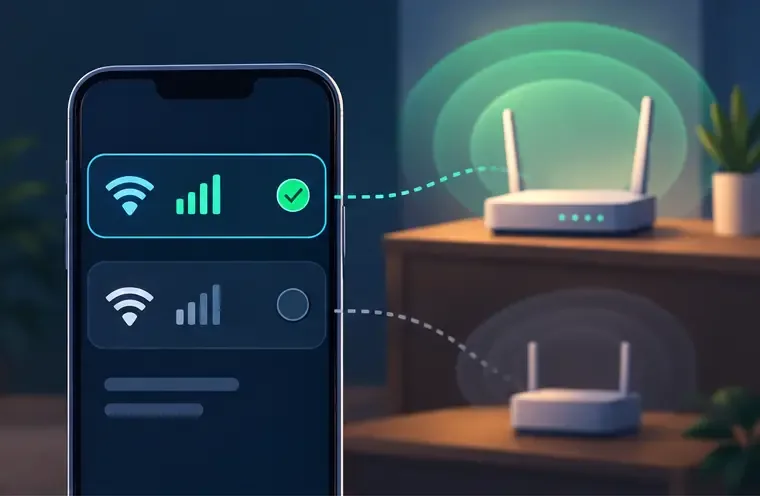
Some routers combine bands under one network name and automatically steer devices between them. In that case, you may not see separate names to select. Avoid changing advanced channel, width, or firmware settings at random; those controls depend on the router and can disconnect other household devices. Apple’s router and access-point recommendations explain that band and other Wi-Fi settings are managed through the router maker’s configuration tools. Back up settings and follow the router maker’s instructions before making a change.
For one test, ask other household members to pause large downloads, cloud backups, software updates, and high-resolution video streams. Also pause downloads on the gaming phone. Then compare the next match with your usual conditions. If ping improves only while the network is quiet, the connection may be getting congested when several devices compete for airtime or internet capacity.

This test does not mean that every stream causes lag. It helps identify a pattern. If the router has a manufacturer-documented quality-of-service feature, it may let you prioritize a device, but the name and effect vary. Check the router manual first and change one setting at a time. Do not install an unverified “ping booster” or cleaner app; it cannot repair weak coverage or an overloaded internet route.
On the same phone, compare a short test on Wi-Fi with one on cellular data, if your plan and signal allow it. Turn Wi-Fi off for the cellular test so the phone does not silently stay on the home network. Android Help recommends switching between Wi-Fi and mobile data to see whether the result changes. On iPhone, check that the phone is connected to the intended network in Settings > Wi-Fi; Apple documents the connection indicator and network selection in its Wi-Fi connection guide.
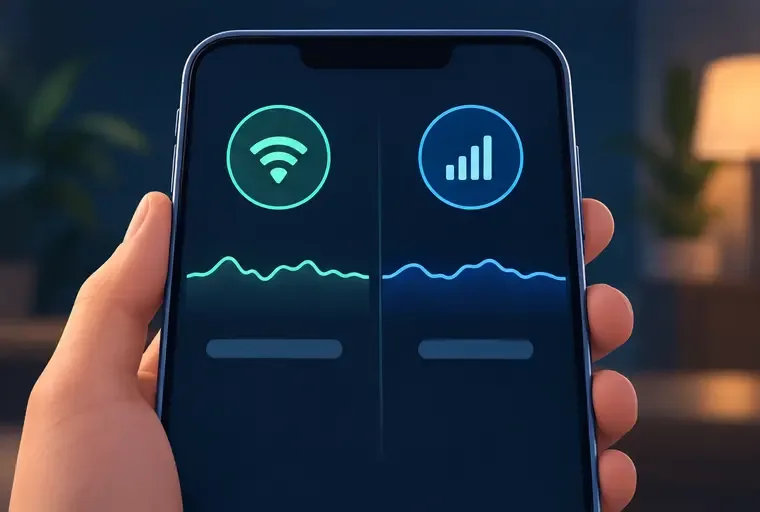
Read the comparison carefully. If cellular is stable while Wi-Fi is not, focus on the router, Wi-Fi signal, or home ISP. If both paths are unstable across more than one app, contact the relevant network provider. If other apps are steady but MLBB alone spikes on both connections, the issue may involve the game service, the route to its servers, or a game-specific fault. A single test cannot identify which one, and a speed-test result cannot reveal the exact route used by a match.
Contact your ISP if several devices have unstable internet on the same home network after a router restart, especially if the issue persists at different times. Tell them the affected devices, when the drops happen, whether a wired device is also affected (if available), and whether cellular data works normally. Ask them to check the line and local service status rather than requesting a faster plan automatically.
If the connection is stable in other apps and the issue remains specific to MLBB, use the in-game Contact Us option or the support email listed on the official Mobile Legends: Bang Bang Google Play page. Include your device model, operating-system version, game version, country or region, ISP or mobile carrier, approximate match times, and what Wi-Fi-versus-cellular tests showed. Attach a screenshot of the in-game network indicator if it helps. Never send your account password or verification codes.
Use the same phone, same room, and same connection for a short follow-up test. Look for fewer sudden ping jumps, fewer reconnecting messages, and more responsive movement and skill inputs across more than one match. If the improvement disappears when the household network gets busy, continue with the congestion or coverage checks. If the ping stays high only in MLBB after these comparisons, report the evidence to game support; local Wi-Fi changes may not control the game server or the route between your ISP and that server.
Guidance checked October 7, 2026. Device and router interfaces vary; follow the manufacturer’s current instructions for your model.
Enable PUBG’s network statistics HUD to monitor ping and packet loss in a match. See where to find it, what the numbers mean, and what they cannot diagnose.
Learn how to import VALORANT crosshair codes, compare presets with manual settings and spectator copy, and fix common import issues.
Choose Dota 2 minimap size, hero icons, team colors, and background settings by readability, fewer misclicks, and clear results on your own display.
Fix Fortnite texture pop-in on PC with official steps for GPU drivers, file verification, DirectX 12, high-resolution textures, VRAM, SSDs, and stutter.
Learn what Heroes of the Storm minimap size and position options are verified, improve readability, and choose camera-click controls that suit you.
Set Super Smash Bros. Ultimate Quickplay to prefer hazards-off stages. Follow the Preferred Rules menu steps and learn why matchmaking may not always honor them.
Enable Server Latency and Packet Loss in Warzone to monitor connection quality, read the overlay, and use recurring spikes to guide troubleshooting.
Learn how to carry from mid lane in League of Legends by setting up waves, choosing safe roam windows, reading side lanes, and converting pressure into objectives.
Fix Minecraft Evoker spell problems with a safe vanilla test, version checks, log review, and a step-by-step way to isolate mod or datapack conflicts.
Fix PUBG stuck on Initializing on Steam with a focused checklist for PC service notices, launch options, game files, downloads, and connection issues.








