How to Check Real-Time Server Latency in the PUBG HUD

Enable PUBG’s network statistics HUD to monitor ping and packet loss in a match. See where to find it, what the numbers mean, and what they cannot diagnose.
High FPS can look impressive while Counter-Strike 2 still feels uneven. The reason is often frametime: the amount of time your PC takes to produce each individual frame. If most frames arrive quickly but an occasional frame takes much longer, you feel a hitch, stutter, or momentary loss of smoothness even when the average FPS counter stays high.
This guide starts with measurement, then moves from low-risk fixes to more disruptive ones. The goal is not to copy a single “best settings” preset. It is to find which part of your system is causing the spikes, change one variable at a time, and confirm that the spikes actually become less frequent or less severe.
FPS is a rate; frametime is a duration. At 100 FPS, the average frame takes about 10 milliseconds. At 200 FPS, the average is about 5 milliseconds. A system can average 200 FPS yet still feel bad if some frames suddenly take 30, 50, or 100 milliseconds.
Counter-Strike 2 includes a built-in Telemetry HUD. Valve says it can display frame rate, frame time, ping, and network-problem indicators, and that each item can be configured to appear always, never, or when conditions are poor. That makes it the safest place to start because it helps distinguish a rendering or CPU problem from a network problem. See Valve's Source 2 Telemetry HUD documentation.
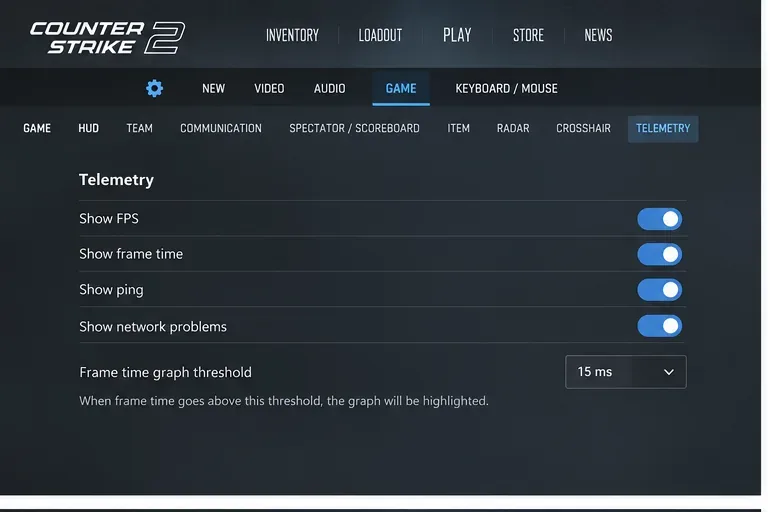
Use the Telemetry HUD and reproduce the problem in a consistent situation: the same map, similar player count, and the same graphics settings. Watch frame time and the network-problem indicator at the moment you feel a hitch.
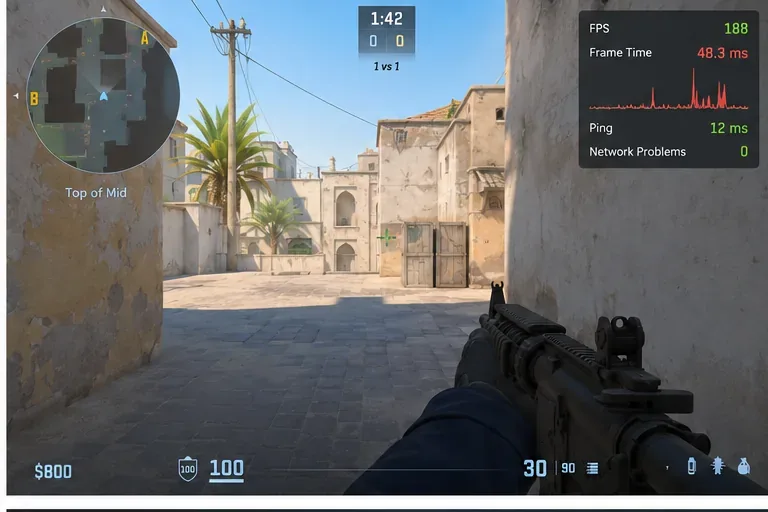
Valve specifically recommends using the network display to tell whether a hitch is caused by the connection or by the local machine. If packet loss or jitter is the problem, increasing CS2's buffering can smooth some network issues, but Valve notes that extra buffering also adds latency. That is a trade-off, not a universal fix.
Restart the PC, launch Steam, start CS2, and test before opening browsers, recording tools, hardware monitoring suites, RGB utilities, or other optional software. A clean baseline matters because otherwise you may “fix” the game by accident and never learn what caused the spikes.
Steam's own performance guidance says background processes can immediately affect game performance, and its conflict guide notes that recording tools, performance utilities, security software, download managers, and other programs can interfere with Steam games on some systems. See Steam's game performance troubleshooting guide and Steam's list of software categories that can interfere with games.
If your GPU is regularly near full utilization when spikes occur, reduce demanding options one group at a time. Start with settings that affect rendering load, then retest. Do not change ten settings at once; you will lose the ability to identify what helped.
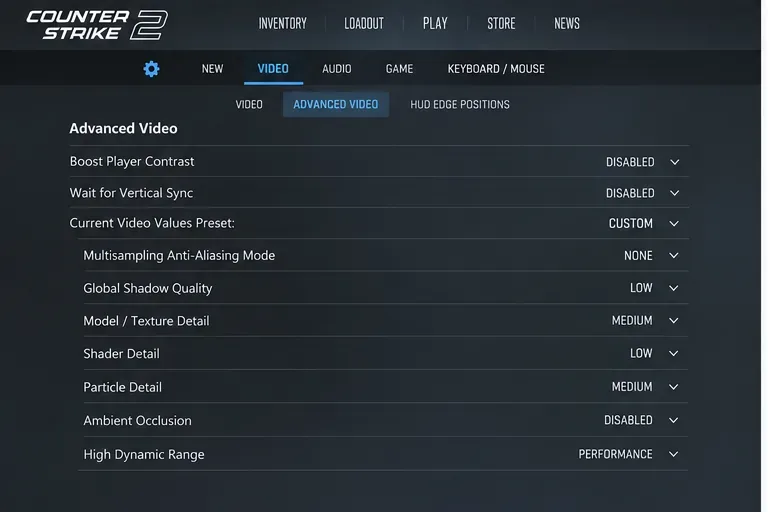
A lower graphics preset is most useful when the GPU is the limiting component. If frame time spikes while GPU usage is modest and one CPU thread is saturated, lowering resolution may barely help. Steam also warns that merely meeting a game's minimum requirements does not guarantee high FPS or smooth performance; CS2's current Steam support page lists Windows 10, four hardware CPU threads, 8 GB of RAM, a DirectX 11-capable GPU with Shader Model 5.0, and 85 GB of storage as minimum requirements. See the official CS2 technical-support page.
NVIDIA Reflex reduces PC latency by synchronizing CPU and GPU work so the CPU does not build an unnecessarily long render queue. NVIDIA's official CS2 guidance recommends enabling NVIDIA Reflex Low Latency in CS2 under Settings > Video > Advanced Video.
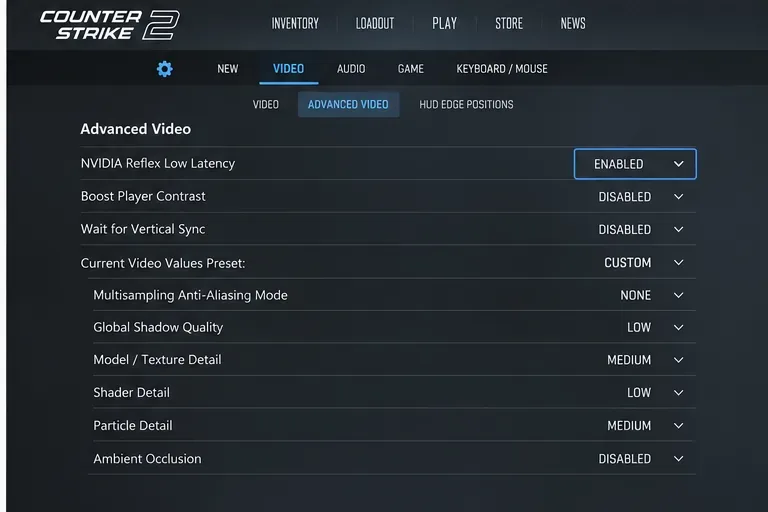
NVIDIA says Enabled + Boost can reduce latency further in some situations but may increase power use and slightly reduce frame rate. For a beginner troubleshooting frametime spikes, start with Enabled, retest, and only try Boost if you specifically prioritize minimum latency and your cooling and power headroom are adequate. See NVIDIA's official Counter-Strike 2 Reflex guide.
If you use AMD or Intel graphics, skip this step rather than trying to imitate Reflex with unrelated launch commands or driver tweaks.
A download, browser tab, cloud sync, recording session, or update can create CPU, storage, memory, or network contention. Before a competitive session, make sure Steam is not downloading another game in the background and close applications you do not need.
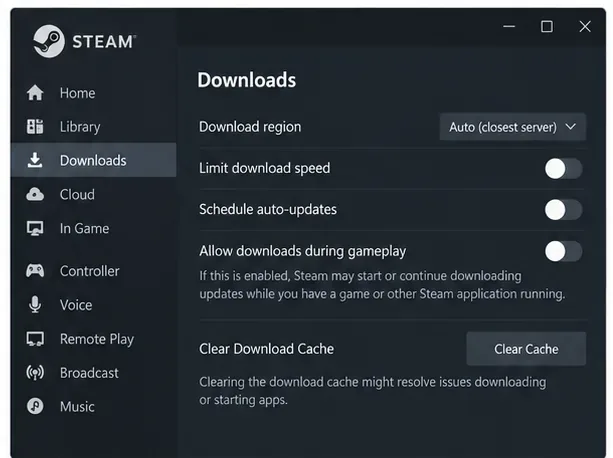
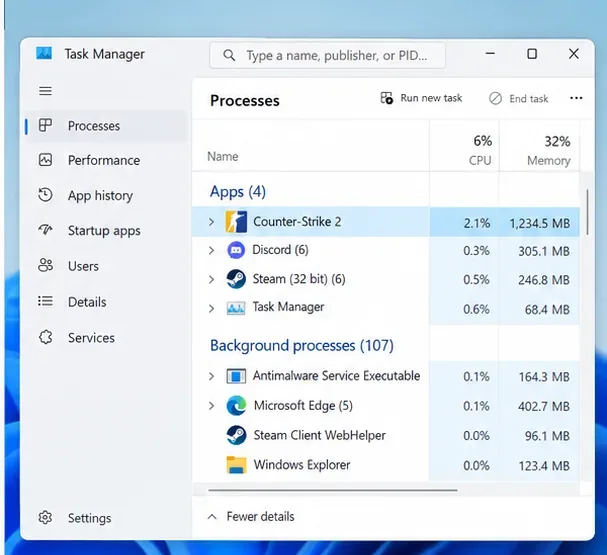
Do not terminate Windows services or security components at random. Close software you recognize and can safely reopen. If a particular overlay or monitoring tool appears to trigger the spikes, disable that one tool for a controlled test rather than stripping the system of protections.
Corrupted or incomplete local files are not the most common explanation for every frametime spike, but verification is a low-risk check before a full reinstall. Steam's official procedure is Library > right-click Counter-Strike 2 > Properties > Installed Files > Verify integrity of game files.
Valve notes that verification can take several minutes and that one or more local configuration files may fail verification normally. Do not run several disk-heavy maintenance tasks at the same time. Follow Steam's official Verify Integrity instructions.
If verification finds nothing and the problem is unchanged, a full reinstall is unlikely to be the best next move. Continue with drivers, GPU selection, and power behavior first.
Steam recommends keeping graphics drivers current when troubleshooting game performance. Use the official driver utility or support site for your GPU vendor rather than a third-party driver updater. On laptops and desktops with both integrated and discrete graphics, also confirm that CS2 is assigned to the high-performance GPU in Windows.
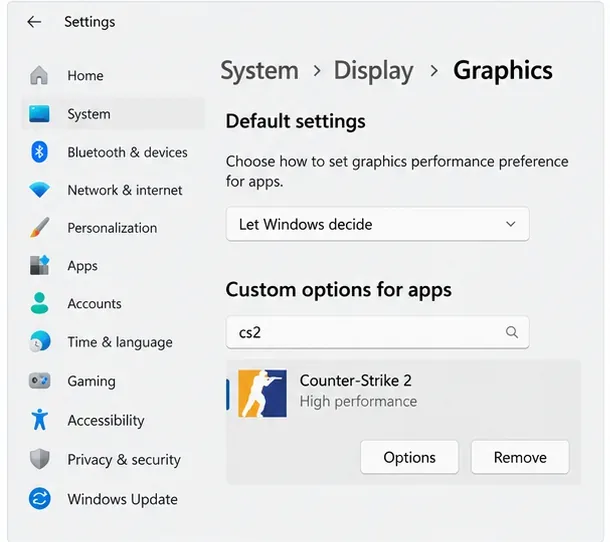
Updating a driver can fix game-specific bugs, but a brand-new driver can also introduce a regression on a particular configuration. If the spikes began immediately after a driver update and every other variable is unchanged, test the previous stable driver from the GPU manufacturer rather than stacking more tweaks on top.
Power-saving behavior can reduce CPU or GPU clocks and create inconsistent performance under load. Microsoft documents a Best performance power mode under Settings > System > Power & battery. On some systems, the older Control Panel also exposes a High performance plan.
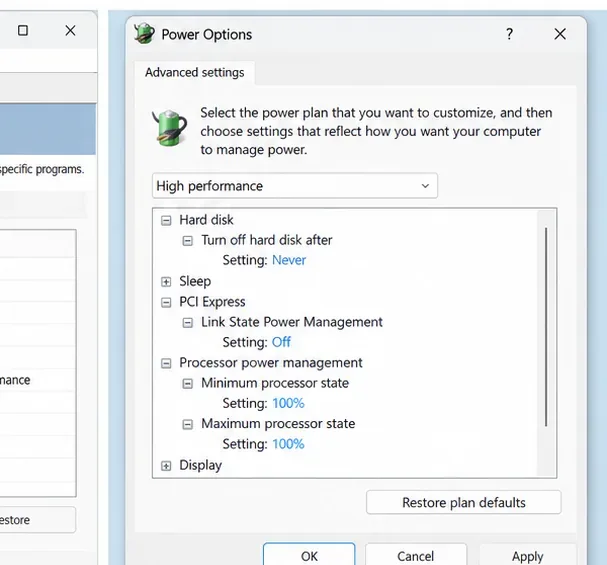
This is a clear trade-off. Microsoft states that Best performance increases power consumption and can make a laptop run warmer and drain the battery faster. Use it while plugged in for testing, then decide whether the smoother behavior is worth the extra heat and energy use. See Microsoft's Windows power mode documentation.
| What you observe | What it suggests | Next move |
|---|---|---|
| Average FPS is similar, but large frametime peaks are rarer | The change improved consistency | Keep the change and test longer |
| Frametime improves only after closing one app | Background software conflict or resource contention | Re-enable other apps one at a time to identify the culprit |
| Lower resolution barely changes the spikes | The issue may not be GPU-bound | Focus on CPU load, background processes, drivers, storage, and power behavior |
| Network warnings rise during every hitch | Connection quality may be involved | Troubleshoot packet loss/jitter rather than only graphics settings |
| Spikes began after a game update and occur on otherwise stable hardware | A game-side regression is possible | Check official CS2 update notes and retest after patches |
There is no single setting that fixes every high-frametime-spike problem in CS2 because the same symptom can come from GPU saturation, CPU stalls, background software, power management, storage activity, drivers, network conditions, or a game/server regression. The reliable approach is to use Valve's telemetry to classify the problem first, make one controlled change, and keep only changes that improve your own frametime trace.
Enable PUBG’s network statistics HUD to monitor ping and packet loss in a match. See where to find it, what the numbers mean, and what they cannot diagnose.
Learn how to import VALORANT crosshair codes, compare presets with manual settings and spectator copy, and fix common import issues.
Choose Dota 2 minimap size, hero icons, team colors, and background settings by readability, fewer misclicks, and clear results on your own display.
Fix Fortnite texture pop-in on PC with official steps for GPU drivers, file verification, DirectX 12, high-resolution textures, VRAM, SSDs, and stutter.
Learn what Heroes of the Storm minimap size and position options are verified, improve readability, and choose camera-click controls that suit you.
Set Super Smash Bros. Ultimate Quickplay to prefer hazards-off stages. Follow the Preferred Rules menu steps and learn why matchmaking may not always honor them.
Enable Server Latency and Packet Loss in Warzone to monitor connection quality, read the overlay, and use recurring spikes to guide troubleshooting.
Learn how to carry from mid lane in League of Legends by setting up waves, choosing safe roam windows, reading side lanes, and converting pressure into objectives.
Fix Minecraft Evoker spell problems with a safe vanilla test, version checks, log review, and a step-by-step way to isolate mod or datapack conflicts.
Fix PUBG stuck on Initializing on Steam with a focused checklist for PC service notices, launch options, game files, downloads, and connection issues.








