How to Check Real-Time Server Latency in the PUBG HUD

Enable PUBG’s network statistics HUD to monitor ping and packet loss in a match. See where to find it, what the numbers mean, and what they cannot diagnose.
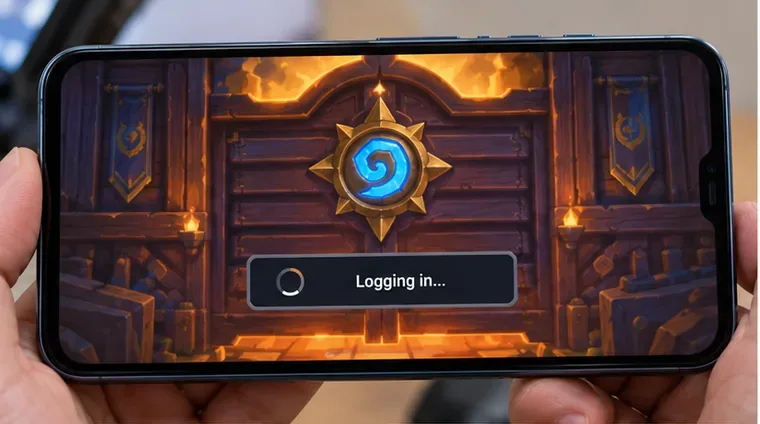
If Hearthstone on your phone or tablet sits on the Logging in screen and never reaches the tavern, treat the symptom as a connection problem first, not as proof that your account is broken. Blizzard’s current mobile connection guidance recommends a specific progression: update the app, switch between Wi-Fi and mobile data, restart the device, confirm the device still meets requirements, clear Hearthstone cache/data on Android, and reinstall only if the earlier steps fail.
There is also recent context worth knowing. Hearthstone is currently on the 36.6 update cycle, with Patch 36.6.3 published on October 1, 2026. Blizzard’s official known-issues tracking has recently included an iOS crash problem that was marked resolved, with a note that some affected users may need a full reinstall. During research for this guide, I did not find an official Blizzard notice of a general Hearthstone mobile login outage on October 7, 2026. That means local troubleshooting is reasonable, while still checking Blizzard status sources before making disruptive changes.
Consider a clearly hypothetical player named Maya. Hearthstone worked on her phone yesterday, but today the app opens, shows the tavern-door loading screen, reaches “Logging in,” and stays there. Other apps can access the internet. She has not changed her Battle.net password, and she can still sign in to Battle.net in a browser.
This example is useful because it separates three different possibilities: the Hearthstone service may be having trouble, Maya’s current network path may be blocking or timing out the game connection, or the local app installation may have stale or damaged data. The best troubleshooting sequence tests those possibilities in that order, from least disruptive to most disruptive.
Blizzard’s Hearthstone Connection Issues on Mobile Devices article explicitly says to check outage information before working through device fixes. Blizzard points players toward Blizzard Customer Support channels and the technical-support forums, or recommends waiting and trying again if a service issue appears likely.
For Maya, the practical test is simple: if many players are reporting the same login failure at the same time, especially across both iOS and Android or across several networks, reinstalling immediately is unlikely to be the best first move. If there is no official outage notice and the problem is isolated to her phone, continue.
Success sign: if Blizzard confirms a service problem, stop troubleshooting locally and wait for the service update. Move on when: there is no confirmed outage, or another device/account can connect normally.
Blizzard lists changing the network connection as an early troubleshooting step. Turn off Wi-Fi and try cellular data, or do the reverse. This is not just a generic “restart your internet” suggestion: the comparison tells you whether the login failure follows the device or follows a specific network path.
In Maya’s example, suppose Hearthstone remains stuck on home Wi-Fi but signs in over 5G. That strongly suggests the app itself and the Battle.net account are capable of working. The next target is the home network: restart the router, temporarily disable unusual DNS/VPN/filtering configurations, and retry the game. Conversely, if both Wi-Fi and mobile data fail in the same way, continue with the app and device checks below.
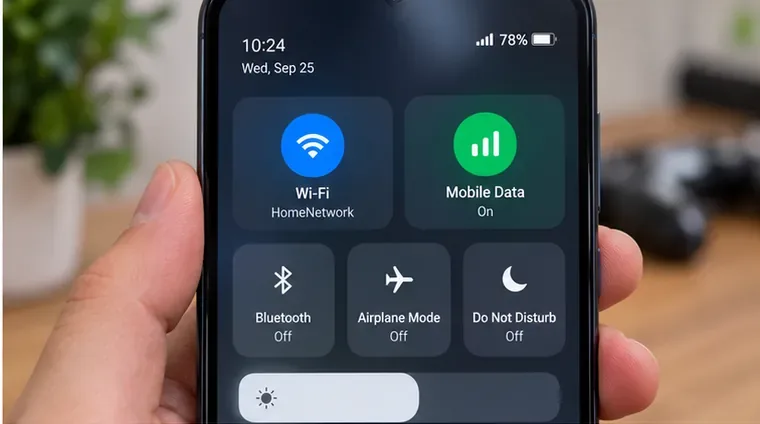
They can. A VPN, DNS filter, ad-blocking profile, work/school network policy, or security app can change how the game reaches Blizzard services. If you use one, temporarily disable it for a controlled test. Do not install a random VPN as a “fix”; the goal is to remove variables, not add another network layer.
Success sign: Hearthstone reaches the main menu on one connection but not another. Move on when: the login stall occurs on both a known-good Wi-Fi connection and mobile data.
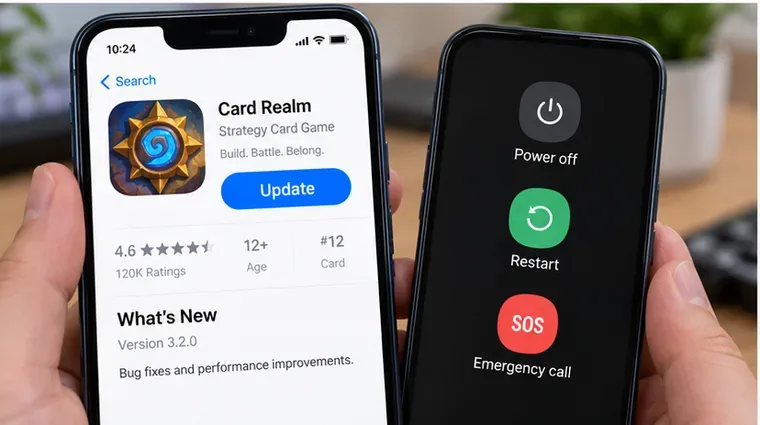
Blizzard’s support sequence puts an up-to-date app first and a device restart immediately after the network test. Open the App Store or Google Play and check Hearthstone directly instead of assuming automatic updates already ran. A server may require a newer client even when the old app still launches far enough to display a login screen.
After updating, fully restart the phone or tablet. A restart clears transient processes and network state without deleting game data. In the hypothetical example, Maya sees an Update button in her store, installs it, restarts the phone, and tries again before changing any storage settings.
This matters particularly around patches. Blizzard’s current 36.6 patch notes show an active update cycle with follow-up changes, so checking the store version is more useful than relying on when you last remember updating.
Blizzard includes the minimum requirements check in its mobile connection guidance. This is especially relevant after major operating-system or game-client changes. If the device no longer meets the current requirements, repeated cache clears and reinstalls are unlikely to turn it into a supported configuration. Use Blizzard’s current Hearthstone system-requirements page from the support site rather than an old forum post or an archived specification.
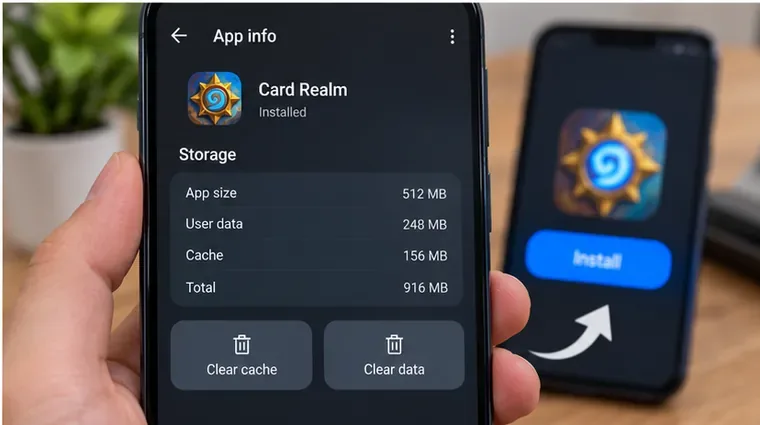
Blizzard specifically recommends opening the app-storage settings on Android and clearing Hearthstone cache/data if the earlier steps do not work. Start with Clear cache when your Android version presents it separately. Cache removal is the lower-impact test because it targets temporary files.
If clearing cache does not help, Clear data is more disruptive: Android treats it much more like resetting the local app state. Make sure you know the Battle.net account that owns your collection before doing this. Hearthstone progression is tied to the Battle.net account rather than to a single phone; Blizzard’s Hearthstone on Mobile support page notes that progress is shared across devices when you sign in with the same Battle.net account.
Menu names differ by Android manufacturer, but the usual path is similar to Settings > Apps > Hearthstone > Storage. Do not clear unrelated system-app data.
iOS does not expose the same per-app cache/data controls that Blizzard lists for Android. If Hearthstone is current, the device has been restarted, and the problem occurs on multiple networks, a full delete-and-reinstall becomes the cleaner iOS equivalent.
This step deserves extra context in October 2026. Blizzard’s official 36.6 Highlights & Known Issues thread recently tracked an iOS crash issue as resolved and indicated that some affected players might need to fully reinstall. That note concerns an iOS crash problem, not every “Logging in” stall, so it should not be treated as proof that reinstalling will fix all login failures.
Before deleting the app, confirm that you can access the correct Battle.net account. If you use more than one region or account, note which one contains your collection. Reinstall Hearthstone from the official store, let the app finish downloading required files, then sign in again.
At this point, Maya has tried two independent networks, updated Hearthstone, restarted her phone, and reinstalled the app. If the login screen still hangs, repeating the same reinstall is low-value. Instead, test whether the Battle.net account can sign in on the Battle.net website or on another supported device.
If the account itself cannot authenticate, use Battle.net account-recovery or support tools. If the account works elsewhere but Hearthstone mobile still cannot connect on the affected device, collect useful troubleshooting details before contacting Blizzard: phone/tablet model, OS version, Hearthstone version, region, whether Wi-Fi and cellular both fail, and exactly where the login process stops.
That information makes the support request much more actionable than “the app does not work.” Blizzard’s mobile connection article directs players who have exhausted the listed steps to the Technical Support Forum or direct support.
| What you observe | Most useful next action | What the result tells you |
|---|---|---|
| Many players report the same issue | Check Blizzard status/technical-support updates | Likely service-side; avoid unnecessary reinstalls |
| Works on mobile data but not Wi-Fi | Troubleshoot the Wi-Fi/router/DNS/VPN path | App and account can probably authenticate |
| Fails on both Wi-Fi and cellular | Update Hearthstone and restart the device | Rules out a simple single-network problem |
| Android only, still stuck | Clear Hearthstone cache, then data if necessary | Tests stale/corrupt local app state |
| iOS or Android still stuck after all above | Fully reinstall after confirming Battle.net access | Replaces the local installation |
| Fresh install still cannot log in | Test the account elsewhere and contact Blizzard support | Stops the cycle of repeated local fixes |
For a Hearthstone mobile app stuck on “Logging in,” the highest-value sequence is: check for an official service issue, compare Wi-Fi with mobile data, update the game, restart the device, verify support requirements, clear Hearthstone cache/data on Android if needed, and reinstall only after the lower-risk tests fail. The hypothetical Maya example shows why the order matters: every step should either fix the problem or tell you something new about where the failure is occurring.
If a fresh installation still hangs on multiple networks while the same Battle.net account works elsewhere, stop repeating local resets and escalate with device, OS, game-version, region, and network details. That gives Blizzard support the evidence needed to distinguish an account, client, device, or service-side problem.
Enable PUBG’s network statistics HUD to monitor ping and packet loss in a match. See where to find it, what the numbers mean, and what they cannot diagnose.
Learn how to import VALORANT crosshair codes, compare presets with manual settings and spectator copy, and fix common import issues.
Choose Dota 2 minimap size, hero icons, team colors, and background settings by readability, fewer misclicks, and clear results on your own display.
Fix Fortnite texture pop-in on PC with official steps for GPU drivers, file verification, DirectX 12, high-resolution textures, VRAM, SSDs, and stutter.
Learn what Heroes of the Storm minimap size and position options are verified, improve readability, and choose camera-click controls that suit you.
Set Super Smash Bros. Ultimate Quickplay to prefer hazards-off stages. Follow the Preferred Rules menu steps and learn why matchmaking may not always honor them.
Enable Server Latency and Packet Loss in Warzone to monitor connection quality, read the overlay, and use recurring spikes to guide troubleshooting.
Learn how to carry from mid lane in League of Legends by setting up waves, choosing safe roam windows, reading side lanes, and converting pressure into objectives.
Fix Minecraft Evoker spell problems with a safe vanilla test, version checks, log review, and a step-by-step way to isolate mod or datapack conflicts.
Fix PUBG stuck on Initializing on Steam with a focused checklist for PC service notices, launch options, game files, downloads, and connection issues.








