How to Check Real-Time Server Latency in the PUBG HUD

Enable PUBG’s network statistics HUD to monitor ping and packet loss in a match. See where to find it, what the numbers mean, and what they cannot diagnose.
A black screen immediately after a Free Fire update does not, by itself, prove that your account is banned or that the new patch is broken for everyone. As of October 7, 2026, Garena’s official news page lists OB55, released September 10, 2026, but I could not verify an official notice describing a universal OB55 black-screen outage. Garena does, however, document rare cases in which the client can crash or remain stuck after patch updates. That makes a local cache, resource, graphics, network, or installation problem a reasonable first place to troubleshoot.
Verified: Garena’s support documentation says Free Fire can crash or become unresponsive and recommends restarting the device, checking the connection, clearing cache, freeing storage, updating device software, and reinstalling if necessary. A separate Garena article about rare post-patch client crashes recommends lowering display load to Graphics: Smooth, High FPS: Normal, and Auto Scale: Off.
Situational: the exact cause depends on the phone, operating system, free storage, memory pressure, network quality, and whether the update installed cleanly. A device that ran an older build successfully can still have trouble after a larger update because new assets and temporary files change the workload.
Not verified: there is no basis to assume that every black screen after OB55 is a server-wide defect. If many players in your region are affected at the same time, check Garena’s official channels before making destructive changes.
Useful references: Garena OB55 patch notes, Garena game-crash troubleshooting, and Garena’s post-patch client-crash guidance.
A restart is the lowest-risk fix because it closes background processes and refreshes memory. Garena lists restarting as the first step in its Android crash guide. If Free Fire opens normally afterward, you do not need to clear data or reinstall.
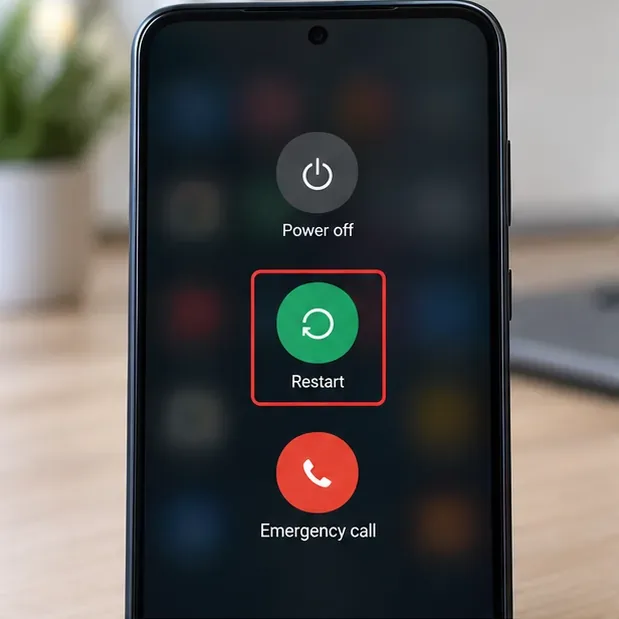
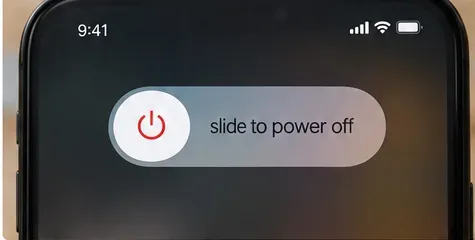
On iPhone, use the normal power-off sequence for your model, wait a few seconds, and turn it back on. The button combination varies by iPhone generation, so use Apple’s standard method for your device rather than forcing repeated hard resets unless the phone itself is frozen.
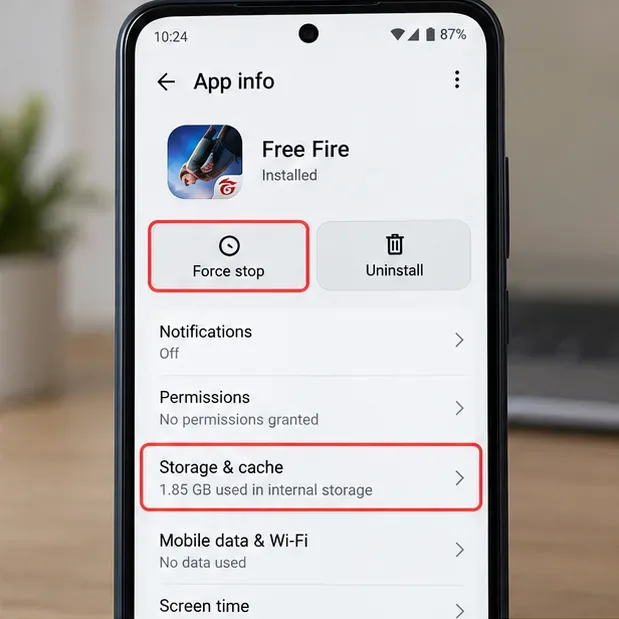
If the app is stuck in memory after the update, force stopping it ends that running process without deleting your account or downloaded game data. On most Android devices, open Settings, go to Apps, choose Free Fire, tap Force stop, and then relaunch the game. Menu names differ among Samsung, Xiaomi, Oppo, Vivo, Pixel, and other Android builds.
Check the result: if Free Fire now reaches the login or lobby screen, stop troubleshooting. If the display is still black, continue to the cache step.
Garena specifically recommends clearing the app cache when crashes or freezes continue. Cache files are temporary, so clearing them is different from erasing all app storage. On Android, open Free Fire’s App info page, choose Storage & cache, and tap Clear cache.
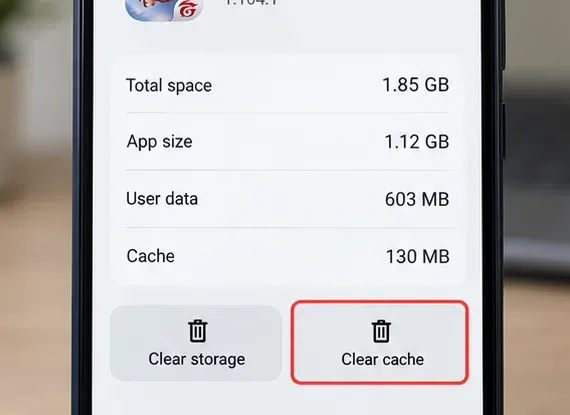
A common misunderstanding is that “Clear cache” and “Clear storage” are interchangeable. They are not. Clearing storage can remove local app state and require a fresh login. Garena’s 2026 account-protection guidance warns that guest accounts can be lost around version changes and recommends binding the account to a supported platform. If you still use a guest account, do not clear storage or uninstall until the account is safely bound.
See Garena’s account-protection guidance before any destructive reset.
An update needs room not only for the final installed files but also for temporary download and extraction data. Garena’s support page says insufficient free space can contribute to app problems and recommends freeing storage. Its published minimum-requirements article lists 1.5 GB or more of storage as a minimum and 3 GB or more for the recommended configuration, while noting that minimum hardware may not provide smooth performance.
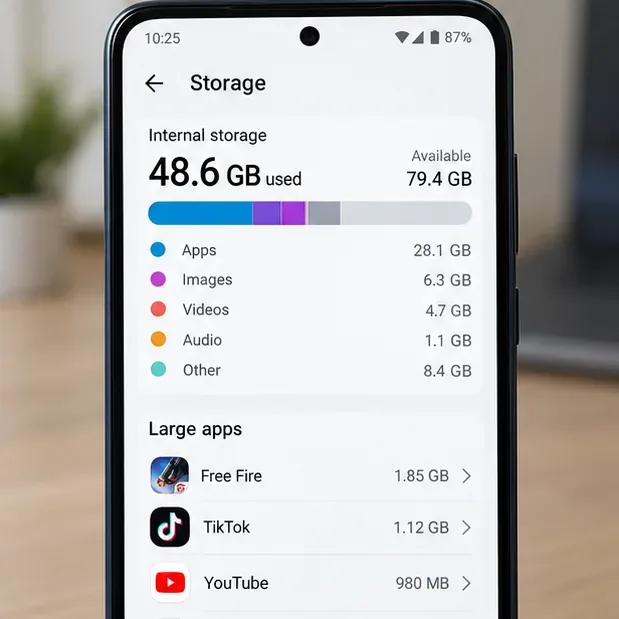
Delete or offload files you no longer need, then restart Free Fire. Avoid “RAM booster” or “game cleaner” apps that promise a guaranteed fix; Garena’s own lag guide says many such apps provide little or no useful improvement.
If the game reaches the lobby or settings but turns black when a match begins, Garena has a more specific post-patch recommendation: use Graphics: Smooth, High FPS: Normal, and Auto Scale: Off. This is especially relevant when the issue appears during match loading rather than before login.
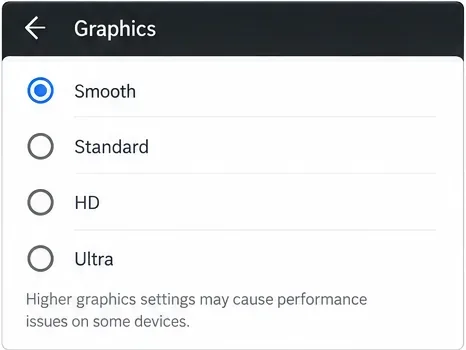
This step does not prove that the GPU is defective. It simply lowers rendering demand so you can test whether the black screen is tied to the current graphics workload.
Open the official Google Play Store or Apple App Store listing and make sure there is no newer Free Fire build waiting. Also check Android or iOS system updates. Garena recommends keeping device software current because system updates can include compatibility and stability fixes.
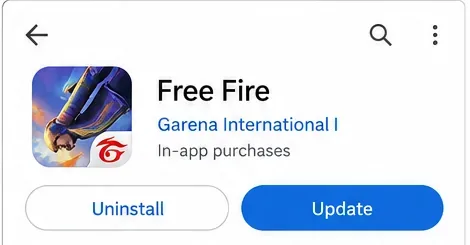
Use only the official client. Garena advises against MODs and third-party programs, both for stability and account safety.
A pure black screen can look like a graphics failure even when the app is waiting on network resources. Garena recommends a stable connection, closing background apps, and switching between Wi-Fi and mobile data when appropriate. If you use a VPN, disable it for testing; Garena’s bug-report guidance explicitly recommends doing so.
If one network works and another consistently produces the black screen, the problem is more likely network-related than a damaged installation. Garena’s connection troubleshooting page explains its recommended checks.
If restarting, clearing cache, freeing storage, lowering graphics, updating software, and testing the network do not help, a clean reinstall is reasonable. Garena includes reinstalling in both its crash and bug-report guidance because it replaces damaged or incomplete game files.
Before uninstalling, confirm that your account is bound and that you can sign back in. This is especially important for guest accounts. Then uninstall Free Fire, restart the phone, reinstall from the official store, and allow the game to finish downloading required resources on a stable connection.
If the black screen continues after a clean official reinstall, especially on a device that meets the requirements, gather reproducible details and submit a support request. Garena asks for the device brand and model, operating system, game version, how often the issue occurs, and steps that reproduce it. A short screen recording can also be useful if your regional support form allows attachments.
Garena says software bugs cannot necessarily be fixed immediately and may require a later patch. Use the official bug-report instructions and, if necessary, find your regional support team through Garena’s customer-service directory.
| What you see | Best next action |
|---|---|
| Black screen immediately after launch | Restart, force stop, then clear cache |
| Black screen when entering a match | Use Smooth graphics, Normal High FPS, Auto Scale Off |
| Game worked until a partially completed update | Free storage, update again, then reinstall if needed |
| Problem changes between Wi-Fi and mobile data | Troubleshoot the network and disable VPN |
| Issue survives a clean reinstall | Collect device/OS/game-version details and report the bug |
The safest approach is progressive: start with steps that do not erase data, test after each change, and only reinstall once account access is protected. That gives you the best chance of fixing a Free Fire black screen after an update without creating a second problem.
Enable PUBG’s network statistics HUD to monitor ping and packet loss in a match. See where to find it, what the numbers mean, and what they cannot diagnose.
Learn how to import VALORANT crosshair codes, compare presets with manual settings and spectator copy, and fix common import issues.
Choose Dota 2 minimap size, hero icons, team colors, and background settings by readability, fewer misclicks, and clear results on your own display.
Fix Fortnite texture pop-in on PC with official steps for GPU drivers, file verification, DirectX 12, high-resolution textures, VRAM, SSDs, and stutter.
Learn what Heroes of the Storm minimap size and position options are verified, improve readability, and choose camera-click controls that suit you.
Set Super Smash Bros. Ultimate Quickplay to prefer hazards-off stages. Follow the Preferred Rules menu steps and learn why matchmaking may not always honor them.
Enable Server Latency and Packet Loss in Warzone to monitor connection quality, read the overlay, and use recurring spikes to guide troubleshooting.
Learn how to carry from mid lane in League of Legends by setting up waves, choosing safe roam windows, reading side lanes, and converting pressure into objectives.
Fix Minecraft Evoker spell problems with a safe vanilla test, version checks, log review, and a step-by-step way to isolate mod or datapack conflicts.
Fix PUBG stuck on Initializing on Steam with a focused checklist for PC service notices, launch options, game files, downloads, and connection issues.








