Home
» 🎮 Esports
»
How to Fix Fortnite’s Match Queuing Canceled Error
How to Fix Fortnite’s Match Queuing Canceled Error
You press Ready, wait for Fortnite to find a match, and then the queue cancels instead of loading the game. Repeating the same attempt can leave you stuck in the lobby, especially when it is unclear whether the problem affects your party, one island, or Fortnite itself.
The most useful fix starts with that distinction. Check Epic’s services first, refresh your session, and compare another mode before changing network settings or repairing files. This order avoids a large reinstall when matchmaking is unavailable or an island cannot gather enough players.
Documentation checked: October 7, 2026, UTC. This guide covers canceled queues and related matchmaking failures; it does not assume that every message has the same cause or that a current widespread outage exists. The figures illustrate relevant controls, and menu appearance may differ by platform or update.
What a canceled Fortnite queue can mean
Matchmaking is the process that places players into a game session. “Match queuing canceled” describes a failed attempt to enter that session, but the message alone does not identify which part failed. Record any additional error number or permission message before dismissing it.
Epic’s matchmaking error guidance identifies server maintenance and network connection problems as major causes of related errors. It also distinguishes tournament permission problems from ordinary connection failures. An eligibility message requires checking the event requirements, rather than repeatedly changing settings.
Creative islands have another possibility. Epic’s Creative Mode Settings documentation states that a queue cancels at the end of its overtime phase if the island’s minimum player count is not reached. That is a matchmaking rule, not proof of damaged game files. Ordinary players cannot change the creator’s island settings.
1. Check Epic’s service status before retrying
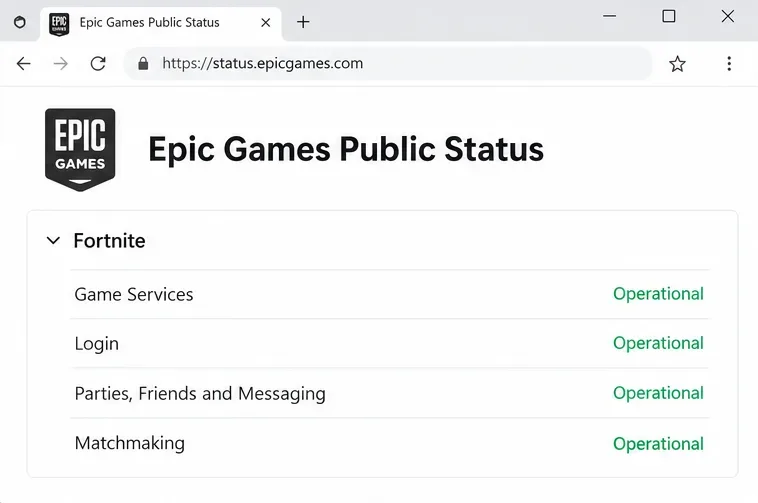
Open the Epic Games Public Status page and expand Fortnite. Review Matchmaking, Game Services, Login, and Parties, Friends, and Messaging, then read any relevant incident or maintenance notice.
If matchmaking is disabled or an incident matches your symptoms, wait for Epic’s update before trying again. Repairing the game on your device cannot restore an unavailable service. If the page shows normal operation, continue with the checks below; a normal status page does not conclusively rule out a newly developing or narrowly affected problem.
The Fortnite section separates matchmaking, login, and party services. Check the live page for current conditions.
2. Refresh the lobby and restart Fortnite
Once the canceled attempt has returned you to the lobby, confirm the intended experience is selected and retry once. If the same failure repeats, exit Fortnite completely and reopen it. On a console, close the game rather than merely switching to the home screen. On PC, close the launcher too if it appears stuck.
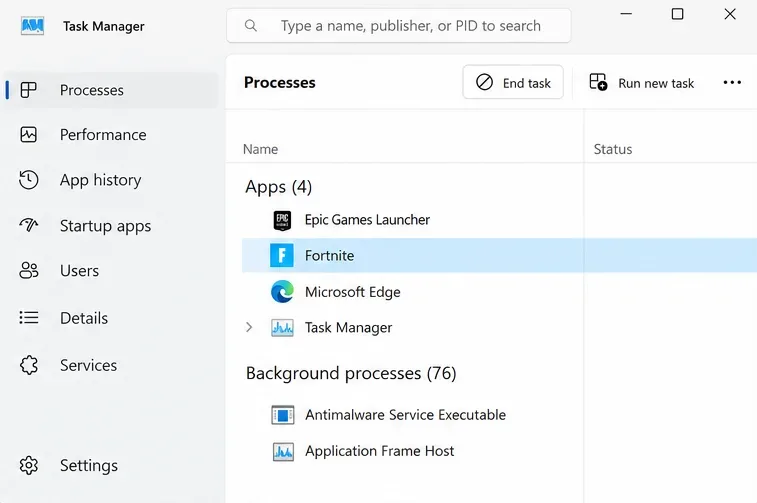
If a Windows game process will not close, press Ctrl + Shift + Esc, select Fortnite in Task Manager, and use End task. Reserve forced closing for an unresponsive process. Restart the device if the game cannot relaunch cleanly.
This resets the running session without changing your installation. It is a basic diagnostic step, not a guaranteed cure. Avoid repeated restarts if Epic has already announced maintenance.
Task Manager can close an unresponsive Fortnite process before a fresh launch on Windows.
3. Complete pending updates on every party member’s device
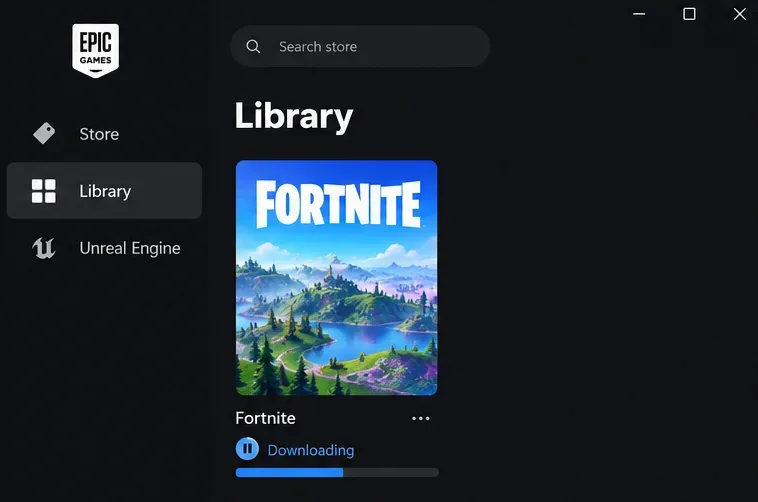
Check your launcher or platform’s game update controls, install any available Fortnite update, and let it finish before reopening the game. On PC, inspect the Epic Games Launcher’s download activity. Ask friends to check their own devices rather than assuming that everyone updated at the same time.
This removes an outdated installation as a possible complication. It does not establish that an update mismatch caused your particular canceled queue. If everything is current, keep the same setup for the next comparison instead of downloading or reinstalling unnecessarily.
Let a pending Fortnite download finish before testing the queue again.
4. Separate a party problem from an experience problem
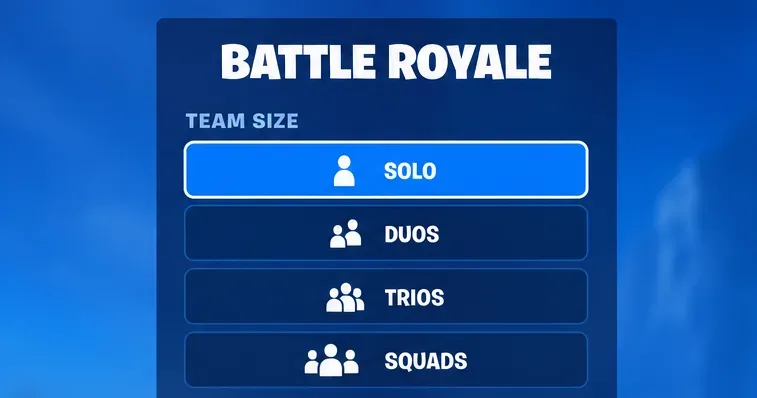
Try one normal, non-tournament Epic experience by yourself, using a Solo option where available. Then compare it with the experience that failed. Keep the network and region unchanged for this test so you can interpret the difference.
Solo works but the party fails: Re-form the party, confirm everyone is back in the lobby and ready, and select a mode that supports your group size.
Other experiences work but one Creative island fails: Note the island code. Its availability or player-count rules may be relevant; try later or choose another island.
Every tested experience fails: Continue with region and connection checks.
The error names an event or permission restriction: Follow the event’s eligibility guidance instead of treating it as a generic queue fault.
These comparisons narrow the scope of the failure. A successful Solo test does not prove that a friend caused the problem, and one failed island does not prove your whole connection is broken.
A Solo comparison helps distinguish a party-specific failure from a broader matchmaking problem.
5. Review Matchmaking Region and start with Auto
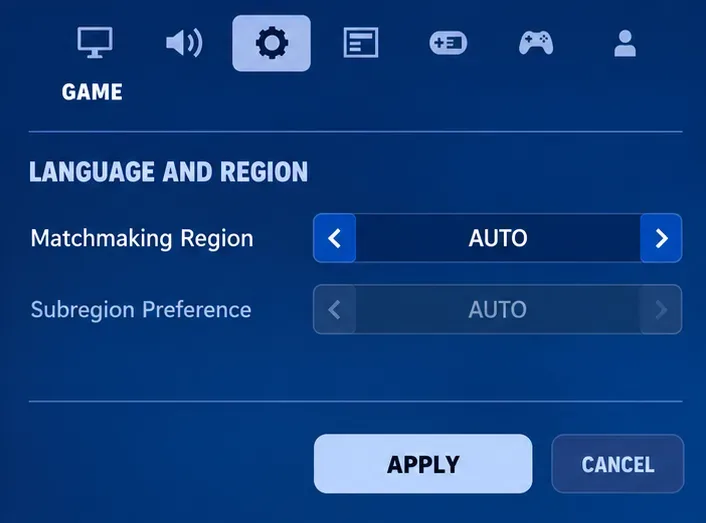
A matchmaking region is the geographic server area used for finding games. Open your player icon, select Settings, open the Game tab, and find Language and Region. Set Matchmaking Region to Auto and apply the change.
Epic’s current region-setting instructions recommend Auto, which selects the region with the best ping and locks Subregion Preference to Auto. Ping is the round-trip travel time for data, measured in milliseconds; lower values generally mean a quicker response.
If the issue persists, a different nearby region can serve as a temporary comparison, particularly for Creative connection trouble. Epic lists this option in its Creative matchmaking support article. Record your original choice and restore it if the change does not help. A distant region may increase latency, and region changes do not bypass tournament eligibility rules.
Auto selects the matchmaking region automatically and keeps Subregion Preference on Auto.
6. Check the connection without changing everything at once
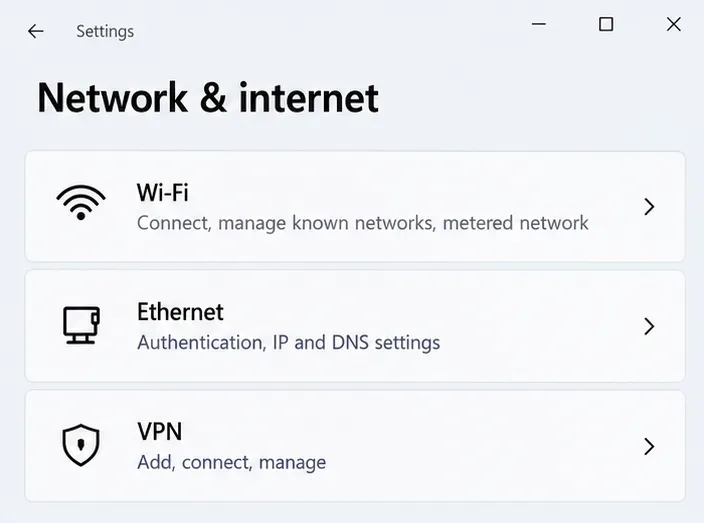
Pause large downloads, uploads, and video streams on the network. If practical, compare Ethernet with Wi-Fi. Epic’s latency troubleshooting guide recommends a wired connection and reducing competing traffic. A working video stream or website is useful information, but it does not prove that Fortnite traffic reaches its servers reliably.
If needed, restart your modem and router when doing so will not interrupt someone else’s work. Epic’s router restart instructions say to turn off the gaming device, disconnect the modem and router from power for at least a minute, reconnect them, wait for their lights to return, and then reconnect the device. Use the power connection, not the factory-reset button.
For persistent failures, an alternate trusted connection can help identify whether the original network is involved. Consider data costs before using a hotspot. If the alternate connection works repeatedly, investigate your router or internet provider before reinstalling Fortnite.
Epic’s connection troubleshooting checklist includes further options such as checking device time, proxy settings, and DNS. DNS translates internet names into addresses. Treat those as targeted follow-up checks, preserve existing settings, and avoid disabling security protections broadly as a generic fix.
Compare the connection type before making more extensive network changes.
7. Verify Fortnite files on PC
If service, mode, and connection checks have not explained the failure, verify the installation on PC. Verification checks for damaged or changed game files and repairs them where necessary. It is more targeted than reinstalling the entire game.
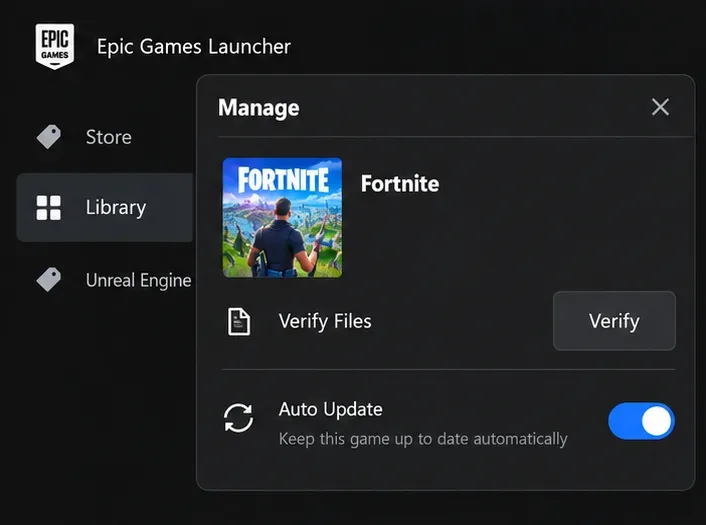
Close Fortnite and open the Epic Games Launcher.
Find Fortnite in Library and open the three-dot menu.
Select Manage, then Verify.
Wait for validation and any repairs to finish before launching again.
These steps come from Epic’s official file-verification instructions, which state that saved data is unaffected. Verification can take time and cannot repair an unavailable matchmaking service. Console players should skip this launcher-specific procedure. Do not delete game data or unlink accounts to imitate it.
Use Manage and Verify in the Epic Games Launcher to check the PC installation.
8. Report a repeatable failure with useful details
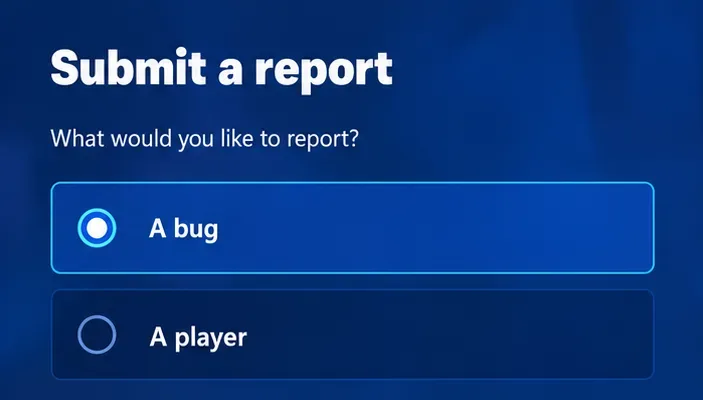
If the queue still cancels, submit a bug report while the issue is visible. Epic’s in-game reporting instructions direct you to open the game menu, select the three-line menu icon, then Report, Submit a report, and A bug. Select a relevant reason, or Other if none fits.
Review the attached screenshot and use Re-take screenshot if needed, then Continue and Accept to submit. The reporting tool does not support video evidence. Reporting supplies Epic with evidence; it does not immediately repair the queue.
Keep the exact error text, platform, affected experience or island code, selected region, approximate time with time zone, and whether Solo or another connection worked. If you contact support separately, include these results rather than simply saying that matchmaking is broken. Reinstalling should remain a later installation-focused option, not the default response to an unexplained queue cancellation.
Choose A bug when reporting a repeatable matchmaking failure.
How to tell whether the fix worked
Test the same experience and party size that originally failed. Success means the queue progresses into a playable session, rather than merely showing Ready again. Complete the test normally; avoid abandoning a live team match just to try another setting.
After returning to the lobby, check whether the next attempt also succeeds. If you changed several settings, restore unnecessary changes individually and watch for recurrence. A single successful queue is encouraging, but repeatable behavior gives you better evidence.
Result
What to investigate next
Only one island still fails
Island availability, queue requirements, or a creator-side issue
Only party attempts fail
Party readiness, supported group size, and each member’s session