How to Check Real-Time Server Latency in the PUBG HUD

Enable PUBG’s network statistics HUD to monitor ping and packet loss in a match. See where to find it, what the numbers mean, and what they cannot diagnose.
To troubleshoot Dead by Daylight’s “Host Unreachable” or “server host unreachable” error, check for service notices first, restart the game and launcher, and compare your connection before repairing files. The wording alone does not identify whether the failure is on your device, your network, or a remote service. Avoid reinstalling immediately or changing several router settings at once.
Guidance checked October 8, 2026. Behaviour provides general connection troubleshooting, but the official support material reviewed does not establish one universal cause or guaranteed fix for this exact message. The interface illustrations below show relevant controls, not results from a tested repair. Layouts can vary by software version.
Misunderstanding: “Host unreachable means my router is broken.” A failed connection is a symptom, not a diagnosis. Open the Dead by Daylight Help Center and official news page for relevant notices. On consoles, also check PlayStation service status or Xbox service status.
A platform service disruption can matter even when your browser works. Conversely, an empty announcements page does not prove every game server is healthy. This guide makes no claim about a live outage at the time you read it.
Action: If an official notice matches your platform and symptoms, wait for the stated recovery update. If no matching notice appears, continue with local checks rather than assuming an outage.
Close Dead by Daylight completely. On PC, exit Steam or the Epic Games Launcher, reopen it, and launch the game from its library. On console, fully quit the game instead of merely returning to the home screen, then reopen it.
Behaviour’s network troubleshooting article specifically recommends launching through the platform library. A fresh launch is a useful low-effort check, but improvement afterward does not prove what caused the original failure.
Action: Note whether the error appears at startup, when joining a friend, or while entering a match. Retest the same point after relaunching so you can compare the result.
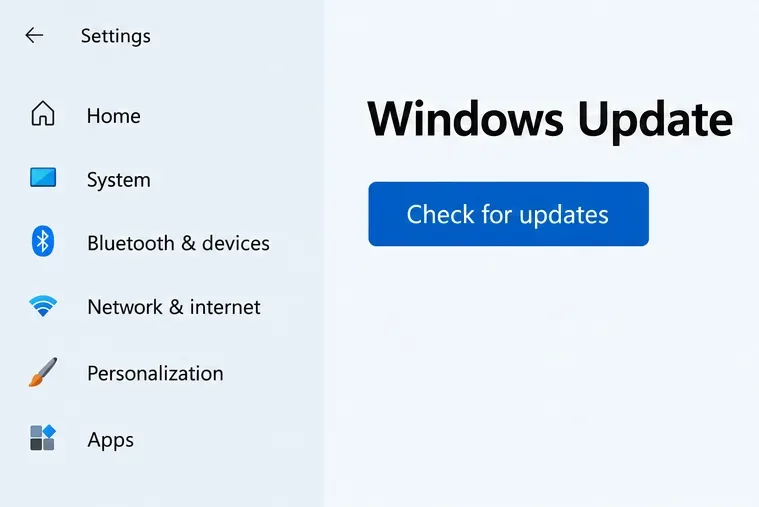
Check that the game’s update has completed and that the launcher or console software is current. Behaviour recommends keeping the game, operating system, and platform software updated. On Windows, open Settings, choose Windows Update, and use the update-check button. Restart if an installed update requires it.
Misunderstanding: “Any connection error requires a graphics-driver reinstall.” Driver updates are part of broader maintenance, but the message alone is not evidence of a graphics problem. Focus first on pending game and system updates instead of removing working drivers.
Action: After updates finish, reopen the game and record whether the same connection stage still fails. Do not call an update a confirmed fix unless the problem actually stops recurring.
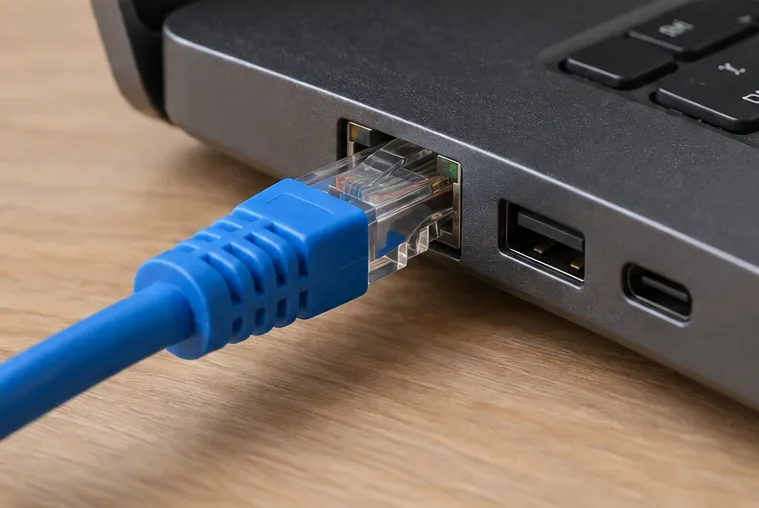
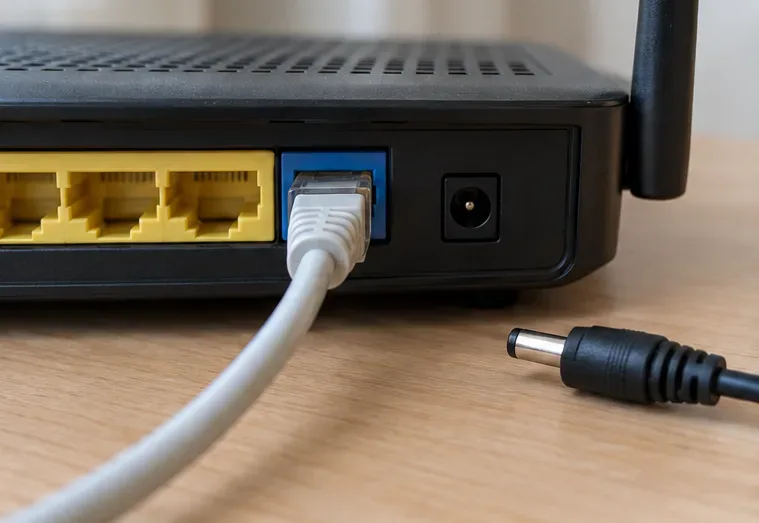
Behaviour recommends trying Ethernet because it is typically more stable than wireless. If available, connect your PC or console to a LAN port on your router and repeat the same lobby or matchmaking attempt. Pause your own large downloads during the comparison.
Misunderstanding: “A fast speed test proves the game connection is fine.” Download throughput and reaching a particular game service are different questions. A successful web download cannot exclude a problem affecting only the game’s connection.
Action: If Ethernet consistently works while Wi-Fi fails, investigate the wireless link. If both fail, that result does not by itself prove a server outage. Keep the distinction in your troubleshooting notes.
Use a power restart, not the recessed factory-reset button. Microsoft’s connection troubleshooting guidance describes unplugging modem and router power, waiting about 30 seconds, then powering the modem first and the router afterward. Wait for them to finish reconnecting. A combined modem-router needs only its own restart.
This temporarily disconnects everyone using that equipment. Follow your provider’s instructions if the setup differs, and do not reboot shared equipment you do not manage.
Action: Once normal internet access returns, repeat the game connection attempt. A restart that changes nothing is useful evidence; repeatedly restarting is unlikely to clarify the cause.
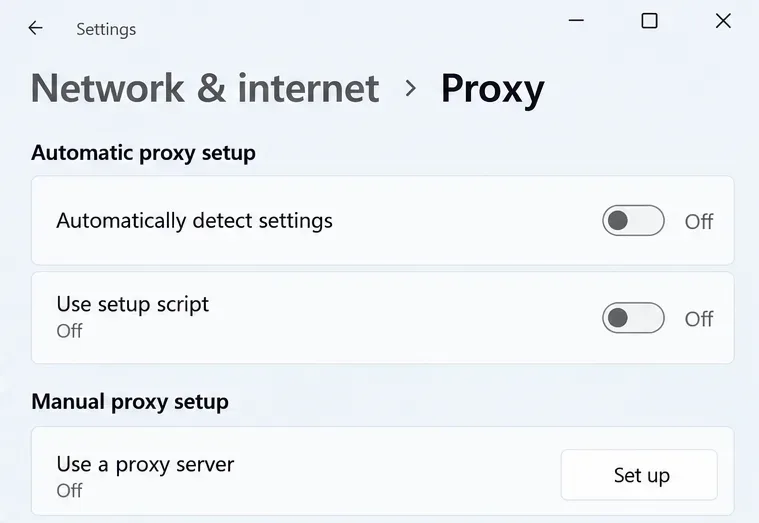
Behaviour’s proxy troubleshooting guidance says proxies can cause connection or installation errors. A proxy routes traffic through an intermediary. Microsoft documents the current Windows path as Settings > Network & internet > Proxy in its proxy settings reference.
If you configured an optional manual proxy on your personal PC, save its settings and temporarily turn it off for a comparison. Do not disable settings required by your workplace or school. A VPN is configured separately; switching the proxy off does not necessarily disconnect a VPN.
Action: If the network is managed, ask its administrator whether game traffic is permitted. Review specific firewall blocks rather than turning off all protection. A blanket firewall change is not justified by this message alone.
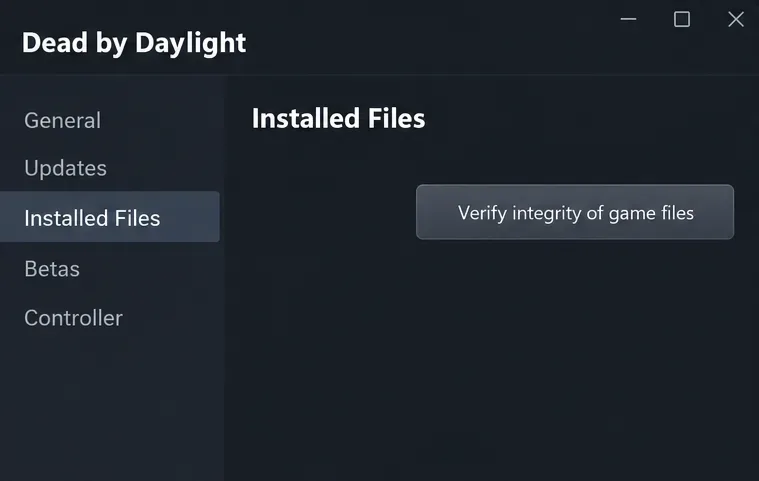
Misunderstanding: “File verification repairs the server.” It checks the local installation. Behaviour includes this option in its PC error troubleshooting guide. It is particularly reasonable if the problem followed an incomplete update or accompanies other installation errors.
These paths are documented by Steam Support and Epic Games Support. Epic states that verification does not affect saved data. The launcher instructions do not apply to console editions.
Action: Relaunch after verification. If the same error persists, do not keep repeating the check or assume the installation is corrupted. Reinstalling downloads the game again; it cannot repair a remote service failure.
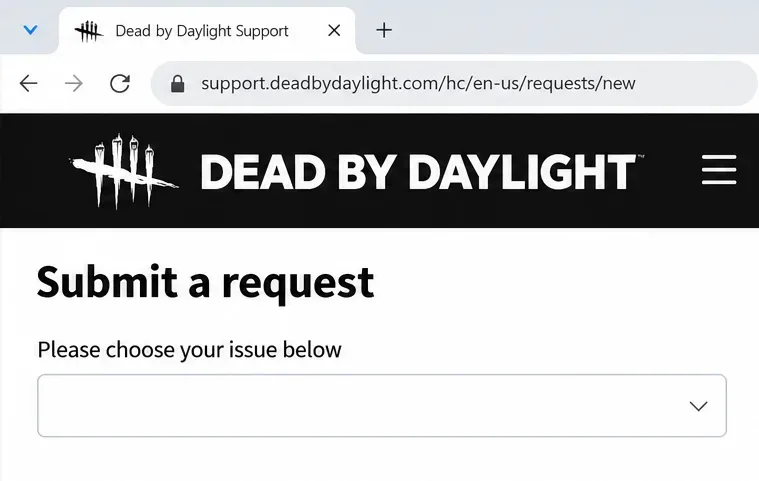
Use Behaviour’s support request page if the error continues. Provide the exact wording or an actual screenshot from your device, platform and storefront, game version, approximate time with time zone, and the point where it occurs.
Include whether the problem affects solo matchmaking, joining friends, or both, plus your Wi-Fi/Ethernet comparison and the changes already attempted. Send diagnostic files only as requested through official support channels; leave passwords and authentication codes out.
| Observation | Reasonable interpretation | Useful next move |
|---|---|---|
| A matching official disruption notice exists | A service problem may explain the failure | Follow the official recovery notice |
| Ethernet repeatedly works while Wi-Fi fails | The wireless connection deserves investigation | Check signal and router guidance |
| Only joining one friend fails | The affected scenario is narrower than all matchmaking | Report party-specific details |
| All checks leave the same error unchanged | The cause remains unconfirmed | Submit a concise support report |
The most useful fix is the one supported by your results. Change one thing at a time, keep track of what happens, and stop treating the error text as proof of a specific cause. That approach gives you a better chance of resolving a local issue and gives support clearer evidence when the problem is elsewhere.
Enable PUBG’s network statistics HUD to monitor ping and packet loss in a match. See where to find it, what the numbers mean, and what they cannot diagnose.
Learn how to import VALORANT crosshair codes, compare presets with manual settings and spectator copy, and fix common import issues.
Choose Dota 2 minimap size, hero icons, team colors, and background settings by readability, fewer misclicks, and clear results on your own display.
Fix Fortnite texture pop-in on PC with official steps for GPU drivers, file verification, DirectX 12, high-resolution textures, VRAM, SSDs, and stutter.
Learn what Heroes of the Storm minimap size and position options are verified, improve readability, and choose camera-click controls that suit you.
Set Super Smash Bros. Ultimate Quickplay to prefer hazards-off stages. Follow the Preferred Rules menu steps and learn why matchmaking may not always honor them.
Enable Server Latency and Packet Loss in Warzone to monitor connection quality, read the overlay, and use recurring spikes to guide troubleshooting.
Learn how to carry from mid lane in League of Legends by setting up waves, choosing safe roam windows, reading side lanes, and converting pressure into objectives.
Fix Minecraft Evoker spell problems with a safe vanilla test, version checks, log review, and a step-by-step way to isolate mod or datapack conflicts.
Fix PUBG stuck on Initializing on Steam with a focused checklist for PC service notices, launch options, game files, downloads, and connection issues.








