How to Check Real-Time Server Latency in the PUBG HUD

Enable PUBG’s network statistics HUD to monitor ping and packet loss in a match. See where to find it, what the numbers mean, and what they cannot diagnose.
Dead by Daylight error code 8012 with the message “Initial Skill Check failed” can stop the game before you reach the normal online flow. The most useful first question is not “Which random fix should I try?” but “Is this a Dead by Daylight service problem, a connection problem on my side, or a local PC issue?” That distinction determines whether you should wait, troubleshoot your network, or repair the installation.
As of October 7, 2026, Behaviour Interactive’s public support site does not provide a dedicated article that maps error 8012 to one single confirmed cause. Behaviour does, however, publish official guidance for network problems, file verification, background-software conflicts, and anti-cheat launch errors. The sequence below uses those first-party troubleshooting paths rather than treating an unofficial explanation as fact.
Illustrative example only: Alex launches Dead by Daylight on a Windows PC after playing normally the previous evening. The game reaches its initial online checks, then shows error code 8012 and “Initial Skill Check failed.” Alex has not changed the game files, but Windows and several hardware utilities updated recently. Instead of reinstalling immediately, Alex follows a four-step isolation process: confirm whether the problem is broader than the PC, refresh the connection, verify the game files, and then check firewall or background-software interference.
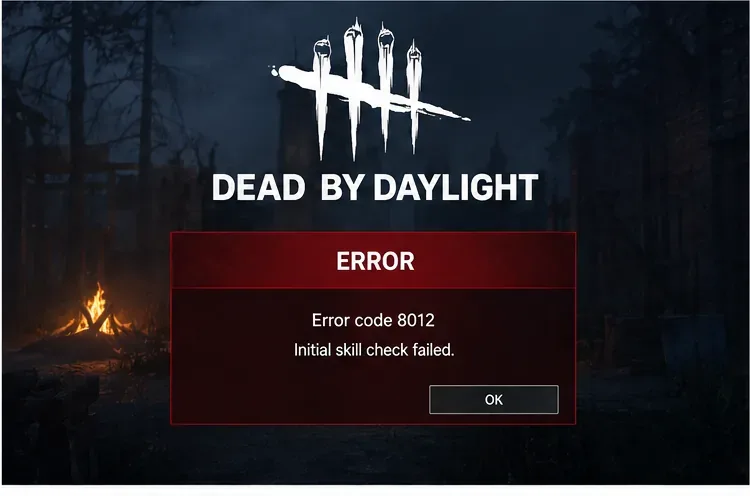
Start here because a local repair cannot fix a server-side outage. Close the error, relaunch the game once from your normal platform library, and check Behaviour’s official support pages and official Dead by Daylight communication channels for a current incident notice. Behaviour maintains a Dead by Daylight Support home page and lists its verified social channels in its official social-media directory.
If an official notice says login, matchmaking, or online services are degraded, stop changing local settings and wait for the incident to be resolved. If no current incident is posted and other online services work normally, continue with your own connection. In the illustrative example, Alex finds no official outage notice, so the next reasonable target is the route between the PC and Dead by Daylight’s services.
Behaviour’s Network Troubleshooting guide recommends a wired connection when possible, closing other applications, keeping Windows and the game updated, power-cycling the modem/router, refreshing DNS, checking NAT, making sure Dead by Daylight is not blocked by Windows Firewall, and disabling a proxy if one is interfering.
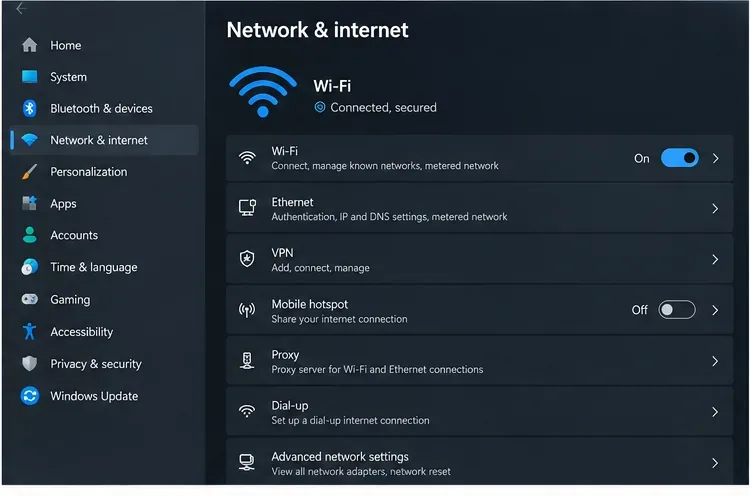
For a practical first pass, fully exit Dead by Daylight and your launcher, then restart the PC. Restart the modem/router as well if other devices are showing unstable connectivity. If you use Wi-Fi, test Ethernet if available. Avoid jumping directly to Windows “Network reset”; Microsoft describes that as a last-step option because it removes and reinstalls network adapters and can require VPN or virtual-network software to be configured again.
If basic connectivity looks healthy but 8012 persists, Behaviour’s documented Windows DNS refresh sequence is ipconfig /release, then ipconfig /renew, then ipconfig /flushdns, followed by a restart. Run Command Prompt with the permissions required on your PC. In the example, Alex first tests the simpler restart and wired-connection route before touching DNS, because it changes less and is easier to reverse.
If the network is stable and there is no reported service incident, verify the game files. Behaviour has a dedicated file-verification guide covering Steam, Epic Games Store, and the Xbox app for Windows.
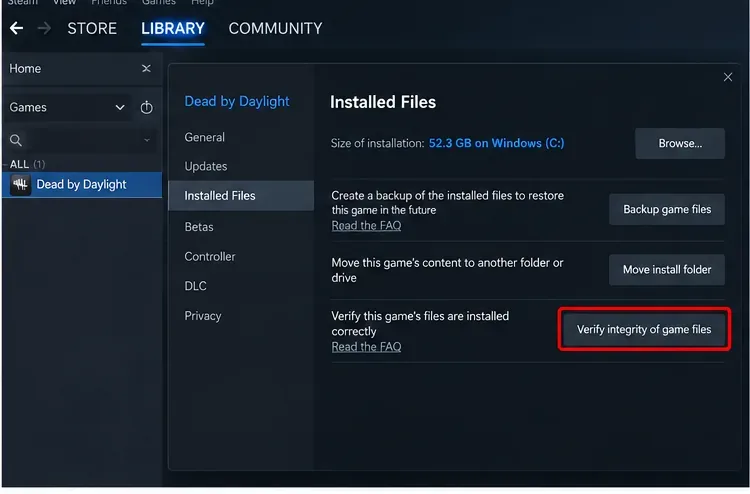
On current Steam builds, right-click Dead by Daylight in Library, choose Properties, open Installed Files, and select Verify integrity of game files. Valve’s official Steam verification instructions note that the scan may take several minutes and that some local configuration files can legitimately fail verification. On Epic Games Store, use the game’s Library menu and choose Verify. In the Xbox app for Windows, open the game’s Manage page, then Files, then Verify and repair.
Let the verification finish before launching the game again. Do not assume a repaired file proves that file corruption was the sole cause; the useful test is whether the same 8012 failure returns after the verified installation launches normally.
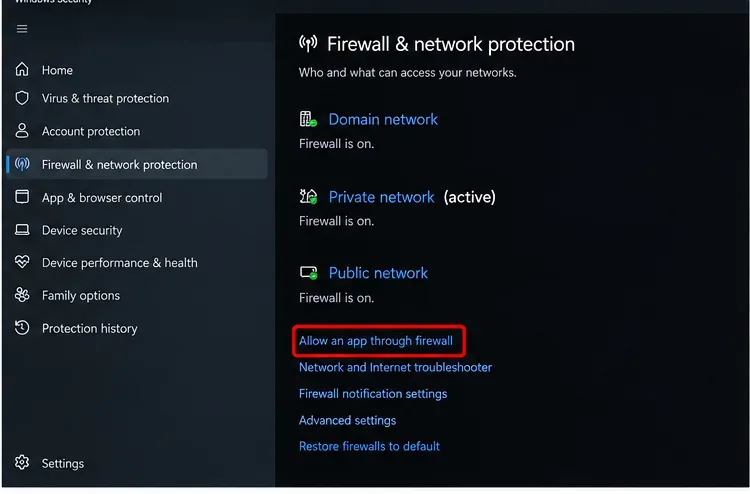
Behaviour specifically tells players to ensure Dead by Daylight is not being blocked by Windows Firewall and notes that shared networks, including school or university networks, can impose their own firewall restrictions. It also recommends checking for proxy interference. Do not solve this by permanently disabling your firewall. Instead, confirm that the game and its launcher are allowed through the active Windows network profile, or test from a different trusted network if the current network is managed by someone else.
If the error appeared after a recent security or driver change, background software is also worth isolating. Behaviour’s July 17, 2026 EAC Launch Error notice says a security update can require newer versions of certain RGB or motherboard utilities, CPU/GPU tuning tools, BIOS utilities, hardware-monitoring tools, OEM updater utilities, and some anti-cheat or antivirus software. That notice is about an EAC launch error, not a confirmed definition of code 8012, so use it only if your 8012 problem is accompanied by an anti-cheat or software/driver warning.
For unexplained PC-side conflicts, Behaviour also recommends a clean boot. Microsoft’s clean-boot procedure for Windows starts Windows with essential drivers and startup programs so you can isolate interfering software. Keep track of anything you disable so you can restore normal startup afterward.
Use a simple success criterion: Dead by Daylight should pass the initial online check repeatedly and reach the normal menu without code 8012. After each major change, launch from the official platform library and test again. If one change restores access, stop there and reverse any temporary troubleshooting changes you no longer need.
In the illustrative Alex scenario, suppose a file verification changes nothing but switching from an unstable Wi-Fi connection to Ethernet lets the game pass the initial check consistently. That would point to the connection path as the useful lead, not prove that every 8012 case is network-related. If instead a clean boot is the first condition under which the game starts, re-enable disabled services or startup apps in groups until the conflicting software is identified.
If code 8012 survives the four-step sequence—no known service issue, a stable connection, verified files, and no obvious firewall or background-software conflict—collect evidence before opening a ticket. Behaviour asks players who encounter an error message to provide as much detail as possible and include a screenshot when available. Note your platform, when the error started, whether it happens on another network, and which troubleshooting steps you completed. You can start from the official error-message support article.
The key is to treat “Initial Skill Check failed” as a symptom that needs isolation, not as proof of a single root cause. Check the service side first, then the network, then local files, and finally Windows security or background conflicts. That order minimizes unnecessary changes and leaves you with a clearer record if Behaviour Support needs to investigate further.
Enable PUBG’s network statistics HUD to monitor ping and packet loss in a match. See where to find it, what the numbers mean, and what they cannot diagnose.
Learn how to import VALORANT crosshair codes, compare presets with manual settings and spectator copy, and fix common import issues.
Choose Dota 2 minimap size, hero icons, team colors, and background settings by readability, fewer misclicks, and clear results on your own display.
Fix Fortnite texture pop-in on PC with official steps for GPU drivers, file verification, DirectX 12, high-resolution textures, VRAM, SSDs, and stutter.
Learn what Heroes of the Storm minimap size and position options are verified, improve readability, and choose camera-click controls that suit you.
Set Super Smash Bros. Ultimate Quickplay to prefer hazards-off stages. Follow the Preferred Rules menu steps and learn why matchmaking may not always honor them.
Enable Server Latency and Packet Loss in Warzone to monitor connection quality, read the overlay, and use recurring spikes to guide troubleshooting.
Learn how to carry from mid lane in League of Legends by setting up waves, choosing safe roam windows, reading side lanes, and converting pressure into objectives.
Fix Minecraft Evoker spell problems with a safe vanilla test, version checks, log review, and a step-by-step way to isolate mod or datapack conflicts.
Fix PUBG stuck on Initializing on Steam with a focused checklist for PC service notices, launch options, game files, downloads, and connection issues.








