How to Check Real-Time Server Latency in the PUBG HUD

Enable PUBG’s network statistics HUD to monitor ping and packet loss in a match. See where to find it, what the numbers mean, and what they cannot diagnose.
If Dead by Daylight stops at an Easy Anti-Cheat (EAC) integrity or verification check, start by matching the exact message to its cause. A corrupted game file, an EAC service problem, an incompatible utility, and a Windows driver-signature setting need different fixes. Work through the low-risk checks first; use command-line or firmware-related fixes only when the error specifically points to them.
Current note: Behaviour Interactive’s support article dated July 17, 2026 says a recent security update can block launch when it detects outdated software or a driver. The error should identify the flagged item; update that specific application or driver through its vendor. This article reflects official guidance checked October 7, 2026.
| What the message suggests | Start here |
|---|---|
| File verification, missing file, or EAC initialization | Restart Steam and the PC, then verify Dead by Daylight’s files. |
| Named outdated driver or software after the July 2026 update | Update the exact item from its manufacturer’s official support page. |
| “Game Security Violation Detected” | Exit RGB, overclocking, hardware-monitoring, or similar utilities and retest. |
| Driver Enforcement / signature enforcement | Use Behaviour’s specific Windows steps only if this is the displayed error. |
| EAC Error Code 4 | Verify files; if it remains, run System File Checker and consider hardware checks. |
The illustrations below are generic interface examples, not screenshots of your PC or a claim that every launcher version has identical labels.
Write down the full wording, any error code, and any driver or application name shown. Note whether the problem began immediately after a Dead by Daylight update, a Windows update, or an update to a motherboard, RGB, monitoring, or security utility. This detail determines which branch below applies. An integrity warning alone does not prove that your account is banned.
If the notice names an outdated driver or program, go to that device or software maker’s own support page. Avoid third-party “driver updater” tools and do not download replacement EAC files from unofficial sites.
Close Dead by Daylight and the launcher completely, restart Windows, then allow Steam or the platform where you own the game to finish any pending game update. Launch the game from that library rather than from a copied executable. A restart can clear a stuck process or pending service update, but it will not repair damaged game files by itself.
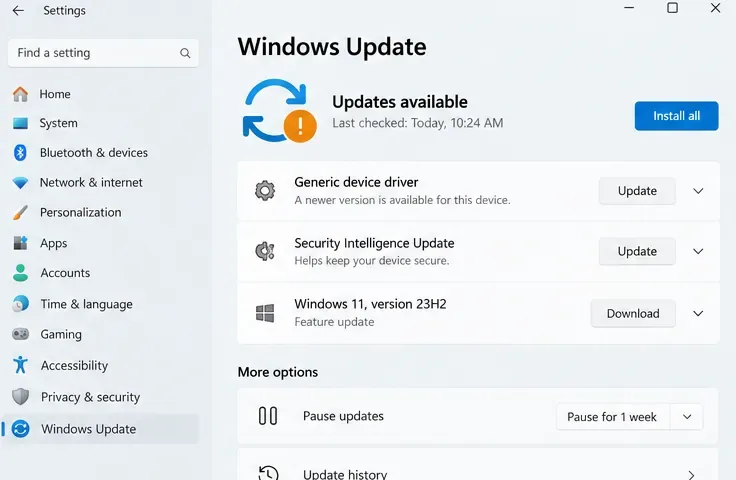
Install ordinary Windows updates when they are offered and appropriate for your PC. If the game’s current message identifies a specific driver or utility, however, update that named item directly from its manufacturer; a general Windows update is not a substitute for the exact fix Behaviour specifies.
Steam can check whether a game’s local files match the expected installation and reacquire files it finds missing or damaged. Behaviour’s EAC Error Code 4 article also recommends file verification. In current Steam, open Library, right-click Dead by Daylight, choose Properties, open Installed Files, then select Verify integrity of game files. Let the process finish before launching the game again.
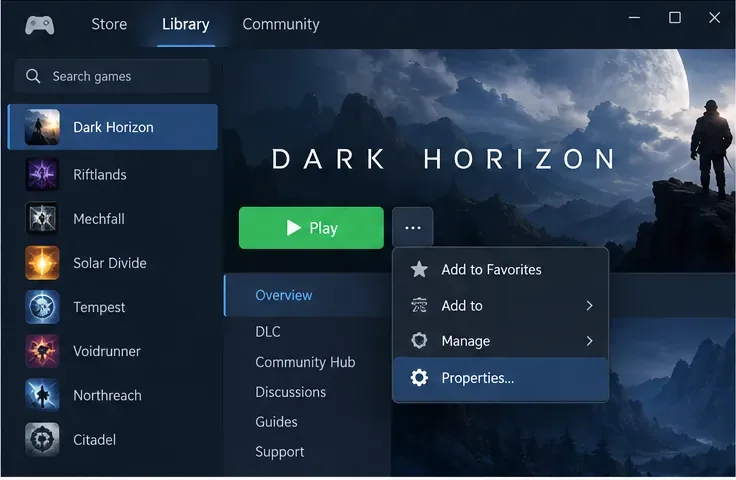
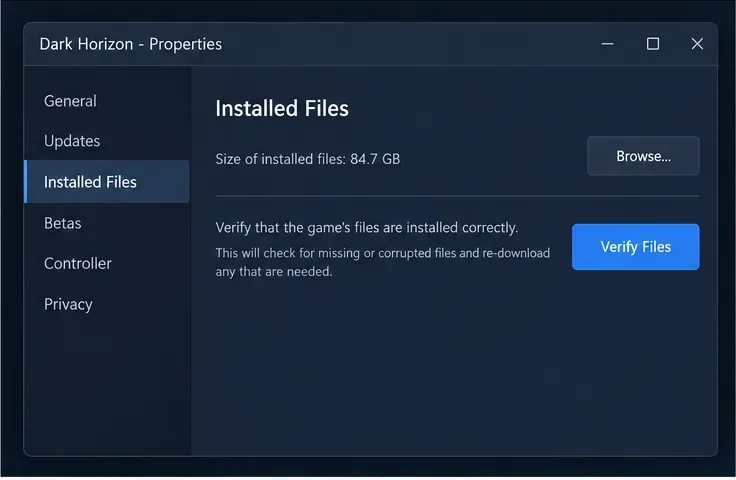
Steam may replace or reacquire files during verification. When it completes, restart Steam and try the game once. If verification reports no problem but the same EAC error returns, continue to the matching next step instead of repeatedly verifying without gathering new evidence.
If the error says EAC is missing, cannot start, or cannot initialize, locate Dead by Daylight’s own EasyAntiCheat folder through Steam’s Browse option on the Installed Files page. If that folder contains an EAC setup program with a Repair Service option, close the game, run that repair for Dead by Daylight, and restart Windows before retesting. The file name and available controls can differ by game build; use the files included with your current installation.
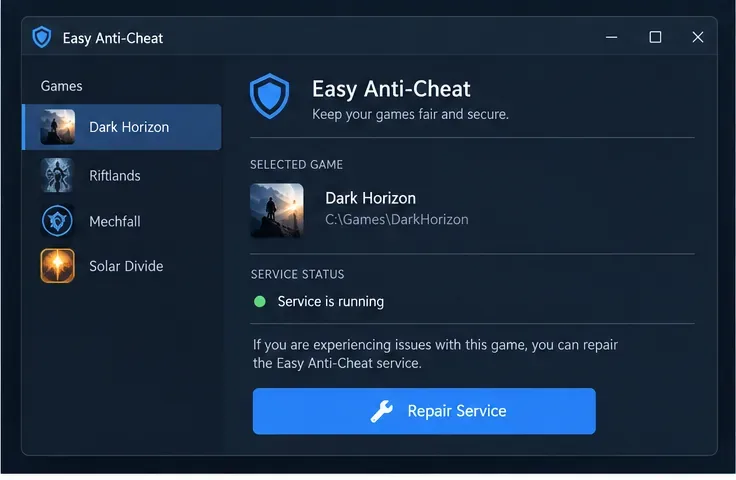
If the folder or repair option is absent, do not download an installer from a file-sharing site. Verify game files again once, then contact Behaviour Support with the exact message and your platform. EAC’s player FAQ likewise directs players with game-specific issues to the relevant game support channel.
Behaviour’s July 17, 2026 support notice says some launch failures follow a security update and can name outdated software or a driver. Its listed categories include RGB or motherboard utilities, CPU or GPU tuning tools, hardware monitors, certain BIOS utilities, OEM updater programs, and other anti-cheat or antivirus utilities. If your error names one, search that exact name and use the publisher or PC manufacturer’s official support page to install its current version. Restart and retest after each update.
If another named item appears after the first update, Behaviour recommends updating the next flagged item as well. Do not uninstall motherboard utilities or flash the BIOS at random: use the manufacturer’s instructions, and seek help if you cannot identify the component. Behaviour says this update is not a Secure Boot implementation and does not change the game’s minimum hardware requirements.
For “Game Security Violation Detected,” Behaviour specifically identifies RGB-control software as a possible conflict with EAC. Fully exit RGB lighting, fan-control, overclocking, and hardware-monitoring apps, including any that remain active in the notification area by the clock. Close one group at a time, then relaunch Dead by Daylight. If the error stops, update the relevant utility from its maker before turning it back on.
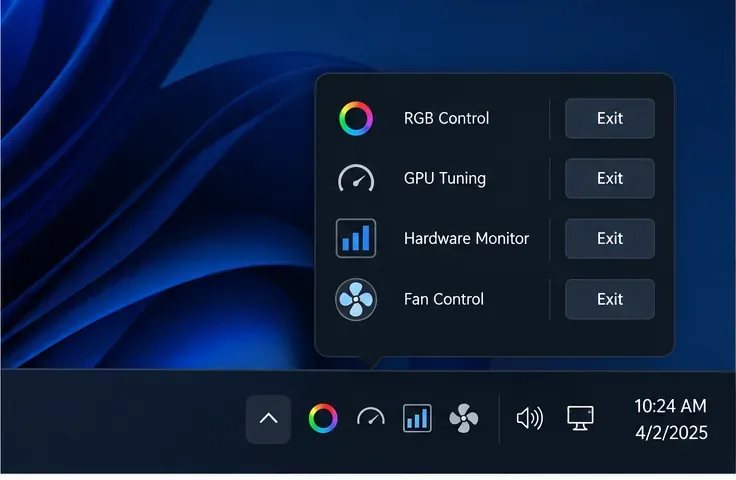
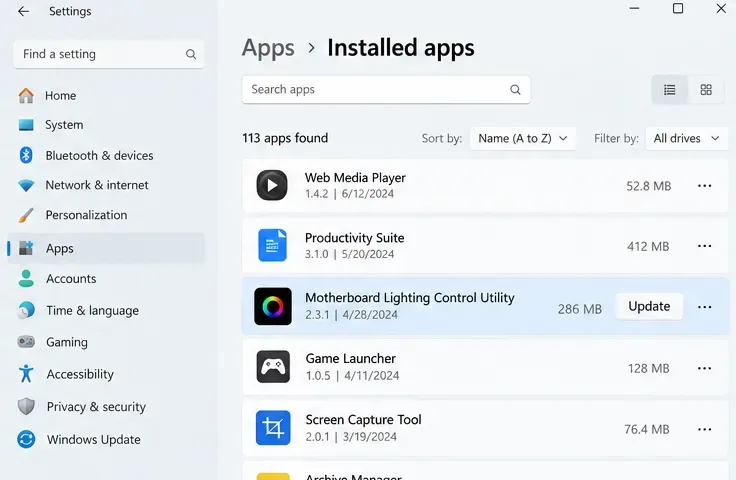
Do not disable Windows Security, your firewall, or anti-cheat protection to get around the check. If closing a utility does not help, restore it and move to the exact error-specific path. This test is useful only when a conflict is plausible; it is not a general fix for every integrity message.
Behaviour has a separate support page for an EAC Driver Enforcement Error. It says that this particular message can mean Windows Driver Signature Enforcement (DSE) has been disabled. If and only if your screen shows that specific error, Behaviour recommends opening Command Prompt and running these commands one at a time, then restarting:
bcdedit.exe -set TESTSIGNING OFF
bcdedit.exe -set NOINTEGRITYCHECKS OFF
These commands change Windows boot configuration. Use an administrator Command Prompt if Windows requires elevation, and do not run them just because another EAC error contains the word “integrity.” If your PC is managed by work or school, or you are unsure what the commands will change, ask the administrator or Behaviour Support first.
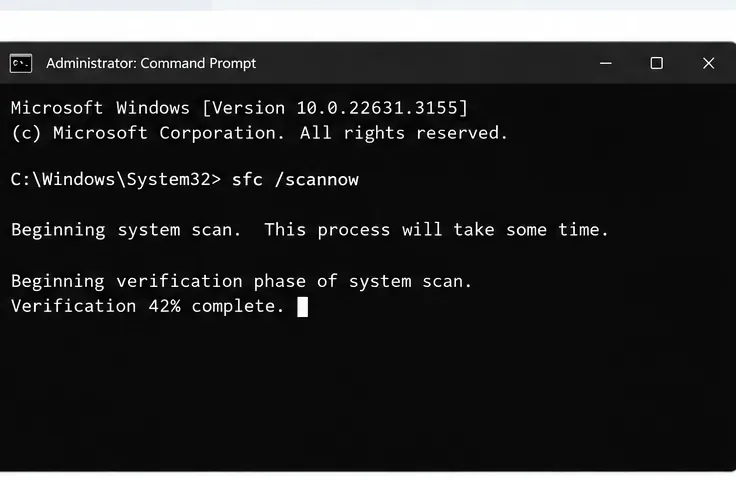
Behaviour’s Error Code 4 guidance recommends running System File Checker if file verification does not resolve the issue. Open Command Prompt as an administrator, run sfc /scannow, wait for it to complete, and restart. The scan checks protected Windows system files; it is not a repair for every EAC failure. Behaviour also notes that recurring Code 4 can be associated with faulty hardware, including RAM. If the code persists, use a trusted PC or memory diagnostic or ask a qualified technician to check the system rather than repeatedly reinstalling the game.
Contact the game’s support team if the exact error remains after the relevant steps, if EAC repair files are missing, or if the message names software you cannot safely update. Include:
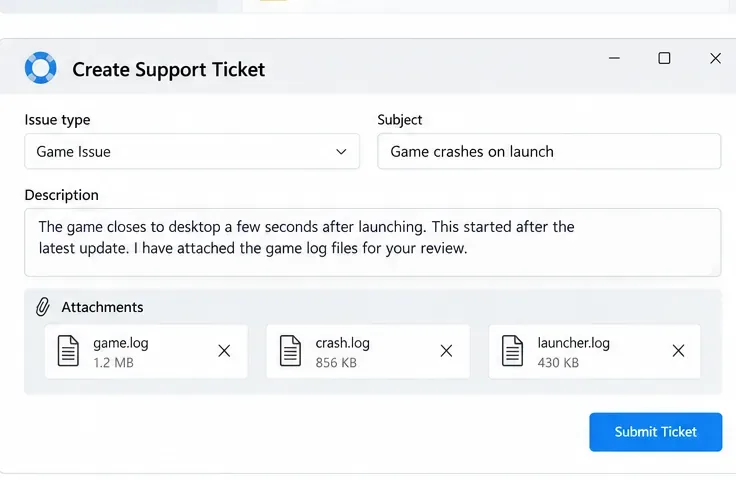
A ban appeal is a different process from repairing an integrity check. Use the game’s official support channel for launch and verification errors; use EAC’s official appeal route only if you are specifically disputing an EAC decision.
Enable PUBG’s network statistics HUD to monitor ping and packet loss in a match. See where to find it, what the numbers mean, and what they cannot diagnose.
Learn how to import VALORANT crosshair codes, compare presets with manual settings and spectator copy, and fix common import issues.
Choose Dota 2 minimap size, hero icons, team colors, and background settings by readability, fewer misclicks, and clear results on your own display.
Fix Fortnite texture pop-in on PC with official steps for GPU drivers, file verification, DirectX 12, high-resolution textures, VRAM, SSDs, and stutter.
Learn what Heroes of the Storm minimap size and position options are verified, improve readability, and choose camera-click controls that suit you.
Set Super Smash Bros. Ultimate Quickplay to prefer hazards-off stages. Follow the Preferred Rules menu steps and learn why matchmaking may not always honor them.
Enable Server Latency and Packet Loss in Warzone to monitor connection quality, read the overlay, and use recurring spikes to guide troubleshooting.
Learn how to carry from mid lane in League of Legends by setting up waves, choosing safe roam windows, reading side lanes, and converting pressure into objectives.
Fix Minecraft Evoker spell problems with a safe vanilla test, version checks, log review, and a step-by-step way to isolate mod or datapack conflicts.
Fix PUBG stuck on Initializing on Steam with a focused checklist for PC service notices, launch options, game files, downloads, and connection issues.








