How to Check Real-Time Server Latency in the PUBG HUD

Enable PUBG’s network statistics HUD to monitor ping and packet loss in a match. See where to find it, what the numbers mean, and what they cannot diagnose.
Clash Royale received its Shocktober season update on October 5, 2026, followed by October balance changes on October 6. If the game suddenly started stopping at 50% around an update, the first useful check is whether you are dealing with a temporary service or maintenance condition, an incomplete app update, or a problem local to your phone. As of October 7, Supercell's current support and news pages do not identify a specific, game-wide “stuck at 50%” incident, so a device-side troubleshooting sequence is appropriate unless the game itself shows a maintenance message.
The goal is not merely to make the progress bar move once. A good fix should let Clash Royale pass the loading screen repeatedly, reach the home screen on the same network, and continue working after you close and reopen the app. Start with the least destructive checks and only reinstall after you know your account is protected.
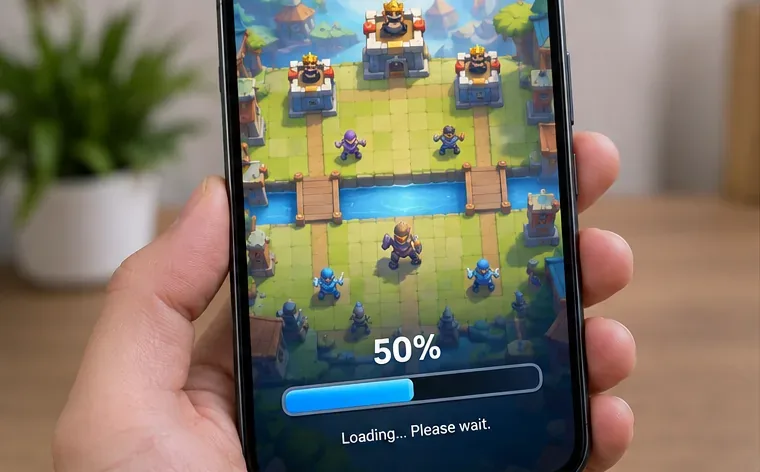
The percentage itself is not a diagnostic code. It simply tells you that the app has not completed its startup process. That can happen when the client cannot finish communicating with the game service, when the local app state is unhealthy, or when the installed version is no longer in sync with the current release.
Supercell's own troubleshooting area lists unstable connection, reinstalling, crashes, and technical assistance as separate support paths. Supercell also explains that during an official maintenance break, players regain access once maintenance ends. That is why repeatedly clearing data during a confirmed maintenance window is unlikely to help.
| What you observe | Most useful next test | What success looks like |
|---|---|---|
| A maintenance message appears | Wait for maintenance to end | The game opens without changing your device |
| Wi-Fi fails but cellular data works | Investigate the Wi-Fi/router path | The game loads reliably on the alternate connection |
| Both networks fail after a recent release | Check for an app update, then restart | The loading bar completes after the client is current |
| Only this device fails | Clear Android cache or proceed to a protected reinstall | The game opens repeatedly after local state is refreshed |
If Clash Royale is under maintenance, do not treat the 50% screen as proof that your phone is broken. Check the in-game message, the official Clash Royale support portal, and current Supercell news first. If no maintenance is indicated, change the network path rather than simply toggling Wi-Fi off and back on.
On a phone with mobile data available, close Clash Royale, disable Wi-Fi, enable cellular data, and launch the game again. If you normally play on cellular data, test a stable Wi-Fi connection instead. Supercell's unstable connection guidance notes that a strong-looking signal alone does not guarantee a reliable connection.
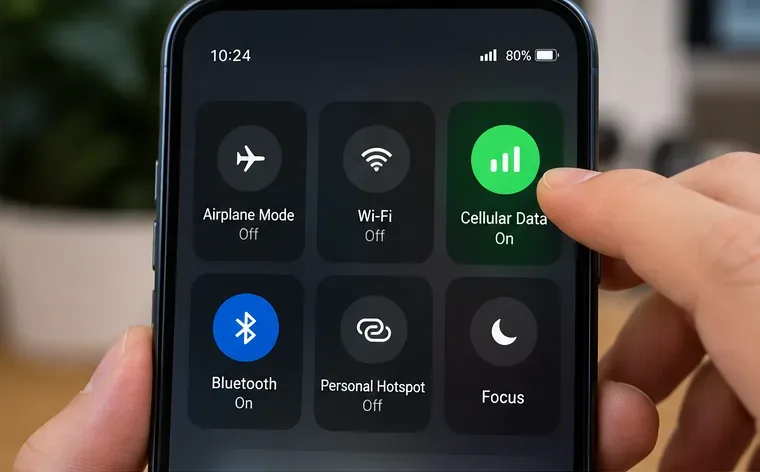
How to judge the result: if Clash Royale loads normally on one connection but still stops at 50% on the other, the app installation is probably not the first thing to replace. Focus on the failing network, such as restarting the router or trying again when that network is less congested. If both independent connections fail in the same way, move to the app and device checks below.
Fully close Clash Royale and reopen it. If that does not change the behavior, restart the phone before making more invasive changes. Apple recommends this sequence for an iPhone or iPad app that will not open correctly: close and reopen the app, restart the device, check for updates, and only later consider deleting and redownloading it. See Apple's current app troubleshooting guidance.
Android users can follow the same low-risk order. Google's official guidance for an installed app that will not open or respond recommends restarting and updating before moving on to cache/data removal or uninstalling. See Google's Android app troubleshooting steps.
Then open Google Play or the App Store and check Clash Royale directly. Do not assume automatic updates have already completed. This matters especially after a current content release such as Shocktober, because a stale client can behave differently from the version Supercell currently expects.
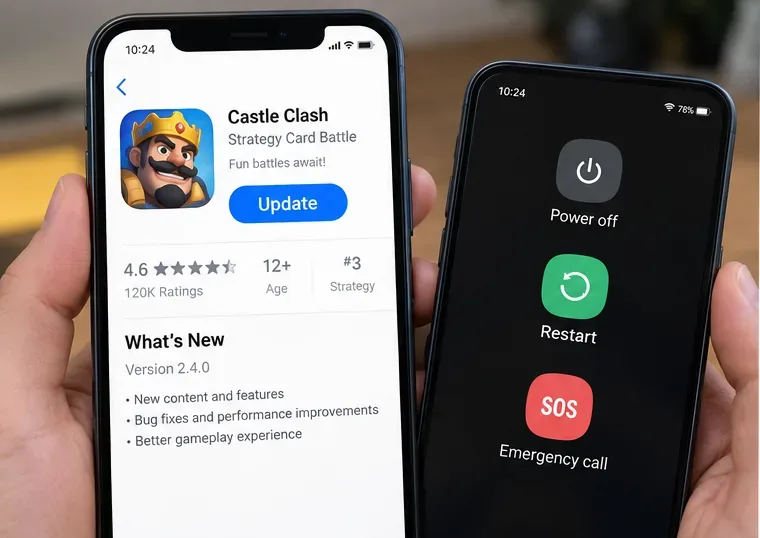
How to judge the result: launch Clash Royale twice after the restart or update, not just once. If it passes 50% both times, stop troubleshooting. If it still freezes at the same point on both Wi-Fi and cellular data, local cached state becomes a more plausible target on Android.
Android normally gives you separate controls for cached files and full app storage. Start with the less destructive option. Open your device's Settings, find Apps, select Clash Royale, open Storage or Storage & cache, and choose Clear cache. Menu names vary by manufacturer.
Google explains that clearing cache removes temporary data, while clearing storage removes the app's stored data. That distinction matters. You can review the official explanation in Android Help on clearing app cache and data.
There is no universal iOS “clear cache” button equivalent for every third-party app. On iPhone or iPad, skip this Android-specific step and stay with Apple's supported close/restart/update sequence before considering a delete-and-redownload operation.
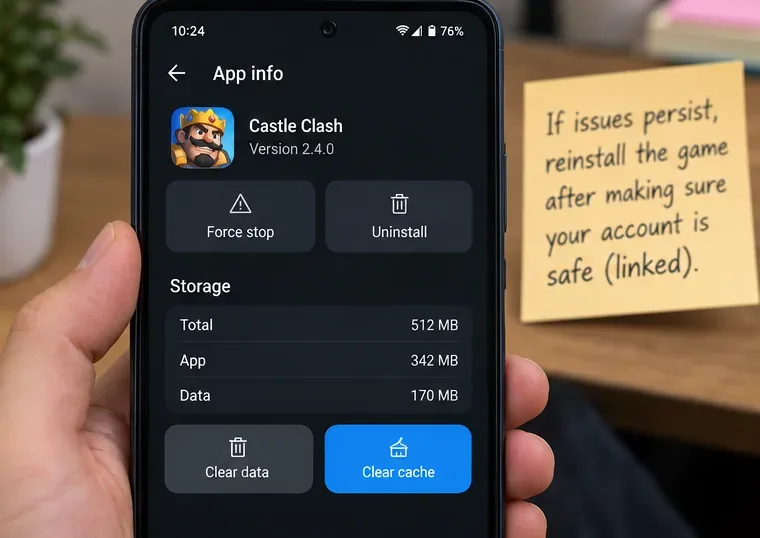
How to judge the result: after clearing only the cache, reopen Clash Royale on the network that previously failed. If it now loads, you do not need to clear storage or reinstall. If nothing changes, avoid repeatedly clearing cache; repeated attempts do not add much information.
If Clash Royale still stops at 50% after independent network tests, a device restart, an update check, and the Android cache step where applicable, reinstalling becomes reasonable. Supercell explicitly treats reinstalling as a later troubleshooting action and warns players to make sure the game is connected to Supercell ID first. Follow the official Clash Royale reinstall instructions.
If you can still reach the game settings on another device that uses the same account, verify that Supercell ID is connected there. If you cannot confirm account recovery details, do not rush into deleting local app data simply because the loading bar is stuck. Preserving account access is more important than testing one more aggressive fix.
After reinstalling, download Clash Royale only from Google Play or Apple's App Store, sign back into Supercell ID when prompted, and test the game on a stable connection. If a clean reinstall still stops at the same point on multiple independent networks, the chance that a simple local cache issue is responsible is much lower.
Escalate the problem when the basic isolation tests no longer distinguish a local cause. Useful signs include all of the following:
At that point, use the official Clash Royale Support portal. When reporting the issue, include your device model, operating-system version, Clash Royale version if visible, the approximate time the issue began, and whether the same account or device works on another network. Those details are more actionable than saying only that the progress bar stops at 50%.
Avoid downloading unofficial APKs, “repair” packages, modified clients, or configuration files that claim to bypass the loading screen. They are not part of Supercell's official troubleshooting process and can introduce account or device risk. Also avoid clearing full app storage before you understand how your account is recovered.
Changing DNS servers, disabling security features, or resetting all network settings can sometimes be suggested in informal discussions, but they are not necessary first-line actions for this symptom. The four-step sequence above gives you more diagnostic value with less disruption.
If Clash Royale is stuck at 50%, start by asking whether the problem follows the service, the network, or the device. Check maintenance, swap between Wi-Fi and cellular data, restart and update the app, then clear Android cache if applicable. Reinstall only after confirming Supercell ID protection.
The fix is successful when the game passes the loading screen consistently, not merely once. If the same failure survives a current app version, two independent networks, a restart, and a protected reinstall, stop cycling through local tweaks and send the evidence to Supercell Support. That is the point where further device-side experimentation has diminishing value.
Enable PUBG’s network statistics HUD to monitor ping and packet loss in a match. See where to find it, what the numbers mean, and what they cannot diagnose.
Learn how to import VALORANT crosshair codes, compare presets with manual settings and spectator copy, and fix common import issues.
Choose Dota 2 minimap size, hero icons, team colors, and background settings by readability, fewer misclicks, and clear results on your own display.
Fix Fortnite texture pop-in on PC with official steps for GPU drivers, file verification, DirectX 12, high-resolution textures, VRAM, SSDs, and stutter.
Learn what Heroes of the Storm minimap size and position options are verified, improve readability, and choose camera-click controls that suit you.
Set Super Smash Bros. Ultimate Quickplay to prefer hazards-off stages. Follow the Preferred Rules menu steps and learn why matchmaking may not always honor them.
Enable Server Latency and Packet Loss in Warzone to monitor connection quality, read the overlay, and use recurring spikes to guide troubleshooting.
Learn how to carry from mid lane in League of Legends by setting up waves, choosing safe roam windows, reading side lanes, and converting pressure into objectives.
Fix Minecraft Evoker spell problems with a safe vanilla test, version checks, log review, and a step-by-step way to isolate mod or datapack conflicts.
Fix PUBG stuck on Initializing on Steam with a focused checklist for PC service notices, launch options, game files, downloads, and connection issues.








