Home
» 🎮 Esports
»
How to Fix Clash Royale Crashing When Opening Chests
How to Fix Clash Royale Crashing When Opening Chests
If Clash Royale crashes when opening chests, start with the low-risk fixes: update the game, close it completely and restart your device, then clear the game cache on Android. Check your operating system and free storage before reinstalling. On either platform, confirm your progress is linked to Supercell ID before removing the app.
First identify what “crashing” means. If Clash Royale disappears and returns you to the home screen, work through the app and device checks below. If the game stays open but the chest animation freezes or spins, test your connection too. A crash triggered by one chest is useful to report, but it does not by itself prove a widespread game bug. Supercell’s currently published crash guide covers device requirements and compatibility; it does not name chest opening as a separate known issue.
1. Install any available Clash Royale update
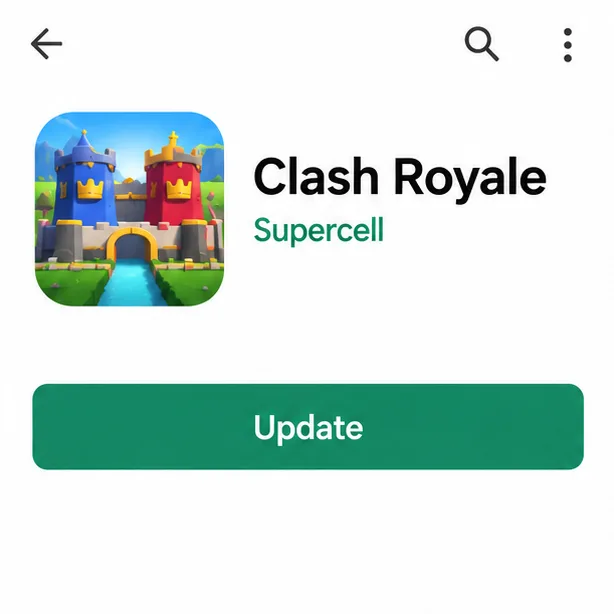
Open the official Google Play Store or Apple App Store, find Clash Royale, and install an update if the store offers one. Then launch the game and wait for the home screen and any update assets to finish loading before you try a chest again. If an update appeared just after you first checked, apply it before trying more disruptive fixes.
Use the official store listing to install any available game update; store layouts vary.
Use the store that normally updates the game. Avoid unofficial APK files or “crash fixer” utilities; they can introduce account and security problems and do not establish that the chest bug is fixed.
2. Force-close the game and restart the device
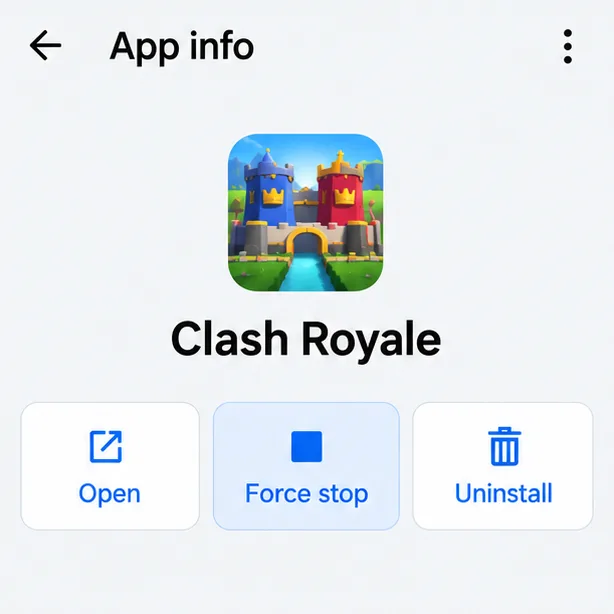
Close Clash Royale from the app switcher. On Android, you can also open Settings > Apps > Clash Royale and tap Force stop; menu labels differ across phone makers. Restart the phone or tablet, open the game again, and see whether the crash still happens.
Force-stopping closes the game process before you open Clash Royale again.
Restarting clears stuck app processes without changing your account settings. Apple’s troubleshooting sequence for an app that closes unexpectedly is to close and reopen it, restart the device, check app and system updates, and then consider deleting and redownloading it. Google’s Android guidance similarly starts with restart and updates, then lists force stop and cache cleanup.
3. Clear the Clash Royale cache on Android
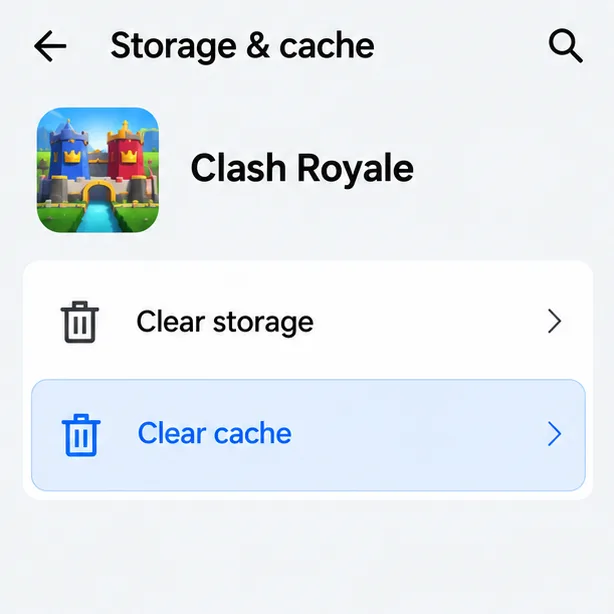
If the game still closes on Android, open Settings > Apps > Clash Royale > Storage & cache and choose Clear cache. The exact path can vary by device. Reopen the game after clearing the cache, let it load, and test once.
Choose Clear cache first; Clear storage removes more local app data.
Do not confuse Clear cache with Clear storage or Clear data. Cache files are temporary; clearing storage is a broader reset that can remove local app data and settings. Leave that option alone unless you have confirmed the correct game account is recoverable through Supercell ID and you are prepared to sign in again. Google notes that clearing cache can free temporary space, while clearing app data is more disruptive.
4. Check system compatibility and available space
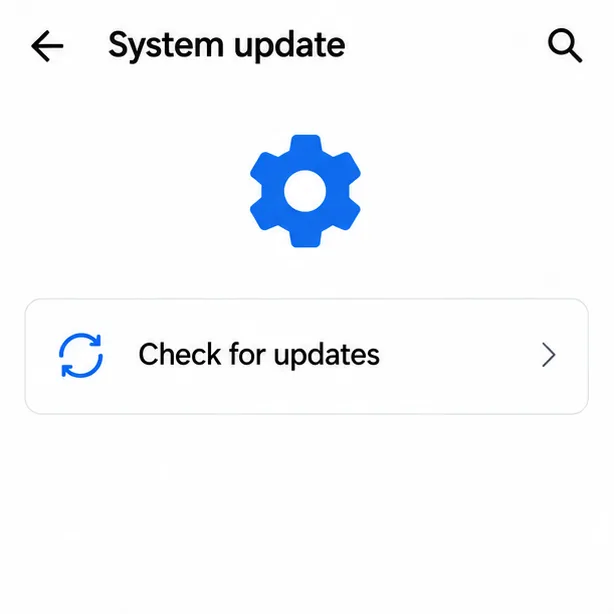
Install any available Android or iOS system update, then check that the device has room to run the game and download assets. A nearly full phone can struggle with updates and temporary files, so free space if storage is close to full, close other demanding apps, and restart before testing again.
Check the device software from Settings; menu names vary by Android manufacturer.
At the time of this rewrite, Supercell’s crash page lists Android 7.0 or newer and iOS 14.0 or newer. It also lists Android minimums of 0.5 GB RAM and 800 × 480 screen resolution, while warning that meeting the minimums does not guarantee smooth play on every device. Check Supercell’s current Clash Royale crash requirements if you are unsure whether your device is supported. A modified Android system or custom ROM can also make a game unstable.
5. Test a stable connection only if the game hangs
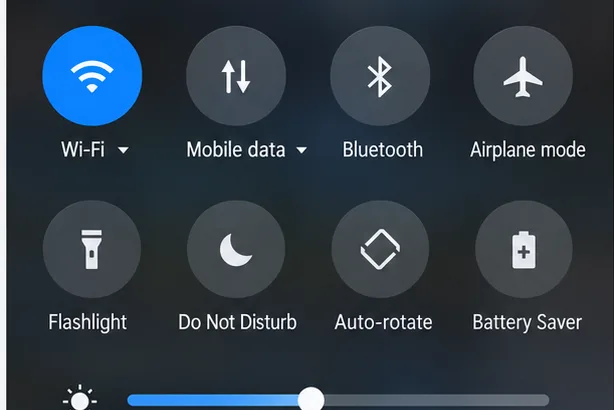
Clash Royale requires an internet connection. If opening a chest stalls, freezes, or shows a loading problem, close the game, switch once between reliable Wi-Fi and mobile data, then relaunch it. Do not change several network settings at once; you want to know whether the connection affected the result.
Compare a reliable Wi-Fi connection with mobile data if chest opening hangs or other online features also fail.
If the app closes instantly every time, even while other online features work, prioritize the update, restart, cache, and device checks. A network switch is a useful diagnostic for a hang or connection error, not a guaranteed fix for an app that exits.
6. Retest the same chest action carefully
After each change, wait for the home screen to settle and try the chest action once. If the chest remains unopened after the crash, use that same chest for the next test. If it opened successfully, do not claim it is the same chest; use the next comparable chest or reward and record the difference. Note whether the game closes immediately, freezes first, or returns an error, and whether other parts of the game work.
Retest the same chest action after one change, if the chest is still unopened.
A precise trigger helps separate a general device crash from an issue tied to one reward or animation. Avoid repeatedly tapping the opening control. Make one change, perform one comparable test, and write down the outcome.
7. Reinstall only after checking Supercell ID
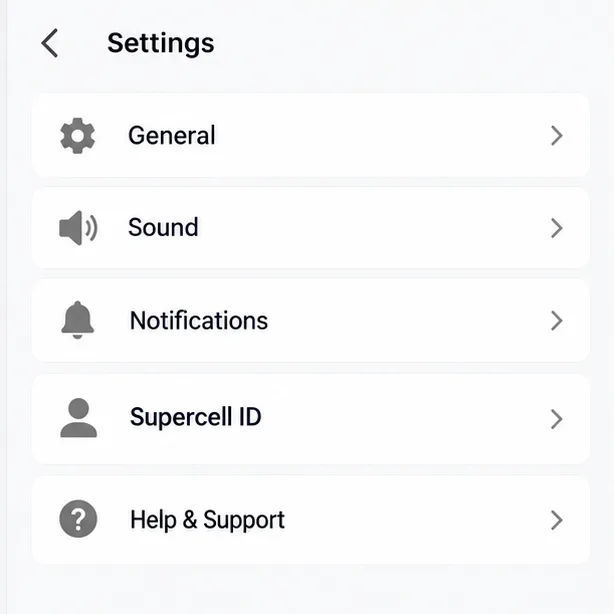
Before uninstalling Clash Royale or clearing its data, open the game’s Settings and verify that the account you want to keep is connected to Supercell ID. Supercell describes Supercell ID as a way to safeguard a game account. Its reinstall instructions say to confirm the connection first and treat reinstalling as a last resort for a game that keeps crashing.
Check the Supercell ID section before reinstalling; your in-game layout may differ.
Android
Once the correct account is connected, uninstall the game, restart the device, reinstall Clash Royale from Google Play, and sign back in with the same Supercell ID. Do not use Clear storage as an early substitute for this sequence.
iPhone and iPad
Apple’s app-crash guidance recommends deleting the app and downloading it again if the earlier steps fail. Confirm Supercell ID first, delete Clash Royale, download it again from the App Store, and sign in to restore the linked progress. Apple’s separate Offload App option keeps documents and data while removing the app itself, but deleting and redownloading is the published crash-troubleshooting step.
If the crash survives the update, restart, relevant cache or connection checks, and a safe reinstall, stop repeating resets. Contact Supercell through in-game Help & Support if you can open it, or use the official Clash Royale contact form.
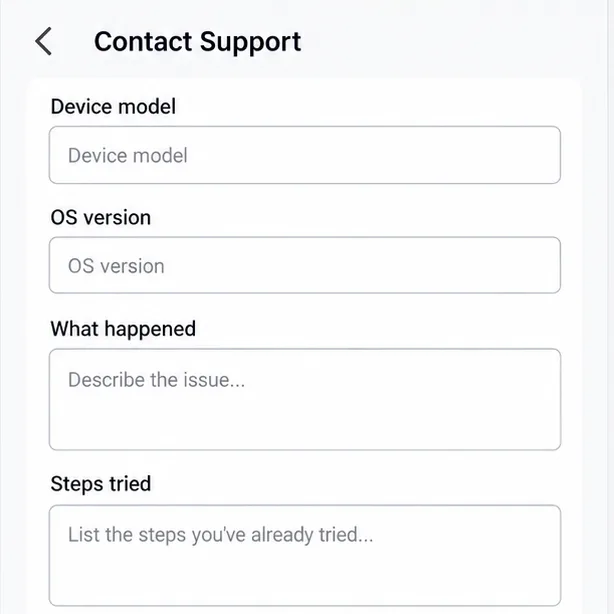
Include your device and reproduction details in a report; this is not Supercell’s exact form.
Include your device model, Android or iOS version, the game version if visible, when the problem started, the chest or reward type, and the exact sequence that causes the crash. Say whether the game closes or freezes, whether the issue happens on Wi-Fi and mobile data, and which steps you already tried. Do not send your password or Supercell ID verification code in a report.
Quick decision guide
What happens
Try next
The game exits as soon as the chest opens
Update, force-close, restart, then clear Android cache if applicable.
The chest animation hangs or keeps loading
Switch once to a stable network and retest.
Only one chest or reward triggers it
Record that exact trigger and report it to Supercell.
The device is low on space or behind on system updates
Free storage, update the operating system, and restart.
You are considering a reinstall
Confirm the correct account is connected to Supercell ID first.
A clean reinstall still crashes
Send Supercell your device details and reproduction steps.
What to avoid
Do not factory-reset the phone, repeatedly clear all app data, or install modified game files just because a chest animation triggers a crash. Those steps can create more work, including account recovery, without showing whether the underlying issue was the app version, temporary cache, device resources, or a repeatable game bug. Change one thing at a time and give Supercell a clear report if the problem remains.