Home
» 🎮 Esports
»
How to Fix Clash Royale Connection Lost Mid-Match Errors
How to Fix Clash Royale Connection Lost Mid-Match Errors
If Clash Royale loses connection halfway through a match, your first priority is getting back into the battle. Supercell explains that you cannot deploy cards during a connection problem, while the battle continues and your opponent can still play. The connection warning does not pause the match.
After the match, work through the checks below before entering another competitive battle. They start with the connection and move to app troubleshooting only when the evidence points there. You do not need to perform every step if an earlier change produces a stable result.
Sources checked: October 7, 2026, UTC. This guide focuses on iPhone, iPad, and Android devices. It does not claim a current service outage or a guaranteed fix for every disconnection. Screen layouts vary by device; the figures illustrate the controls relevant to each check.
What you need to know before changing settings
Your device communicates with Supercell’s server, the remote system that runs the online game. A connection interruption can prevent those systems from exchanging information even when your phone still displays a network signal.
Supercell’s Unstable Connection guide lists weak or unstable reception, device performance, and service maintenance among possible causes. It also warns that full Wi-Fi or cellular signal bars do not guarantee a reliable connection. An out-of-sync message means the device and server are no longer synchronized; it is not, by itself, proof of an account problem.
Prepare a few details
Note whether you were using Wi-Fi or mobile data, and whether you were moving between locations.
Write down the exact error wording, approximate time, and whether the game froze or remained responsive.
Have another trusted connection available if possible. Check your data allowance before using cellular service.
Before considering deletion, confirm access to your Supercell ID email and save your player tag for reference.
Supercell ID is Supercell’s account service for safeguarding game progress and signing in across devices. Its official account explanation describes sign-in using an emailed verification code. Make sure you can receive those messages; knowing the email address alone is not enough if you cannot access its inbox.
1. Try to recover the active match first
Keep Clash Royale open and give it an opportunity to reconnect. If you are moving through a low-reception area, stop somewhere with better coverage when practical. If the app has become unresponsive or the on-screen message requires a fresh login, close and reopen it promptly.
A relaunch may return you to a battle that is still running, but recovery is not guaranteed before the match ends. Do not spend the remaining battle time installing updates, clearing storage, or restarting the router. Those are checks for afterward.
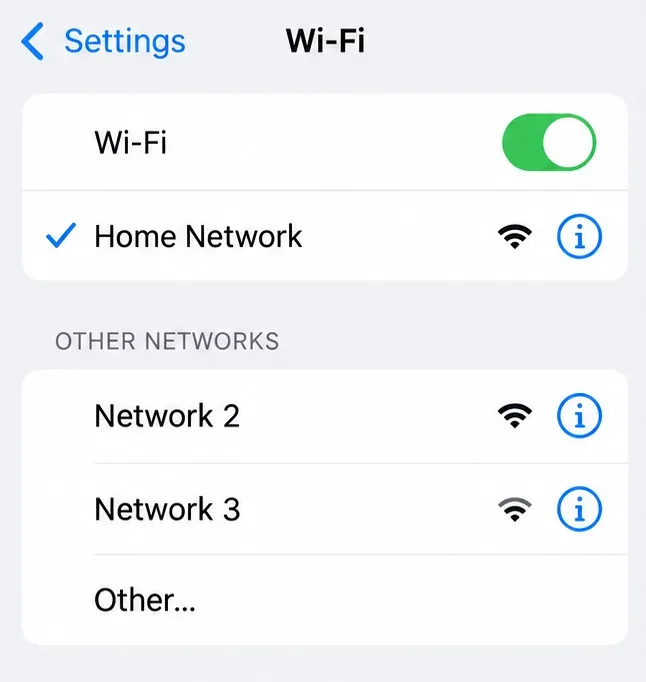
Once the battle is over, inspect the connection in your device’s settings. On iPhone, Settings > Wi-Fi shows the selected network with a blue checkmark, as described in Apple’s Wi-Fi troubleshooting guide. That confirms which network you joined; it does not measure its stability.
The checkmark identifies the connected Wi-Fi network to inspect after the interrupted match.
2. Rule out maintenance before changing your phone
Read any maintenance notice shown when opening Clash Royale and check Supercell’s official Clash Royale news for relevant announcements. Check the date: an old maintenance post does not establish an outage today.
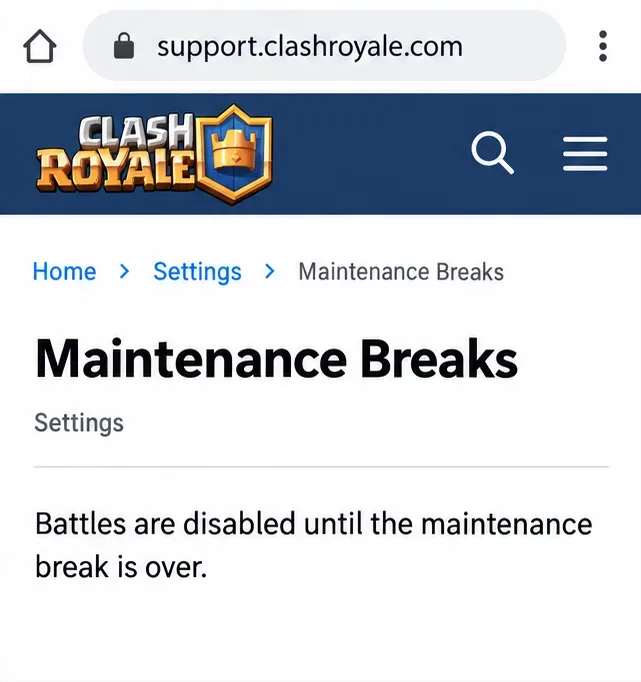
Supercell’s maintenance explanation says battles are disabled during a maintenance break and access returns afterward. If an official notice explains the interruption, wait rather than reinstalling. If no relevant notice appears, continue troubleshooting; the absence of a notice alone cannot prove that every service is healthy.
The maintenance help article explains service downtime; it is not a live outage indicator.
3. Compare Wi-Fi with mobile data after the match
Run a simple comparison using the same phone and game account. Test your usual Wi-Fi while stationary, then test mobile data if your plan and coverage allow it. Choose the connection before starting the test rather than deliberately switching halfway through a battle.
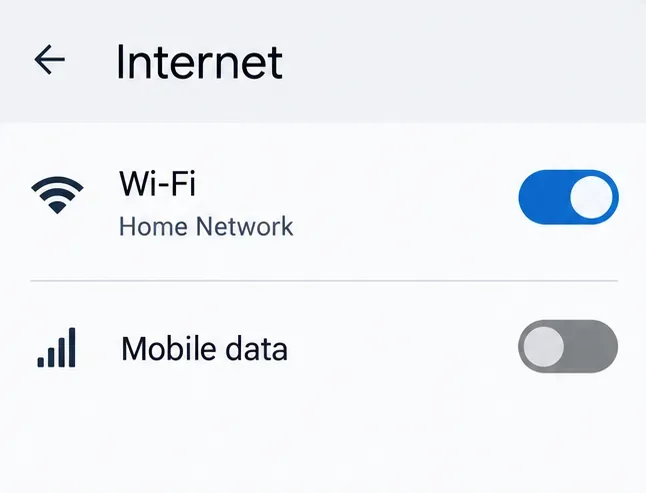
On Android, open Settings and look for Network & internet or Connections. Turn Wi-Fi off and mobile data on for the cellular comparison, then reverse those settings to return to Wi-Fi. These controls are documented in Google’s internet connection troubleshooting guide. On iPhone, use Settings > Wi-Fi to disconnect from Wi-Fi and confirm that cellular data is available.
If only your home Wi-Fi fails, move closer to the router and pause large transfers on the network. Restart the router and modem using their manufacturer’s instructions when doing so will not interrupt other people. Use a normal power restart, not the factory-reset button.
Apple recommends comparing another network and restarting network equipment for Wi-Fi trouble. If another trusted network works consistently, investigate the original connection before altering the game installation. If both fail, you have narrowed the possibilities without identifying a single cause.
Use the network controls for a comparison between matches, then restore the connection you intend to use.
4. Restart the app and device if the problem continues
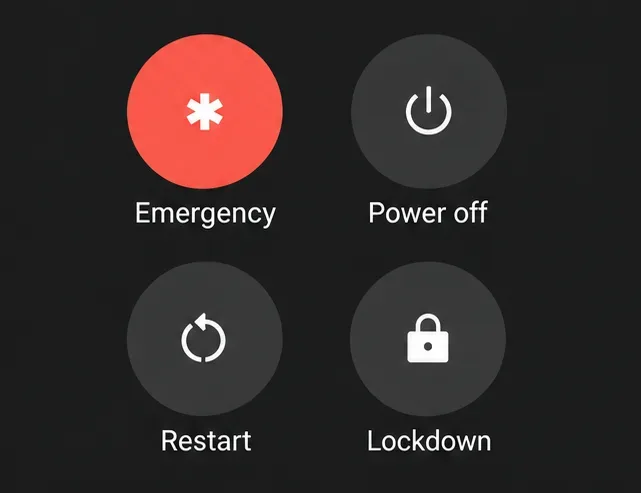
Close Clash Royale, reopen it, and check whether the problem returns. If it does, restart the phone normally before the next test. On Android, use Restart from the power menu where available; button combinations differ by manufacturer. Follow your device’s instructions instead of holding arbitrary buttons.
Apple’s app troubleshooting sequence begins with closing and reopening the app, then restarting the device. Google also includes restarting in its Android app troubleshooting guidance. These actions are especially useful to test when a connection message accompanies freezing or an unresponsive app.
For the comparison, stop optional recording and other demanding apps, and keep Clash Royale in the foreground. If that setup works, reintroduce your usual tools individually. This avoids guessing that every background app is responsible.
Restart the device normally after the battle when app-level troubleshooting is needed.
5. Install available game updates
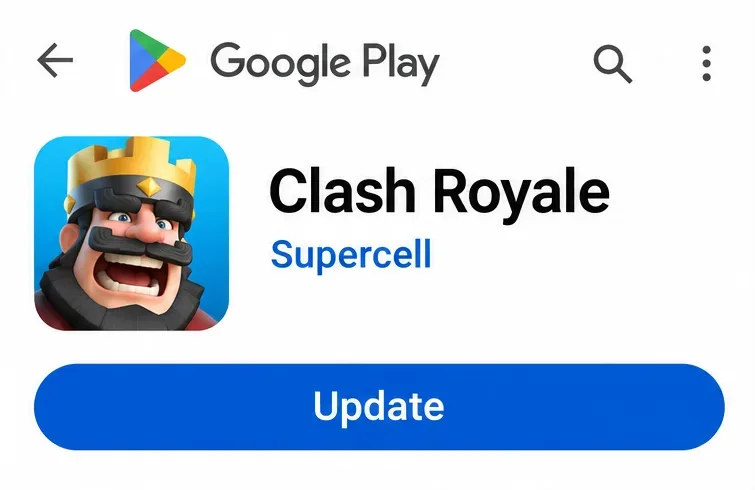
Check the official store for a Clash Royale update and let it finish before launching another test. On Android, Google Play’s profile menu leads to Manage apps & devices, where available updates can be installed. On iPhone or iPad, Apple’s current instructions direct you to the App Store profile icon and App Updates.
If the listing offers Open instead of Update, it is not offering an update to that device at that moment. Do not download a modified game package from another site to force a different version. If the app is current but also crashes, check for a compatible system update through the device’s normal settings.
An Update button on the official store listing indicates an update is available for that device.
6. On Android, clear cache before considering app data
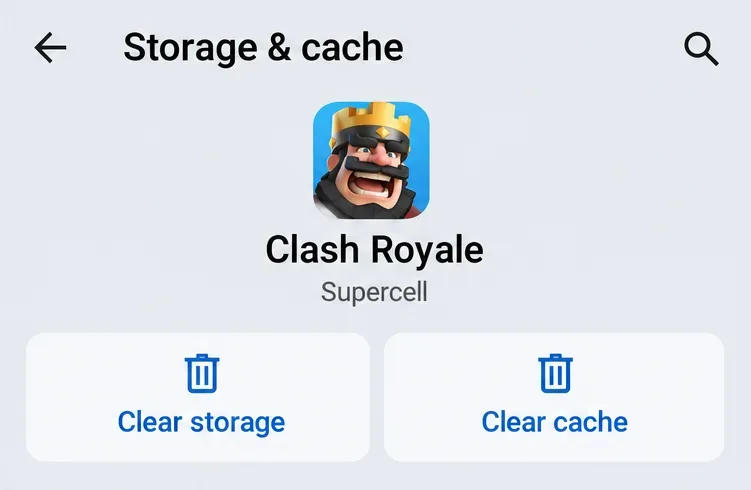
A cache is temporary information an app stores locally. If network comparisons and a restart have not helped, open Settings > Apps > Clash Royale and look for Storage & cache or Storage. Select Clear cache, then reopen the game. Names and paths vary by phone.
Keep Clear cache separate from Clear storage or Clear data. The latter options can erase local app information and are more disruptive. This guide does not require them. Google notes that clearing cached information is temporary because it builds up again over time.
There is no equivalent universal Clear cache button for individual iPhone apps. Skip this Android-specific step on iOS rather than trying unrelated Safari or system cleanup controls. Cache clearing is an app troubleshooting test; it cannot improve a weak cellular signal.
Choose Clear cache for this step, keeping it distinct from the more disruptive Clear storage control.
7. Reserve reinstalling for persistent crashes
A connection warning alone is not a good reason to delete Clash Royale. Supercell’s reinstallation instructions call reinstalling a last resort for a game that constantly crashes. If your app stays open and only one network causes problems, return to network troubleshooting instead.
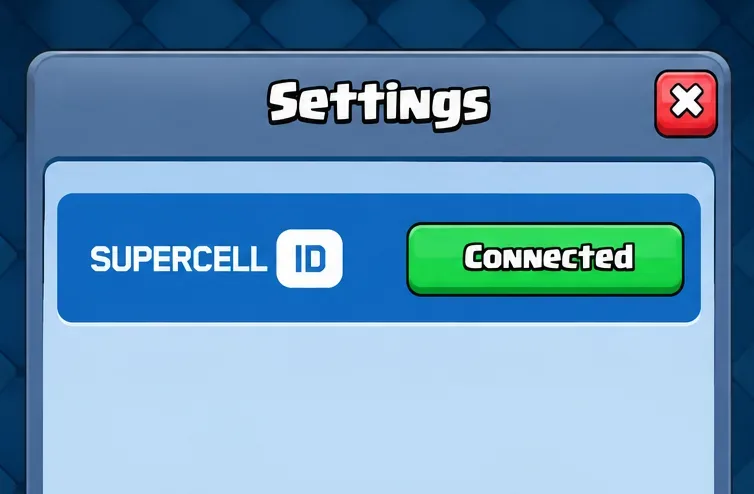
If repeated crashes justify reinstalling, first open the game’s Settings and confirm the Supercell ID button is green and says Connected. Verify access to its email before removing anything. If the account is not connected or you cannot access the inbox, resolve that problem with support first.
Once ready, uninstall using your device’s standard controls, download Clash Royale again from the official App Store or Google Play, and sign in to the same Supercell ID to load your progress. Reinstallation replaces local app files; it does not repair a service outage or unstable internet connection.
Confirm Supercell ID shows Connected and that you can access its email before any reinstall.
8. Verify stability and contact support if needed
Start with a friendly battle with someone who knows you are troubleshooting, if that option is available to you. A local tutorial or replay cannot demonstrate that a live connection is stable. Keep the phone stationary, use the selected network, and leave the game in the foreground for the whole test.
Check whether you can deploy cards throughout the battle without a connection warning or forced reload. Repeat under the same conditions before assuming the problem is resolved. One uninterrupted match is encouraging, but it cannot guarantee that an intermittent fault is gone.
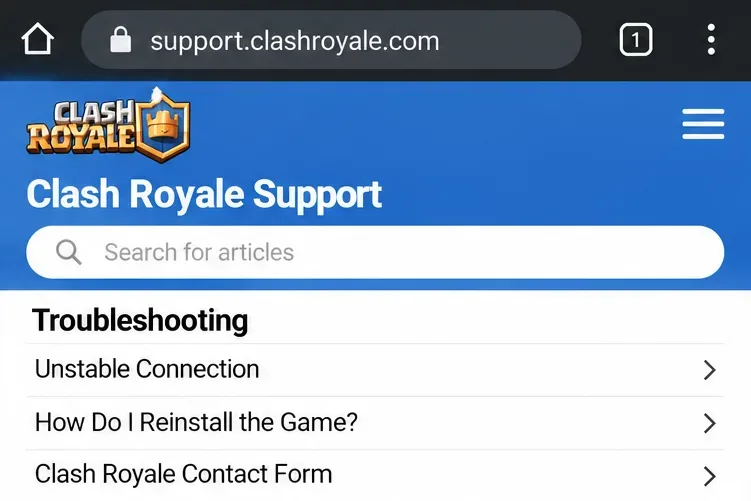
If the issue persists, use the official Clash Royale contact page or the contact options available through the Clash Royale support portal. Provide the device model, operating system, exact error text, time with time zone, and your Wi-Fi-versus-mobile-data results. Share account details only through official support channels, and never give anyone an emailed login code.
The official support portal provides connection guidance and a contact route for unresolved problems.
Mistakes that make troubleshooting harder
Testing during another competitive battle: Use a suitable friendly test first so a recurring disconnect does not immediately affect another competitive result.
Changing several settings together: Change one thing, record the result, and restore changes that did not help.
Assuming signal bars prove stability: Compare connections and repeat the same live test.
Resetting everything too early: A factory reset or broad network reset is far more disruptive than an app restart or connection comparison.
Deleting the game without account access: Confirm Supercell ID and email access before any reinstall.
Your results should determine the next action. Failure on just one network points toward investigating that connection. Crashes on multiple networks justify app and device checks. A confirmed maintenance notice calls for waiting. A repeatable failure after those checks gives support a clearer problem to investigate.