How to Check Real-Time Server Latency in the PUBG HUD

Enable PUBG’s network statistics HUD to monitor ping and packet loss in a match. See where to find it, what the numbers mean, and what they cannot diagnose.
You launch EA Sports FC, reach the menus or start a match, and the game suddenly closes with a “DirectX function” error. The message may include DXGI_ERROR_DEVICE_REMOVED or DXGI_ERROR_DEVICE_HUNG. Restarting can get you back into the game, but the same crash may return at kickoff, during a replay, or later in the session.
Start with updates, game-file repair, and graphics-driver checks. Then isolate overlays and reduce graphics load before moving to a clean boot or support case. Change one thing at a time and repeat the action that caused the crash; otherwise, you cannot tell which adjustment helped.
Checked October 7, 2026: this guide combines EA's general PC troubleshooting with Microsoft documentation. FC 26 is used for the illustrated in-game Display settings because EA publishes those controls. Other FC editions can have different menus and requirements. No single current patch, driver version, or universal fix is claimed here.
DirectX is a collection of Windows components that games use to communicate with graphics and other multimedia hardware. A DirectX function error indicates that a graphics operation failed. The function name and error code are clues, not a complete diagnosis.
Microsoft's device-loss documentation explains that graphics-device loss can occur when a driver changes, the device stops responding and resets, or the graphics adapter becomes unavailable. Its discussion also identifies application graphics errors, driver bugs, and hardware faults as possible contributors. Although that developer walkthrough concerns Direct3D 11, it helps explain why a “removed” message does not by itself prove someone physically disconnected your card.
Do not assume every FC crash has this cause. An explicit anticheat error, a missing-DLL message, or a launcher that never opens needs its own troubleshooting path. Record the exact message before changing the system.
| Observed pattern | Useful starting check | What it does not prove |
|---|---|---|
| Crash before reaching the menu | Requirements, updates, file repair, and overlays. | That lowering an inaccessible graphics setting will solve it. |
| Crash when entering a match or replay | Drivers and a lower-load graphics comparison. | That the GPU is faulty. |
| Crash after a longer session | Repeat under the same conditions; inspect cooling and any custom tuning. | That elapsed time identifies the cause. |
| Similar failures in several games | Broader driver and system diagnostics. | That reinstalling FC alone will fix the PC. |
Capture the full error dialog, including the DirectX function, DXGI code, GPU name, and any DeviceRemovedReason line. Note your FC edition, launcher, graphics-driver version, and the action immediately before the crash. An error at startup and one after thirty minutes should not be treated as the same observation.
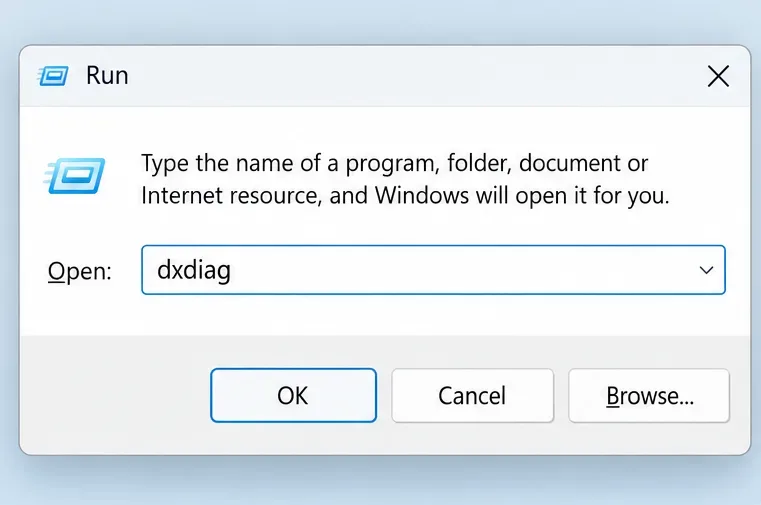
Press Windows + R, type dxdiag, and press Enter to open the DirectX Diagnostic Tool. Inspect System and Display information, then compare your hardware with the requirements for your exact edition. EA's DxDiag instructions explains how to collect this report. EA's FC 26 PC Deep Dive lists DirectX 12 for FC 26; having a recent DirectX version installed does not alone establish that every hardware requirement is met.
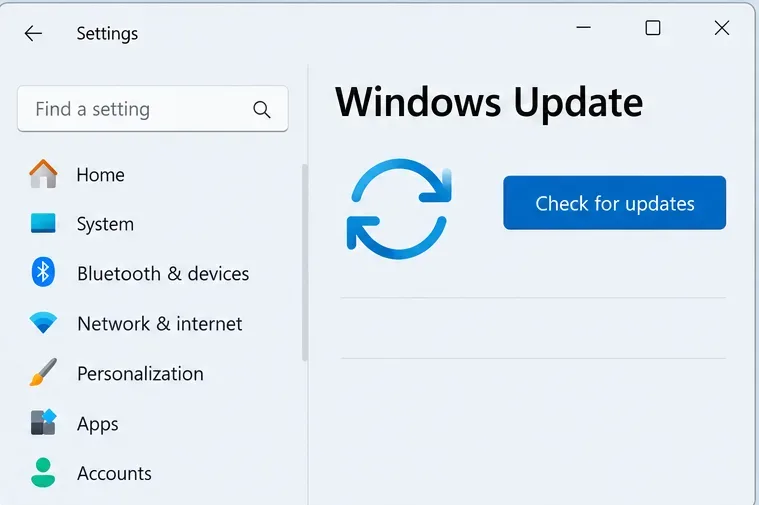
Close FC and its launcher, save other work, and restart Windows. Install available game updates through the launcher and finish pending Windows updates, including a requested restart. On Windows 11, open Settings > Windows Update and select Check for updates.
Use Windows Update for Windows DirectX component updates rather than downloading a supposed standalone “DirectX 12 repair” package. Microsoft's DirectX installation guidance distinguishes modern DirectX components from older optional runtimes. A device-hung error is not the same as a named legacy DLL being missing.
Test again after this basic update pass. If the failure began immediately after a specific update, record that timing rather than assuming the newest software must be either the cause or the cure.
In the EA app, open Library, find your FC game, select its Manage or three-dot menu, and choose Repair. Wait for the process to complete before launching. EA's crash troubleshooting guide recommends game-file repair, and EA's loading and overlay troubleshooting documents the Library route.
If another storefront manages your installation, use that client's documented file-verification process. Repair is a sensible early check because it addresses the installation without starting with a full download. It cannot establish that your driver or hardware is stable.
Do not delete your personal FC documents or save folders as a substitute for repair. If you later reinstall, preserve local saves and confirm the relevant cloud-save state first.
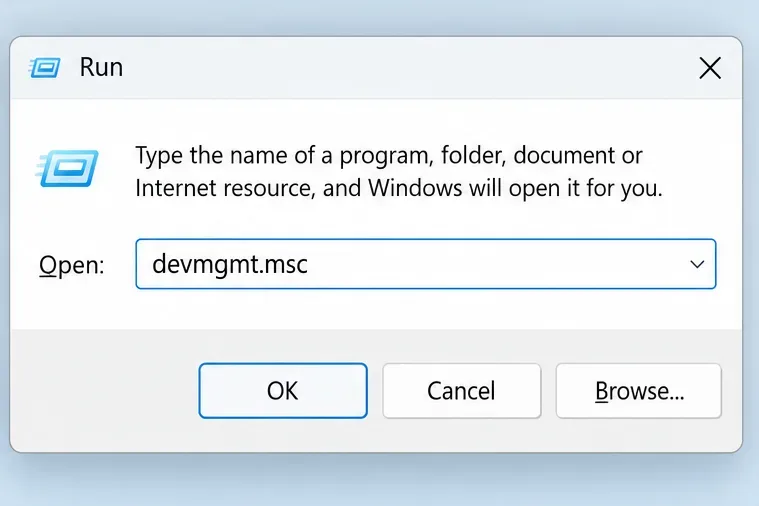
A graphics driver connects Windows and the game to your GPU, or graphics processing unit. Identify the adapter in DxDiag, or open Device Manager with devmgmt.msc from the Run dialog. Under Display adapters, open the device's Properties and use the Driver tab to record the installed version.
Follow the appropriate official instructions for NVIDIA drivers, AMD drivers, or Intel drivers. For a laptop with manufacturer-specific graphics support, check the laptop maker's guidance too. Install the appropriate supported driver, complete any required restart, and repeat your crash test. EA's PC graphics troubleshooting recommends graphics-driver updates.
If the crash started directly after a driver change, document the old and new versions and consult the manufacturer about returning to a previously stable supported release. Avoid repeatedly switching drivers without recording results. A driver clean installation can be a later manufacturer-guided option; third-party cleanup utilities are not required as the first step.
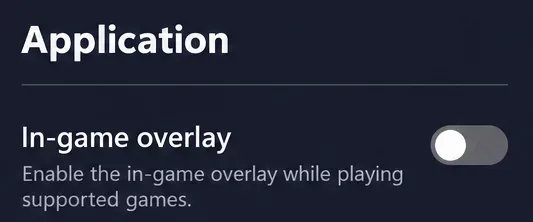
An overlay places controls or information over the game. In the EA app, open your profile menu, choose Settings > Application, and turn off In-game overlay if that option applies to your game. EA's loading and overlay troubleshooting specifically identifies the overlay as a possible cause of crashes.
For a comparison, also close nonessential recording, chat-overlay, and performance-overlay programs. Keep required launcher and anticheat components running. Test before removing applications permanently. If stability improves, restore optional programs one at a time to identify which change actually matters.
Note that turning off the EA overlay can affect invitations and messages. Re-enable it when appropriate after troubleshooting, and tell EA if enabling it reliably reproduces the crash.
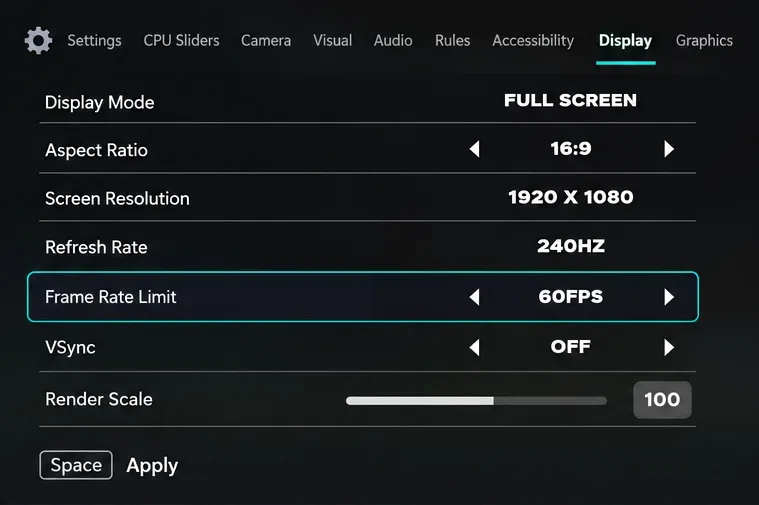
If you can reach the settings, record your current values before adjusting them. Try a conservative frame-rate cap, such as 60 FPS, and lower graphics quality. FPS means frames per second. This is a diagnostic baseline, not a claim that every PC must play at 60 or that an FPS cap fixes every DirectX error. EA's crash troubleshooting guide recommends testing a frame cap or VSync.
In FC 26, Display contains Frame Rate Limit, VSync, and Render Scale. EA documents that the frame limit operates when VSync is off. Choose one clear limiting approach for the initial comparison. The Graphics presets can also provide a lower-load test, and EA says graphics changes require a restart.
If you applied a GPU overclock or undervolt, return that custom profile to its normal default for the test using its own supported controls. This removes a variable; it does not prove tuning caused the crash. Keep the PC's vents unobstructed and seek hardware guidance if you observe abnormal temperatures, visual corruption, or system-wide instability.
A clean boot starts Windows with a reduced set of startup programs and services. Follow Microsoft's clean-boot procedure if closing obvious background apps did not resolve the problem. Record the original state before disabling anything so you can restore it afterward.
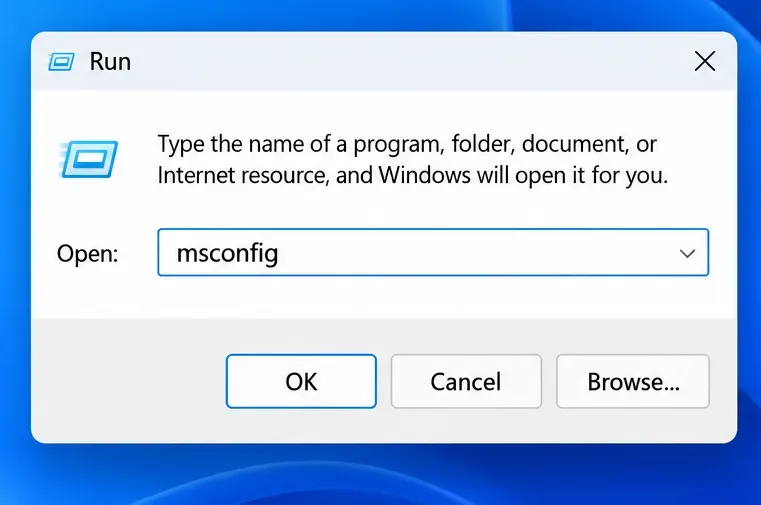
Open msconfig, use the Services tab, select Hide all Microsoft services, and follow the documented steps for disabling remaining services and startup apps. Do not change advanced Boot settings. Preserve or restore components required for the EA launcher and anticheat; if the game cannot launch because a required service is disabled, that is not a valid test of the original DirectX crash.
If FC runs reliably under reduced startup conditions, re-enable optional items in groups and retest to narrow the conflict. Restore normal startup afterward using Microsoft's instructions. This is an isolation exercise, not a permanent gaming configuration.
Repeat the same scenario that previously failed: loading the same mode, playing through a match, and viewing a replay or menu transition when those were triggers. Test across more than one launch and for at least as long as the earlier failure usually took. One successful trip to the main menu is weak evidence if the crash normally happened later.
If the problem remains, use DxDiag's Save All Information button and provide the report with your error image and troubleshooting notes through EA's support process. Explain whether only FC fails or other games show similar problems. Include the precise edition, driver version, Windows version, repeatable trigger, and outcome of each check. Review diagnostic files for personal details before posting them publicly.

Do not add -dx11 or edit a guessed DirectX setting unless EA documents that option for your exact edition. FC 26's published requirements specify DirectX 12, so a launch argument copied from an unrelated game is not an established fallback.
Do not increase TdrDelay or disable timeout recovery as a routine crash fix. TDR means timeout detection and recovery. Microsoft's TDR registry documentation says these Registry controls are intended for driver-development testing and should not be manipulated by end users.
Likewise, avoid downloading individual DLLs from unofficial sites or disabling anticheat to bypass a graphics error. If the message explicitly identifies a missing component or anticheat problem, follow the corresponding official support instructions. Reinstalling the game or EA app remains a later option in EA's crash guidance, after preserving your data and completing less disruptive checks.
Stop changing settings once a repeatable configuration works, then restore preferred visuals gradually. If several games still crash at default settings, or FC fails consistently after the supported checks, use your collected evidence to pursue driver, hardware, or EA support rather than cycling through unverified fixes.
Enable PUBG’s network statistics HUD to monitor ping and packet loss in a match. See where to find it, what the numbers mean, and what they cannot diagnose.
Learn how to import VALORANT crosshair codes, compare presets with manual settings and spectator copy, and fix common import issues.
Choose Dota 2 minimap size, hero icons, team colors, and background settings by readability, fewer misclicks, and clear results on your own display.
Fix Fortnite texture pop-in on PC with official steps for GPU drivers, file verification, DirectX 12, high-resolution textures, VRAM, SSDs, and stutter.
Learn what Heroes of the Storm minimap size and position options are verified, improve readability, and choose camera-click controls that suit you.
Set Super Smash Bros. Ultimate Quickplay to prefer hazards-off stages. Follow the Preferred Rules menu steps and learn why matchmaking may not always honor them.
Enable Server Latency and Packet Loss in Warzone to monitor connection quality, read the overlay, and use recurring spikes to guide troubleshooting.
Learn how to carry from mid lane in League of Legends by setting up waves, choosing safe roam windows, reading side lanes, and converting pressure into objectives.
Fix Minecraft Evoker spell problems with a safe vanilla test, version checks, log review, and a step-by-step way to isolate mod or datapack conflicts.
Fix PUBG stuck on Initializing on Steam with a focused checklist for PC service notices, launch options, game files, downloads, and connection issues.








