How to Check Real-Time Server Latency in the PUBG HUD

Enable PUBG’s network statistics HUD to monitor ping and packet loss in a match. See where to find it, what the numbers mean, and what they cannot diagnose.
If StarCraft: Remastered turns black when you switch HD graphics, first decide whether the picture returns after a short pause or the game stays black, freezes, or crashes. Blizzard confirms that you can switch between classic and Remastered graphics with F5 or through Options > Video > HD Graphics. However, Blizzard does not document a specific black-screen-on-toggle fix. The steps below separate the confirmed toggle from troubleshooting checks that depend on your display, launcher, and PC.
Try the reversible checks first. Avoid repeatedly pressing F5 while the screen is blank: if the game is still responding, each press can switch the mode again and make it harder to tell what happened.
| What happens | What it suggests | Useful next action |
|---|---|---|
| The image disappears briefly, then returns | The game may be redrawing the scene during the graphics change; this alone does not prove a crash. | Wait a few seconds without pressing more keys, then test one toggle. |
| The screen stays black but audio or input still responds | The game may still be running while its display output is stuck. | Alt+Tab away and back once; if the image returns, use windowed mode for the next test. |
| The whole display reports no signal, or the PC freezes | This may involve the display link, graphics driver, or a wider system issue. | Stop toggling. Restore the desktop with your normal display recovery steps, then update and restart before testing again. |
| HD Graphics is unavailable or greyed out | This differs from a black screen after switching; account access, game entitlement, or another eligibility issue may be involved. | Check the correct Battle.net account and Blizzard’s “No HD Graphics” support guidance. |
When the game is visible, press F5 once. The alternate route is Options > Video, then check the HD Graphics option. Blizzard forum support has published both methods. The visual difference should be apparent in the game scene; the checkbox or a single F5 press is a more useful check than judging a static menu.
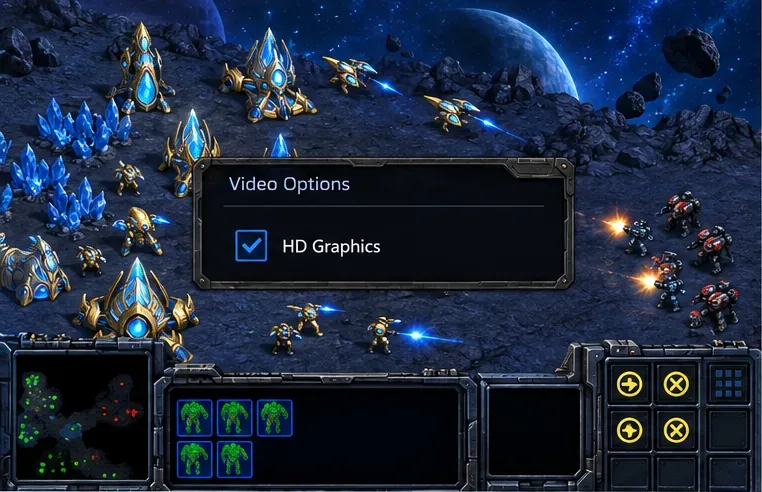
Confirmed: F5 and the Video option are documented ways to switch graphics. Not confirmed: a brief blank frame is an expected duration, or that every black screen is caused by the toggle itself. If the image does not return after several seconds, press F5 only once more if the game still clearly accepts input; otherwise leave it alone and continue with the next checks.
Exit StarCraft completely, wait for it to close, and launch it again from the same launcher you normally use. Do not change several display settings at once. If the game opens normally, test HD graphics in a window rather than full screen if the game offers that option. A window makes it easier to tell whether the game alone has lost its picture or the entire display has gone blank.
This is a diagnostic step, not a guaranteed fix: a windowed test can help isolate a full-screen/display-mode interaction, but it will not resolve a missing purchase entitlement or damaged game files. If windowed mode works and full screen does not, keep the stable mode for now and note your monitor resolution, refresh rate, and whether you use multiple monitors.
If HD Graphics is greyed out or the game returns to classic graphics every launch, verify that the launcher is signed into the account that owns or has access to StarCraft: Remastered. Fully sign out of the Battle.net desktop app, close it, reopen it, and sign back in. A Blizzard support forum response has specifically recommended a full launcher sign-out and sign-in for a Remastered graphics-access issue.
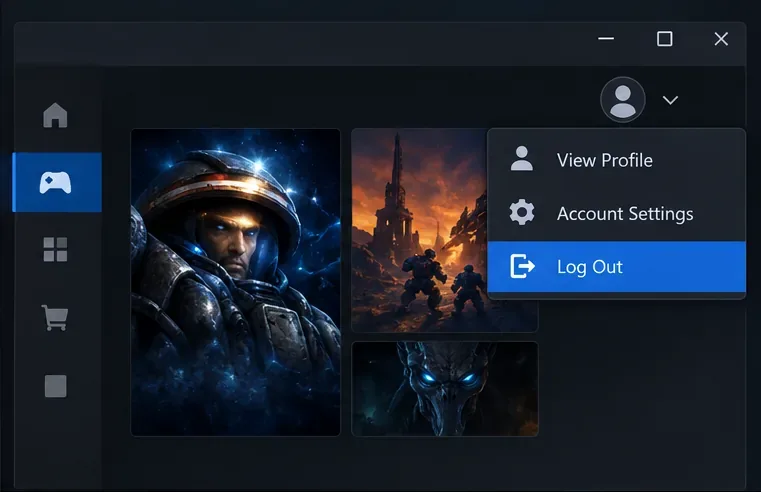
A greyed-out HD option is not proof that the graphics card is too weak, and F5 cannot grant an account access that is missing. Check the purchase or linked account first, then follow Blizzard’s No HD Graphics With StarCraft: Remastered support page. If you use a linked subscription or another platform entitlement, confirm that the correct accounts are connected before repeating the toggle.
If the black screen began after a driver or operating-system update, or other games also show display problems, install the latest stable driver for your actual graphics adapter from its manufacturer or your PC maker. Restart Windows before opening the game again. Avoid third-party driver-updater utilities. For a laptop with switchable graphics, make sure the game is not being forced onto an adapter that Windows or the vendor control panel has disabled.
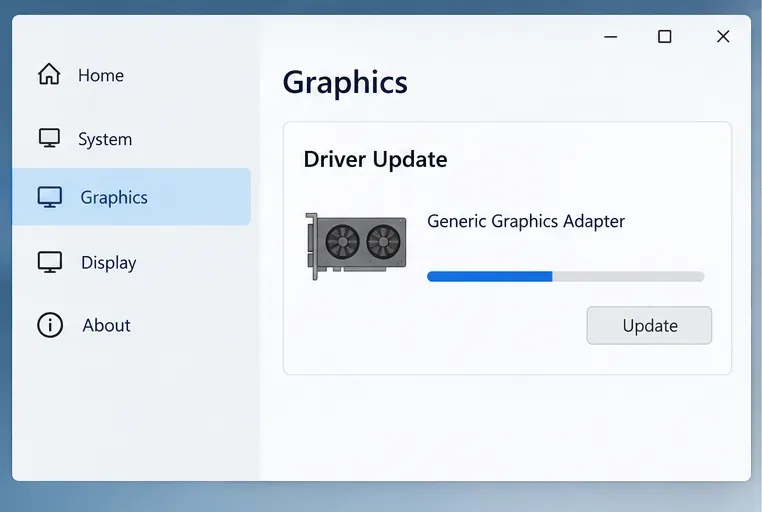
Driver changes are a general display troubleshooting step, not a Blizzard-confirmed cure for this exact toggle symptom. If the issue began immediately after a driver update, note the driver version and consider the manufacturer’s supported rollback option rather than installing random older packages. Change one thing at a time so you can tell whether the symptom changes.
If the game remains black after a restart and driver check, use the Battle.net app’s repair or scan option for StarCraft. Select the game in the launcher, open its options menu, and choose Scan and Repair if it appears; labels and locations can change with launcher updates. Let the check finish, then relaunch and test the graphics toggle once.
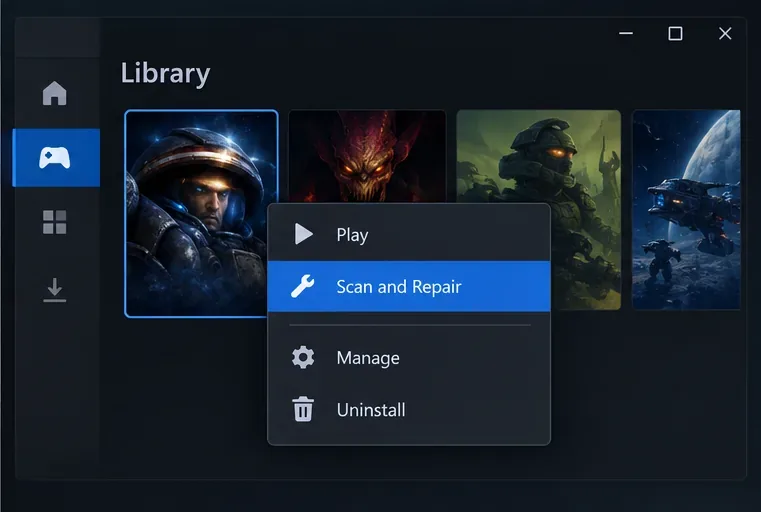
A file scan checks the local installation; it does not verify your monitor, GPU selection, or account entitlement. If you installed the game somewhere other than the launcher’s default location or use a different platform build, follow the repair instructions for that installer. Reinstalling is a later option, after repair and the basic checks, because it takes longer and may not address a display-driver problem.
When only StarCraft turns black during the switch, temporarily close overlays and capture tools that hook into games, such as performance monitors, screen recorders, or chat overlays. If you use two monitors, disconnect the secondary display for one test, or move the game to the primary display before switching. These are isolation tests, not proof that an overlay or monitor caused the issue. Restore each tool or display after the test and note whether one change makes the symptom repeatable.
Also compare the timing: did this start after changing resolution, Windows scaling, a driver, a launcher update, or a monitor connection? Revert only the most recent relevant change, restart, and test once. Avoid editing configuration files or deleting folders unless Blizzard support directs you to a specific file; those steps can remove preferences without fixing the underlying cause.
If the screen still goes black after these checks, collect the pattern rather than repeating the same toggle: whether sound continues, whether Alt+Tab restores the desktop, whether classic mode remains stable, your Windows and graphics-driver versions, monitor setup, and the exact launcher used. Attach a DxDiag report if support requests it, and use Blizzard’s StarCraft: Remastered support hub or its StarCraft performance troubleshooting page to open the appropriate support path.
After a fix, confirm the result with two checks: switch to HD once and confirm the image returns, then exit and relaunch the game to see whether the selected mode remains available. If only one display mode fails, report that distinction; it helps separate a toggle issue from a broader game or system crash.
Enable PUBG’s network statistics HUD to monitor ping and packet loss in a match. See where to find it, what the numbers mean, and what they cannot diagnose.
Learn how to import VALORANT crosshair codes, compare presets with manual settings and spectator copy, and fix common import issues.
Choose Dota 2 minimap size, hero icons, team colors, and background settings by readability, fewer misclicks, and clear results on your own display.
Fix Fortnite texture pop-in on PC with official steps for GPU drivers, file verification, DirectX 12, high-resolution textures, VRAM, SSDs, and stutter.
Learn what Heroes of the Storm minimap size and position options are verified, improve readability, and choose camera-click controls that suit you.
Set Super Smash Bros. Ultimate Quickplay to prefer hazards-off stages. Follow the Preferred Rules menu steps and learn why matchmaking may not always honor them.
Enable Server Latency and Packet Loss in Warzone to monitor connection quality, read the overlay, and use recurring spikes to guide troubleshooting.
Learn how to carry from mid lane in League of Legends by setting up waves, choosing safe roam windows, reading side lanes, and converting pressure into objectives.
Fix Minecraft Evoker spell problems with a safe vanilla test, version checks, log review, and a step-by-step way to isolate mod or datapack conflicts.
Fix PUBG stuck on Initializing on Steam with a focused checklist for PC service notices, launch options, game files, downloads, and connection issues.








