How to Check Real-Time Server Latency in the PUBG HUD

Enable PUBG’s network statistics HUD to monitor ping and packet loss in a match. See where to find it, what the numbers mean, and what they cannot diagnose.
For Rocket League’s “Load Failure – Save Data is Corrupt” message, protect the local folder first, then follow Epic’s PC recovery order: sync Windows time, back up the save folder and clear the EOS cloud cache, create a fresh local save if needed, and restore your replays and training sequences from the backup. A new save does not erase your online inventory or account progress, but it can reset local preferences and remove locally stored training sequences, video settings, and tutorial completion data.
Epic’s current support pages still recommend these recovery steps. The official Known Issues page was updated October 6, 2026; it does not list a current save-corruption outage. That does not rule out an individual PC or account problem. These instructions target the Epic Games Launcher version on Windows. If you use Steam, the Epic Launcher Cloud Saves checkbox described below is not a Steam setting; follow Steam’s own cloud-sync prompt carefully and avoid choosing an older save without checking the dates.
Close Rocket League before moving or renaming its data. Do not repeatedly click Retry if the same Load Failure returns. A save file is the local collection of game data Windows reads when Rocket League starts. The EOS cloud cache is Epic Online Services data stored separately from the main Documents folder. Backing up the Documents folder gives you a way to recover personal local files if a later step resets them.
Rocket League distinguishes local items such as replays and training sequences from account progress and inventory. Epic says creating a new save does not affect progress or inventory, while its PC recovery instructions specifically show how to restore backed-up replays and training sequences. Keep the backup until the game has launched successfully and you have checked the local content you care about.
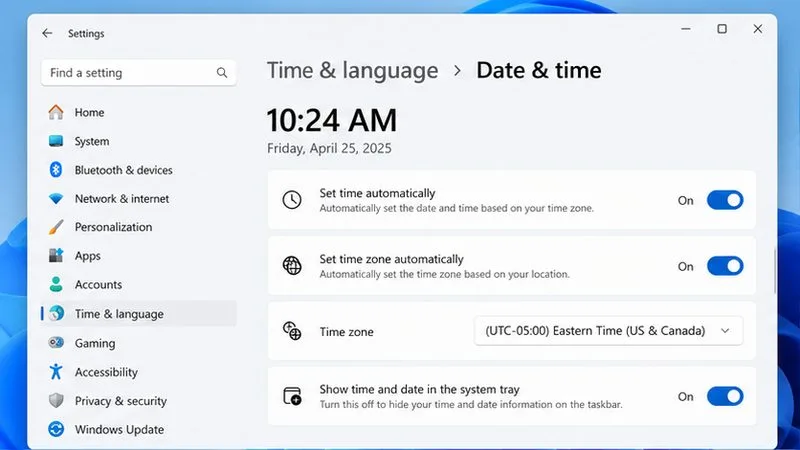
An incorrect system clock can cause sync or connection errors that resemble a save problem. Open Settings > Time & language > Date & time, turn on automatic time and automatic time zone if those options are available, and select Sync now if Windows shows it. Restart the launcher and try Rocket League once. If the exact corrupt-save message remains, continue; clock sync is a quick check, not a save repair by itself.
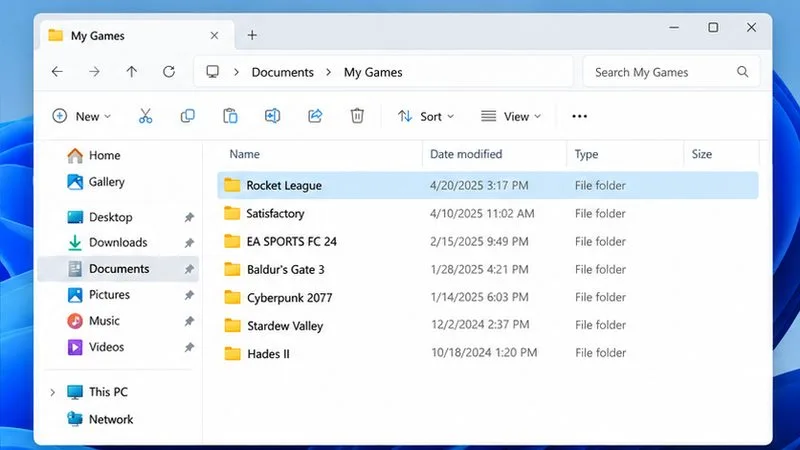
In File Explorer, open Documents\My Games. Right-click the Rocket League folder and choose Copy, then paste it somewhere safe outside that folder, such as another drive or a temporary desktop folder. Confirm that the copy finishes before proceeding. If your Documents folder is redirected to OneDrive or another location, use the actual folder Windows opens rather than assuming it is on the C: drive.
Epic’s cache-clearing command below renames the standard Rocket League folder to Rocket League Old. If that folder already exists, stop and make a separate backup first so the command does not fail or create confusion. Do not delete your only copy of the folder.
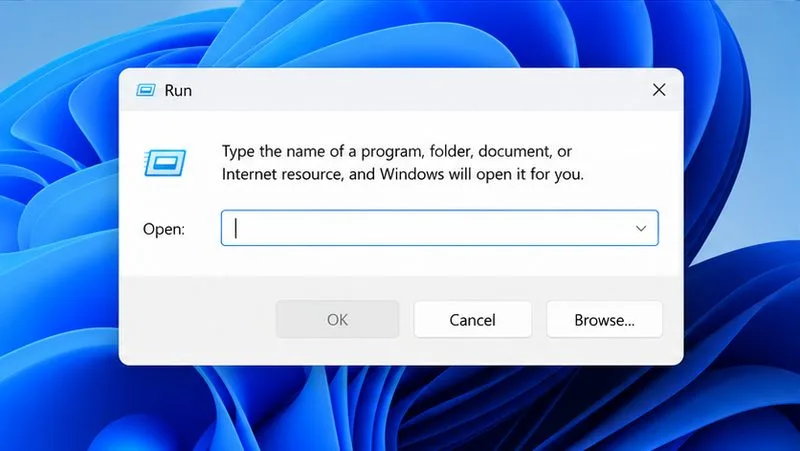
Epic’s current Load Failure guide instructs PC players to rename the local Rocket League folder and remove the EOS cloud-cache folder. With Rocket League closed, press Windows key + R, paste the exact command below into the Run box, and press Enter:
cmd /s /c ren "%USERPROFILE%\Documents\My Games\Rocket League" "Rocket League Old" & rmdir /s /q "%USERPROFILE%\AppData\Local\Rocket League\datastorage"The first part renames the standard Documents folder to Rocket League Old; the second removes Rocket League’s local datastorage cache so Epic Online Services can rebuild it. Epic says the backup should then be at Documents\My Games\Rocket League Old. This command assumes the standard Windows folder locations. If your folder is redirected, the command reports an error, or the backup is not visible, do not keep retrying it; locate the actual data folder and use Epic Support’s instructions for your setup.
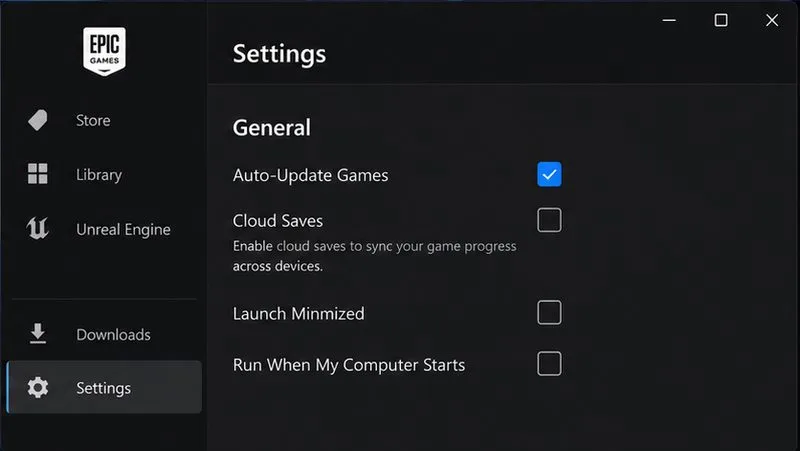
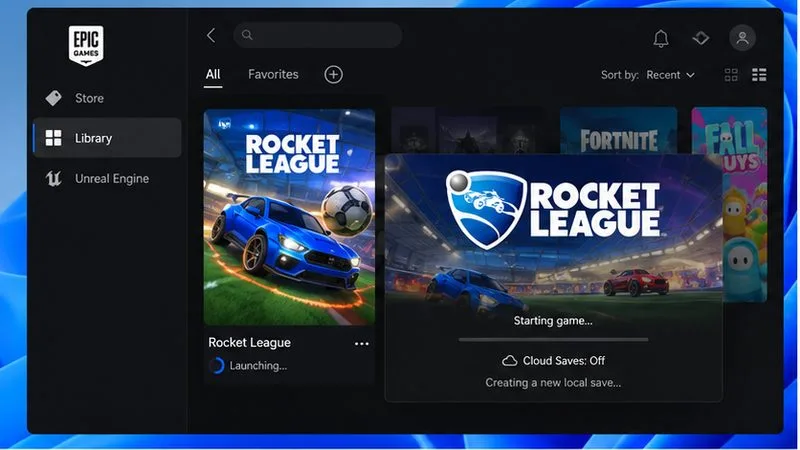
For the Epic Games Launcher version, open the launcher menu in the upper-right and choose Settings. Temporarily clear Enable Cloud Saves. Launch Rocket League once so it can create a new local save, then close the game and launch it a second time. Epic’s guide says this creates a new save file. Do not choose an older cloud copy if the launcher presents a sync choice unless you have verified which copy is newer and healthy.
This step rebuilds local settings data. It may make the game show its tutorial again or reset video preferences. It should not remove your account inventory or online progress, but local-only items such as training sequences and replays should be recovered from the backup in the next step.
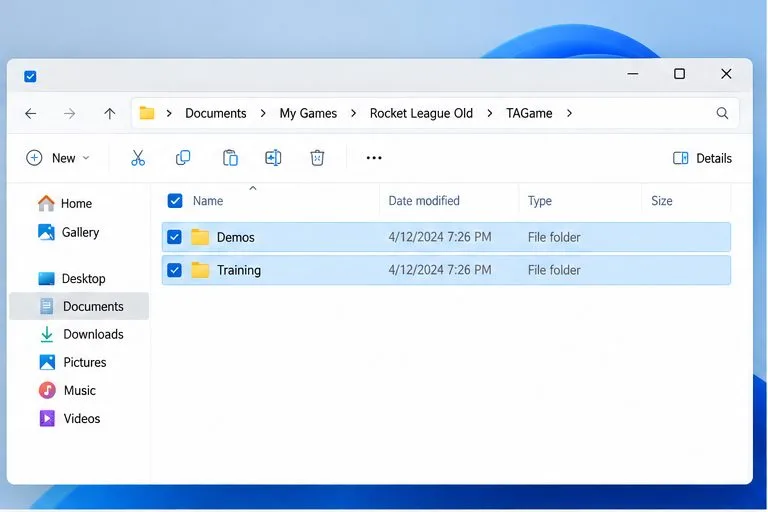
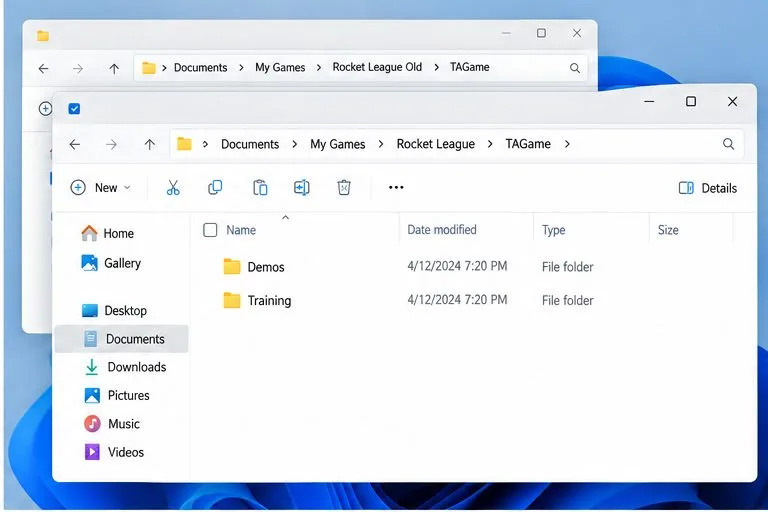
Only do this after Rocket League has created and loaded the fresh save. Close the game. In File Explorer, open Documents\My Games\Rocket League Old\TAGame. Copy the Demos folder, which stores replays, and the Training folder, which stores training sequences, if they are present. Then open the new Documents\My Games\Rocket League\TAGame folder and paste them there. If Windows asks how to handle same-name files, follow Epic’s recovery article and choose Replace the files in the destination only after confirming you are copying from the backup folder into the new folder. Leave the rest of the old save backup untouched.
If either folder is missing from the backup, there may be nothing to restore for that category. Do not copy unrelated files from the old save over the new save; Epic’s procedure identifies these two folders for recovery.
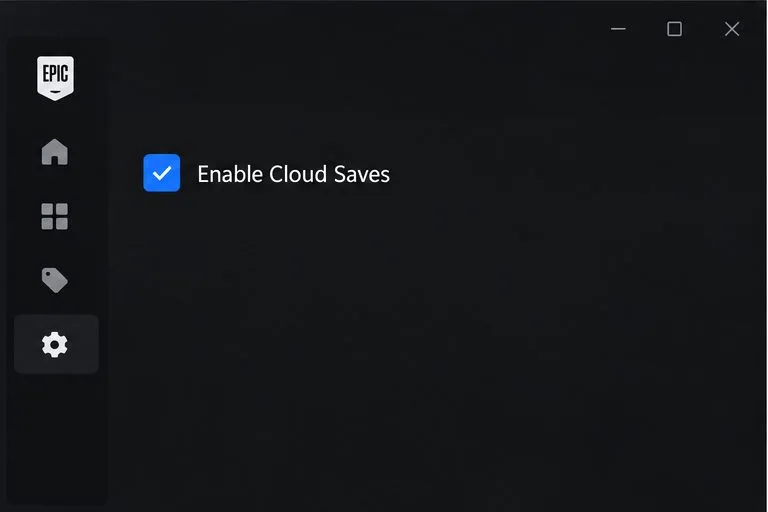
After the new save launches correctly and you have restored any local folders you need, reopen Epic Games Launcher Settings and check Enable Cloud Saves. Launch Rocket League again to let the launcher upload the new save to Epic’s cloud service. If you receive a conflict prompt, read the timestamps and keep the working, newly created local save rather than blindly downloading an older copy.
Check that Windows is not marking the Rocket League data folder read-only, and make sure your security software is not blocking Rocket League from writing to Documents. Epic notes that read-only folders and antivirus software can cause Save Failure errors. If the game shows a Runtime or NTDLL error on startup, Epic separately recommends deleting the Cache folder under Documents\My Games\Rocket League\TAGame, then launching again. Treat that as a separate cache step; do not delete the whole backup folder.
If the problem persists after clock sync, the documented backup/cache procedure, a new save, and game-file verification, contact Rocket League Support. Include whether you use Epic Games Launcher or Steam, the exact error wording, whether the Documents folder is redirected, and which steps you completed. Do not attach or publish your local save files unless support asks for them.
Enable PUBG’s network statistics HUD to monitor ping and packet loss in a match. See where to find it, what the numbers mean, and what they cannot diagnose.
Learn how to import VALORANT crosshair codes, compare presets with manual settings and spectator copy, and fix common import issues.
Choose Dota 2 minimap size, hero icons, team colors, and background settings by readability, fewer misclicks, and clear results on your own display.
Fix Fortnite texture pop-in on PC with official steps for GPU drivers, file verification, DirectX 12, high-resolution textures, VRAM, SSDs, and stutter.
Learn what Heroes of the Storm minimap size and position options are verified, improve readability, and choose camera-click controls that suit you.
Set Super Smash Bros. Ultimate Quickplay to prefer hazards-off stages. Follow the Preferred Rules menu steps and learn why matchmaking may not always honor them.
Enable Server Latency and Packet Loss in Warzone to monitor connection quality, read the overlay, and use recurring spikes to guide troubleshooting.
Learn how to carry from mid lane in League of Legends by setting up waves, choosing safe roam windows, reading side lanes, and converting pressure into objectives.
Fix Minecraft Evoker spell problems with a safe vanilla test, version checks, log review, and a step-by-step way to isolate mod or datapack conflicts.
Fix PUBG stuck on Initializing on Steam with a focused checklist for PC service notices, launch options, game files, downloads, and connection issues.








