How to Check Real-Time Server Latency in the PUBG HUD

Enable PUBG’s network statistics HUD to monitor ping and packet loss in a match. See where to find it, what the numbers mean, and what they cannot diagnose.
If you are trying to practice faster control in StarCraft: Remastered, it is easy to waste time looking for a separate overlay or third-party APM utility. You do not need one for the basic on-screen counter. Blizzard added native actions-per-minute display options to StarCraft in patch 1.18, before the Remastered launch, and the feature remains part of the game’s built-in interface. As of October 2026, I could not verify any newer Blizzard announcement that replaces that method with a different APM system.
The practical setup is simple: open the game options, go to the Game section, enable the in-game APM display, save the setting, and then verify the counter during an actual match. The optional low-APM alert is a separate feature, so you can show the number without necessarily enabling sounds or warnings.
APM means actions per minute. In StarCraft, it is a speed-oriented measurement of how many player inputs the game records over time. It can be useful when you are practicing mechanics such as production cycles, control-group use, camera movement, unit splitting, worker management, and rapid switching between your army and economy.
It is important not to treat APM as a complete skill score. A player can raise the number by issuing repetitive or unnecessary commands, while a lower-APM player can still make better strategic decisions. The counter is most useful as a personal consistency signal: compare your own pace across similar games instead of chasing a number for its own sake.
Blizzard officially documented the addition of “options to display actions per minute” in the StarCraft: Brood War Patch 1.18 notes. StarCraft: Remastered subsequently launched with the modernized client and interface while preserving the classic game underneath, as described on Blizzard’s StarCraft: Remastered launch page.
Launch StarCraft: Remastered through the Battle.net desktop app and wait for the main game menu. Choose Options. If you are already inside a match, you can open the game menu first and then enter Options, although changing the setting from the main menu is usually the clearest approach because you can confirm the selection before starting a test game.
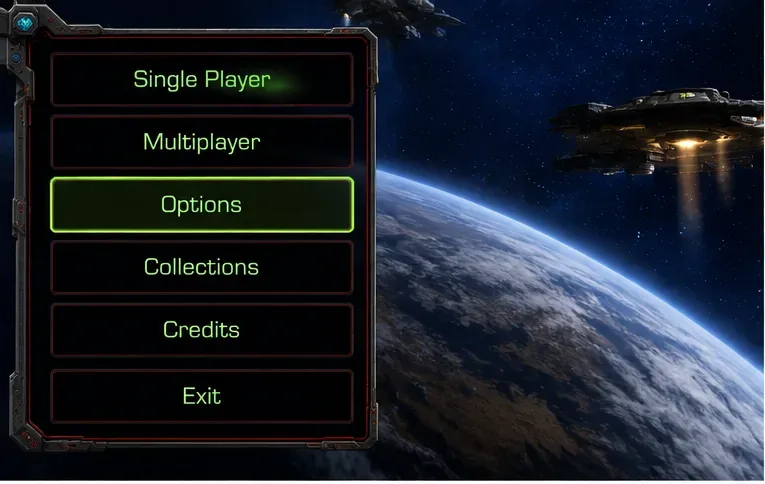
You do not need to install an APM overlay, replay analyzer, keyboard utility, or other third-party program just to see your own live APM value. If a guide tells you that an external tool is mandatory, it is describing an older workflow or a different use case.
Inside Options, select the Game section. Look for the APM display control. In English-language installations this setting is commonly shown as Display APM In Game. Enable that option, then confirm the change with OK or the equivalent save/confirm control in your client.
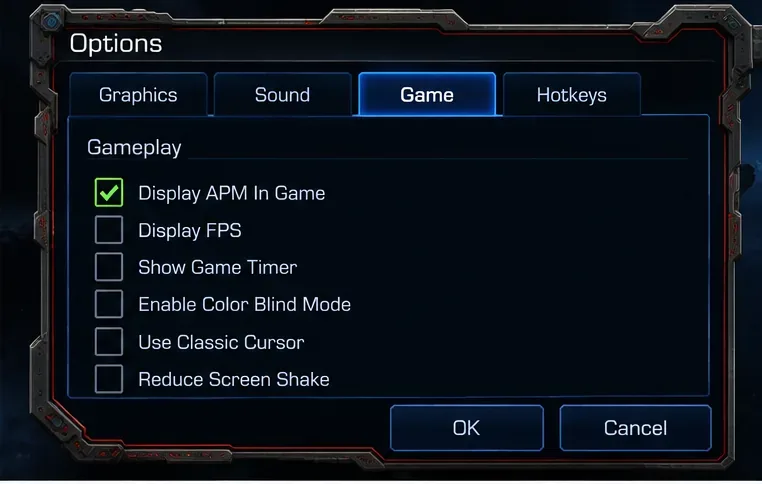
Blizzard’s official patch note confirms the existence of the native APM display feature, but Blizzard does not currently maintain a detailed public support article with every modern menu label and screen position. That means wording can differ slightly by client language or future minor interface revisions. If your menu text is localized, look for the option referring to APM or actions per minute rather than assuming the English wording must appear exactly.
Start a single-player, custom, or multiplayer game and perform normal commands for a short period. The APM readout should appear as part of the in-game interface and update while you play. The exact visual treatment can vary with interface presentation, resolution, localization, and client changes, so focus on whether a live APM value is present rather than matching a screenshot pixel for pixel.
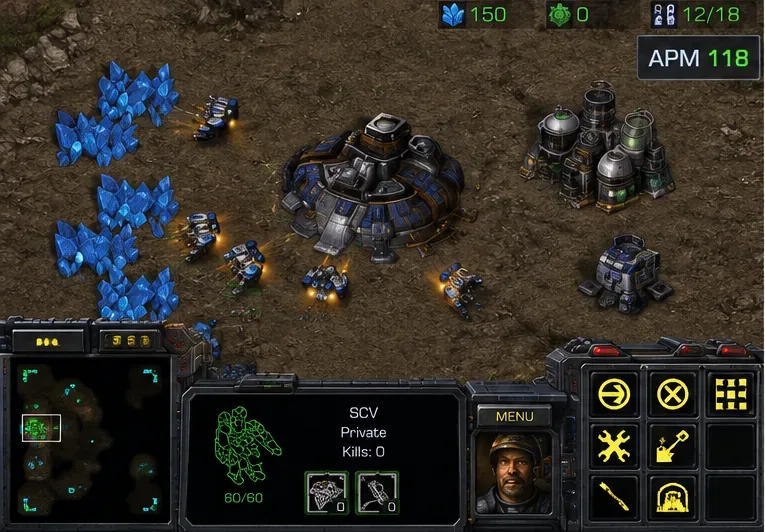
A good verification test is to leave your units untouched for a moment, then deliberately issue several normal commands such as selecting workers, assigning a control group, moving the camera, and ordering units. The displayed value should react over time. Do not spam meaningless commands simply to force a high number; the goal of the test is only to confirm that the counter is active.
The APM counter and the APM alert are related but not identical. Blizzard-hosted technical-support discussions document a Game-options control for warning the player when APM drops below a chosen threshold, with a sound sub-option. If your current client exposes those controls, treat them as optional training aids rather than a requirement for the counter itself.
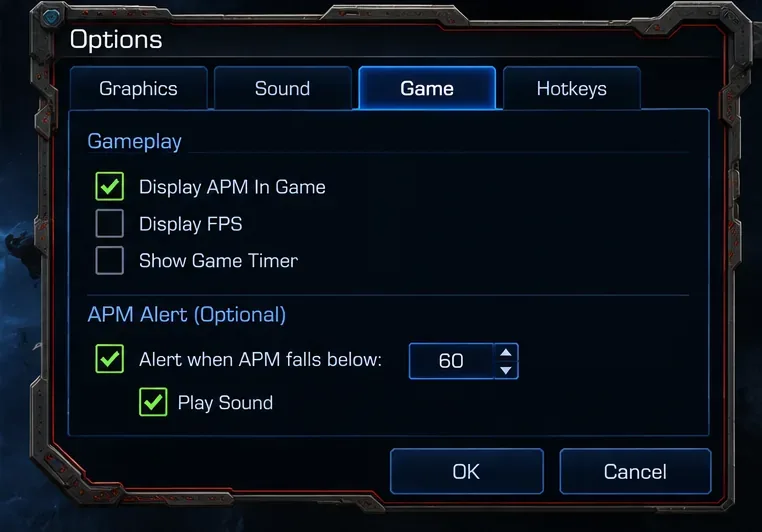
If repeated alert sounds become distracting, disable the sound portion or turn off the low-APM alert while leaving the on-screen APM display enabled. This distinction matters because players sometimes assume the warning noise is part of the counter itself.
Return to Options → Game and verify that the APM display control is still enabled. If you left the menu without confirming the change, the setting may not have been retained. Apply the option again and start a fresh match.
The counter is intended as an in-game display. Do not expect the live number to behave like a permanent Battle.net launcher overlay or a menu widget. Start a playable match and issue commands before deciding that the feature is missing.
StarCraft also has observer and replay features. Those interfaces can expose different statistics and comparison views. If you are watching a replay or observing another game, the controls you see may not match the simple live counter used when you are actively playing. For troubleshooting, first test your own normal game with the standard APM display enabled.
If the client is not using English, the setting name will be translated. Search the Game options for the local equivalent of APM or actions per minute. The underlying feature is more important than the exact English label.
A restart should not normally be necessary for a simple display toggle, but it is a reasonable next step if the setting appears enabled yet the HUD does not update. Close StarCraft: Remastered completely, reopen it from Battle.net, recheck the option, and test again.
If parts of the game interface are missing, flickering, or covered, temporarily disable unrelated overlays from communication, capture, or GPU utilities and test StarCraft by itself. This is a troubleshooting step for display conflicts, not a requirement for using the built-in APM counter.
The counter is most valuable when you pair it with a specific mechanical goal. For example, you might practice keeping production active while scouting, or maintaining worker production during a small fight. After each game, ask whether your useful actions stayed consistent during the moments that required multitasking.
You have configured the feature successfully when all four statements below are true:
If those conditions are met, the built-in APM counter is working and no external overlay is necessary. From there, decide separately whether the low-APM warning helps your practice or simply adds noise. The most useful setup is the one that lets you monitor your pace without distracting you from making good decisions.
This guide was checked against Blizzard-owned material available as of October 7, 2026. Blizzard’s patch 1.18 notes are the primary source confirming native APM display options. Blizzard’s Remastered launch material confirms the modernized StarCraft client context. I did not find a newer official Blizzard announcement stating that the APM display had been removed or replaced. Because Blizzard does not publish a current screen-by-screen support page for this exact toggle, minor menu wording or layout differences remain possible across languages and future client revisions.
Enable PUBG’s network statistics HUD to monitor ping and packet loss in a match. See where to find it, what the numbers mean, and what they cannot diagnose.
Learn how to import VALORANT crosshair codes, compare presets with manual settings and spectator copy, and fix common import issues.
Choose Dota 2 minimap size, hero icons, team colors, and background settings by readability, fewer misclicks, and clear results on your own display.
Fix Fortnite texture pop-in on PC with official steps for GPU drivers, file verification, DirectX 12, high-resolution textures, VRAM, SSDs, and stutter.
Learn what Heroes of the Storm minimap size and position options are verified, improve readability, and choose camera-click controls that suit you.
Set Super Smash Bros. Ultimate Quickplay to prefer hazards-off stages. Follow the Preferred Rules menu steps and learn why matchmaking may not always honor them.
Enable Server Latency and Packet Loss in Warzone to monitor connection quality, read the overlay, and use recurring spikes to guide troubleshooting.
Learn how to carry from mid lane in League of Legends by setting up waves, choosing safe roam windows, reading side lanes, and converting pressure into objectives.
Fix Minecraft Evoker spell problems with a safe vanilla test, version checks, log review, and a step-by-step way to isolate mod or datapack conflicts.
Fix PUBG stuck on Initializing on Steam with a focused checklist for PC service notices, launch options, game files, downloads, and connection issues.








