Home
» 🎮 Esports
»
How to Enable Quick Cast on Key Release in Dota 2
How to Enable Quick Cast on Key Release in Dota 2
How to Enable Quick Cast on Key Release in Dota 2
To enable Quick Cast on Key Release in Dota 2, open Settings, search for “quickcast,” enable Quickcast for abilities, and set the ability’s own Quickcast selector to Triggered on key release. If you want release behavior as the default for bindings that inherit the global setting, leave Quickcast triggers on key press by default unchecked. Then test one targeted spell in Demo Hero before using the setup in a match.
Enabling Quickcast and choosing its trigger are separate steps. A Quickcast binding can cast when the key goes down or when it comes back up. The per-ability selector is the setting to verify first; a global default does not necessarily replace an explicit mode saved for a particular spell, item, or hero.
What key-release Quickcast changes
With release-based Quickcast, press and hold the ability hotkey while you position the cursor, then release the key to issue the cast command. With press-based Quickcast, the command is issued as soon as the hotkey is pressed. Normal cast uses a separate targeting confirmation, commonly a mouse click, after you select the ability.
Mode
When the cast is committed
When it may help
Normal cast
After selecting the ability and confirming the target or location
You want a separate confirmation step.
Quickcast on key press
When the hotkey is pressed down
Your cursor is already positioned and you want the command immediately.
Quickcast on key release
When the hotkey is released
You want to hold the key while checking or adjusting a targeted cast.
Release-based casting can be useful for a ground-targeted area spell or directional ability when holding the key helps you read the targeting preview. Press-based Quickcast can suit an action you want to issue immediately. Neither mode is universally better; choose based on how you aim that ability. The cast command timing is also different from the spell’s cast animation, projectile travel, or damage timing.
Set an ability to trigger on release
1. Find the Quickcast controls
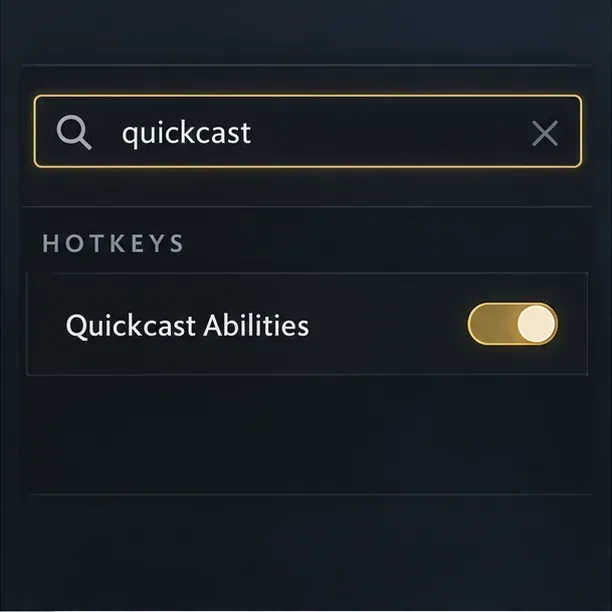
Open Dota 2’s Settings and use the settings search for quickcast. The Settings panel was reorganized and made searchable in Valve’s Spring Forward 2025 update, so an older guide may show a different menu layout. Open the Hotkeys results and locate the ability controls. If the client shows a Quickcast Abilities switch, turn it on.
Keep your existing key assignments while changing the trigger. If you use unit-specific hotkeys, confirm that you are editing the active hero or unit profile. If Direct Cast Bindings are enabled, make sure you are changing the Quickcast binding rather than the normal Cast binding; those are separate actions in that layout.
Illustrative layout: use Settings search to find Quickcast controls and confirm Quickcast Abilities is enabled.
2. Choose release on the ability’s selector
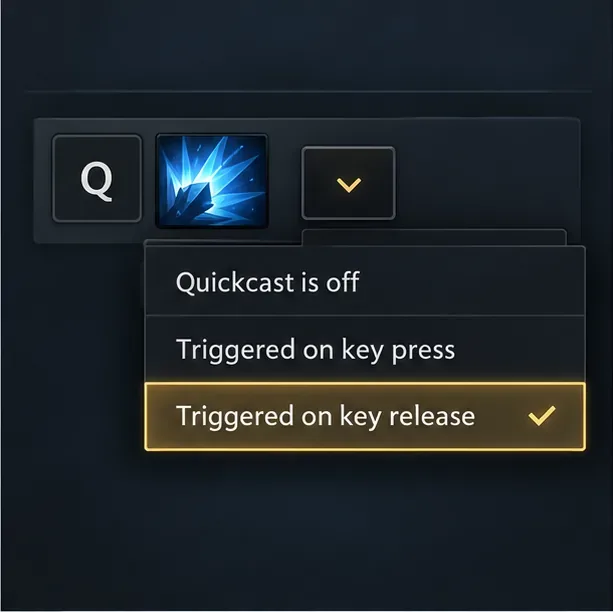
Find the ability’s Quickcast hotkey box and open its small casting-mode selector. Choose Triggered on key release. The menu may also offer a disabled state and a key-press state. Apply the release choice to each ability you want to use this way; you can leave other spells on press or normal cast.
Do not rely on the key label alone. The same ability can have separate normal-cast and Quickcast bindings. Valve’s May 29, 2025 7.39b update documented a fix for a Quickcast dropdown that could be missing in Direct Cast Bindings. That is useful context if you remember an older menu issue, but it does not diagnose every missing control in a current client.
Illustrative layout: the release option is selected in the individual ability Quickcast menu.
3. Review the default trigger
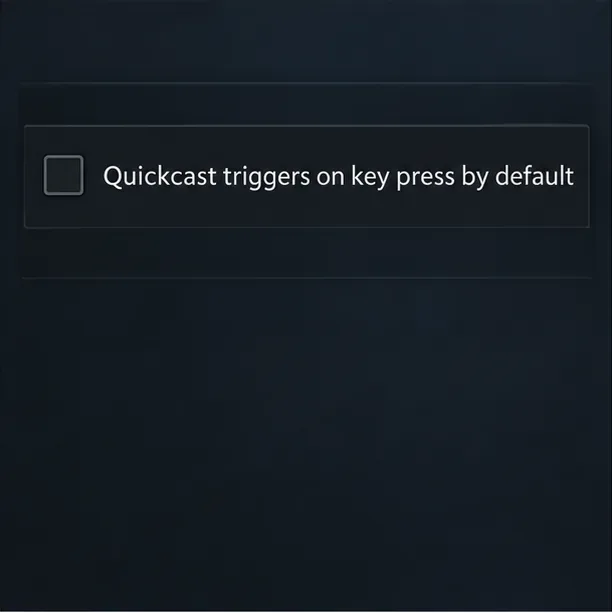
Search Settings for Quickcast triggers on key press by default. When this option is checked, Quickcast uses key press by default; leave it unchecked if you want release behavior for Quickcast bindings that inherit the default. This global preference is a fallback, not a substitute for inspecting each ability selector. An explicit per-ability or per-item mode can differ from the default.
Valve described the release behavior as an option to invert Quickcast from button press to button release in its Spring Cleaning 2016 notes. The later Settings redesign changed the menu organization, not the basic distinction between pressing and releasing the key.
Illustrative layout: the global key-press default is unchecked, so bindings that inherit the default use release behavior.
4. Check item hotkeys and test in Demo Hero
Items have their own Quickcast controls. If you want an item to activate on release, inspect the Quickcast mode for the item binding or slot you actually use; changing an ability’s trigger does not automatically verify item behavior. Check each relevant slot, especially if you use item-specific or direct-cast bindings.
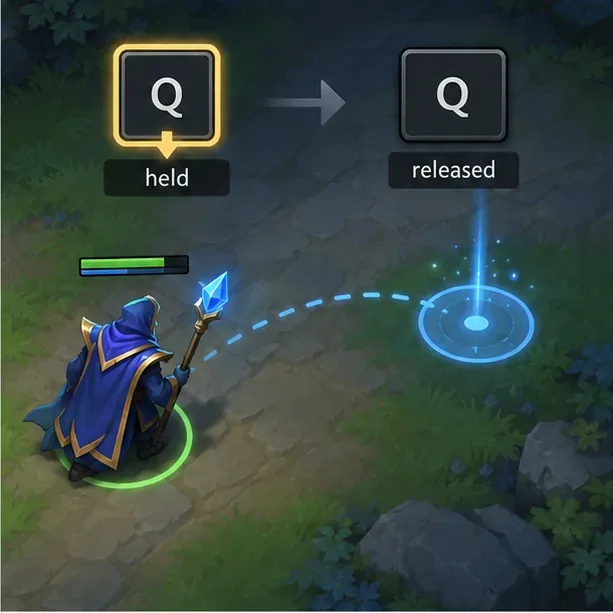
Open Demo Hero with the hero you configured. Choose a learned, targeted spell that has enough mana and is off cooldown. Put the cursor at a valid location within range, hold the ability key, move the cursor slightly, and release the key. A release-configured spell should wait through the hold and begin its cast after release. Judge when the cast command starts, not when a projectile lands or damage appears.
If a no-target spell gives no useful targeting preview, use a straightforward targeted ability for the first check. Once that behaves as expected, repeat the test for other abilities and items individually. This confirms the input mode without changing keys or relying on a live match.
Illustrative practice view: hold Q while positioning a ground-targeted cast, then release Q to commit it.
Troubleshoot unexpected casting behavior
What you see
What to check
The spell casts as soon as you press the key
Open that spell’s Quickcast selector and confirm it says Triggered on key release. Then review the global default.
The game waits for a mouse click
Check that the key is bound to Quickcast, not normal Cast.
One hero behaves differently
Check the active unit-specific hotkey profile and that hero’s individual ability modes.
Abilities work but an item does not
Inspect the item’s Quickcast binding or slot separately.
Nothing happens in Demo Hero
Check the ability level, mana, cooldown, range, and target validity before changing hotkeys.
The Quickcast selector is missing
Search Settings for Quickcast, confirm which binding layout is active, and make sure the client is updated.
If Quickcast does not activate at all, inspect other hotkey options, including whether legacy keys are enabled; Dota’s Settings panel warns that Quickcast is incompatible with legacy keys. Change one control at a time and repeat the same Demo Hero test so you can identify which setting changes the result.
Quick checklist before a match
Quickcast is enabled for the intended ability.
Its individual selector says Triggered on key release.
The global key-press default is unchecked if you want release as the inherited default.
Hero-specific bindings and relevant item slots have been checked separately.
A targeted spell waits while the key is held and begins casting after release in Demo Hero.
When the test works, extend the setup gradually. Dota 2 Quickcast on key release changes when your input commits the command; it does not automatically improve accuracy or shorten the spell’s animation. Keep the trigger that makes each ability predictable for you.