Home
» 🎮 Esports
»
How to Enable Directional Air Roll on a Controller in Rocket League
How to Enable Directional Air Roll on a Controller in Rocket League
To enable directional air roll on a controller in Rocket League, open Settings > Controls > View/Change Bindings, find Air Roll Left or Air Roll Right, select that action, and press the controller button you want to assign. These are separate actions from the entry labeled simply Air Roll. Binding the wrong entry is a common reason a car does not roll the way you expect.
The important decision is not which direction looks better in a highlight clip. It is whether you can reach the new button while jumping, boosting, and steering without accidentally activating another action. Start with one directional binding, check it in Free Play, and add a second direction only if your layout has room.
What is directional air roll, and how does it differ from Air Roll?
Air roll rotates an airborne car around its front-to-back axis. With the ordinary Air Roll action, you hold the assigned button and use horizontal stick input to choose the roll direction. With Air Roll Left or Air Roll Right, the assigned button supplies a particular roll direction without requiring that horizontal stick input.
This distinction lets you combine a directional roll with stick adjustments, but it also makes the car's changing orientation harder to interpret at first. Holding a directional button continuously is not a requirement for every aerial. For a simple landing correction, a short press may be more useful than a full spin.
Directional bindings are an established feature, not a new unlock or an item you must buy. Psyonix's March 22, 2017, v1.31 patch notes documented Air Roll Left and Air Roll Right binding support for PS4 and Xbox One. The current Epic support material also confirms the Controls binding editor. This guide covers the main Rocket League game, not Rocket League Sideswipe.
Should you bind left, right, or both?
For a first setup, choose one direction that fits an accessible button. You do not need both directional actions to verify that the feature works or begin practicing. Keeping your existing ordinary Air Roll binding can preserve a familiar way to make corrections in either direction.
Setup
When it makes sense
What to consider
Ordinary Air Roll plus one directional action
You want a gradual change to an established layout.
You retain familiar corrections while learning one dedicated spin direction.
Air Roll Left and Air Roll Right on separate buttons
You have two accessible inputs and want dedicated control in either direction.
Both buttons need space in the layout, and each must be checked for conflicts.
One directional action only
You want a minimal experiment before redesigning your controls.
A dedicated button for the opposite direction is absent; do not remove a useful existing binding without a reason.
There is no official requirement to choose left over right for better accuracy. Treat that choice as a preference and layout decision. If the button you can comfortably reach suits Air Roll Right, that is a reasonable starting point; the same reasoning applies to Air Roll Left.
Which controller button should you choose?
Choose a button you can hold while using Jump and Boost. A bumper can be convenient because it leaves your thumb available for face buttons, but it may already be assigned to Boost, Powerslide, or ordinary Air Roll. Moving one action can therefore create more changes than expected.
Button position
Potential advantage
Practical check
Bumper: LB/RB or L1/R1
Your thumb can remain near Jump and Boost.
Can your fingers operate the bumper and adjacent trigger comfortably?
Face button
It may preserve a familiar grip.
Can you combine it with your other face-button actions without missed presses?
Rear paddle, if available
It can offer another reachable physical input.
Check what ordinary controller button the paddle sends; a duplicate input is not automatically a new in-game action.
For example, an Xbox-style layout could use RB for Air Roll Right, provided RB is available or you deliberately relocate its existing action. The corresponding right bumper on a PlayStation controller is R1. LB corresponds to L1. Face-button names differ across controller families, so follow the input displayed by your game rather than transferring letter labels blindly.
These are ergonomic suggestions, not a measured ranking of controller layouts. Before changing anything, take a screenshot or write down your current bindings, especially Jump, Boost, Powerslide, and Air Roll. That gives you a clear way back if the experiment feels worse.
How do you assign the directional actions?
Open the binding editor
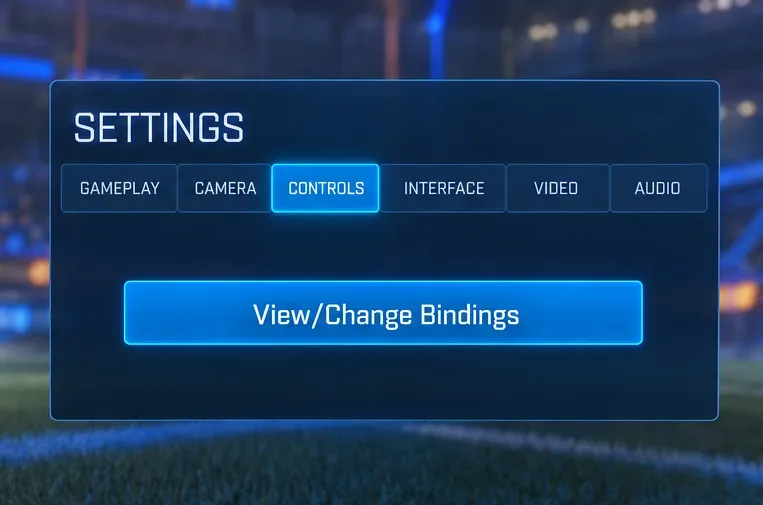
Open Settings, select the Controls tab, and choose View/Change Bindings. You can also reach the editor while practicing. Epic's Free Play binding instructions confirm that navigation and the select-an-action, press-a-button interaction.
Open Controls and choose View/Change Bindings to edit individual actions.
Assign one direction first
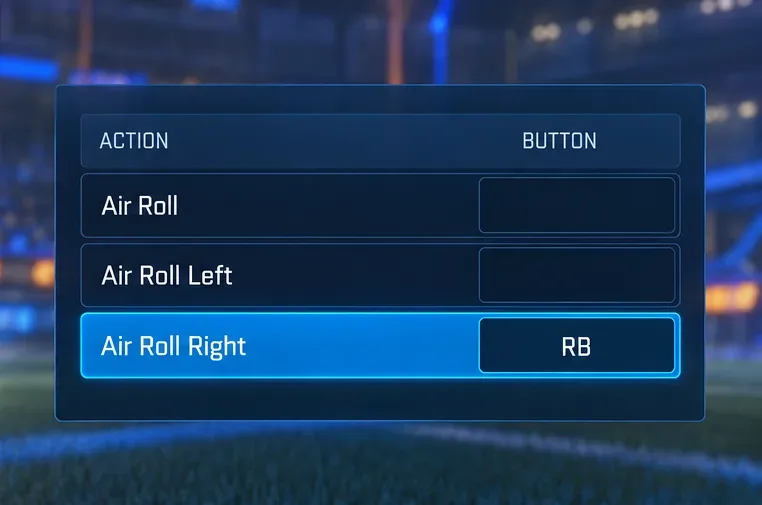
Scroll through the actions until you find Air Roll Right or Air Roll Left. Select the action, activate its binding entry, and press the intended controller button. For the right-bumper example, assign Air Roll Right to RB on an Xbox-style controller or R1 on a PlayStation controller. Confirm that the action's displayed assignment reflects your input.
Example first assignment: Air Roll Right uses the right bumper on an Xbox-style controller.
Do not substitute Air Steer Right or Air Steer Left. Steering and rolling describe different rotations. Also check the ordinary Air Roll row separately; changing that row does not automatically create a dedicated left or right binding.
Add the opposite direction only if you want it
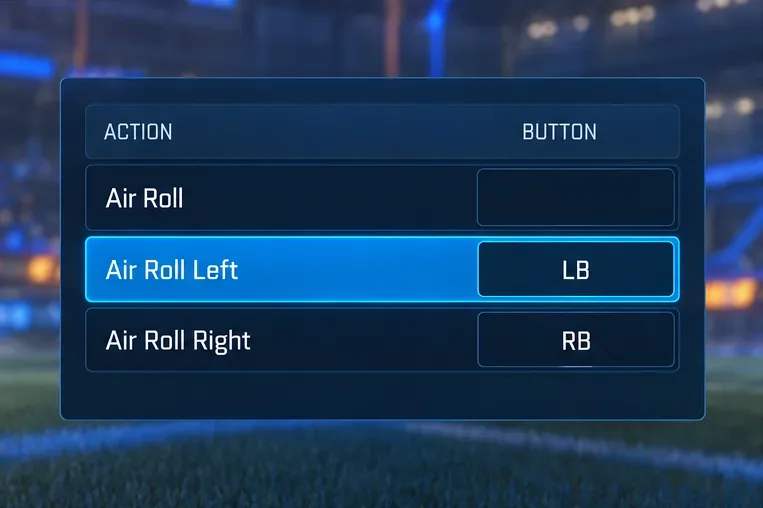
If you have decided to use both directions, select the other directional action and assign a different accessible button. An example is Air Roll Left on LB/L1 alongside Air Roll Right on RB/R1. Review what was already using those bumpers before adopting this example.
Optional second assignment: Air Roll Left uses the left bumper, with the opposite direction on RB.
Leave the opposite direction unassigned if you are starting with only one. There is no need to make an additional binding merely to complete the setup. These menu illustrations use simplified, cropped views and example assignments; they do not show a tested personal configuration.
Review the related controls
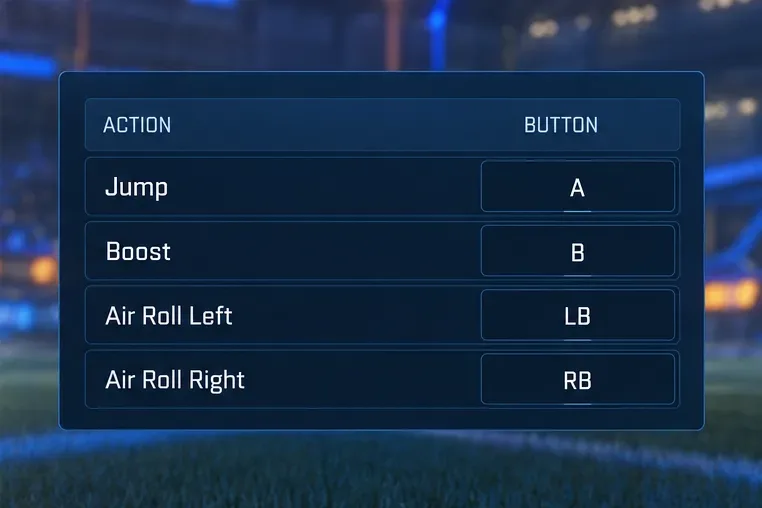
Before leaving the editor, check that Jump and Boost remain where you intended and that you have not unintentionally displaced Powerslide or ordinary Air Roll. Check other entries that use the selected button, including training controls. An action that is harmless during a match can still interrupt a practice session.
Review Jump, Boost, and the directional actions together before testing this example layout in Free Play.
Menu navigation and action names were checked against official documentation on October 7, 2026. Exact appearance and controller prompts may vary by platform and software. This article does not claim a live controller test on every supported platform.
How can you tell the binding is working?
Enter Free Play and test the input while airborne. A grounded car is a poor test of an aerial rotation control. Use a simple jump with enough time off the ground to observe the car, keep the stick centered, and hold only your new directional button briefly.
The car should roll in the direction assigned to that action.
Releasing the button should stop commanding that directional roll; other movement can still affect the car.
If you bound both directions, test them separately before combining any inputs.
Try Jump, Boost, and the directional button together to check whether your grip supports the combination.
Check ordinary Air Roll and Powerslide afterward if you retained or moved those bindings.
After the basic check, practice short rotations and controlled landings before trying continuous spinning. Keep your original sensitivity and deadzone settings during this initial comparison so that you can attribute changes to the new binding. If the car rolls correctly but you lose control when adding stick input, the assignment may be working even though the movement still needs practice.
Why does the button do nothing or trigger another action?
First reopen the editor and inspect the exact action row. An unchanged assignment, the wrong directional row, or an Air Steer binding can explain the result without requiring a reinstall. Then test in the air with the stick centered to separate the directional button from ordinary Air Roll behavior.
If Boost fires or the training ball moves when you press the new button, review overlapping assignments. Epic documents Free Play ball controls as separately editable entries near the bottom of the binding list. Psyonix also notes additional practice inputs in its Custom Training controls announcement. Check these entries before assuming the controller is broken.
If the controller cannot operate the game at all, resolve recognition first. For DualSense on PC, Epic's official controller troubleshooting guidance recommends updated controller software, disconnecting the controller, restarting the PC, and reconnecting by USB or Bluetooth. This is a connection check, not a special directional-air-roll requirement.
A successful setup gives you a predictable roll command, preserves essential controls, and permits the button combinations you actually use. Keep the layout if those checks pass; change the button if it causes conflicts or an uncomfortable grip. Learning the movement is the next task, and enabling the binding alone does not guarantee improved aerial accuracy.