How to Download Warzone on PS4 in 2026: Who Can Still Install It?
You can no longer newly download Call of Duty: Warzone on PS4. Activision removed the game from PS4 digital storefronts on June 4, 2026. If you had already added it to your PlayStation account's game library, you can still reinstall it from Library > Purchased and play until the end of Black Ops 7 Season 06. This guide explains how that remaining PS4 download works, and what to do if Warzone is missing from your library.
The distinction matters: searching the PlayStation Store is no longer the route for new PS4 players. The steps below apply only to an account that already owns the Warzone library listing. Activision's Warzone platform update and installation guide are the official sources for the cutoff and current console setup details.
The menu images in this guide are illustrative; exact wording and artwork can vary by system version and account.
Can you download Warzone on PS4 right now?
| Situation | What you can do |
|---|---|
| You never added Warzone to your PS4 library | You cannot claim or newly download the PS4 version now. |
| Warzone is already in your PlayStation library | Sign in with the same PSN account and reinstall it from Library > Purchased. |
| You already have it installed | Activision says PS4 play continues through the end of Black Ops 7 Season 06. PS4 support ends when Warzone Season 1 for Modern Warfare 4 begins. |
Activision's update says existing library owners can still install and play the game until the end of Season 06, while new downloads are unavailable. Its announcement does not give a specific calendar day for the final PS4 shutdown, so check the linked official update for any later timing notice. A PlayStation Store page or an old search result may still show Warzone as a cross-generation product; that does not restore the PS4 new-download option.
Before you start a PS4 reinstall
- The right PSN account: use the account that added Warzone to its library before the June 4 cutoff. The Purchased list is account-specific.
- An internet connection: the game and any required updates need to download before you can play online.
- Enough free storage: Warzone and its updates are large, and the required space can change. Older guides that promise one fixed size may be out of date. Check the available space in Settings > Storage and leave room for updates.
- A PlayStation account: Warzone is free to play, and PlayStation says most free-to-play games, including Call of Duty: Warzone, do not require PlayStation Plus for online play.
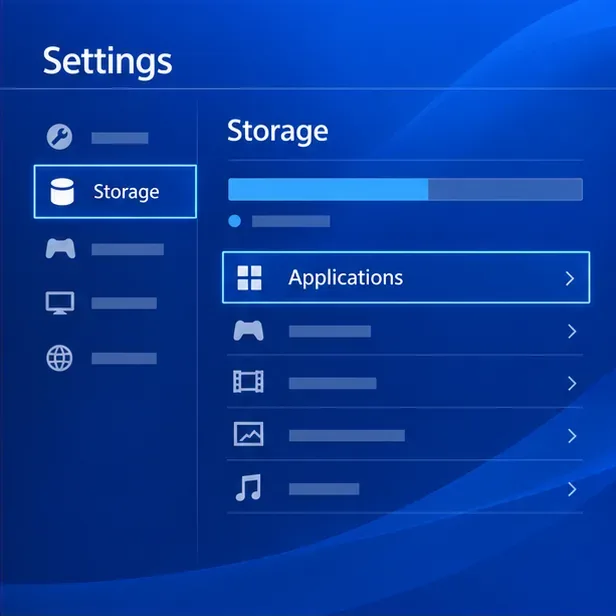
To review storage, open Settings > Storage. If space is tight, select System Storage > Applications and remove games you no longer use, or move compatible applications to a PS4 extended-storage drive. Check the console's own free-space figure rather than relying on the old article's 150 GB estimate. PlayStation's current instructions for managing PS4 storage explain the available options.
How to reinstall Warzone on PS4
Step 1: Sign in to the account that claimed Warzone
Choose the local PS4 user connected to the PlayStation Network account that previously added Warzone to its library. If you use a different account, the game may not appear in Purchased even if another person on the console claimed it.
Step 2: Open the PS4 Library
From the PS4 home screen, move to the Library tile and press X. Do not start with a new Store purchase: Activision says new PS4 downloads are no longer available.
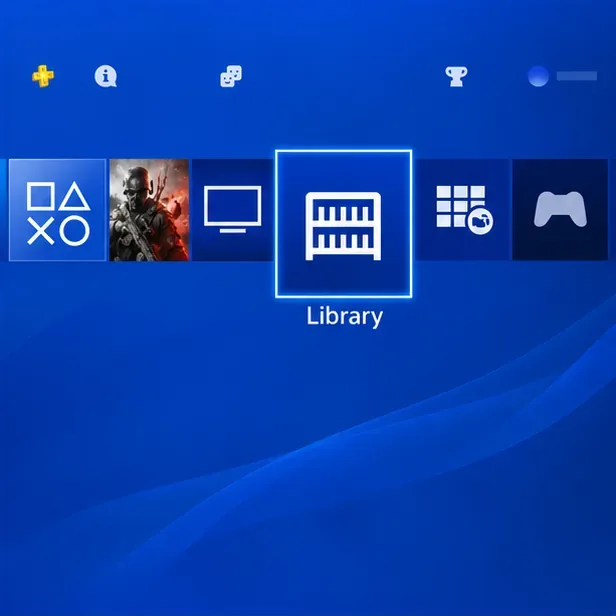
Open Library from the PS4 home screen. Step 3: Select Purchased
In Library, open Purchased to view games associated with the signed-in account. PlayStation's PS4 download instructions use this same Library > Purchased route for owned games.
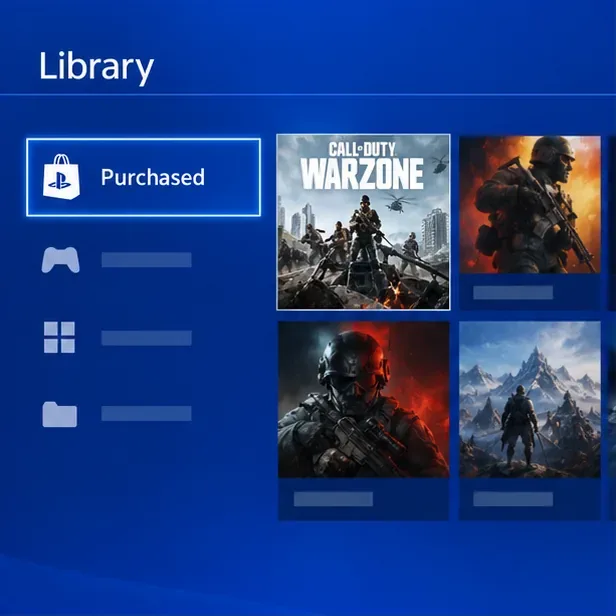
Look for Warzone under Library > Purchased on the account that claimed it. Step 4: Find Call of Duty: Warzone
Scroll or use the Library search if available, then select the Call of Duty: Warzone listing. Make sure the item is the Warzone game, not a paid Call of Duty edition or add-on. If the title is not present, see the missing-game troubleshooting section below; you cannot add a brand-new PS4 license after the cutoff.
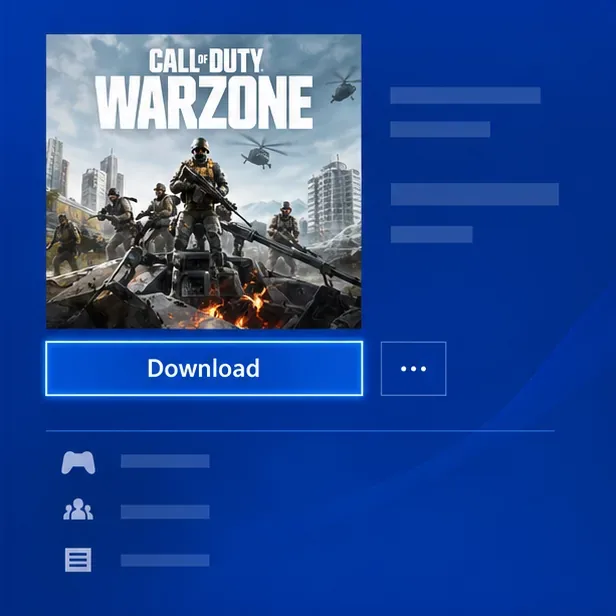
If your account owns the listing, choose Download from its Library page. Step 5: Choose Download and monitor the queue
Select Download. The install should appear in Notifications > Downloads. Keep the console online, avoid interrupting its power, and let the transfer finish. A wired Ethernet connection can make a large download more stable if your Wi-Fi is unreliable.
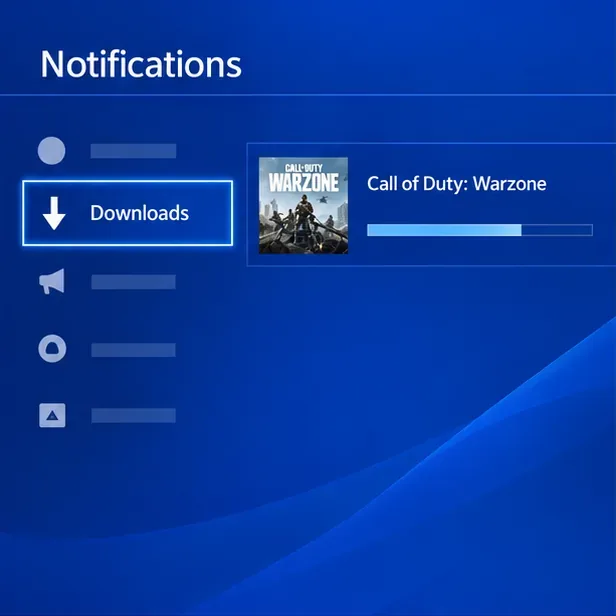
Check the Warzone transfer under Notifications > Downloads. Step 6: Let the install finish, then launch the game
Wait until the download and any required updates are complete. When the game is ready, open it from the home screen or Library. Follow any in-game sign-in or account-linking prompts. Activision says Warzone progression can carry to a supported current-generation console or PC when you use the same linked Activision account; some account balances or platform-tied content may follow different rules.
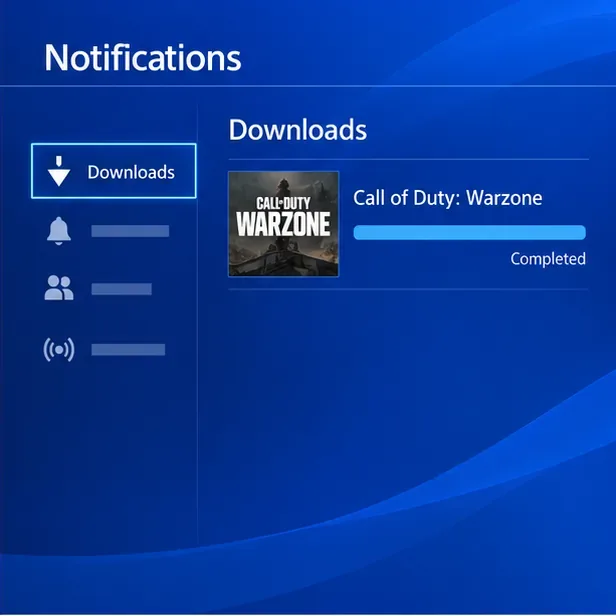
Wait for the Warzone download to show Completed before launching.
Optional: keep the download going in Rest Mode
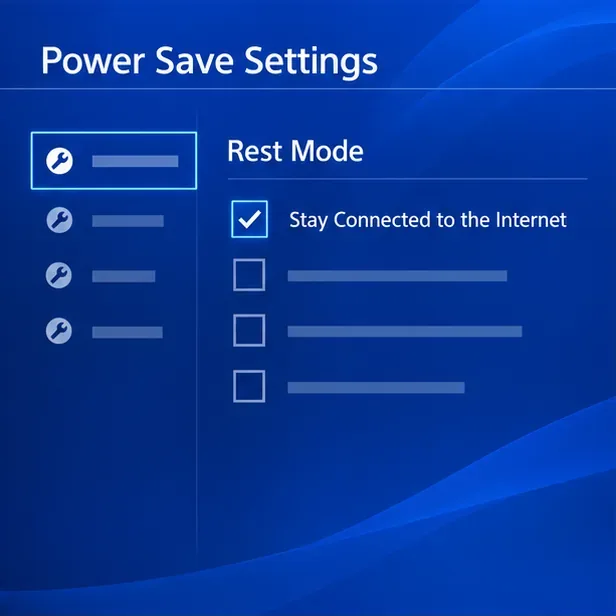
If you want the PS4 to continue downloading while idle, open Settings > Power Save Settings > Set Features Available in Rest Mode and check Stay Connected to the Internet. Then select Power > Enter Rest Mode. The PS4 must remain connected to power and the internet. PlayStation documents this setting in its power-saving and Rest Mode guide.
Fix common Warzone download problems on PS4
Warzone is not in Purchased
First confirm that you are signed in to the PSN account that claimed the game. If you hid the listing, check the Library's hidden content items. If you are certain the account had Warzone but it still does not appear, contact PlayStation Support with the account's transaction or library details. A different PSN account cannot use your license just because it is on the same console.
The listing has a padlock or Download will not start
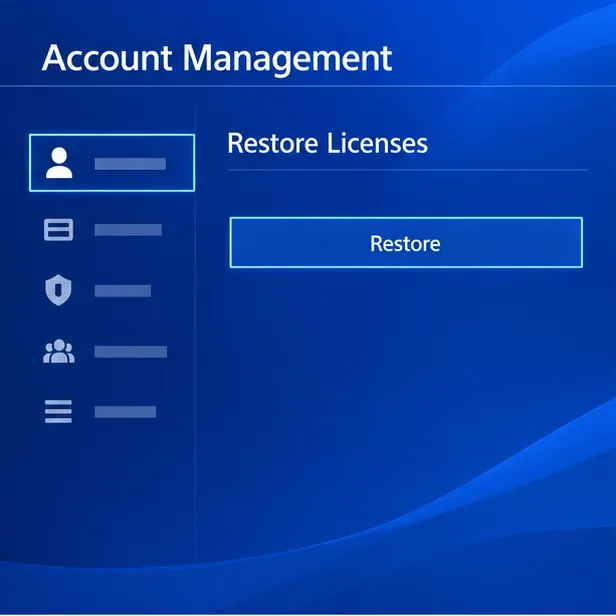
Confirm your PS4 is online, then try Settings > Account Management > Restore Licenses. Restoring licenses can help with a missing or locked item, but it cannot grant a license to an account that never added Warzone. See PlayStation's official Restore Licenses instructions.
The download is slow or stuck
Open Notifications > Downloads, pause the Warzone item, and resume it. If that does not help, restart the PS4 and router, check PlayStation Network service status, and try a wired connection. For additional steps, use PlayStation's download troubleshooting guide.
Frequently asked questions
Is Warzone free on PS4?
Warzone is free to play. The limitation is platform availability: as of October 2026, an account that never added the PS4 version cannot newly download it. Optional in-game purchases are separate from installing the game.
Do I need PlayStation Plus?
PlayStation lists Call of Duty: Warzone among free-to-play games that do not require PlayStation Plus for online play. You still need a PlayStation account and an internet connection.
How much storage does Warzone need on PS4?
There is no dependable single number for every version and update. Free space requirements can change, so check the amount shown by your PS4 when you start the install and leave additional room for updates.
Can I keep playing Warzone on PS4 after Season 06?
No. Activision says Warzone will stop being playable on PS4 when Season 1 for Modern Warfare 4 begins. Existing PS4 owners can use a supported current-generation console or PC to continue, subject to Activision account linking and platform-specific content rules.
In short: new PS4 users cannot download Warzone in 2026. If the game was already in your PlayStation library, sign in to that account, open Library > Purchased, select Warzone, and choose Download. The PS4 option is temporary, so consult Activision's platform update for the latest service timing.









