How to Download VALORANT on PC (2026 Install Guide)
To download VALORANT on PC, use Riot Games' official download page, run the installer it provides, and finish setup in the Riot Client. The PC version requires a supported 64-bit Windows system, and you need a Riot Account to play. The game itself is free to play; optional in-game purchases are separate.
Before starting, check the current VALORANT PC requirements. Windows 10 must be 64-bit, build 19041 or newer; Windows 11 must also be 64-bit. Riot's published minimum table lists 4 GB of RAM, 1 GB of VRAM, and a processor with SSE 4.2 or AVX support. On Windows 11, Riot also requires TPM 2.0 and UEFI Secure Boot. Storage needs can change as the game updates, so check the installer's current requirement and make sure the destination drive has room for the download and future patches.
The interface images below are simplified illustrations to show the install flow; button placement and appearance can vary by client version.
How to download and install VALORANT on PC
-
1. Open Riot's official VALORANT download page
Go to playvalorant.com/en-us/download and choose Download for PC. Check the address bar before downloading: Riot's official page links to the installer through Riot's own download system. Avoid third-party download mirrors and repackaged installers, which can be outdated or unsafe.
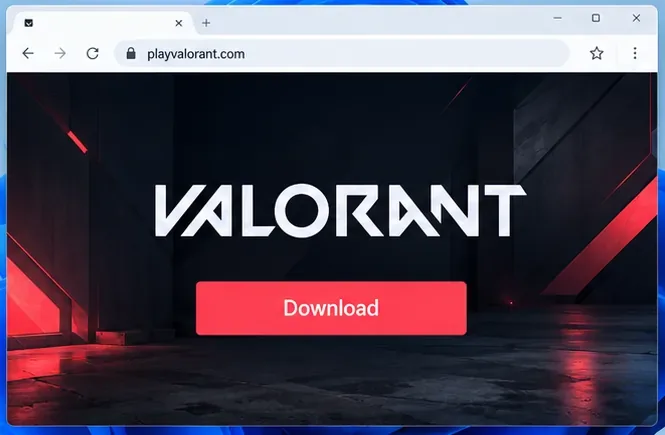
Use the Download button on Riot's official VALORANT page to get the PC installer. -
2. Open the downloaded installer
When the browser finishes, open its downloads list or find the file in your Windows Downloads folder. Run the installer you just downloaded from Riot. If Windows asks whether to let the app make changes, confirm only if you launched the file from the official Riot download and the prompt matches the installation you started. If the download is missing, return to Riot's page and start it again rather than searching for a copy on another site.
Open the installer from the Downloads folder after it finishes saving. -
3. Follow the setup prompts
Use the installer's on-screen instructions to install VALORANT and the Riot Client. If setup offers an install location, select a drive with enough free space; otherwise, the default location is fine for most players. The initial installer is only the first part of the process: the Riot Client downloads the game files and prepares the required components after setup begins. Keep the installer or client open while it works.
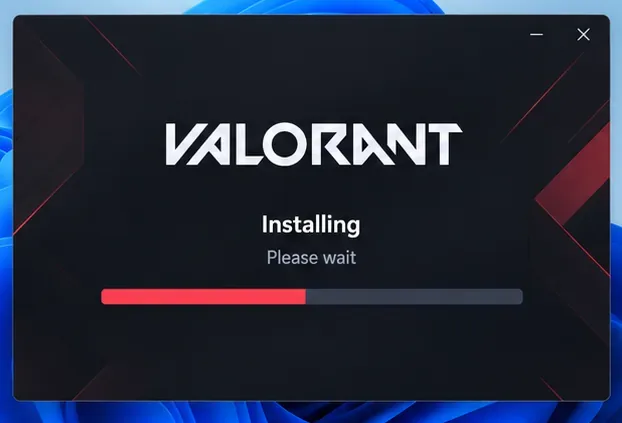
The installer shows progress while VALORANT and required components are being set up. -
4. Let Riot Client and Vanguard finish installing
Riot Vanguard is Riot's game-security software, and VALORANT requires it to be active while you play. Riot describes Vanguard as including a client and a driver. Read more in Riot's Vanguard overview. The download and patch time depend on your connection and current game update, so there is no reliable fixed duration or installer size. If Riot Client or the installer asks you to restart Windows, save your work, restart, and reopen Riot Client to complete the process.
For a smoother VALORANT PC install, use a stable connection and avoid shutting down the computer while files are being written. If progress appears paused, give the client time to finish its current step before restarting it.
-
5. Sign in and launch VALORANT
Open Riot Client and sign in with your Riot Account. If you do not have one, create it through Riot's official account page or follow the create-account option in the client. Once VALORANT finishes updating, select it in the client and click Play. The game opens from there; you can complete the tutorial or enter the practice range before joining a match.
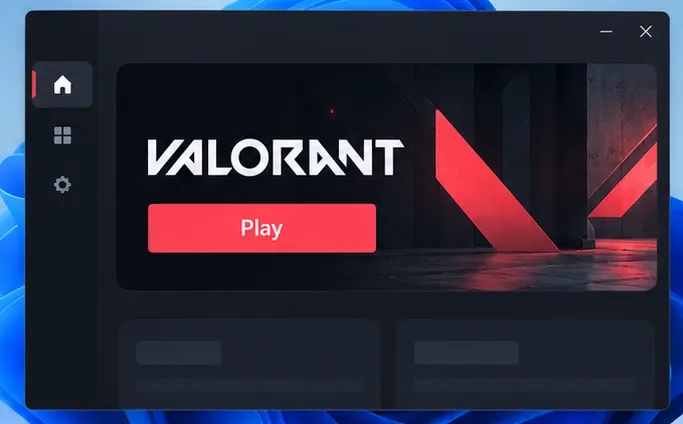
After setup and sign-in, launch the installed game from Riot Client.
What to check before your first launch
- Windows version: Confirm Windows 10 is build 19041 or later, or use Windows 11 64-bit.
- Windows 11 security: Riot lists TPM 2.0 and UEFI Secure Boot as requirements. If an error calls out one of these settings, follow Riot's support instructions or your PC manufacturer's guidance; avoid changing firmware settings at random.
- Free drive space: Leave enough room for the current installation and subsequent patches. The amount can change with updates, so an old quoted download size may no longer be accurate.
- Official download: If a browser or Windows security prompt appears, verify the download source and publisher before proceeding. Do not disable security protections just to get an installer to run.
VALORANT download troubleshooting
The installer will not download
Check the browser's downloads list and confirm you are still on Riot's official site. If the file did not save, retry from the official download page. A blocked or incomplete download should be replaced with a fresh copy from Riot rather than an installer from a file-sharing site.
Setup stops or the game will not launch
Check that Windows meets Riot's current requirements, the install drive has free space, and the PC has restarted if the client requested it. If an error includes a VAN code, use the matching instructions in VALORANT Player Support. Avoid changing Secure Boot, TPM, or antivirus settings unless Riot's instructions for that exact error call for it.
Frequently asked questions
Is VALORANT free to download?
Yes. VALORANT is free to download and play. Optional cosmetic purchases are available, but you do not need to buy them to install or launch the game.
How much space does the VALORANT PC install need?
The exact footprint changes as Riot updates the game. Check the current installer or Riot Client and keep additional room available for updates instead of relying on a fixed size quoted in an older guide.
Do I need a Riot Account?
Yes. You need a Riot Account to sign in and play. Use Riot's account site or the account-creation option in Riot Client.









