How to Download VALORANT on PC
Downloading VALORANT on PC is free: use Riot Games’ official download page, sign in or create a Riot account, and let the Riot Client install the game and its required anti-cheat component. This guide covers the current Windows requirements, each installation step, and safe fixes for common setup problems.
The images in this guide are interface illustrations, not live screenshots. Riot can update its installer and client screens, so follow the wording shown in your current Riot Client.
Check the current VALORANT PC requirements
Riot lists support for 64-bit Windows 10 (build 19041 or newer) or Windows 11. The processor must support SSE 4.2 or AVX, and the game requires 4 GB of RAM. If your PC has a dedicated graphics card, Riot lists at least 1 GB of video memory. On Windows 11, TPM 2.0 and UEFI Secure Boot are also required. Review the current VALORANT PC specifications from Riot before installing; requirements can change.
| Riot’s listed performance tier | Processor examples | Graphics examples | Memory |
|---|---|---|---|
| Minimum / 30 FPS | Intel Core i3-540 or AMD Athlon 200GE | Intel HD 4000 or AMD Radeon R5 220 | 4 GB RAM |
| Recommended / 60 FPS | Intel Core i3-4150 or AMD Ryzen 3 1200 | NVIDIA GeForce GT 730 or AMD Radeon R7 240 | 4 GB RAM |
| High-end / 144+ FPS | Intel Core i5-9400F or AMD Ryzen 5 2600X | NVIDIA GTX 1050 Ti, AMD Radeon R7 370, or Intel Arc A310 | 4 GB RAM |
These are Riot’s reference tiers, not a promise of a particular frame rate on every PC. Keep enough free space on the drive you choose for the current game files and future updates. Riot’s public spec page does not give one fixed install-size figure, and the game can change as it is updated.
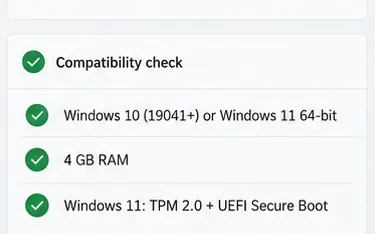
How to download and install VALORANT on Windows
-
1. Open Riot’s official VALORANT download page
In your browser, go to playvalorant.com/en-us/download and choose Download. Use the Riot Games website rather than a third-party mirror or an installer shared in a forum. That way, you get the current installer from the publisher.
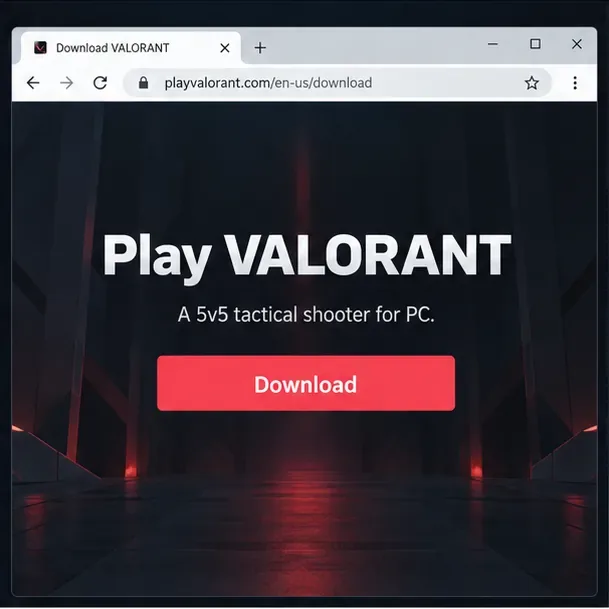
The official VALORANT download page is the starting point for the Windows installer. -
2. Sign in or create a Riot account
Follow the prompts after selecting Download. Sign in with your existing Riot account, or create one through Riot’s account flow if you are new. A Riot account is needed to access the game; account creation does not require buying the game. Use a password you do not reuse elsewhere, and make sure you are on a Riot-owned page before entering account details.
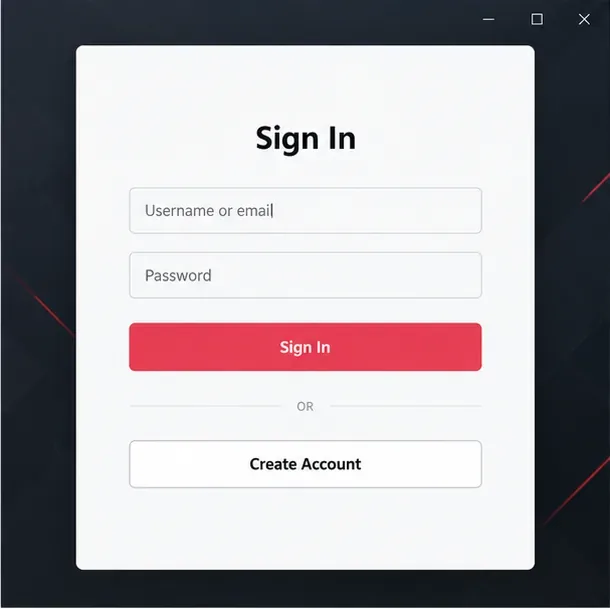
Use an existing Riot account or create one when prompted to continue the VALORANT installation. -
3. Run the downloaded installer
Open your browser’s Downloads list or the Windows Downloads folder and run the VALORANT installer you just downloaded. If Windows asks for permission, check that the file came from Riot’s official download page before allowing it to continue. Follow the installer prompts and select a destination drive if the installer offers that choice; leave enough free space for the game and updates.
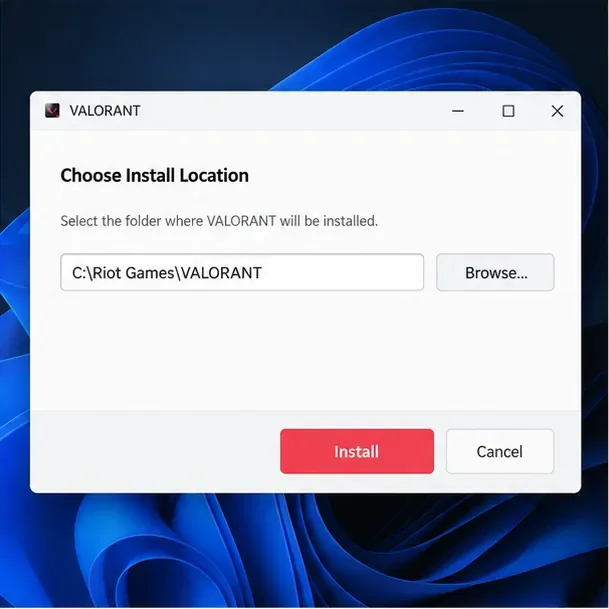
If the installer offers a location choice, select a drive with room for the current game files and updates. -
4. Let the Riot Client download the game
The installer sets up the Riot Client, which manages the game installation and updates. Once the client opens, sign in if asked and select VALORANT. Let the client finish downloading and checking the current files before you try to launch the game. The download size and time vary with the current build, your available storage, and your connection speed; Riot does not publish a permanent size or time estimate on its system-requirements page.
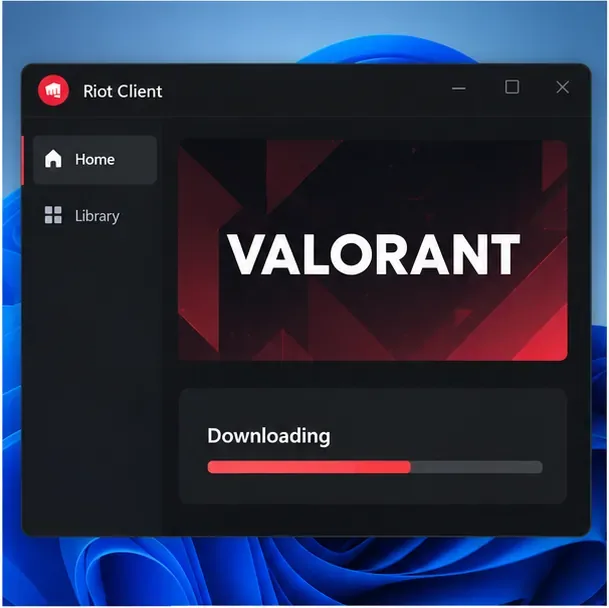
The Riot Client handles the full VALORANT download after you run the installer. -
5. Install Riot Vanguard and restart if prompted
Riot Vanguard is required to play VALORANT. During the first setup, the client installs or completes Vanguard’s installation. If you see Riot’s “Your game requires a system restart to play” message, save your work and restart Windows; Riot says the Play button stays locked until you do. Vanguard normally starts with Windows and must be active while you play. See Riot’s restart instructions or Vanguard overview for more detail.
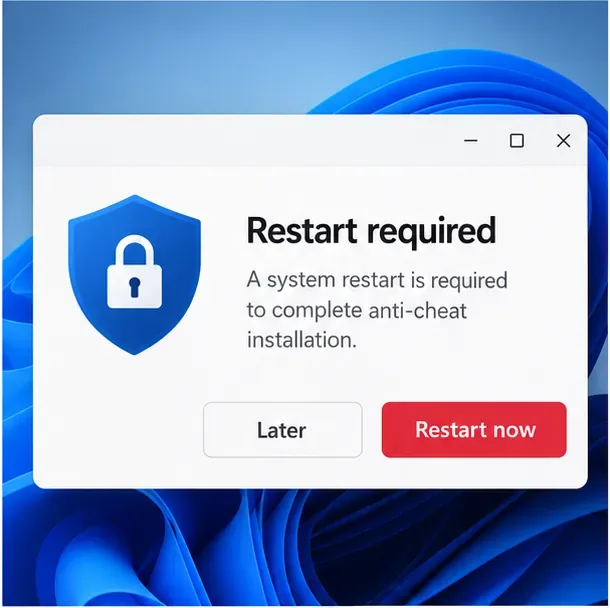
Restart Windows when Riot’s Vanguard setup specifically asks you to do so. -
6. Launch VALORANT from the Riot Client
After the restart, open the Riot Client from the Start menu if it did not reopen automatically. Select VALORANT and click Play once the client has finished installing and updating the game. Sign in with the Riot account you used for setup. If an error appears, note its complete code and message before troubleshooting; the exact code helps identify whether the issue is with the game, Vanguard, or your connection.
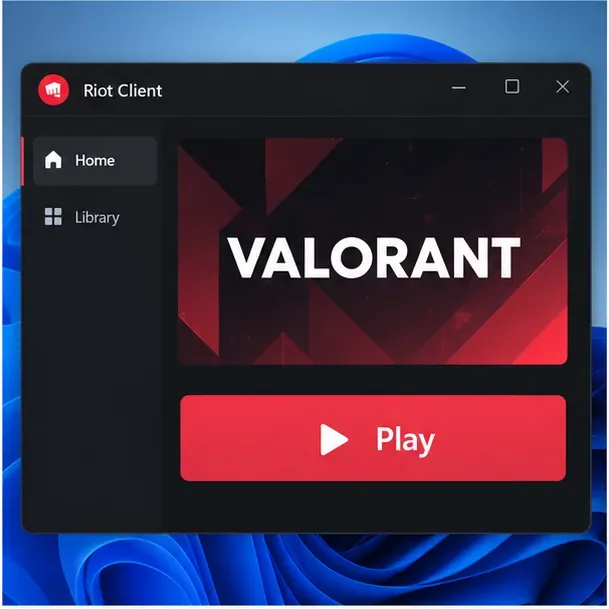
When the client shows Play, the VALORANT installation is ready to launch.
Fix common VALORANT installation problems
The download button does not start a download
Confirm that you are on Riot’s official download page, then check the browser’s Downloads list for a blocked or waiting file. If the installer is missing, return to the official page and try again. Avoid downloading a replacement executable from an unofficial site.
The Riot Client is stuck or cannot connect
Restart the Riot Client and check that Windows has an internet connection and the selected drive has free space. If a firewall or network error appears, use Riot’s current firewall troubleshooting guide. Do not turn off security protection as a routine installation step.
Vanguard asks for another restart or shows a VAN error
Restart once when prompted. If the message returns, search Riot’s Vanguard error-code guide for the exact VAN number and follow that code’s instructions. If the code is not listed or the issue continues, submit a ticket to Riot Support instead of deleting system files or changing services by guesswork.
Windows 11 says the PC does not meet the security requirements
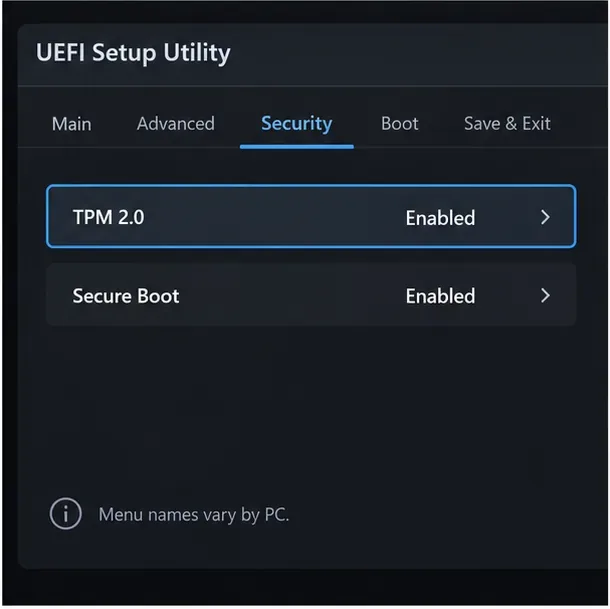
Riot’s requirements specify TPM 2.0 and UEFI Secure Boot for Windows 11. Firmware menus differ by PC and motherboard. Check the device maker’s instructions or Riot’s Secure Boot guide before changing UEFI settings. If you are unsure, ask the PC manufacturer for help.
VALORANT download FAQ
Is VALORANT free to download on PC?
Yes. Riot describes VALORANT as free to play. Download it through the official VALORANT website; the installer and Riot account are free.
How large is the VALORANT download?
Riot does not list a permanent download-size number on its current PC requirements page. The installed size can change as Riot updates the game, so check the current installer or Riot Client and keep extra free space available for patches.
Can I install VALORANT without the Riot Client?
No. Riot’s installation instructions use the Riot Client to download and install VALORANT and manage its updates.
Does VALORANT run on Windows 10?
Yes, on 64-bit Windows 10 build 19041 or newer. Windows 11 64-bit is also supported, with TPM 2.0 and UEFI Secure Boot required.
For the safest VALORANT PC download, start at Riot’s official site, use the Riot Client for installation, and follow any Vanguard restart or security prompt shown on your own PC.









