How to Download VALORANT Mobile on Android and iOS
You can download VALORANT Mobile only when its official release is available in your app store region. As of October 16, 2026, the mobile release I could verify is China’s 无畏契约:源能行动. Its China App Store listing shows a 3.8 GB download and iOS 13.0 or later, while the Android listing is published through Chinese app marketplaces under Tencent. I could not confirm an international Google Play or Apple App Store listing for other regions. If the game does not appear in your local official store, there is no verified, supported download route for your region yet.
That distinction matters: a listing in another country’s store does not mean the game is globally available or that its account and server requirements match the PC version. Use the steps below to check your region, find the legitimate VALORANT Mobile download, and avoid look-alike apps and unverified APK files.
Check whether VALORANT Mobile is available in your country
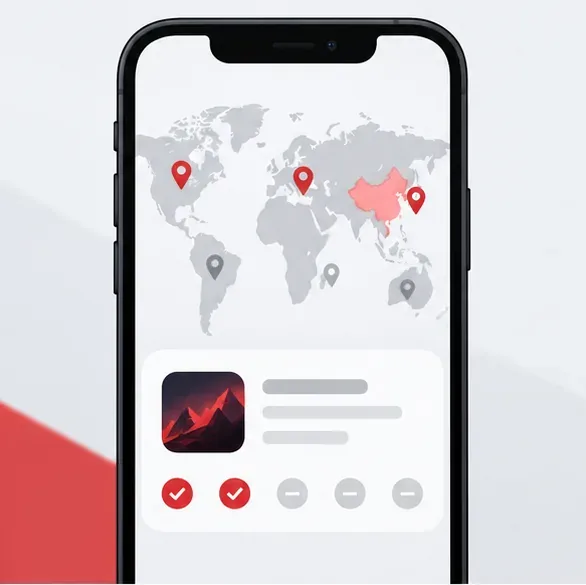
Riot and its regional publishing partners control where the mobile game is offered. Check the official VALORANT news page for announcements, then search the Google Play Store or Apple App Store that is already set to your account’s country or region. On the confirmed China release, search the localized title 无畏契约:源能行动 as well as “VALORANT Mobile.”
The official store pages I could verify are region-specific. Apple lists the game in the China App Store, and the Android version appears on a publisher-authenticated TapTap page and Xiaomi’s app marketplace. These links are useful for checking the Chinese release; they do not indicate worldwide availability.
| Platform | Verified listing | What to check |
|---|---|---|
| iPhone and iPad | China App Store listing | The listing currently shows 3.8 GB, Simplified Chinese, and iOS 13.0 or later. |
| Android | TapTap publisher page and Xiaomi App Store listing | Check that the title is 无畏契约:源能行动 and the publisher is Tencent. |
| Other regions | Your local Google Play Store or Apple App Store | If no official result is listed, wait for a supported regional release. |
Store availability and file sizes can change. Treat the live listing as the final word on compatibility, download size, and whether the game is offered to your account.
How to download VALORANT Mobile
Step 1: Check the official release for your store region
Open your regular app store and search for VALORANT Mobile. If you are checking the Chinese release, also search for 无畏契约:源能行动. Open the product page and confirm its publisher and compatibility details before downloading. A fan page, a video claiming early access, or a search result from an APK site is not proof that the game is available in your country.
If the store says the app is unavailable, or no official listing appears, stop there. Do not change your store country, use a VPN to imitate another region, or follow instructions to install a downloaded package. Regional store access alone may not satisfy the game’s service or account requirements.
Step 2: Install the Android version from an official listing
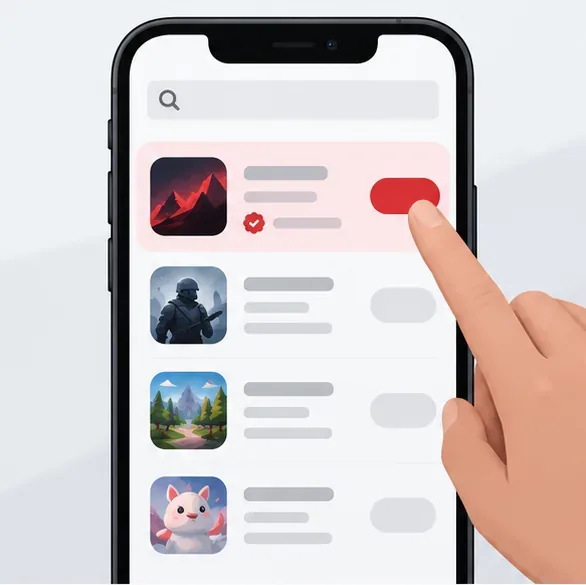
On Android, install from Google Play only if the official game listing is available in your region. For the verified Chinese version, use a publisher-authenticated distribution page such as the VALORANT Mobile page on TapTap or the Xiaomi app marketplace page. Check the Chinese title and Tencent publisher information on the page, then use its own download or install control.
Avoid APK mirrors, file-sharing links, modified clients, and “early access” packages from unofficial sites. Those files are not verified by the official app listing, and you may miss safe updates or install altered software. If the official listing is not available to your store account, wait for an announced release instead of sideloading.
Step 3: Install the iOS version from the App Store
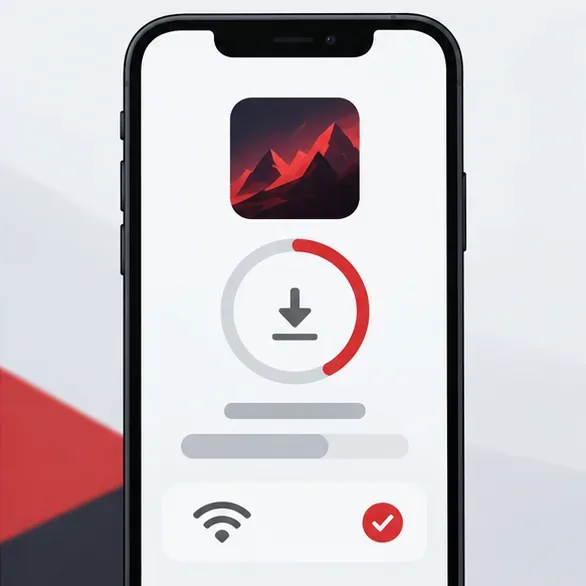
On iPhone or iPad, search the App Store for VALORANT Mobile. For the Chinese release, the app is listed as 无畏契约:源能行动. The China App Store page identifies the provider as Shenzhen Tencent Tianyou Technology Ltd and currently lists iOS 13.0 or later. Tap Get if the official page is available in your store, then authenticate with your Apple account.
The listing’s 3.8 GB figure is the app size shown by Apple at the time of review, not a guarantee of the final space needed after updates or downloaded game resources. Keep additional storage free. Use Wi-Fi for a large download and keep the phone connected to power if the installation takes a while.
Step 4: Open the game and follow its regional sign-in flow
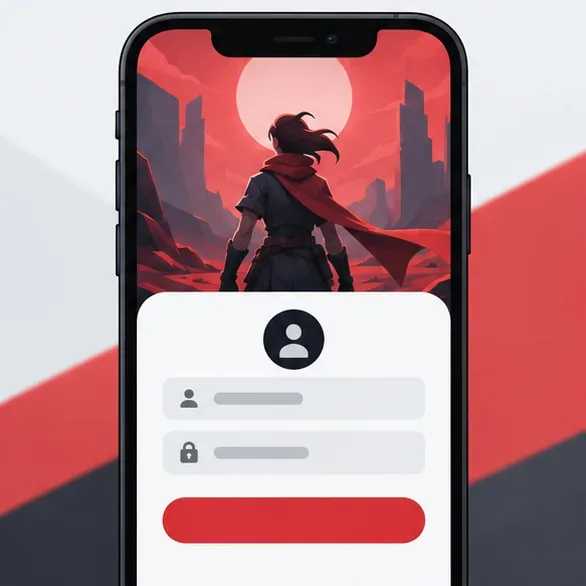
Launch the game after the store finishes installing it, and let any in-game resources download from the official client. Sign in using the method requested by that regional version. Do not assume your PC Riot account, friends list, progress, or purchases will automatically transfer: the verified mobile listing is a China-region Tencent release, and account or cross-progression rules should be confirmed in that version’s official instructions.
For updates, return to the same app store or publisher-authenticated distribution channel used for installation. Keeping the game in its official update path makes it easier to receive the current build and reduces the chance of installing a mismatched package.
If the game is missing or will not install
VALORANT Mobile does not appear in the store
First confirm the country or region configured for your app-store account, then search the localized Chinese title if you are checking the China release. If there is still no official result, your store region may not be supported. Check Riot’s official news for release announcements and try again when regional availability changes.
The download pauses or fails
Check that the phone has more free storage than the listing’s download size, switch to a stable Wi-Fi connection, and resume the download from the official store. If the device does not meet the operating-system requirement shown on the product page, the store may prevent installation. Avoid deleting app data or reinstalling from a different source until you know which account and region the game uses.
You cannot sign in
Confirm that you selected the intended regional version and use the account method displayed by its official login screen. A Riot ID used for PC VALORANT may not be accepted by a separately published regional mobile version. Use the official game or publisher support links from the listing if you need account-specific help.
Frequently asked questions
Is there a global VALORANT Mobile download link?
As of October 16, 2026, I could verify a China-region iOS listing and Tencent-published Android listings, but not an official international Google Play or Apple App Store listing. Check your own store and Riot’s official announcements for changes.
Can I download VALORANT Mobile from an APK website?
Use the official store or the publisher-authenticated listing for your region. An APK mirror is not a verified distribution source and may provide an altered or outdated package.
Does VALORANT Mobile use my PC account?
Do not assume that it does. Follow the regional mobile version’s official sign-in instructions and check its support page for account or cross-progression details.









