How to Download the Riot Game Launcher (2026)
To download the Riot Game Launcher on a PC or Mac, visit Riot’s official site, choose the Riot game you want, and download that game’s installer. Riot does not currently present a separate, general-purpose launcher-only installer on its download pages: Riot’s support instructions say to choose a game and download its client installer, which installs the Riot Client. Then open Riot Client, sign in, and use it to install or launch the game.
The steps below use League of Legends as a clear example, but the same starting point applies to other Riot PC games: use that game’s official Riot page and select its PC download. The available operating systems differ by title, so check the platform buttons on the game’s own page.
The interface panels below are simplified visual guides, not exact screenshots. Riot can change page layouts and button labels by game, region, and client version.
Before you download the Riot Client
- Choose the game first. For League of Legends, use the official League of Legends download page. For another title, start from its page on RiotGames.com.
- Check platform support. Download only an operating-system option shown on that game’s official page. Do not rely on old system-requirement lists; Riot updates game requirements over time.
- Have an internet connection and disk space. The installer downloads Riot Client and game files. The amount of storage and download time varies by title, updates, and connection speed, so follow the current installer’s estimate.
- Use your Riot account. Sign in with an existing account or create one through Riot’s official sign-in flow. Never enter your password on an unrelated download site.
How to download the Riot Game Launcher
-
1. Open the official page for a Riot PC game
Go directly to Riot’s site or type the game’s official domain into your browser. If you are installing League of Legends, open the League download page linked above. The region-neutral address may send you to a localized page; confirm the game and region are appropriate for your account before downloading. Avoid third-party “launcher download” pages and ad-supported installer mirrors.
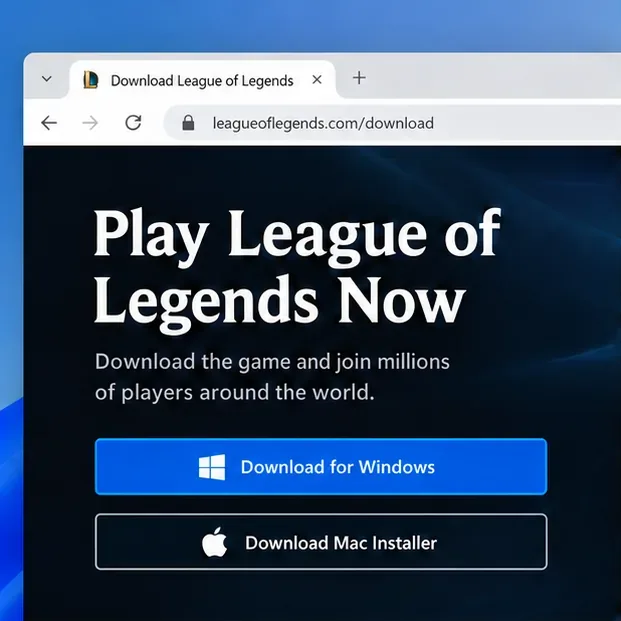
Choose a platform from the official game download page; the page may redirect to a regional version. -
2. Select the Windows or Mac game installer
Click the download option for the computer you are using. The League of Legends page currently lists separate Windows and Mac installer buttons. If your chosen Riot game does not offer a Mac option, its current client does not provide a Mac installer there. Keep the browser download from Riot’s official domain and let it finish before opening it.
This is the practical way to get the Riot Client: the game installer is the entry point, and setup installs the shared launcher as part of the process. It is not necessary to hunt for an unofficial standalone Riot Client file.
-
3. Open the downloaded installer
On Windows, open the downloaded installer from your browser’s downloads list or the Downloads folder, then approve the operating-system prompt if you intended to install it. Follow the installer’s on-screen instructions and choose an install location only if the setup offers that choice.
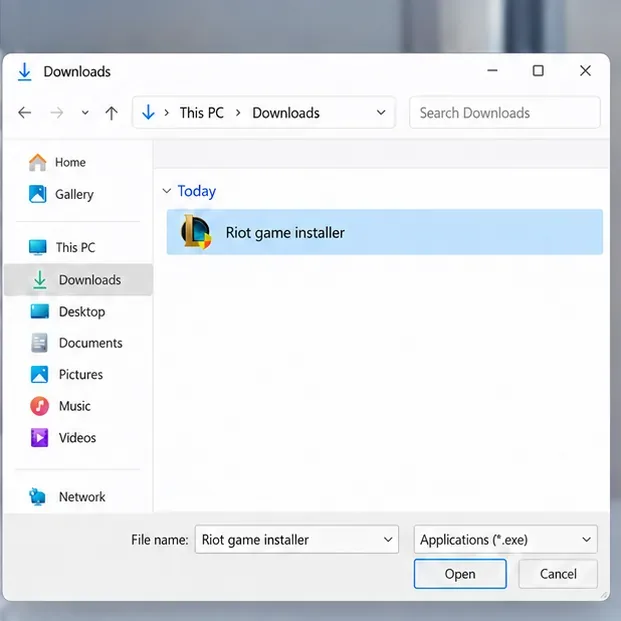
Open the installer you downloaded from Riot; its filename can vary by game and region. On a Mac, open the downloaded package and follow its prompts. If it is a disk image that displays an app and an Applications folder, drag the app into Applications before launching it. Riot’s Mac installation guidance warns against launching League directly from that mounted disk-image window.
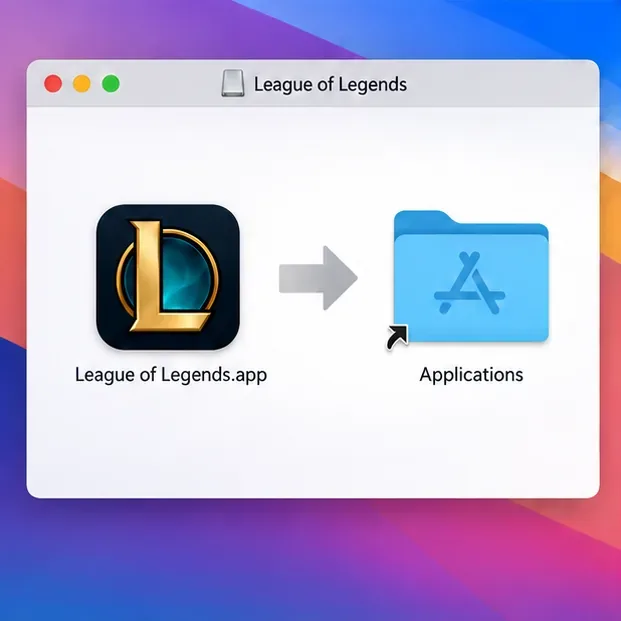
If the Mac installer shows this drag-and-drop window, place the app in Applications before opening it. -
4. Sign in, install the game, and launch it from Riot Client
When setup finishes, open Riot Client. Sign in with your Riot account, then select the game you downloaded. If the game is not installed yet, use the install control shown on its page and let the download complete. When it is ready, choose Play. You can return to the Riot Client to apply updates and launch other supported Riot PC games from the same account.
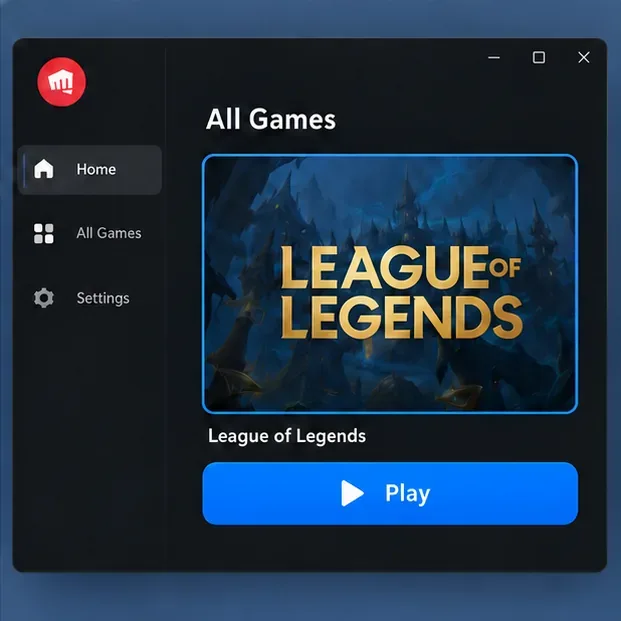
Riot Client is the launch point for the installed game; its artwork and exact controls may look different.
What changed about the Riot launcher in 2026?
Riot’s Riot Client FAQ, updated May 27, 2026, says Riot PC games will go through Riot Client each time they launch. Existing desktop shortcuts should still work, but they open the selected game’s page in Riot Client first; you then click Play. The launcher also brings together shared features such as game updates, patch notes, news, and social features. Riot says this change does not alter your account, purchases, settings, friends list, or game progress.
That makes the name difference simple: “Riot Game Launcher” is a common search phrase, while Riot calls the PC launcher the Riot Client. Riot Mobile is a separate companion app for phones; it is not the PC game launcher.
Fix common Riot Client download problems
The download button is missing or the page shows the wrong platform
Check that you are on the official page for the game and that the page has selected the right region and operating system. Some Riot titles are not offered on every platform. If the page keeps showing the wrong version, return to the game’s official site rather than using a third-party download.
The installer stops or Riot Client will not open
Make sure the download completed, close the installer, and try opening it again. Confirm that the destination drive has enough free space and that your connection is stable. For a game that fails to launch after the client opens, Riot recommends restarting Riot Client, checking that it is up to date, restarting the computer, and trying again. Check Riot Service Status for a known outage; if the same issue continues, search Riot Support for the exact error or contact Player Support.
The Mac app will not start from the installer window
If you downloaded a .dmg that contains an app icon and an Applications shortcut, copy the app to Applications first, close the disk-image window, and open the installed app from Applications. This avoids a common mistake described in Riot’s Mac installation guidance.
Frequently asked questions
Can I download Riot Client without choosing a game?
Riot’s current support instructions direct players to select a game and download its client installer; that process installs Riot Client. Start from the official page for the PC game you want, then use the launcher to manage that game.
Is the Riot Game Launcher the same as Riot Client?
Yes. Riot calls its PC game launcher the Riot Client. “Riot launcher” and “Riot Game Launcher” are common informal names for it.
Can I use the same Riot Client on Windows and Mac?
Use the installer offered for your operating system on the game’s official page. Mac support depends on the game; for example, the League of Legends download page lists a Mac installer. Riot’s 2026 launcher FAQ describes PC launches through Riot Client, so do not assume every Riot title has a Mac version.
Do I need Riot Client every time I play?
On PC, Riot’s 2026 rollout routes game launches through Riot Client. A desktop shortcut still works, but it opens the game’s page in the client before you choose Play.









