How to Download the Riot Client (2026)
To download the Riot Client on a PC or Mac, open the official download page for the Riot game you want, choose the installer for your operating system, and run it. Riot’s current support instructions direct players to select a game on RiotGames.com and download its client; the Riot Client then handles the game installation. For example, Riot’s North America League of Legends download page offers separate Windows and Mac installer links; players elsewhere should use the official localized page for their market. The launcher and the game are separate parts of the setup, so plan to download the game files after the client is installed.
Use a Riot-owned game or support page rather than a third-party mirror. The exact wording and screens can vary by title, operating system, and region, but the basic process is the same: download the official installer, open Riot Client, sign in, and install the game you want to play.
Before you download
- A supported computer: Check the system requirements for the specific Riot game. A game’s requirements can be stricter than the launcher’s.
- Enough disk space: The installer sets up Riot Client first; the game and later updates need additional free space. Avoid relying on an old estimate for the game’s size.
- Internet access: The installer and game files are downloaded from Riot, so a stable connection helps.
- A Riot Account: You can sign in with an existing account or use the account-creation option in the official flow.
If you already have Riot Client installed, you can skip the installer and open the client to install another supported game from its game page.
How to download and install the Riot Client
-
Step 1: Open the official download page for your game
Go to the official Riot website for the PC game you plan to play. If you want League of Legends, use the official download page for your market; Riot’s North America page currently presents separate buttons for Windows and Mac. Players in other markets should use the localized official page. For another Riot title, start from that game’s official page. Confirm that the website address belongs to Riot or the game’s official domain before downloading.
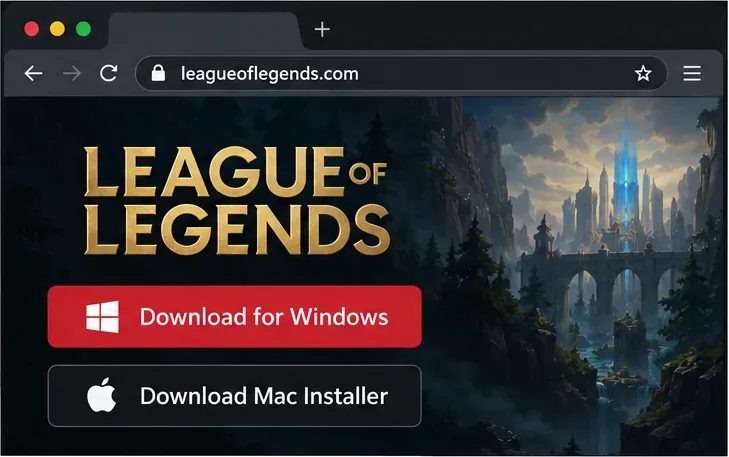
The North America League page shown here offers separate Windows and Mac installers; use the official locale for your market. -
Step 2: Download and open the correct installer
Choose the button for your operating system and let the file finish downloading. Open the installer from your browser’s download list or the Downloads folder. On Windows, approve a security prompt only after confirming that you started the download from Riot’s official page and that the publisher details are consistent with Riot. On macOS, open the downloaded installer and follow the prompts shown by the operating system. You may be asked where to install the game or client files; keep the default location unless you have a reason to choose another drive.
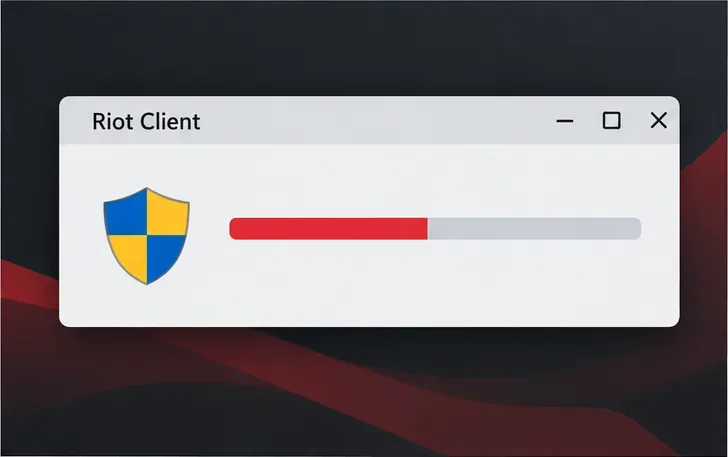
An installer progress window represents this stage; the exact prompts differ between Windows and macOS. -
Step 3: Sign in to Riot Client
When installation finishes, open Riot Client. Sign in with the Riot Account you use for the game, or choose the account-creation option if you are new to Riot. Follow any verification prompt displayed in the client or on Riot’s official account pages. Do not enter your password into an unexpected pop-up or a website reached through an unfamiliar download link.
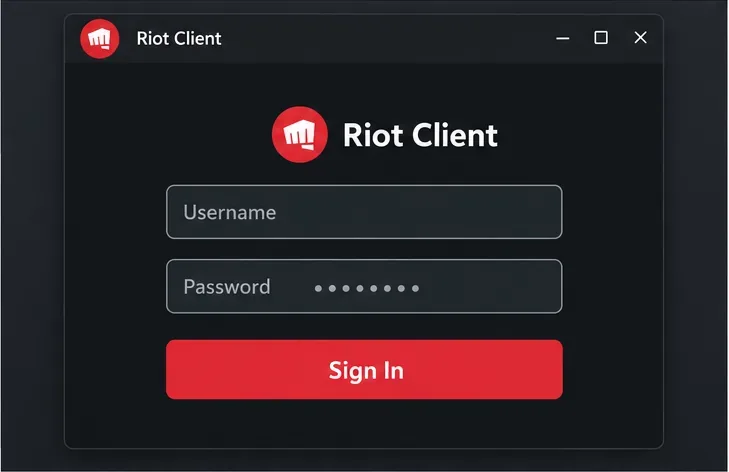
Use your existing Riot Account or start account creation from Riot’s sign-in flow. -
Step 4: Install the game from Riot Client
Choose the game you downloaded the installer for, then select Install and confirm the destination if prompted. Riot Client will download the game’s files and may also apply an update before the game is ready. Leave the computer connected to the internet and keep the client open while the installation runs. The total time depends on the game, your connection, and available storage; Riot does not publish one universal download size or install time for every title.
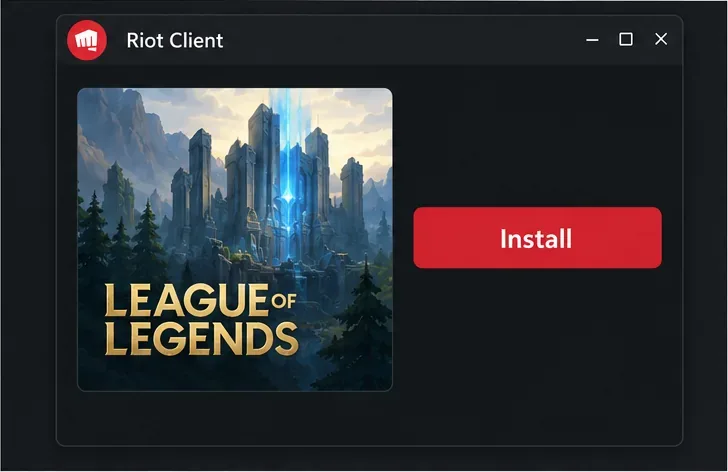
Select your game in Riot Client and choose Install to download its files.
What changes with Riot Client in 2026?
Riot’s Riot Client FAQ, updated May 27, 2026, says Riot PC games are moving to a launch flow that opens Riot Client each time, even when you are already signed in and a game is up to date. Riot is rolling this out over time. Existing desktop shortcuts are expected to keep working, but they open the selected game’s page in Riot Client first; you then choose Play. Riot says this change does not reset an account or remove purchases, settings, friends, or game progress.
Check game requirements and storage
The Riot Client is only the launcher. Check the requirements for your chosen game before installing it, especially if you use an older computer. As one current example, Riot’s League of Legends system requirements, updated September 22, 2026, list Windows 10 build 19041 or later or Windows 11, DirectX 11 feature level 11_0, and 16 GB of free storage for Windows. The page lists macOS 12 and 40 GB for Mac. Requirements differ between games and can change, so consult the current requirements page for your title and leave some additional room for updates.
Riot Client download troubleshooting
You cannot find a separate Riot Client download
Start from the official page for the Riot PC game you want. Riot’s reinstall instructions describe selecting a game on RiotGames.com and downloading its client; this installs Riot Client, which then facilitates the game download. If the client is already installed, open it instead of downloading another installer.
The installer will not open or security software blocks it
First check that the file came from an official Riot page and let the download finish. Do not turn off antivirus protection just to run an installer. Riot notes that security software can sometimes block Riot Client or game files; update the security software and review its quarantine or protection history. Only allow files that you can verify were installed through the official Riot Client. See Riot’s security software guidance for safe next steps.
The client opens, but the game will not launch
Restart Riot Client, make sure it is fully updated, restart your computer, and try again. Check the Riot Service Status page for an active issue. If the problem continues, search Riot Player Support for the exact error message or contact support. Avoid deleting Riot folders or changing security settings unless Riot’s instructions for your specific error call for it.
Frequently asked questions
Does downloading Riot Client also download the full game?
Not necessarily. The installer sets up the client that manages Riot games. After signing in, select the title and install it from Riot Client; that game download requires its own storage and download time.
Do I need to reinstall Riot Client for another Riot game?
No. If Riot Client is already on your computer, open it and select the additional supported game. Use a new installer only if you are installing the client on a different computer or following Riot Support’s instructions to reinstall it.









