How to Download the League of Legends Client
To download the League of Legends client, use Riot’s official League of Legends download page, choose the Windows or Mac installer, and follow the setup prompts. After installation, sign in with a Riot Account and let the game finish its first update before you press Play. The game is free to play, and the Mac installer has one extra drag-to-Applications step.
Riot’s 2026 rollout sends Windows PC launches through Riot Client before the game, with availability rolling out over time. If Riot Client opens first, that is expected; the League game client is a separate experience. The exact sign-in and launch screens can vary during the rollout.
Check your system before downloading
Riot’s current League of Legends system requirements were updated on September 22, 2026. Check the table before you start, especially if you have an older Mac or a Windows PC that has not been updated.
| Platform | Riot’s current minimum requirements |
|---|---|
| Windows PC | Retail Windows 10, build 19041 or later, or Windows 11; 64-bit (x64); DirectX 11 feature level 11_0; 2 GB RAM; and 16 GB of available HDD storage. Riot’s Windows 11 requirements include TPM 2.0. |
| Mac | macOS 12, Apple M1, a Metal-capable GPU, 8 GB unified memory, and 40 GB of available storage. |
Riot notes that Intel Macs may still be able to run League, but its support focus is Apple Silicon. The Mac minimum listed by Riot is an M1. If your Mac is Intel-based, check the current support page before you install. Meeting minimum specifications also does not guarantee smooth performance.
How to download the League of Legends client
-
Step 1: Open Riot’s official download page
Go to the official League of Legends download page. Riot’s site may direct you to a regional version. If it does, make sure the page and account region are the ones you intend to use. Avoid third-party download sites, repackaged installers, and links from unfamiliar ads; Riot’s page links to its own download service.
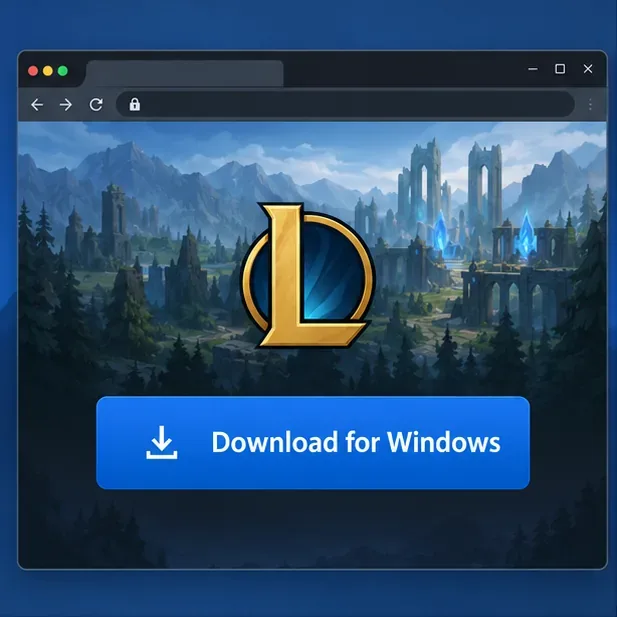
Illustrative view of the download step. Riot’s actual site layout can vary by region and may change. -
Step 2: Choose Windows or Mac
Select Download for Windows on a PC or Download Mac Installer on a Mac. Use the option for the computer where you plan to play. The Windows download is an installer file; Riot’s Mac installation guide describes a
.dmgfile. If your browser asks where to save it, choose a folder you can find again, such as Downloads.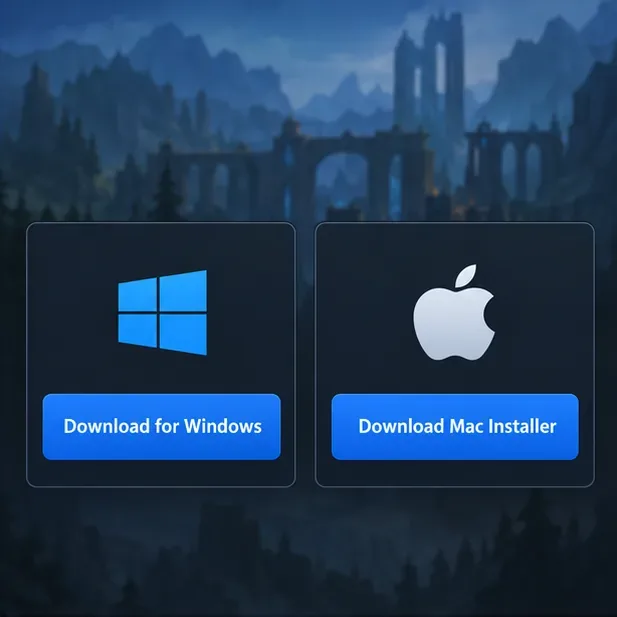
Choose the installer that matches your operating system, then wait for the browser download to finish. -
Step 3: Install the game
On Windows: Open the downloaded installer and follow its prompts. Use a Windows account with administrator permissions so the installer can place the game files and apply updates. If Windows displays a permission prompt after you deliberately opened Riot’s installer, verify the app and publisher before approving it.
On Mac: Open the downloaded
.dmgfile, drag League of Legends.app into the Applications folder, then close the installer window. Launch the app from Applications. Riot cautions Mac players not to run the app directly from the mounted.dmgwindow. The exact installer labels and folder path can vary, so follow the prompts shown on your Mac.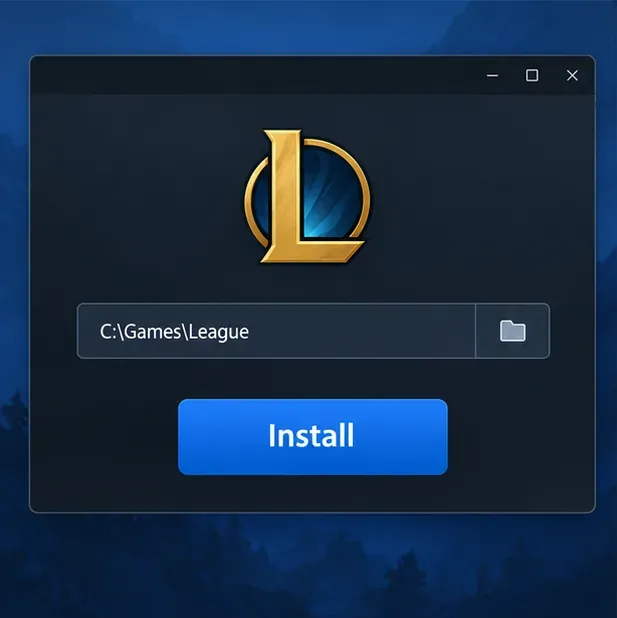
Illustrative installer view only. Use the location and controls shown by Riot’s current installer on your computer. -
Step 4: Sign in or create a Riot Account
After setup, open the game. On Windows, Riot Client may open first; that is expected in Riot’s 2026 PC launch flow. Sign in with your existing Riot Account. If you do not have one, choose the account-creation option in Riot’s sign-in flow and complete registration through Riot. Use the account you want associated with your League progress.
If you already have a Riot Account, do not create another one just because the screen looks different from an older guide. Your account credentials are separate from the operating-system choice you made when downloading the installer.
-
Step 5: Let the client update, then launch League
The client may download and install additional game files after you sign in. Keep the client open and let the patch finish; the download amount and wait time can vary with the current game version, your connection, and your computer. When the League page shows that the update is complete, select Play to continue.
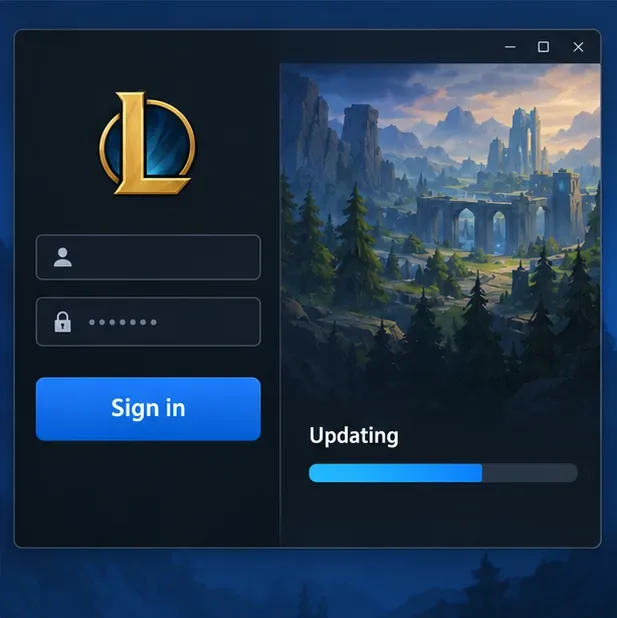
Illustrative sign-in and update view. The real screen and wording may differ between Riot Client, League, and game versions.
Make the first download go smoothly
- Check storage first. Leave at least the space Riot lists for your operating system: 16 GB for the Windows minimum or 40 GB on Mac. Updates can need working room, so more free space is helpful.
- Use a stable connection. If Wi-Fi is unreliable, move closer to the router or use Ethernet. Pause large downloads or streams on your network while the game patches.
- Keep the correct installer. If the download is interrupted or the file will not open, delete that incomplete copy and download a fresh installer from Riot’s official page.
- Leave security protection on. Do not disable antivirus or bypass a Windows security warning just to install a game. If a warning appears, cancel and verify that you downloaded the installer from Riot. If needed, use Riot Support’s permission and installation guidance.
Troubleshooting download and installation problems
The installer will not open
Confirm that you downloaded the correct version for Windows or Mac and that your device meets the current requirements. On Windows, try opening the installer from Downloads using an administrator account. On Mac, make sure you copied the app into Applications before launching it. If the file appears incomplete, download it again from Riot.
The update is stuck or very slow
Check your connection and available storage, then close and reopen Riot Client or League and let it reconnect. Avoid repeatedly restarting the installation while files are being written. If the patch still fails, follow Riot’s official patching troubleshooting guide or search Riot Support for the exact error code.
The Mac app opens from the installer window
Quit League, open Applications, and launch the copy there. Riot’s Mac install instructions say to drag the app from the mounted disk image into Applications first. If installation continues to fail, consult Riot’s Mac reinstall guide.
Frequently asked questions
Is the League of Legends client the same as Riot Client?
Riot Client is Riot’s PC hub for signing in, updates, and launching its games. League has its own game client experience. Riot says Windows PC launches go through Riot Client as its 2026 rollout reaches players, so seeing Riot Client before the game is normal.
Can I download League of Legends on a Mac?
Yes. Riot provides a Mac installer. Its current listed minimum is macOS 12 on an Apple M1 with 40 GB of available storage; Riot says Intel Macs may continue to play but support is primarily focused on Apple Silicon.
Does downloading League of Legends cost anything?
Riot describes League of Legends as free to play. You can download the client and create a Riot Account without paying; optional in-game purchases may be offered. See the official League of Legends site.
How long does the download take?
There is no fixed time that applies to every player. The installer, current game patch, free storage, and internet speed all affect the wait. Let the client finish updating before you try to launch a match.









