How to Download TFT (Teamfight Tactics) for Free in 2026
To download TFT (Teamfight Tactics) for free, install it from Riot Games’ official TFT download page on Windows, from the App Store on iPhone or iPad, or from Google Play on Android. The game is free to start, although it offers optional in-app purchases. You need an internet connection and a Riot account to keep your progress tied to your login.
Important October 2026 update: Windows players currently launch TFT through the League of Legends/Riot Client. Riot has announced a separate TFT PC client for November 2026, but that release is still upcoming. Regular live-server TFT is temporarily unavailable natively on macOS; Riot lists Mac support for the Public Beta Environment (PBE) only. Older guides saying that Mac players can simply install and play the live version are out of date. See Riot’s Unreal Engine migration FAQ for the current transition details.
Where to download Teamfight Tactics
| Device | Official download | What installs |
|---|---|---|
| Windows 10/11 PC | TFT download page | Riot Client and League of Legends, including TFT |
| iPhone or iPad | Apple App Store | Standalone TFT mobile app |
| Android phone or tablet | Google Play | Standalone TFT mobile app |
| Mac | Riot platform support status | Live-server native support currently paused; PBE-only availability |
Do not confuse the regular live game with TFT PBE, which is a separate testing environment. If you just want to play normally, follow the appropriate live-game download link above rather than looking for a test installer.
How to download TFT for free: five steps
Step 1: Check compatibility and prepare your Riot account
Confirm your platform is supported before downloading. You will need enough free storage for game files and future updates, a stable internet connection, and access to the email or sign-in method for your Riot account. If you are new to Riot Games, the official download or sign-in process will direct you to create a free account. Existing League of Legends players can use their current Riot login.
Riot’s September 2026 PC specifications list Windows 10 build 19041 or newer, or supported Windows 11, a 64-bit operating system, DirectX 11-level graphics, and at least 16 GB of free disk space. On Windows 11, Riot lists TPM 2.0 as a requirement. Check TFT’s official PC requirements rather than relying on an old storage estimate.
Step 2: Download the Windows installer from Riot Games
On your Windows PC, open the official TFT download page and select Download for Windows. Save the installation file somewhere you can find it, such as your Downloads folder. Avoid APK mirrors, unfamiliar download sites, and links that promise a paid “unlocked” copy: the official game already costs nothing to install.

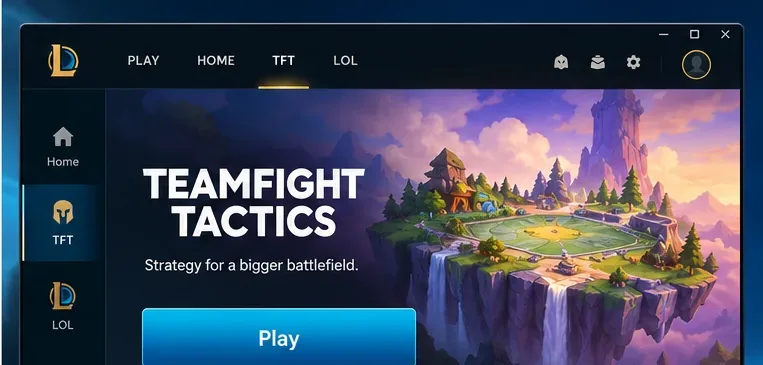
Step 3: Install Riot Client and launch the TFT mode
Open the downloaded installer, follow the setup prompts, and allow the Riot Client and League of Legends game files to finish installing. Sign in to your Riot account when prompted. Then open League of Legends, find Teamfight Tactics in the client’s game-mode navigation, choose an available queue, and select Play. Some screen labels and positions vary as Riot updates its launcher.
As of October 16, 2026, TFT on Windows is still accessed through League of Legends, even though the actual TFT game has moved to Unreal Engine. Riot’s support FAQ currently targets November 3, 2026 for the dedicated PC client, so do not assume that a separate live TFT desktop installer is already available. A larger initial download following the engine transition is also expected.
Step 4: Download TFT on iPhone or iPad
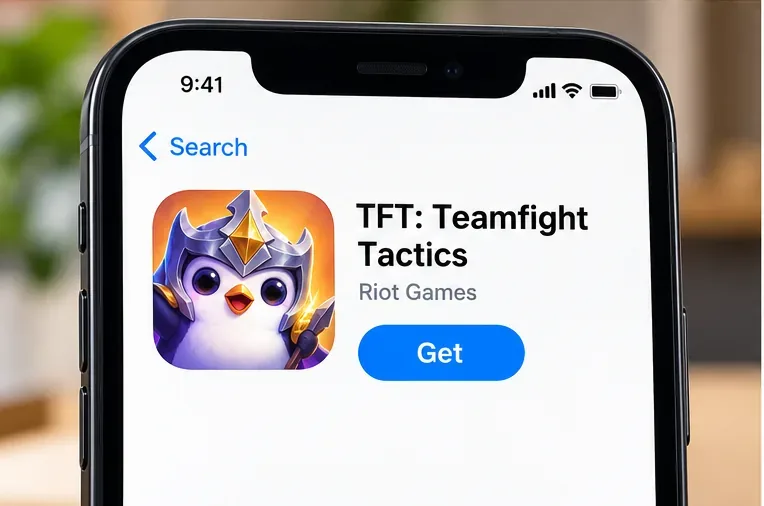
Open the App Store on your Apple device, or go directly to the official TFT listing. Check that the app is TFT: Teamfight Tactics from Riot Games, then tap Get. Confirm the installation with Face ID, Touch ID, or your Apple account if requested. When installation finishes, open TFT and sign in with the Riot account you want to use.
The app is standalone, so you do not need League of Legends installed on your iPhone or iPad. Riot’s August 2026 Apple mobile requirements list at least 3 GB RAM and Metal API support. Check the App Store compatibility section for your exact device and current operating-system version.
Step 5: Download TFT on Android
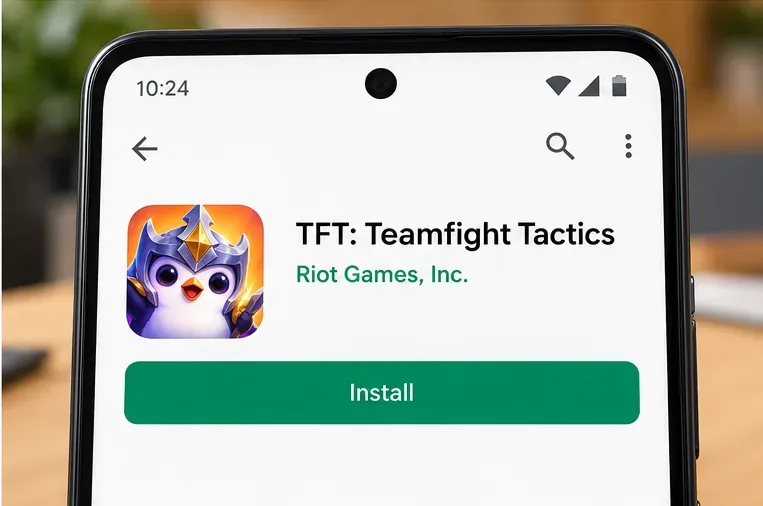
Open Google Play and search for TFT: Teamfight Tactics, or visit the verified Google Play listing. Confirm the publisher is Riot Games, Inc. and tap Install. Once it is ready, open the app, permit any necessary game updates, and sign in with your Riot account.
For the 2026 engine version, Riot’s Android requirements specify Android 9 or newer, 4 GB RAM, a 64-bit operating system, and compatible graphics support. If Google Play says the app is incompatible, verify those requirements before attempting another install. Do not sideload an unofficial APK as a workaround.
Can you use the same TFT account on PC and mobile?
Yes. TFT supports cross-platform play and lets you access your Riot-account-linked game progress and eligible rewards when you sign into the same account on supported devices. This is useful if you play longer matches at your computer but want access to TFT on your phone. Check that you are using the same Riot login and the appropriate game region if progress or friends appear missing.
Riot has stated that purchases and earned content are retained through the Unreal migration, although certain cosmetics may not all be immediately available in the new engine. Account progression, store inventory, currency, and platform-specific purchase behavior are not identical concepts: do not assume that a mobile purchase method or every cosmetic display will look exactly the same on PC. Riot provides updates in its migration support FAQ.
What devices can run TFT in 2026?
These are the key minimum checks drawn from Riot’s 2026 support pages; hardware requirements may change with later patches.
| Platform | Minimum requirement to check | Availability |
|---|---|---|
| Windows | Windows 10 build 19041+ or supported Windows 11; 64-bit; DX11-level GPU; 16 GB free disk space | Live game available |
| Android | Android 9+; 4 GB RAM; 64-bit OS; OpenGL 3.2+ | Live mobile app available on compatible devices |
| iPhone/iPad | At least 3 GB RAM; Metal API support; exact device and OS eligibility in App Store | Live mobile app available on compatible devices |
| macOS | Riot lists Apple M1, 8 GB unified memory, 40 GB free space, macOS 12 for PBE testing | PBE only as of October 16, 2026; Intel Macs unsupported |
Storage note: the original article’s fixed 3–5 GB mobile estimate is not a reliable universal requirement. App download sizes and extra in-game files vary by platform, version, and update. Keep additional headroom and follow the store’s current device-specific figures.
What to do if TFT will not download or install
The Riot Client download is stuck on Windows
Check your internet connection, confirm at least the required amount of free disk space, and close and reopen the Riot Client. Make sure your Windows installation meets Riot’s supported version and that the client is not waiting for a system restart. If the installer continues to fail, use Riot’s support site rather than repeatedly downloading copies from third-party websites.
TFT is missing from League of Legends
Confirm the League of Legends installation and updates are finished, sign into the intended Riot account, and look for TFT in the mode navigation. Remember that the upcoming dedicated TFT PC client is not the current live-game launch method; Riot’s official FAQ identifies the League download as the current path.
The App Store or Google Play says your device is incompatible
Compare your device specifications with Riot’s iPhone/iPad or Android requirements. Update your phone’s operating system when a supported update exists, free storage, and restart the device. On Android, a 32-bit operating system or less than 4 GB RAM can block installation even if the phone otherwise seems relatively modern.
TFT opens but keeps asking for another download
Leave the app open on a reliable connection while it installs required game data. The transition to Unreal introduced a larger initial update, and future patches may require more downloads. If the update loops or crashes persist, follow Riot’s mobile installation and update guidance and contact Player Support with the device model and error message.
Frequently asked questions
Is Teamfight Tactics really free?
Yes. Teamfight Tactics is free to download and play on supported devices. The App Store and Google Play listings disclose optional in-app purchases, including cosmetic content; those purchases are not required to install or begin playing.
Do I need to download League of Legends for TFT?
On Windows, yes for now: Riot’s current live PC distribution path installs TFT alongside League of Legends through Riot Client. On iPhone, iPad, and Android, no: TFT has its own standalone app.
Can I download TFT for Mac right now?
Not for the normal live-server experience as of October 16, 2026. Riot temporarily suspended native macOS live support after Patch 18.1 and currently lists Mac availability for PBE only. Riot has not confirmed a live-server restoration date in the cited support pages. An official Mac installer page for an older version does not mean the current live game is supported.
Is the new standalone TFT client out for Windows?
Not yet as of October 16, 2026. Riot’s support FAQ says the dedicated PC client is planned for November 3, 2026. Until Riot actually launches it, use the official League/Riot Client path for Windows.









