How to Download TFT on PC (2026 Step-by-Step Guide)
To download TFT on PC, use Riot Games’ official Windows installer and install League of Legends. As of October 16, 2026, the live Windows version of Teamfight Tactics is delivered with the League of Legends download; Riot says a compatible PC automatically downloads TFT with it. You do not need to buy either game, and you should avoid third-party installer sites.
Current client note: Riot’s migration FAQ says the shared PC client remains in use for now and that a dedicated TFT PC client is expected a few weeks after the November 3, 2026 migration. That schedule may change, so the steps below describe the live Windows process available on the date of this guide.
What you need before downloading TFT
Check that your Windows PC meets Riot’s current minimum requirements and has enough free storage before running the installer. Riot warns that a computer that only meets minimum specs may still have performance problems.
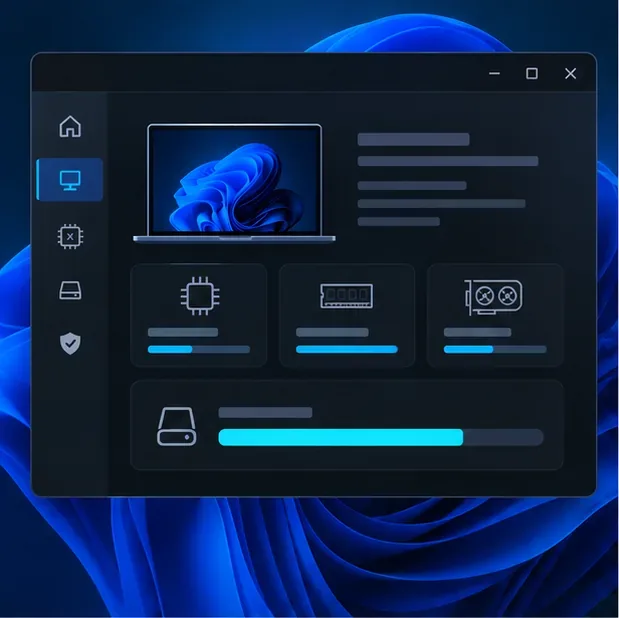
| Requirement | Riot’s current Windows minimum |
|---|---|
| Operating system | Retail Windows 10, build 19041 or later, or Windows 11 with TPM 2.0 enabled |
| Processor | Intel Core i3-530 or AMD A6-3650 |
| Memory | 2 GB RAM |
| Graphics | DirectX 11-level hardware; listed examples include NVIDIA GeForce 400 Series, AMD HD 6570, and Intel HD 4600 |
| Storage | 16 GB of free space |
These are minimums, not a performance guarantee. Review the official TFT PC requirements if you need the full specification list or recommended hardware. Keep some extra disk space available for future patches.
How to download TFT on PC
-
Step 1: Confirm your PC is compatible
Check your Windows version, graphics support, and free storage against the table above. On Windows 11, make sure TPM 2.0 is enabled. If you are unsure about your graphics hardware, Riot’s requirements page links to Microsoft’s DirectX Diagnostic Tool. Fix a compatibility or storage issue before starting the download so the install does not stop partway through.
-
Step 2: Open Riot’s official TFT download page
Go to the official Teamfight Tactics download page and choose the Windows download option. Riot’s page currently labels it “Download for Windows.” If Riot redirects you to a regional page, stay on an official Riot domain and use the Windows option shown there. The downloaded file is the Riot/League installer used to set up the PC client.
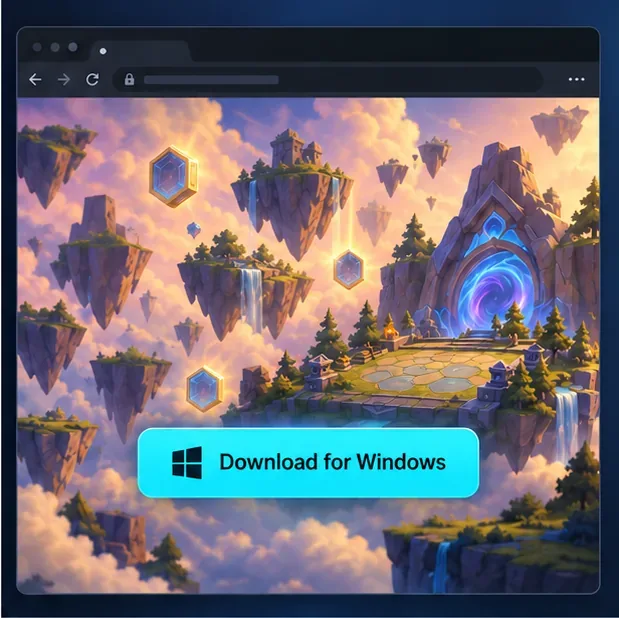
Illustration of the official download step; use Riot’s page and select its Windows download option. -
Step 3: Run the installer and sign in
Open the installer from your browser’s downloads list or the folder where you saved it, then follow the setup prompts. When the Riot Client opens, sign in with your Riot Account. If you do not have an account, create one through Riot’s official account flow and return to the client to sign in. Use the account you want associated with your TFT progress and purchases.
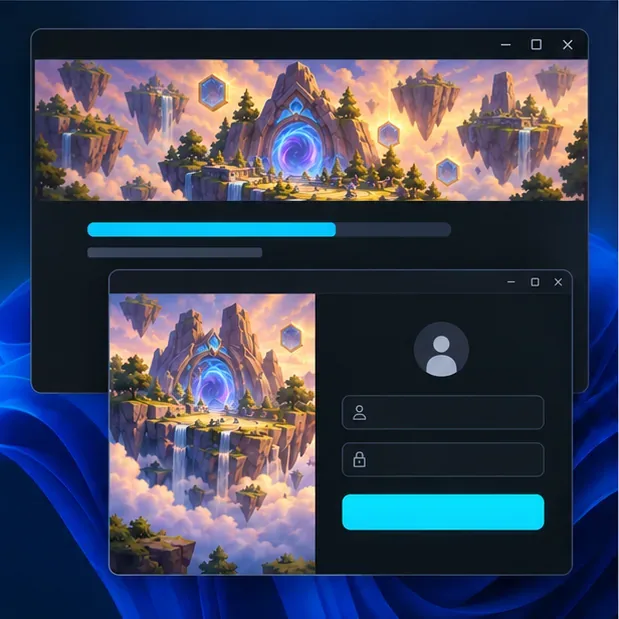
Illustration of installation and account sign-in; the exact windows can look different from this example. -
Step 4: Install or update League of Legends
Follow the client’s prompt to install League of Legends, or let it update if it is already on your PC. Riot’s TFT migration FAQ says downloading League of Legends automatically downloads TFT on a compatible PC. In other words, the current Windows setup does not require a separate TFT installer. Leave the Riot Client open while it downloads and patches the required files.
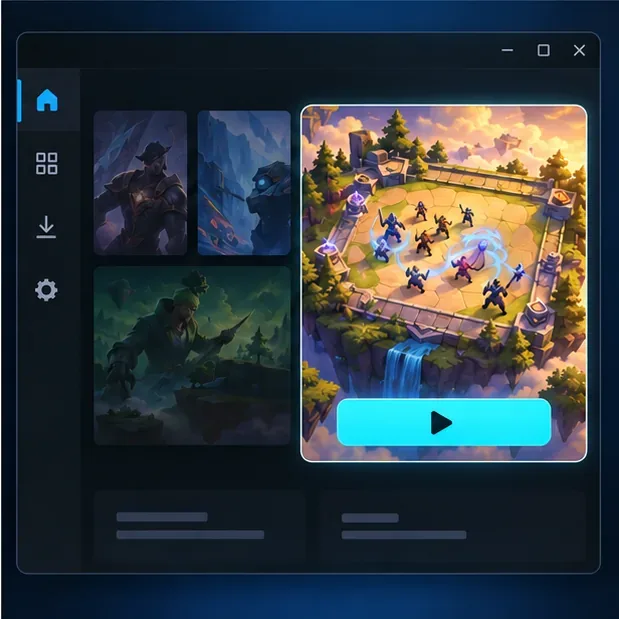
Illustrative client view showing a game tile and launch control; it is not a literal screenshot of Riot’s current interface. -
Step 5: Open TFT from the PC client
When the download and updates finish, open Teamfight Tactics from the game client and follow the on-screen prompts to launch it. If you already had League of Legends installed, allow any pending update to complete first. The first launch can take longer while the client finishes setting up files; wait for it to complete before reopening the game.
Mac and other platform notes
The old advice that TFT works on both Windows and Mac is no longer accurate for live games. Riot says that, as of Patch 18.2, Mac support is limited to PBE servers because of the Unreal Engine migration; Riot is working to restore native macOS support. If you want to play on live servers today, use a supported Windows PC or a supported mobile device, and check Riot’s migration FAQ for changes. Riot also says it cannot support TFT on Linux, SteamOS, or Bazzite OS.
Fix common TFT download problems
- The download is slow or stops: Check your connection and available disk space, close other large downloads, then restart the Riot Client and resume the update if that option appears.
- The installer will not open: Confirm the file finished downloading, then download a fresh copy from Riot’s official TFT page. Avoid third-party mirrors and do not turn off your security software to run an installer.
- TFT is missing after setup: Let the League client finish patching, restart the Riot Client, and check again. The Windows live build is currently delivered with League of Legends rather than through a separate TFT PC installer.
- You see a compatibility message: Recheck the Windows build, TPM 2.0 setting on Windows 11, DirectX-level graphics support, and free space against Riot’s current requirements.
Frequently asked questions
Is TFT free to download on PC?
Yes. The TFT and Riot Client downloads are free. Optional in-game purchases are separate from installing the game.
Do I need League of Legends to play TFT on PC?
You do not need to buy or play League of Legends, but the current Windows live installation uses its PC client: Riot says a compatible PC downloads TFT automatically with League of Legends. Riot has announced a dedicated TFT PC client for a later rollout, so check the official migration FAQ if you are installing after that release.
Can I play TFT on Mac in 2026?
Not on live Mac servers at the time of this guide. Riot’s current support page limits Mac support to PBE and says native macOS support is being worked on. Check Riot’s official update before installing if you plan to play on a Mac.
For a safe install, start at Riot’s official download page, check your PC against the current requirements, and let the client complete its updates before launching TFT.









