How to Download Teamfight Tactics on PC and Mac (2026)
Teamfight Tactics (TFT) is free to download on a supported Windows PC. Open Riot’s official TFT download page, download the Windows installer, then follow the Riot Client setup and sign-in prompts. Mac players should know that the live version is currently unavailable on macOS: Riot’s latest requirements page says Mac support is limited to PBE servers only as of Patch 18.2.
This guide reflects Riot’s published information as of October 16, 2026. The current Windows installation still uses Riot’s shared PC setup, which includes TFT with League of Legends on compatible computers. Riot has announced a dedicated PC client after the November 3 migration, so the launcher and button labels may change in a later rollout.
The images are illustrative interface guides, not screenshots of a live Riot client. Riot may change the layout and wording.
Check the current Teamfight Tactics system requirements
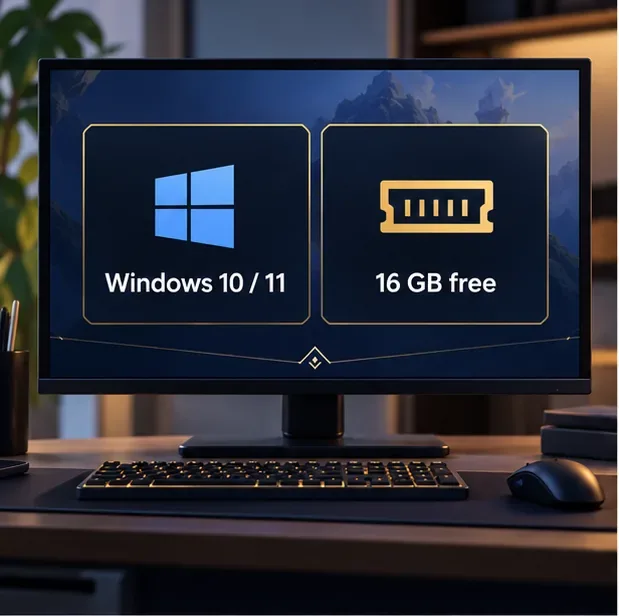
Before you download Teamfight Tactics for PC, check available disk space and make sure Windows is supported. Riot’s current minimum specifications list 16 GB of free storage. The download and patch size can vary, so leave extra room for updates if possible.
| Platform | Current support | Published minimums |
|---|---|---|
| Windows PC | Live TFT supported | Windows 10 build 19041 or later, or Windows 11 with TPM 2.0 enabled; x64; 16 GB free storage; DirectX 11-level graphics. Riot lists additional CPU, GPU, and memory requirements on its support page. |
| Mac | PBE servers only; live servers unsupported | Apple M1, macOS 12, Metal-capable GPU, 8 GB unified memory, and 40 GB free storage. Riot says Intel Mac configurations are unsupported for TFT. |
These are minimums, not a promise of smooth performance on every computer. For the full component list and later changes, check Riot’s current TFT system requirements.
How to download and install TFT on Windows
-
Step 1: Open Riot’s official TFT download page
Visit the official Teamfight Tactics download page. Confirm that the address uses Riot’s teamfighttactics.leagueoflegends.com domain before downloading. Avoid third-party download sites and repackaged installers.

The official TFT download page offers the current Windows download. -
Step 2: Choose the Windows download
Select Download for Windows and save the installer from Riot to your computer. The download page can look different by region or change during a client rollout. If the installer is labeled for League of Legends, that is expected for the current PC route: Riot says installing League automatically includes TFT on compatible computers.
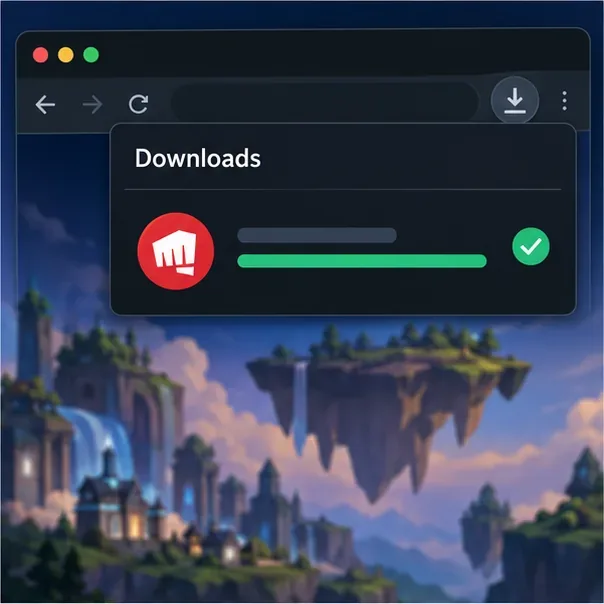
A browser download panel shows the Riot installer ready to open. -
Step 3: Run the installer
Open the downloaded installer and follow the on-screen prompts. If Windows asks whether to allow the Riot setup to make changes, verify that the publisher is Riot Games, then approve the prompt to continue. The setup installs the Riot Client; the game files may continue downloading after the client opens.
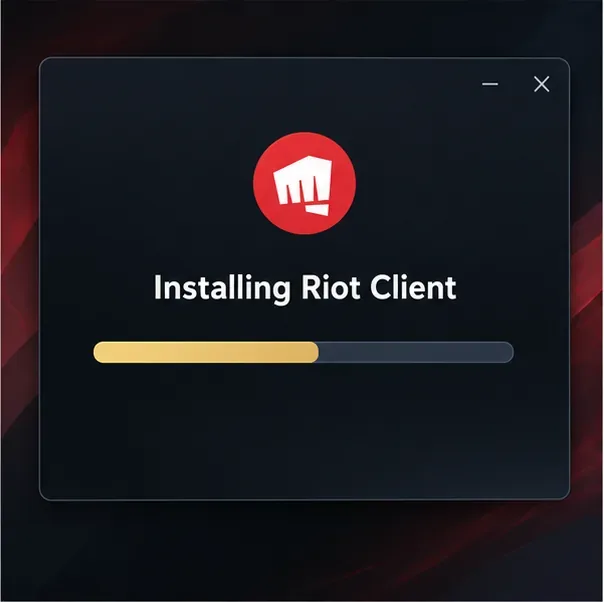
Riot Client setup begins before the game files finish downloading. -
Step 4: Sign in or create a Riot Account
Use the Riot Account you already use for Riot games. If you are new, choose the account-creation option in the client and complete Riot’s current registration and verification steps. Keep your login details private and use Riot’s own sign-in page.
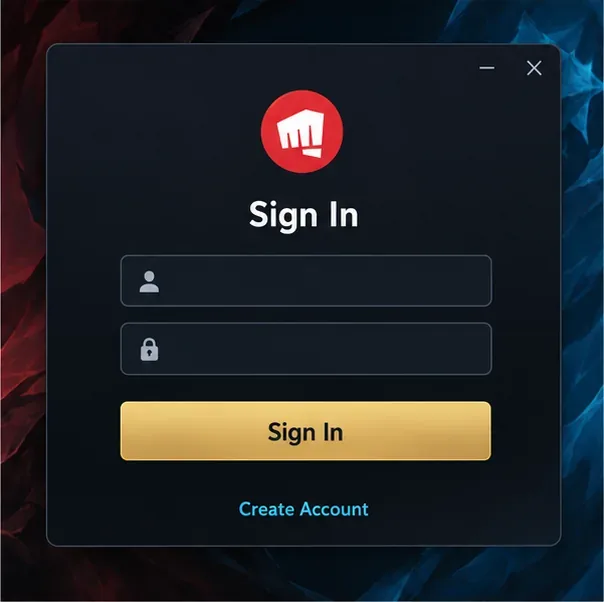
Sign in to an existing Riot Account or choose the account creation option. -
Step 5: Let TFT finish downloading and patching
Keep the client open while the installation and any required updates finish. On a compatible PC, Riot’s current setup downloads TFT with League of Legends; the game may appear as part of that shared installation rather than as a separate app download. Your progress indicator should complete before you try to launch the game.
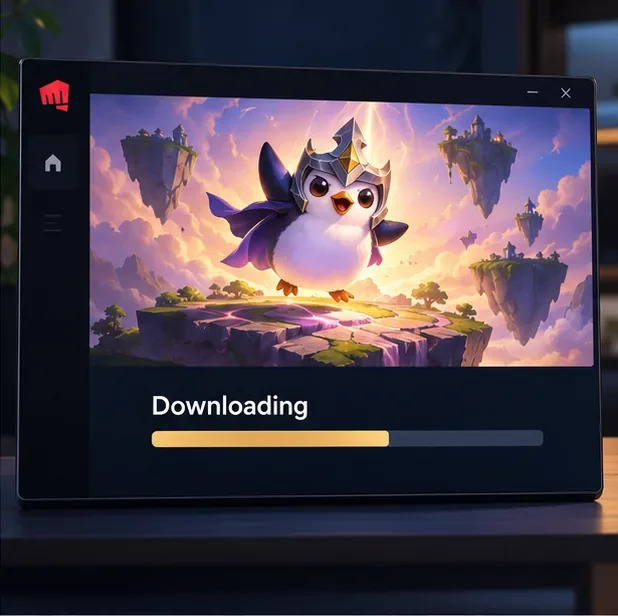
The launcher shows game files downloading and patching. -
Step 6: Launch Teamfight Tactics
When the client shows that the game is ready, open TFT from the Riot launcher and select Play. The first launch may apply another patch, so allow the update to finish before closing the client. After setup, use the Riot Client to launch the game and receive future updates.
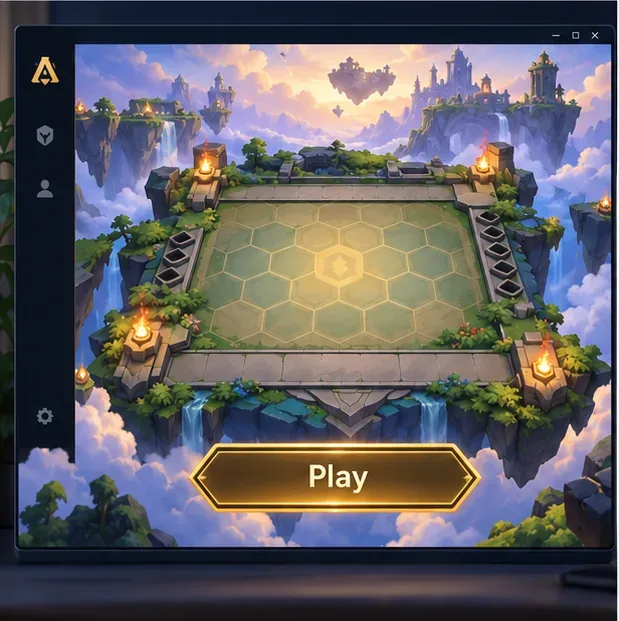
After installation and updates finish, launch TFT from the client.
For more on the current shared installation and the upcoming PC client, see Riot’s TFT Unreal Engine migration FAQ. Riot says the new dedicated PC client is expected a few weeks after the November 3, 2026 migration.
Can you download Teamfight Tactics on Mac?
You cannot use a Mac to play TFT on the live servers right now. Riot’s requirements page, updated September 22, 2026, says that Mac support is limited to the Public Beta Environment (PBE) because of the Unreal Engine migration. That means the supported Mac path is for testing on PBE, not regular live matches or ranked progression. Riot has not published a date on that page for restoring Mac support to live servers.
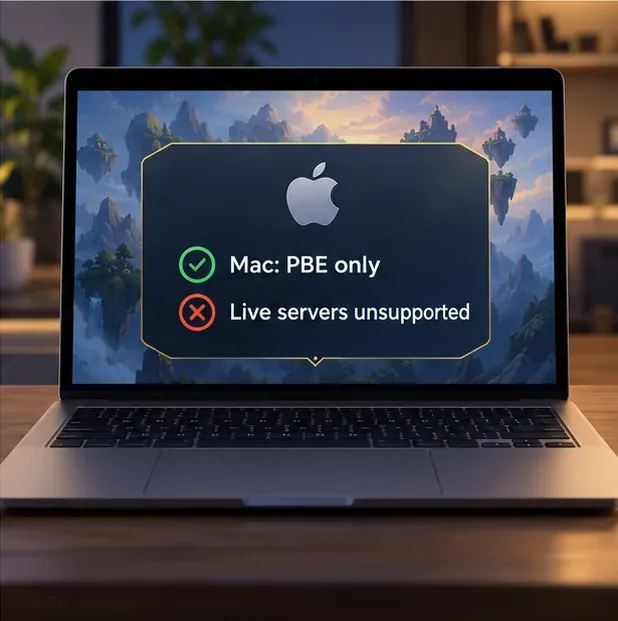
If you want to test the Mac PBE build, first check Riot’s current Mac specifications and PBE availability for your account. The published PBE minimums are an Apple M1 Mac running macOS 12, with a Metal-capable GPU, 8 GB unified memory, and 40 GB free storage; Intel Macs are not supported for TFT. Do not rely on older guides that list macOS 10.13 or claim that the Mac client can currently access live TFT servers.
Fix common download problems
The download page does not show the same button
Riot can change its download page and client during the rollout. Start from the official TFT download page, confirm your platform, and use the Windows download offered there. Do not install a file from a mirror because it has a familiar name.
The setup or patch stops progressing
Check that your connection is stable and that the computer still has enough free storage. Close and reopen the Riot Client, then let it check for updates again. If the game will not install or launch, use Riot’s official uninstall and reinstall guide before removing files manually.
TFT is missing from the client
Update the Riot Client and restart it. Remember that on the current Windows path, TFT is delivered with the League of Legends PC installation on compatible systems. Riot’s client FAQ explains how this shared setup is changing; if the title still does not appear, contact Riot Player Support with the region and error message shown in your client.
Frequently asked questions
Is Teamfight Tactics free to download?
Yes. Riot lists TFT as free to play on PC and mobile. Optional in-game purchases are separate from downloading and installing the game.
Do I need to install League of Legends to play TFT on PC?
As of October 16, 2026, Riot’s migration FAQ says the compatible PC download of League automatically includes TFT. The two games use Riot’s shared PC installation while the dedicated TFT PC client is being prepared. Riot may change this flow when the new client rolls out.
Can I play the regular version of TFT on a Mac?
No. Riot currently limits Mac support to PBE servers. A Mac that meets the published PBE specifications does not regain access to the live servers; check Riot’s support page for changes before installing.
How much space should I have free?
Riot lists 16 GB free storage as the current Windows minimum. Patches and temporary files can require additional room, so keeping more space free can help avoid interrupted updates. For Mac PBE, Riot lists 40 GB.









