Home
» 🎮 Esports
»
How to Download Teamfight Tactics on Mac (2026)
How to Download Teamfight Tactics on Mac (2026)
How to Download Teamfight Tactics on Mac (2026)
To download Teamfight Tactics on Mac, start with Riot’s official software—but check the server restriction first. As checked on October 16, 2026, Riot’s current requirements limit native macOS support to the Public Beta Environment (PBE). Supported Apple silicon Macs can access testing; this is not a confirmed route into your regular live-server matches. Intel Macs are explicitly unsupported.
That distinction matters more than finding a download button. Older instructions describing an unrestricted Mac installation, a guaranteed Mac App Store app, or a Windows workaround for every Mac can send you down the wrong path. Here is how to check compatibility, find the official download, and understand what you can actually play.
Can you play TFT on Mac right now?
Riot’s TFT system requirements, updated September 22, 2026, say Mac support is restricted to PBE. Its Unreal Engine migration FAQ explains that native Mac support was interrupted with patch 18.1 and became available for PBE only in patch 18.2b.
Your goal or device
What the current guidance means
Apple silicon Mac
Check the requirements below; the documented native route is PBE testing.
Intel Mac
Not supported by the current TFT Mac specifications.
Regular live-server TFT
Use a supported Windows computer or compatible mobile device while native Mac live support remains unavailable.
TFT through the Mac App Store
Do not assume an iPhone/iPad listing guarantees Mac availability.
How to download Teamfight Tactics on Mac for PBE
1. Check your Mac before downloading
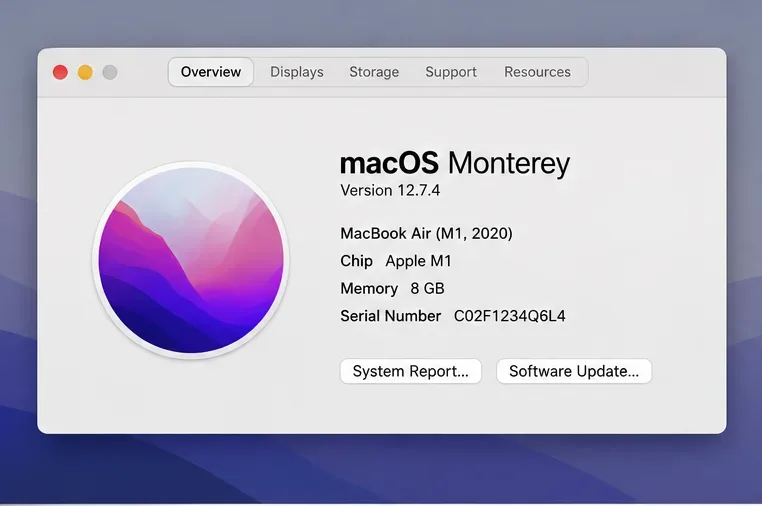
Open the Apple menu and choose About This Mac. Note the chip, memory, and macOS version. An Apple M-series chip identifies Apple silicon; an Intel processor does not meet Riot’s current Mac requirement.
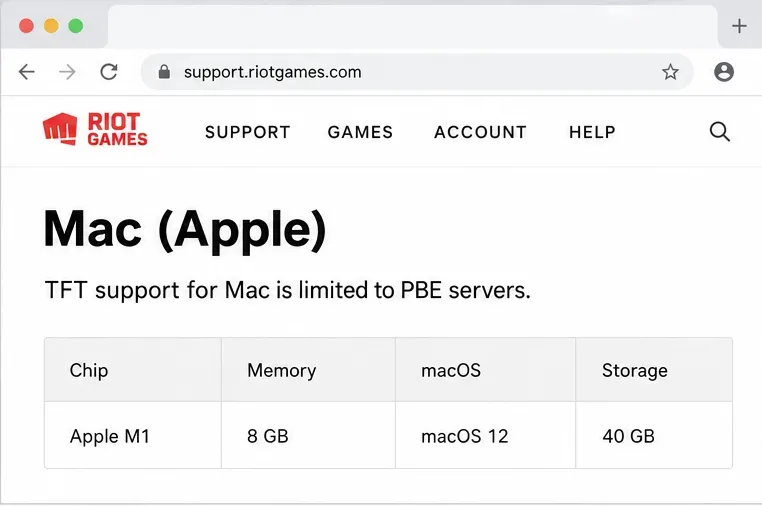
Riot lists an Apple M1 processor, a Metal-capable GPU, 8 GB of unified memory, macOS 12, and 40 GB of free storage as the Mac minimum. Check available storage before starting: the small installer is not the complete game download. Meeting the minimum is not a promise of smooth performance in a test build.
Check the chip, memory, and macOS version before choosing a download.
2. Confirm that PBE fits what you want to play
PBE is a test environment, not a replacement for your live account. Use it if you want to try the Mac build and report problems. If your goal is to continue your normal ranked season with friends on live servers, stop here and use a compatible live platform instead.
Check the Mac section of Riot’s requirements again before installing. League of Legends running on your computer does not, by itself, prove that the current TFT build supports that same hardware or server.
The Mac requirements apply to the currently documented PBE route.
3. Create a PBE account and get Riot’s Mac installer
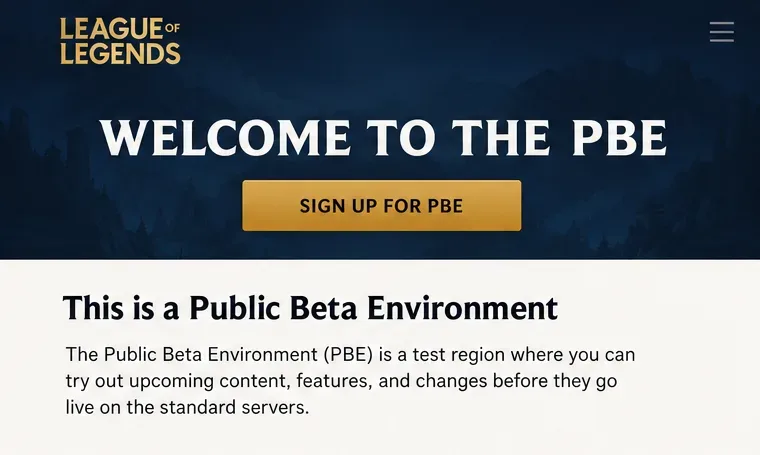
Visit the official PBE page and select Sign Up for PBE. Follow the registration prompts, or use your existing PBE account. Keep these credentials distinct from the account you normally use for live TFT.
If Riot’s software is not installed, open the official League of Legends download page and choose Download Mac Installer. Open the downloaded installer and follow its prompts. Choose the Mac download, not the Windows file; the linked page offers both. Downloading this installer does not remove the PBE-only restriction.
PBE uses a separate test account.
4. Sign in to PBE, finish patching, and open TFT
Sign in to the Riot Client with your PBE account. Riot’s PBE access instructions describe selecting League of Legends, opening the arrow beside Play, and choosing League of Legends PBE. Let the required installation and updates finish, then access TFT in the available PBE interface.
Riot is also transitioning TFT to a dedicated client, so the test interface can differ from older screenshots. Follow the PBE option actually offered by Riot’s current client. If TFT is unavailable for your Mac configuration, consult support rather than repeatedly reinstalling the live League client.
Why TFT may not appear in the Mac App Store
The Apple listing checked for this guide identifies TFT for iPhone and iPad and lists iOS/iPadOS compatibility; it does not establish a supported Mac installation. This is a U.S. storefront reference, not a guarantee of availability in every region.
Apple explains that compatible iPhone and iPad apps on Apple silicon Macs are labeled accordingly in the Mac App Store. Owning an M1 or newer Mac does not mean every mobile app is available. If TFT is missing or marked incompatible, updating macOS alone is not a verified fix.
What about Parallels, CrossOver, Whisky, or Boot Camp?
These are not interchangeable, guaranteed ways to install TFT. A Windows virtual machine, a compatibility layer, and a separate Windows boot each have different requirements. Riot’s TFT specifications also exclude ARM processors from the Windows configuration, so installing Windows on an Apple silicon Mac is not proof of support.
Do not purchase a Windows tool solely on the assumption that it will run TFT. This guide does not verify those workarounds. For regular live play today, a supported Windows device or compatible phone or tablet is the clearer option.
If installation or login gets stuck
Account mismatch: Make sure you are using PBE credentials for PBE, rather than your live login.
Missing game option: Confirm your chip and the current Mac support notice before trying another installer.
Download stalls: Check free storage and connectivity, then restart the client after closing it normally.
Login queues or unavailable servers: PBE undergoes maintenance and may reach capacity. Wait and retry rather than assuming your installation is broken.
Crashes after updating: Record the error, Mac chip, macOS version, and build information for Riot Support. Test builds can contain unfinished features and bugs.
When will live TFT return to Mac?
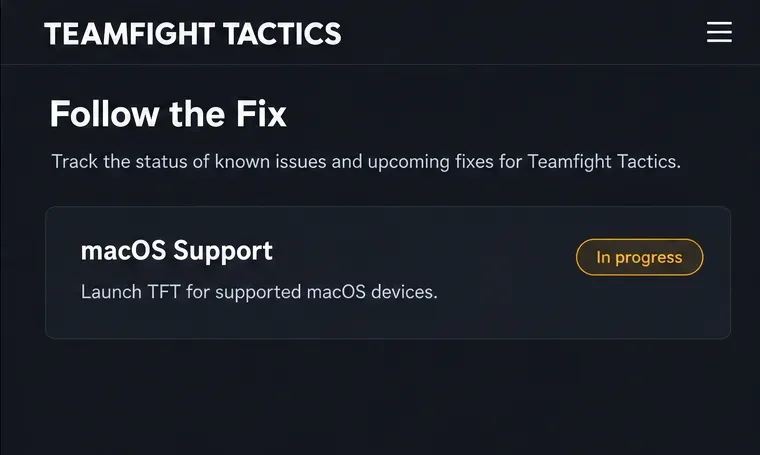
Riot’s Follow the Fix tracker lists macOS support as in progress in the version checked for this article. It does not provide a confirmed live Mac launch date in that entry. A PBE release and a live release are separate milestones.
The macOS launch remains marked as work in progress in the tracker checked for this guide.
Keep an eye on the official Teamfight Tactics website and the current requirements before attempting a live installation. Your existing account is not erased by the Mac support interruption, but PBE testing does not carry your live ranked climb forward.