How to Download Rainbow Six Siege X on PC and Console
To download Rainbow Six Siege, open the official store for your platform, choose the Free Access edition, and install it. On PC, use Steam, Ubisoft Connect, or the Epic Games Store. On PlayStation or Xbox, get it from the console’s own store. The game is now presented as Rainbow Six Siege X; Ubisoft’s Free Access includes selected modes and Operators, while Ranked, Siege Cup, and some additional content require a paid upgrade. You’ll need an internet connection and a Ubisoft account to play online.
Use the steps below to find the correct edition, install it safely, and sign in with the account you want to keep using.
Before you download: check your account and storage
- Platform account: Sign in to Steam, Epic, PlayStation Network, or your Microsoft/Xbox account, depending on where you play.
- Ubisoft account: Have one ready for the first launch. If you have played Siege before, use the same Ubisoft account already linked to your platform account. Ubisoft says cross-progression uses the same Ubisoft account on supported platforms; see its cross-progression guidance.
- Free disk space: Ubisoft’s published PC specs list a 65 GB SSD requirement for minimum and recommended-high configurations, and 110 GB SSD for recommended Ultra. Treat those as planning figures, not a guaranteed download size: updates, platform, and optional content can change what the launcher needs. Check the live store or launcher before choosing an install drive.
- Connection: Siege is an online game. A steady internet connection helps the large initial install and later updates complete without interruption.
See Ubisoft’s PC and console specifications for current hardware guidance. Leave extra space beyond the listed requirement if you can.
Where to download Rainbow Six Siege
| Platform | Official download route | What to look for |
|---|---|---|
| Windows PC | Steam, Ubisoft Connect, or Epic Games Store | Choose the Free Access listing from Ubisoft. |
| PlayStation 4 or PlayStation 5 | PlayStation Store | Search “Rainbow Six Siege” on your console and select Free Access for your system. |
| Xbox One or Xbox Series X|S | Microsoft Store on Xbox | Select the Free Access edition, then choose Get or Install. |
Ubisoft lists PS5, PS4, Xbox Series X|S, Xbox One, Ubisoft Connect, Epic Games Store, and Steam among the supported platforms in its Siege X availability announcement. Store names and buttons can vary slightly by region.
How to download Rainbow Six Siege step by step
Step 1: Select Free Access or your owned edition
If you are new to the game, choose Tom Clancy’s Rainbow Six Siege – Free Access in your platform’s store. Ubisoft currently describes Free Access as including Quick Match, Unranked, and Dual Front with a selection of Operators. Ranked, Siege Cup, extra Operators, and cosmetics have paid requirements. If you already own Siege, open the game from your library and install its available update instead of buying it again.
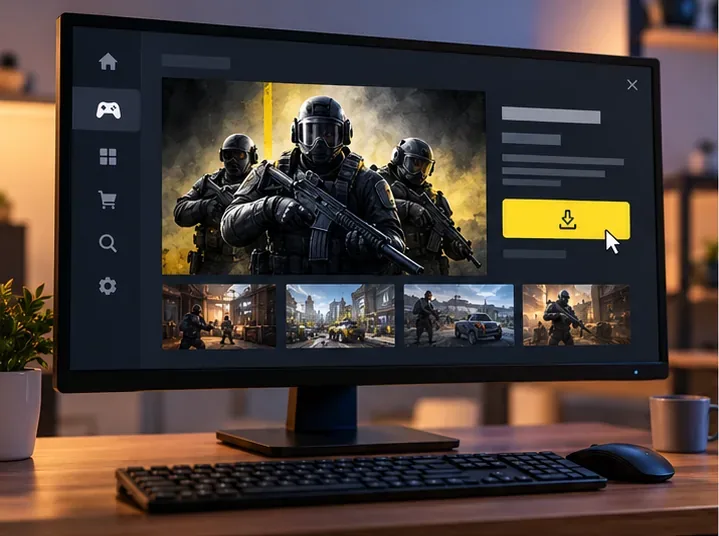
For the mode list and edition details, check Ubisoft’s Free Access page. On PS4 and Xbox One, Dual Front is not supported; those consoles can still access supported Siege modes.
Step 2: Install the PC version from one launcher
Pick one PC storefront and use its official launcher. You do not need to download the game from an unofficial mirror.
- Steam: Open the Rainbow Six Siege store page, select the Free Access option, add it to your library if prompted, then choose Install.
- Ubisoft Connect: Sign in, open the game’s Free Access page, add it to your library, and select Download or Install.
- Epic Games Store: Open the Free Access listing, choose Get or Add to Library, then install it from your Epic library.
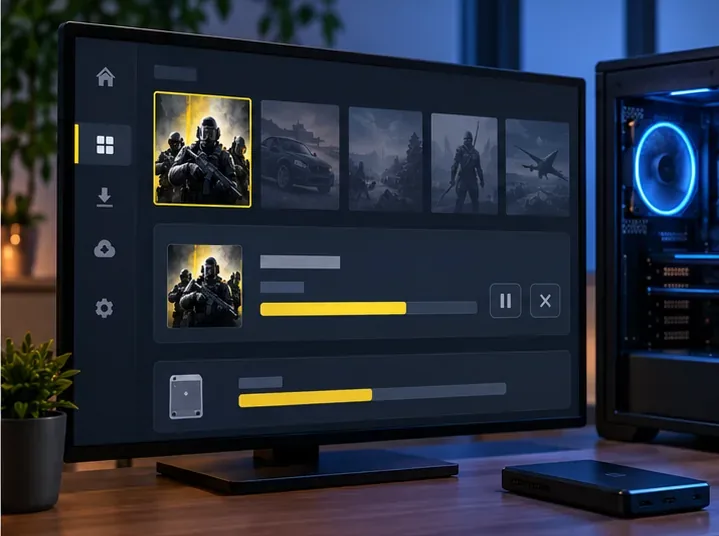
Choose a drive with enough free SSD space when the launcher asks where to install. Let the download and any first-launch update finish before starting a match. The store may show a different download amount from the space required after installation.
Step 3: Download from the PlayStation or Xbox store
PlayStation: Open PlayStation Store on PS4 or PS5 and search for Rainbow Six Siege. Choose the Free Access listing for the console, add it to your library, and select Download. If you are using an existing game license, download the game from your library instead.
Xbox: Open the Microsoft Store on Xbox One or Xbox Series X|S, search for Rainbow Six Siege, choose Free Access, and select Get or Install. Ubisoft’s store listing identifies both Xbox console generations and notes Smart Delivery support. The console downloads in the background; check the queue if you want to follow its progress.
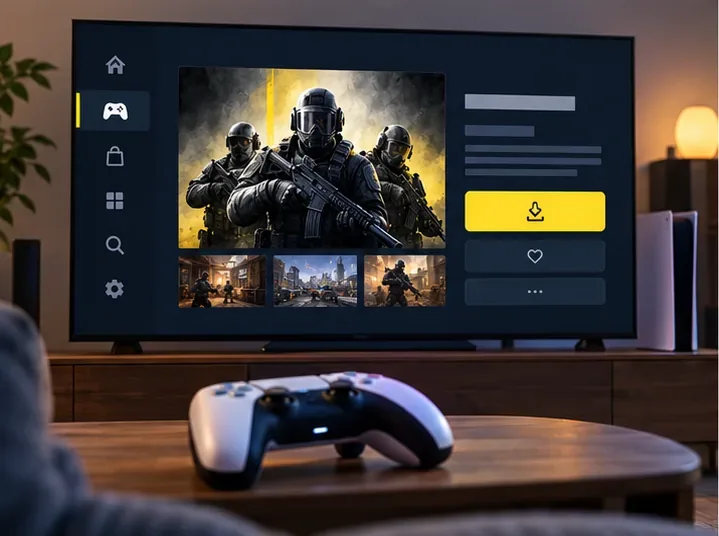
Console network-service requirements can depend on the platform and region. Review the notice on your store’s game page before you download if you do not already have the required online subscription.
Step 4: Launch Siege X and link your Ubisoft account
When installation finishes, start the game and follow the sign-in prompt. Link the correct Ubisoft account to your platform account. Using the same Ubisoft account on supported platforms is important for accessing your saved progression across them. If you are unsure which account is linked, check Ubisoft’s account-linking instructions before creating another account.
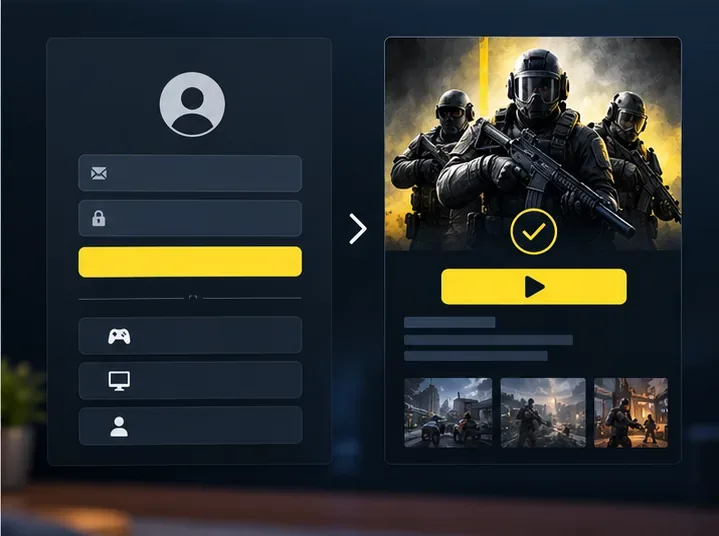
Allow any final update to complete, then select Play. If you are on PS4 or Xbox One, remember that Dual Front is unavailable on those older console versions.
If the download is slow, stuck, or won’t launch
- Pause and resume: Use the launcher or console download queue to restart a stalled download. Then restart the launcher or console if it remains stuck.
- Check storage: Make sure the selected drive has room for installation and updates. If the launcher reports insufficient space, free up more storage or choose another drive.
- Confirm the edition: Search the official store for Free Access and verify that the listing is for your platform. Do not use third-party download sites or repacks.
- Repair a PC install: If the game downloads but will not open, update the launcher and use its file-verification or repair option. Ubisoft lists verification steps for Steam, Epic Games Launcher, and Ubisoft Connect in its Rainbow Six Siege troubleshooting guide.
- Check account linking: If you see a first-launch sign-in error or missing progress, make sure you are using the intended Ubisoft account and that it is linked to the platform account you play on.
Common questions
Is Rainbow Six Siege free to download?
Yes. Free Access lets new players download Siege X and play selected modes with a selection of Operators. Some competitive modes and additional content require a paid offer.
How much storage does the PC version need?
Ubisoft’s published specs list 65 GB on an SSD for minimum and recommended-high PC configurations, and 110 GB for recommended Ultra. Leave extra room for updates and check the launcher’s current requirement before installing.
Can I play Siege on PS4 and Xbox One?
Yes. Ubisoft lists both consoles as supported, but Dual Front is not available on PS4 or Xbox One. The store page for your console shows the edition and online-service requirements that apply to your account.
Can I stream the game instead of downloading it?
Cloud play is different from installing a local copy. Availability depends on the streaming service, platform, subscription, and country, so check the provider’s current game catalog before relying on it.
For the safest Rainbow Six Siege X download, use the official store for your device, select Free Access if you are trying the game, and sign in with the Ubisoft account tied to your progress.









