Home
» 🎮 Esports
»
How to Download League of Legends (2026 Guide)
How to Download League of Legends (2026 Guide)
How to Download League of Legends on Windows or Mac
To download League of Legends, use Riot’s official download page, install the Riot Client, and let it download the game files. The game is free to download. You need a Riot account to sign in, and the official PC versions are for Windows and macOS. This guide covers the current download flow, the system requirements Riot lists in 2026, and what to try if installation or launch gets stuck.
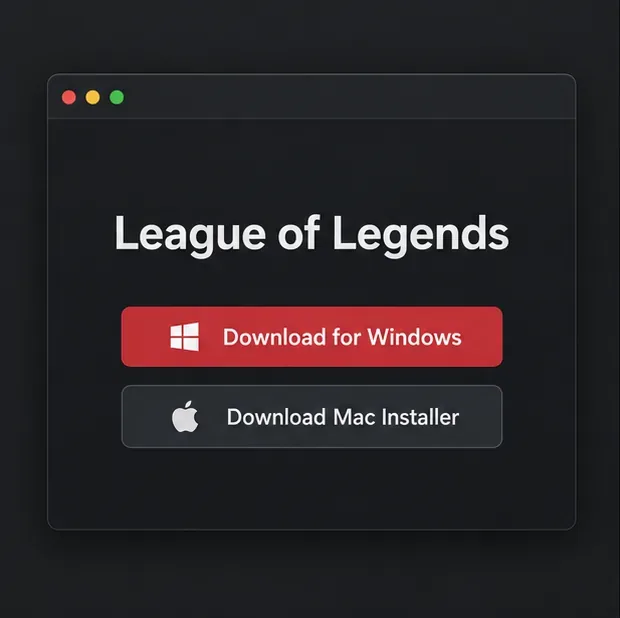
Illustrative download page mockup. Riot’s exact page layout and button labels can vary by region.
Check the current League of Legends system requirements
Riot’s requirements page was updated on September 22, 2026. Check it before installing if your computer is close to the minimum: meeting minimum specifications does not guarantee smooth performance, and Riot can revise its requirements.
Platform
Key minimum requirements listed by Riot
Windows
Windows 10 Build 19041 or later, or Windows 11; x64; 2 GB RAM; 16 GB free storage; and graphics hardware supporting DirectX 11 feature level 11_0. Windows 11 requires TPM 2.0 enabled.
macOS
macOS 12; Apple M1 listed as the minimum CPU; Metal-capable graphics; 8 GB unified memory; and 40 GB available storage.
Riot says League of Legends is officially supported on Windows and macOS, not Linux, SteamOS, or Bazzite. Intel Mac owners may still be able to play, but Riot’s support focus is Apple Silicon; an Intel-specific issue may not be investigated. See Riot’s current League of Legends system requirements for the complete CPU and graphics tables.
How to download League of Legends
1. Open Riot’s official download page
Go to the official League of Legends download page. Choose Download for Windows or Download Mac Installer for the computer you are using, then save the installer. Avoid third-party download sites and file-sharing links; Riot’s page is the safest place to get the current installer.
2. Open the installer
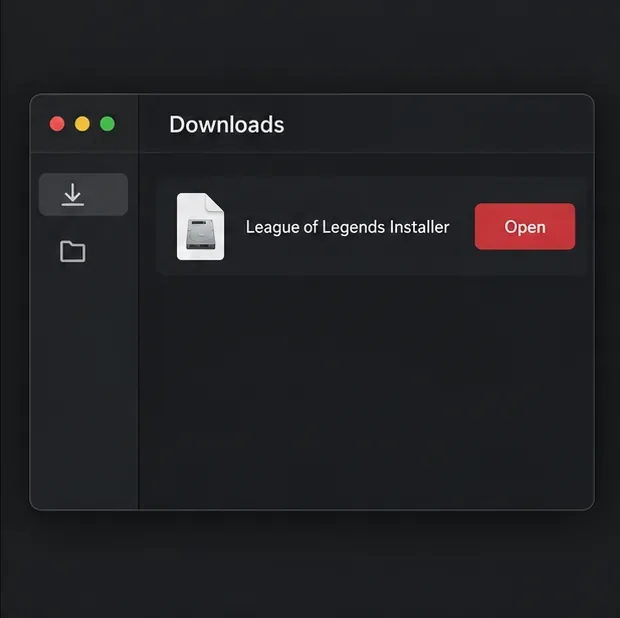
Find the downloaded file in your browser’s download list or your Downloads folder and open it. On Windows, approve a permission prompt only when you launched the installer from Riot’s official page and the publisher information is consistent with Riot Games. On a Mac, open the downloaded installer and follow the prompts shown by macOS and the installer. Choose an installation location with enough free space for the game and future updates.
Open the installer you downloaded from Riot. This mockup is illustrative; the file name and operating-system prompts may differ.
3. Let the Riot Client download and install the game
The installer starts the setup; the full game files are downloaded afterward through Riot’s client. Keep the client open and your computer connected to the internet while it downloads and patches. The time varies with your connection, device, and any updates available, so there is no reliable fixed installation time. If you need to pause, close the client normally and reopen it later to check whether the download resumes.
4. Sign in or create a Riot account
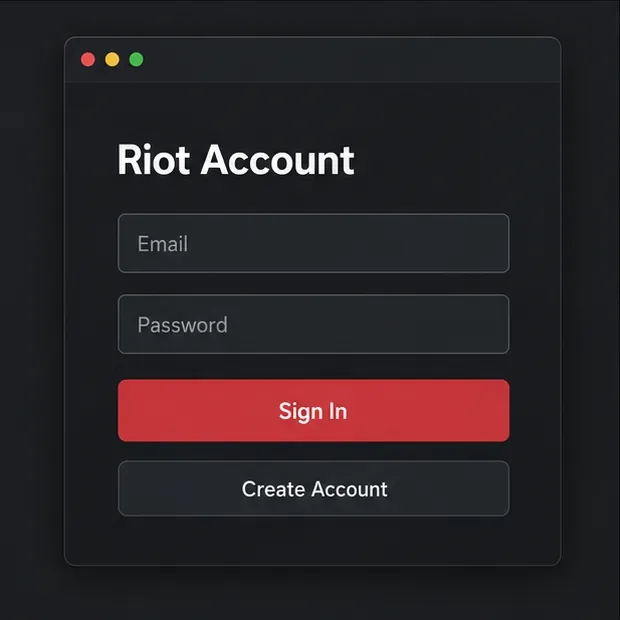
When prompted, sign in with an existing Riot account. If you are new to Riot, choose the account-creation option and follow the current prompts. Use an email address you can access, set a unique password, and complete any verification requested for your account or region. If you already play another Riot PC game, try your existing Riot account instead of registering a second one.
Sign in with an existing Riot account or use the account-creation option. The screen shown is an illustrative mockup.
5. Select League of Legends and click Play
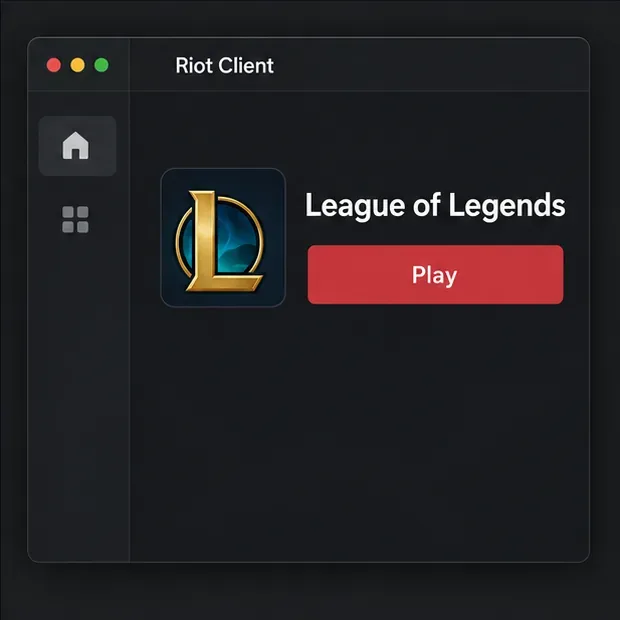
After installation and sign-in, open the League of Legends page in Riot Client and select Play. A first launch may require another patch before the game opens. Riot says its PC games route through Riot Client in 2026; on Windows, a League desktop shortcut can open the game’s page in Riot Client first, where you click Play to continue. The rollout and screen layout can vary while Riot updates its client.
Select League of Legends in Riot Client and choose Play. The mockup illustrates the action, not an exact screenshot.
If the download or installation does not work
The installer will not open: Confirm that your operating system meets Riot’s current requirements, then download a fresh copy from Riot’s site. Do not bypass an operating-system security warning for an installer from an unknown source.
The download is slow or appears stuck: Check your internet connection, pause other large downloads, and make sure you still have the required free storage. Restart Riot Client and the computer, then check the download again.
The game will not launch: Riot’s current guidance is to restart Riot Client, make sure it is updated, restart the PC, and try again. Check Riot’s service status for an outage. On Mac, confirm that your macOS version and hardware meet Riot’s listed requirements.
Your firewall blocks the installer: Keep your security software enabled. If it reports a block, verify the installer came from Riot’s official site and follow your operating system’s normal process for allowing a trusted app. If the problem persists, search Riot Player Support for the exact error code.
For launch-specific steps and current Riot Client behavior, see the Riot Client FAQ. Its troubleshooting advice includes restarting the client, updating it, restarting the PC, and checking service status.
League of Legends download: quick answers
Is League of Legends free to download?
Yes. The PC game is free to download and play from Riot’s official site. Optional in-game purchases are separate from installing the game. Riot’s official League site describes the game as free to play.
Can I download League of Legends on a Mac?
Yes. Riot offers a Mac installer. As of the September 2026 requirements page, Riot lists macOS 12, an Apple M1, Metal-capable graphics, 8 GB unified memory, and 40 GB available storage as the minimum. Intel Macs may continue to run the game, but Riot’s support focus is Apple Silicon.
Do I need Steam?
No. Download League of Legends from Riot and use Riot Client to install, update, and launch it.
Once the client finishes its first update, you can launch the game from its League page in Riot Client. For future installs, return to Riot’s download page and check the current system requirements if your operating system or hardware has changed.