Downloading League of Legends on Mac takes about five minutes of hands-on effort — the rest is waiting for the initial patch to finish. Whether you are brand new to the game or reinstalling after a break, this guide walks you through every click from the official download page to the champion select screen.

Before you start
Make sure your Mac meets the minimum requirements. You will need macOS 10.13 (High Sierra) or later, at least 16 GB of free storage for the game and future patches, and a stable internet connection. The download itself is small (the installer is a few hundred megabytes), but the game will download the rest of its data on first launch. You do not need to pay anything — League of Legends is free to play.
How to download League of Legends on Mac
-
Step 1: Visit the official League of Legends website and click Download
Open Safari, Chrome, or any browser and go to leagueoflegends.com. Click the Download button on the home page. The site should automatically detect that you are on macOS and offer the Mac installer. If it does not, look for a platform selector and choose Mac. The download starts immediately and saves a
.dmgfile to your Downloads folder.
The official leagueoflegends.com download page automatically detects macOS and offers the correct installer. -
Step 2: Open the downloaded .dmg file
Once the download is complete, open your Downloads folder in Finder (or click the file notification that appears in your browser toolbar). Find the file named something like LeagueofLegends.dmg and double-click it to mount the disk image. A new Finder window will open showing the installer contents.
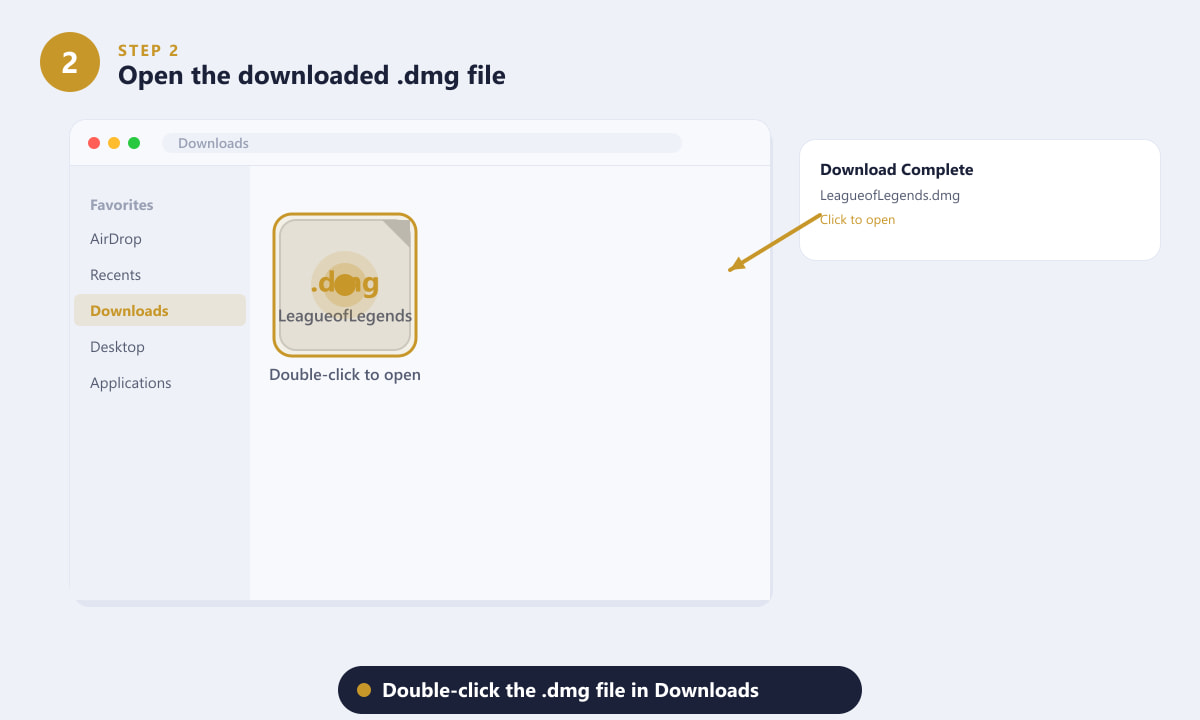
Double-click the .dmg disk image in Finder to mount it and reveal the installer. -
Step 3: Drag League of Legends into the Applications folder
Inside the mounted disk image, you will see the League of Legends app icon and a shortcut to your Applications folder. Simply drag the League of Legends icon onto the Applications folder icon. macOS copies the files — this takes a few seconds. Once the copy finishes, you can eject the disk image by right-clicking it in the Finder sidebar and selecting Eject.
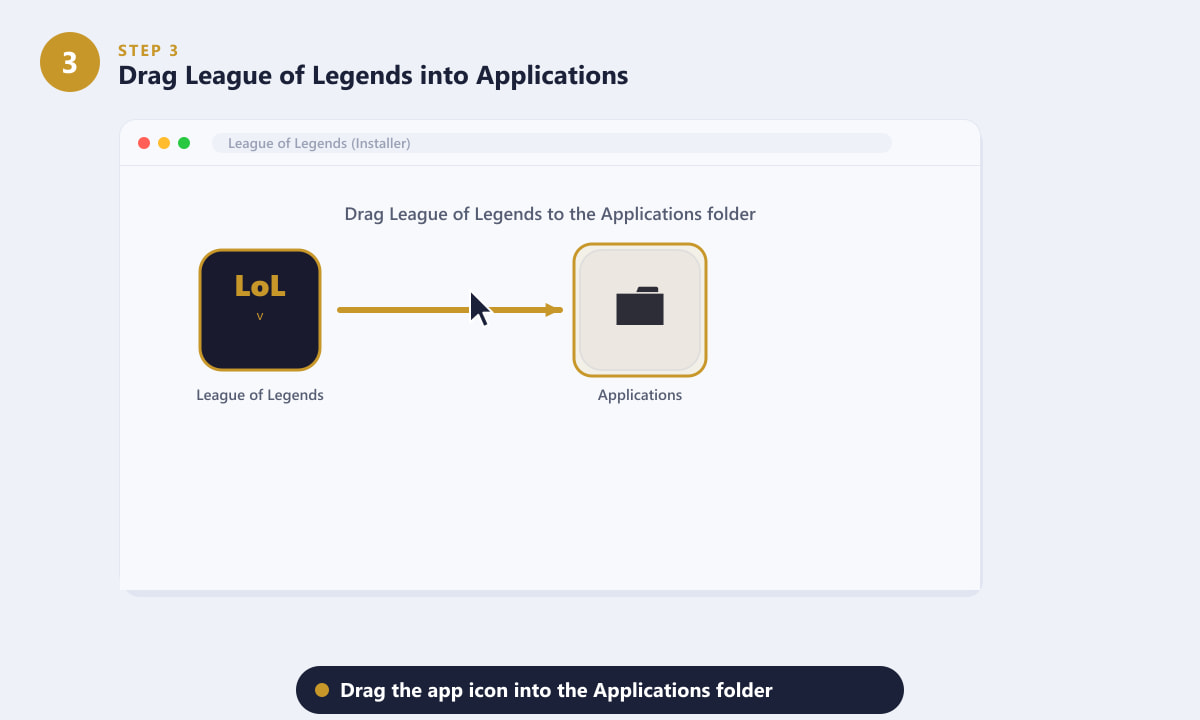
Drag the app icon to Applications to install it, just like any other Mac application. -
Step 4: Launch the client and sign in
Open your Applications folder and double-click League of Legends to launch it. On first run, macOS may show a security prompt because the app was downloaded from the internet — click Open to allow it. The Riot client will open and ask you to sign in. Enter your Riot Games username and password. If you do not yet have an account, click Create Account to register for free at the Riot Games website.
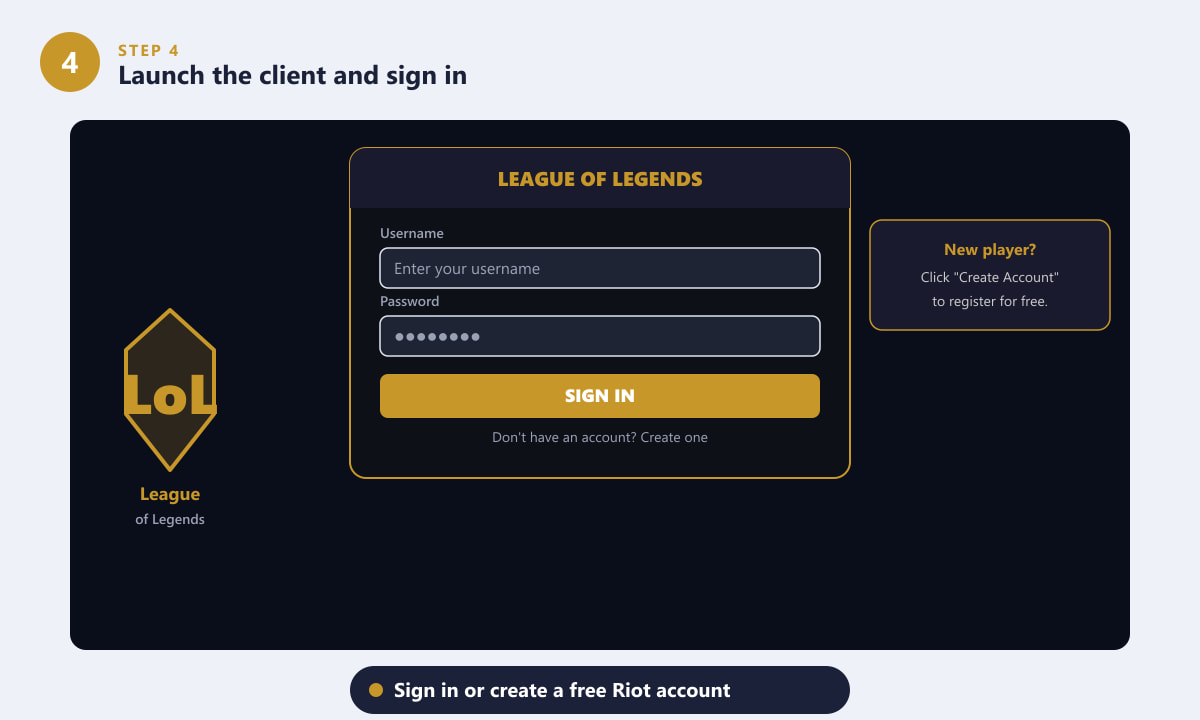
Sign in with your Riot account — or create one for free if you are a new player. -
Step 5: Wait for the client to patch, then click Play
After logging in, the League of Legends client will download and apply the latest game patch. This initial download can range from a few gigabytes to over ten gigabytes depending on how recently the installer was built, so the time it takes varies with your internet speed. A progress bar shows the download and installation progress. Once patching is complete, the PLAY button lights up. Click it to enter the lobby and start your first game.
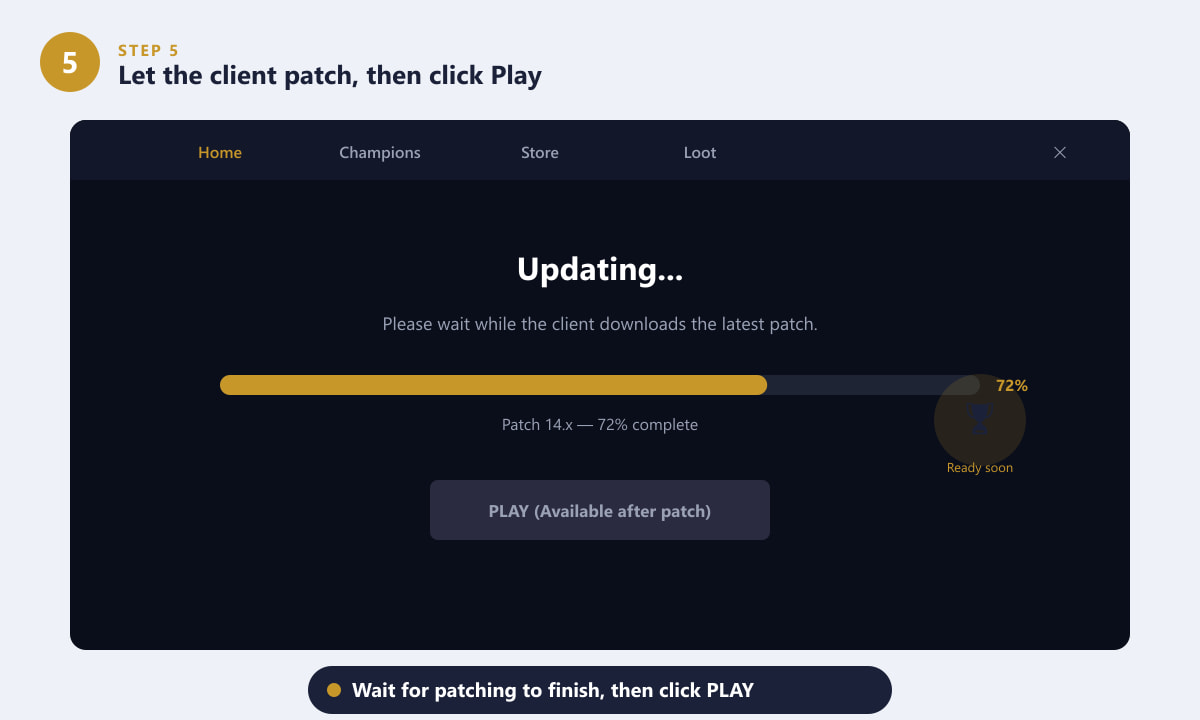
The client patches itself to the latest version — once the progress bar reaches 100%, the Play button becomes active.
Tips for Mac players
- Security pop-up on first launch. If macOS says it cannot open League of Legends because it is from an unidentified developer, go to System Settings > Privacy & Security, scroll down, and click Open Anyway.
- Keep enough free space. League of Legends grows with each major update. Budget at least 20–25 GB so patches never stall mid-update.
- Use a wired connection for the first patch. The initial download can be large; an Ethernet adapter will speed it up significantly compared to Wi-Fi.
- Graphics settings. After your first login, visit Settings > Video inside the client and lower the resolution or graphics quality if the game runs slowly on your Mac. Medium settings typically run well on most modern MacBooks.
- Apple Silicon (M1/M2/M3/M4) Macs. League of Legends runs natively on Apple Silicon via Rosetta 2 translation and also as a native ARM build on supported macOS versions — no extra steps are needed.
Troubleshooting common issues
The installer will not open because of a security warning
Go to System Settings > Privacy & Security (or System Preferences > Security & Privacy on older macOS). Click Open Anyway next to the League of Legends entry. You will only need to do this once.
The patch download is very slow or keeps stopping
Try restarting the client. If the problem persists, check your firewall and make sure the League of Legends client has permission to access the internet. Switching from Wi-Fi to a wired Ethernet connection often resolves intermittent stalls.
The game crashes after the patch finishes
Ensure your macOS version is up to date and that you have adequate free disk space. You can also run the built-in repair tool: open the client, click the gear icon near your username, and choose Initiate Full Repair.
Frequently asked questions
Is League of Legends free to download on Mac?
Yes. League of Legends is completely free to download and play. The game earns revenue through optional cosmetic purchases such as champion skins, but these never affect gameplay or give a competitive advantage.
How much storage does League of Legends take on Mac?
The installed game currently uses around 22–25 GB of disk space, and that figure grows slightly with each major content patch. Keep at least 5 GB of headroom beyond the game's footprint to allow patches to apply smoothly.
Does League of Legends work on Apple Silicon Macs?
Yes. The client runs on M1, M2, M3, and M4 Macs. On most Apple Silicon devices the game runs very well and stays cool, often outperforming older Intel Mac configurations.
Can I use the same account on Mac and PC?
Yes. Your Riot account and all your champions, skins, and progression carry over between platforms. Simply sign in on any device and your account data loads automatically.
How do I uninstall League of Legends on Mac?
Drag the League of Legends folder from your Applications folder to the Trash, then empty the Trash. To remove leftover support files, also delete the League of Legends folder found in ~/Library/Application Support/.
You are ready to play
Getting League of Legends on Mac is as straightforward as any other Mac application: download from the official site, drag it to Applications, sign in, and let the client patch. The whole process is free, and your account works across Mac and PC. Head into a practice game first to get comfortable with your settings before queuing up for ranked. Good luck on the Rift.









