How to Download League of Legends on EU West (2026)
To download League of Legends on EU West (EUW), install the current client from Riot Games’ official download page, then use a Riot account linked to Europe West. The download page offers Windows and Mac installers; it does not set your server region. EUW is tied to the account you create or use, so downloading the game again will not move an existing EUNE or other-region account to EUW.
The steps below explain how to get the official client, choose or verify the Europe West region, and avoid the outdated “select EUW before downloading” instructions still found online.
Check your PC or Mac before downloading
Riot’s requirements can change, so check its current League of Legends system requirements if your computer is close to the minimum. As of Riot’s September 22, 2026 update, its listed basics are:
| Platform | Riot’s listed minimum | Storage to plan for |
|---|---|---|
| Windows | Windows 10 (Build 19041 or later) or Windows 11 with TPM 2.0 enabled; 64-bit | Riot lists 16 GB in its requirements table. Its September 15, 2026 support note says a typical installation can use about 35–40 GB, so reserve around 40 GB or more for the game and updates. |
| Mac | macOS 12 and Apple M1 listed; 8 GB unified memory | 40 GB. Intel Mac players may still be able to play, but Riot says support is primarily focused on Apple Silicon. |
You also need an internet connection to download updates and play online, plus a Riot account. The complete game download is much larger than the small setup file, and download time depends on your connection and the current patch.
How to download League of Legends on EU West
-
Step 1: Get the installer from Riot’s official site
Open the official League of Legends download page. Choose Download for Windows or Download Mac Installer for your computer. There is no EUW selector on this page: these buttons download the game client, while the region is associated with your League account.
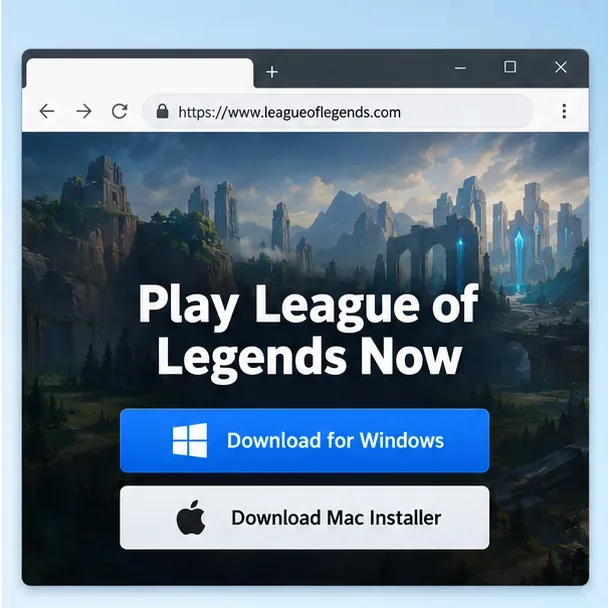
Illustration of Riot’s download page: select the installer for your operating system. The exact page layout may change. -
Step 2: Run the installer and let the client update
Open the file from your Downloads folder and follow the setup prompts. On Windows, approve the User Account Control prompt if it appears and you started the installation. On Mac, follow the installer instructions to place the app in Applications if prompted. The Riot Client will download and patch the full game after setup; keep the client open until it finishes. Avoid interrupting an update or deleting files while the installer is working.
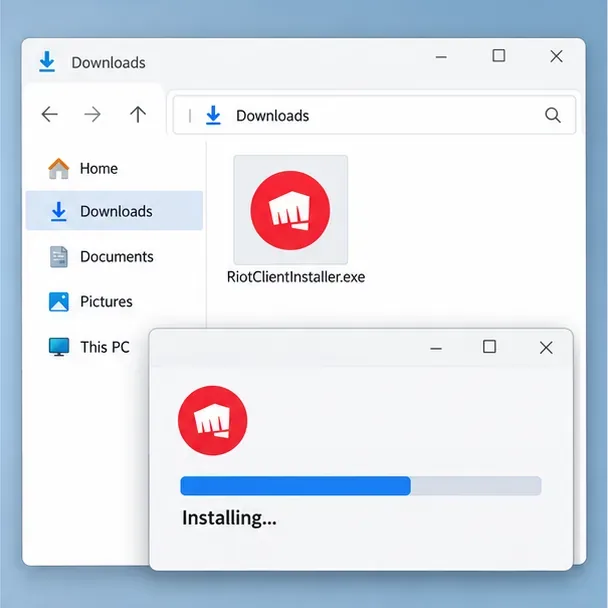
The setup file starts the client installation; the game then downloads its current files and patches. Time varies by connection. -
Step 3: Create or use an account for Europe West
If you are new to League, create a Riot account through the client or Riot’s official League account sign-up page. When League asks you to choose a region during the first setup, select Europe West (EUW). Riot lists Europe West and Europe Nordic & East (EUNE) as separate League server regions.
Already have a Riot account? It must be associated with EUW to play there. Each Riot account is linked to a specific League region. If your account is on EUNE or another shard, use an account already associated with EUW or review Riot’s account transfer information to see whether a transfer is available. Reinstalling or downloading a different copy of the client does not change the account’s region.
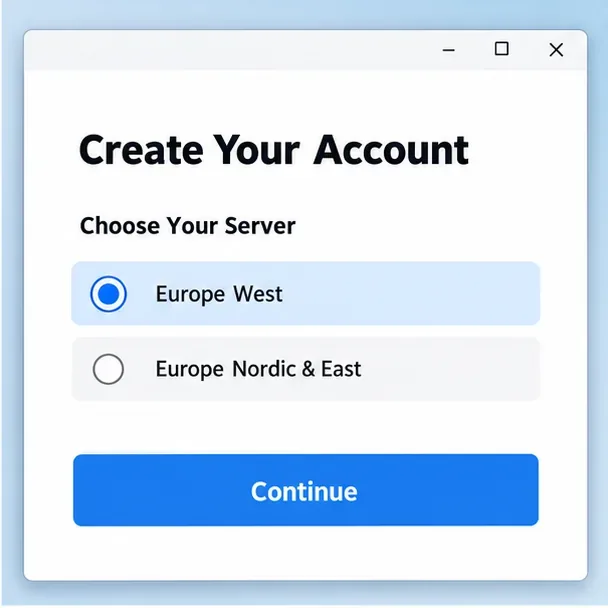
Choose Europe West if the new-account setup asks for a region. This is an explanatory mockup, not a Riot screenshot. -
Step 4: Verify the region, then launch the game
Before entering a match, confirm that the account is on EUW. Riot’s current guidance says to click the gear in the bottom-right corner of the login screen to display the region. The old region drop-down on the login screen has been removed for most accounts, so you may not see a server switcher there. If the displayed region is not Europe West, sign out and use the Riot account associated with EUW. Click Play after the client finishes any required patch.
Riot says one launcher can be used to access multiple servers, but each server must be patched separately and you need an account associated with the region you want to play. You can read its regional server guide for details.
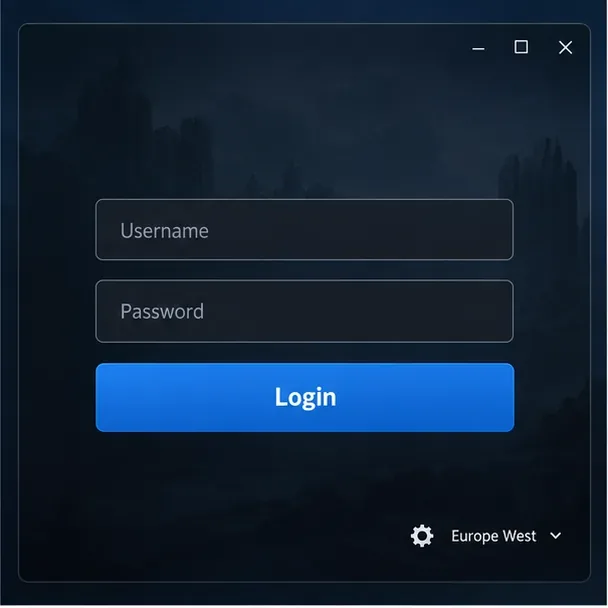
Use the gear at the bottom right of the login screen to check the region; the interface shown here is simplified.
EU West or EU Nordic & East?
EUW and EUNE are different League server regions. Choose the one where your friends play or the region that gives you the better network route. Riot explains that League regions are organized around server and network infrastructure, not simply national borders. A country name alone does not determine which shard is best, and selecting EUW does not guarantee low ping if you are far from its network infrastructure.
If the download or installation gets stuck
- Check that you have enough free disk space for the actual client and room for updates.
- Restart the Riot Client and your computer, then retry the update from the official client.
- On Windows, confirm your system is on a supported build and that you have permission to install software. Riot’s installation support page lists the current troubleshooting steps.
- If the installer still fails, use Riot Support rather than downloading an old installer from a third-party site or changing security settings without guidance.
Frequently asked questions
Do I choose EU West before downloading League of Legends?
No. The official download page provides the Windows or Mac installer. You choose or use an account associated with Europe West when setting up League; the download itself does not bind your account to EUW.
Can I change an EUNE account to EUW in the login screen?
Not with the old login-screen region selector. Riot accounts are linked to a League region. Use an EUW account or check Riot’s current transfer rules and availability if you want to move an existing account.
How long does the EUW download take?
There is no reliable fixed time: the full client and current patches take longer than the setup file, and the total depends on your internet speed and the size of the update. Keep the Riot Client open until it reports that the game is ready.









