How to Download League of Legends on a MacBook
To download League of Legends on a MacBook, use Riot’s official Mac installer, open the package it downloads, follow the setup prompts, then sign in to Riot Client and install the game. Before you begin, check your Mac against Riot’s current macOS requirements: its system-requirements page, updated September 22, 2026, lists an Apple M1 chip, macOS 12, 8 GB of unified memory, a Metal-capable GPU, and 40 GB of available storage.
The 40 GB figure is Riot’s free-space requirement, not a guaranteed download size. Keep extra space available for macOS and future game updates. The interface images below are illustrative guides; they are not live screenshots, and Riot may change its page or client layout.
Check whether your MacBook meets Riot’s requirements
Choose Apple menu → About This Mac to check the chip and macOS version. Then open System Settings → General → Storage to check available disk space. Riot’s current requirements table lists M1, macOS 12, 8 GB unified memory, and 40 GB free as the Mac baseline. You can compare your Mac with Riot’s current League of Legends system requirements.
Riot’s same page has mixed wording about Intel Macs: it says Intel systems may continue to play while its support focus is Apple Silicon, and it separately describes native Intel macOS support. If your MacBook has an Intel processor, check the live Riot page or contact Player Support for current guidance for your model instead of relying on older requirements. Do not assume that a statement about a Mac chip guarantees a native app build or a particular frame rate.
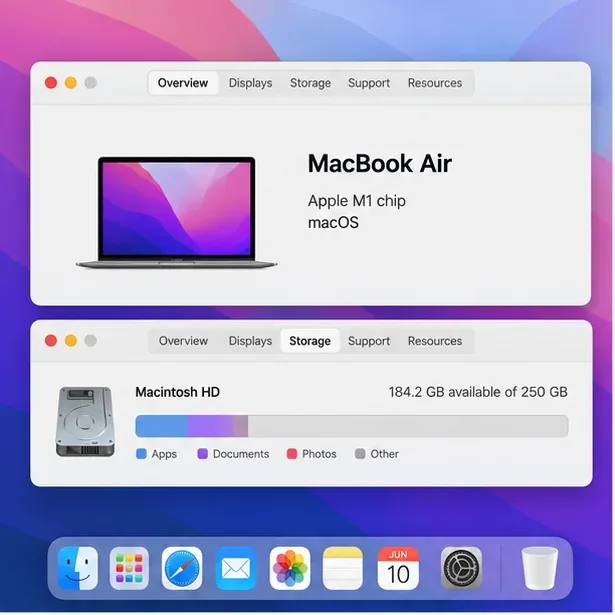
How to download and install League of Legends on a MacBook
-
1. Open Riot’s official League of Legends download page
In Safari or another browser, go to the official League of Legends download page. Use Riot’s site rather than a third-party download mirror. The page can route to a localized version; choose the Mac option shown there.

The official download page offers a Mac installer; Riot may change its layout or button wording. -
2. Download the Mac installer
Select Download Mac Installer (the wording may vary slightly by region). Let the browser finish downloading the installer package before opening it. The Mac download is the setup package; Riot Client handles the game installation and later updates.
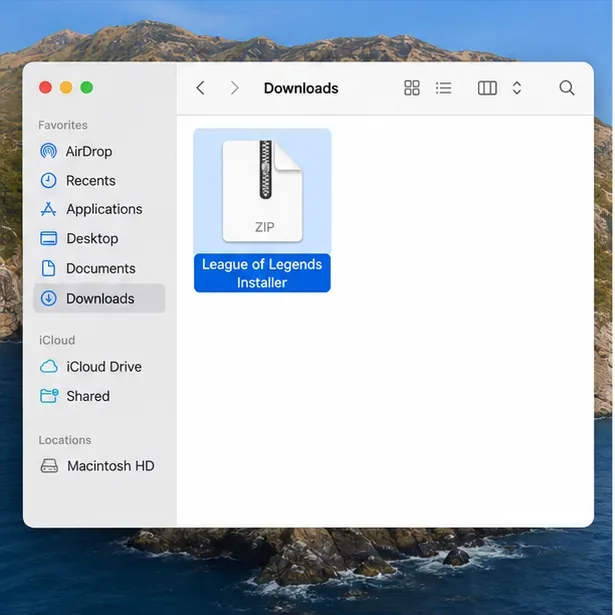
Find the downloaded installer package in Downloads; its name and format may vary. -
3. Open the downloaded package in Finder
Open Downloads in Finder and locate the League of Legends installer. Riot can change package names or formats, and the file shown may be a ZIP archive or a DMG. If it is a ZIP, double-click it to extract the contents. If it is a DMG, double-click it to mount the installer window. Continue with the installer included in the package you received.
-
4. Follow the installer prompts
Open the extracted installer and follow its on-screen instructions. Riot says its Mac installer installs Riot Client, which then facilitates the game download and installation. If the package presents an app and an Applications shortcut, follow the package instructions and place the app in Applications before launching it. The exact screens can change, so use the prompts in the current installer rather than expecting an older walkthrough to match pixel for pixel. Riot’s Mac reinstall instructions also direct players to open the installer and follow its prompts.
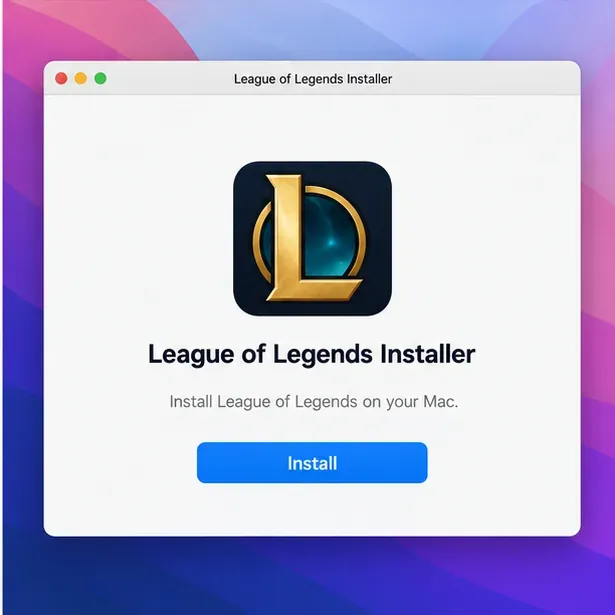
Follow the prompts in the installer package you downloaded; actual screens may differ. -
5. Sign in or create a Riot account
When Riot Client opens, sign in with your existing Riot account. If you are new to Riot, choose the account-creation option and complete the steps shown. Use the account and game region you intend to play with; your Mac’s location does not determine which account you should use. Keep your login details private and make sure the sign-in page is part of Riot Client or an official Riot website.
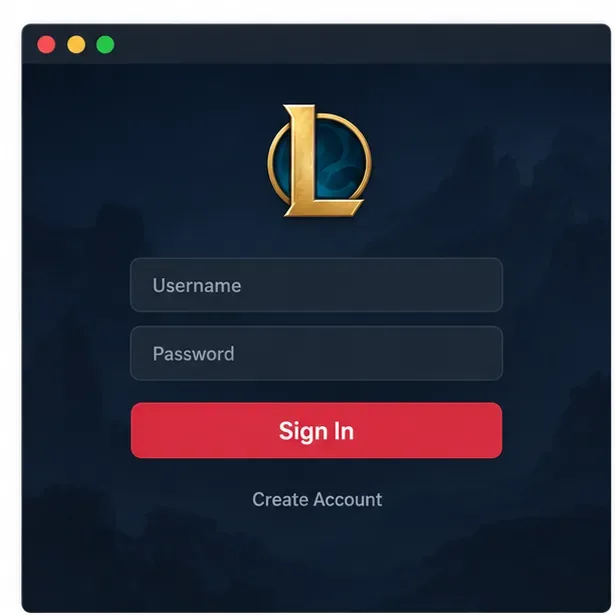
Sign in to Riot Client or create an account; the current interface may differ. -
6. Install League of Legends, let it update, and launch
In Riot Client, choose League of Legends and select Install. If the client asks where to put the game, choose a location with enough free space and keep the installation on a supported Mac file system. Allow the client to download and patch the game; the time depends on your connection and the size of the update, so there is no reliable one-size-fits-all estimate.

Choose League of Legends in Riot Client and select Install. Keep the Mac connected to power and avoid closing the lid if that would put it to sleep. If the progress bar pauses, give the client a moment to resume before restarting it. Once the client finishes installing and updating, the Play button becomes available. Select it to open League of Legends.
Let Riot Client download and patch the game before launching. 
When installation and updates finish, select Play to launch League of Legends.
Fix common Mac installation problems
The installer will not open
First confirm that the package came from Riot’s official download page, then download it again if it looks incomplete or damaged. macOS uses Gatekeeper to check apps and installer packages. Do not turn off Mac security to get past a warning. If macOS cannot verify the app, stop and check Riot’s current installer or support guidance; Apple explains the available warnings and safe options in its guide to safely opening apps on Mac.
The game will not install or the download stops
Check that at least 40 GB is free, confirm your internet connection is stable, and restart Riot Client if the download remains stalled. Install any available macOS updates that are compatible with your Mac, then compare your chip, operating-system version, and memory with Riot’s current requirements. If the installer reports an unsupported configuration or repeats the same error, use Riot’s official reinstall and support instructions rather than deleting folders at random.
The Play button is still unavailable
Wait for the client to finish downloading and applying patches. If it remains unavailable after the client reports completion, quit and reopen Riot Client, check for an error message, and consult Player Support. A Mac that falls below a current hardware or macOS requirement may not be able to launch the game.
Frequently asked questions
Is League of Legends free to download on a MacBook?
Yes. League of Legends is free to play, and the Mac installer does not require a purchase. Optional in-game purchases are separate; Riot describes its model in this official overview of League’s free-to-play model.
How much storage do I need?
Riot currently lists 40 GB of available storage for macOS. Treat that as the published free-space requirement, not as a promise that the installer download itself is exactly 40 GB. Keeping additional space free makes room for system files and future patches.
Does League of Legends run on M-series MacBooks?
Riot’s current requirements table lists an Apple M1 as the minimum and recommended Mac processor, with macOS 12 and 8 GB of unified memory. Check the live Riot requirements before installing because compatibility guidance can change, and do not infer that every MacBook model will deliver the same performance.









