How to Download League of Legends in North America (2026)
To download League of Legends in North America, use Riot Games’ official League download page, choose the Windows or Mac installer, install the Riot Client and game files, then sign in with an account for the region you want. League is free to download and play. The setup process is the same whether you are in the United States or Canada, but your physical location does not automatically decide which League region is attached to your account.
Before installing, check Riot’s current system requirements. The published storage requirements changed: the Windows minimum lists 16 GB of available space, while the macOS minimum lists 40 GB. Those are free-space requirements, not a promise about the size of the installer download.
Check your PC or Mac before downloading
Riot’s system-requirements page, checked October 16, 2026, lists the following minimums:
| Platform | Published minimum | Storage to have free |
|---|---|---|
| Windows | 64-bit retail Windows 10 (Build 19041 or later) or Windows 11; SSE 4.2 CPU support; DirectX 11 feature-level 11_0 graphics. Windows on ARM is not supported. | 16 GB |
| macOS | macOS 12, Apple M1, Metal-capable graphics, and 8 GB unified memory. Riot says Intel Mac players may still be able to play, but support is focused mainly on Apple Silicon. | 40 GB |
Riot’s current Windows requirements also state that TPM 2.0 must be enabled for Windows 11. If your computer only meets the minimum specs, performance may be limited. Review the official League of Legends system requirements if you need the full CPU and graphics-card tables.
How to download and install League of Legends
Step 1: Download the installer from Riot’s official page
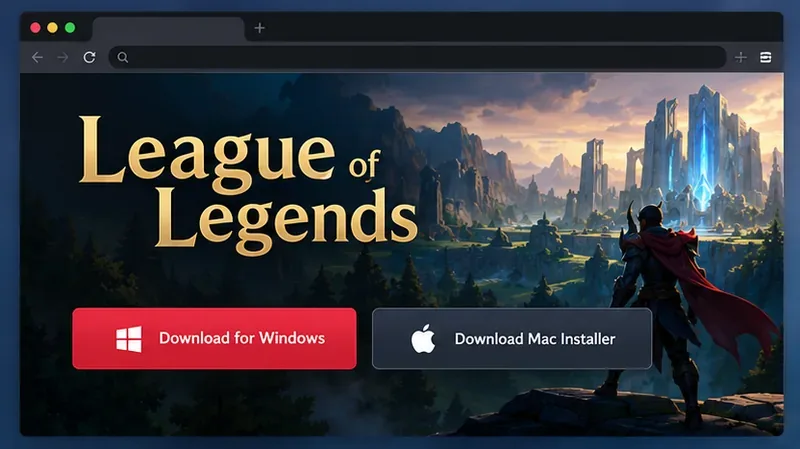
Open Riot’s North America League of Legends download page. Choose the Windows download on a PC or the Mac installer on a Mac, then save the setup file. Use Riot’s domain and avoid third-party download sites or repackaged installers. You do not need Steam or another game store to install League.
Step 2: Run the setup file
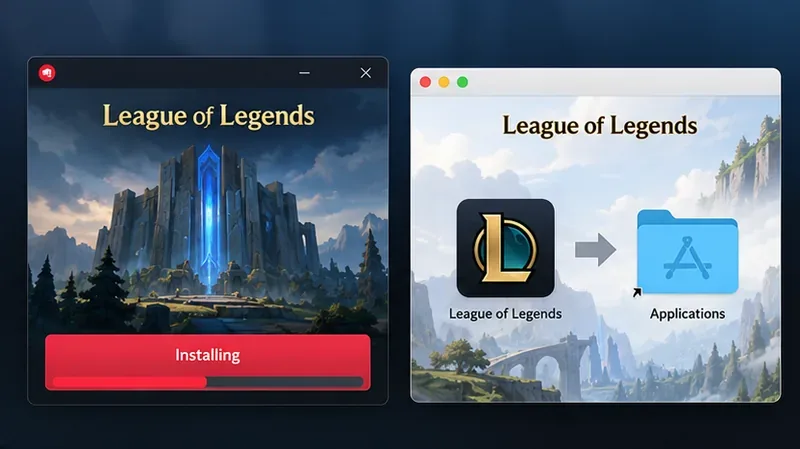
On Windows, open the downloaded setup file and follow the installer prompts. Keep the default install location unless you have a reason to change it, and do not move the game folder while installation is running.
On Mac, open the downloaded .dmg file. Drag League of Legends.app into the Applications folder, close the installer window, and launch the app from Applications. Riot’s Mac instructions warn against launching the app directly from the mounted disk-image window.
Step 3: Let the Riot Client download and patch the game
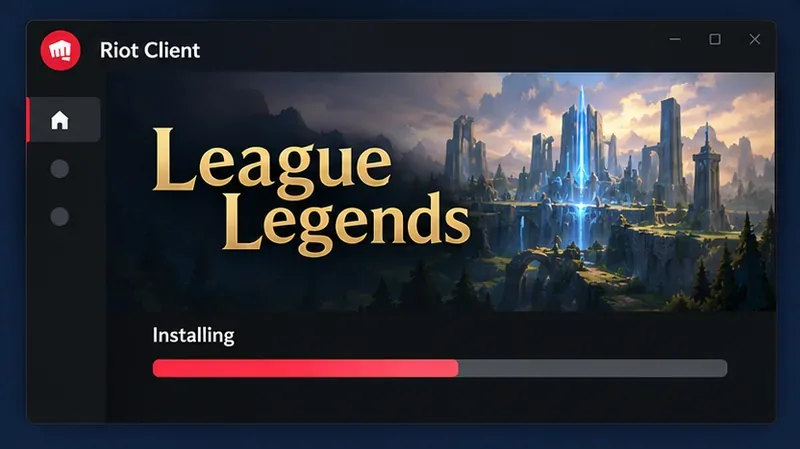
The Riot Client handles the rest of the League of Legends download, including the game files and current patch. Keep the client open and allow the progress indicator to finish. Download time depends on your connection and the current patch, so Riot does not provide one reliable completion time for every player. If the patch pauses or shows an error, confirm you have enough free storage and check the message before retrying.
Step 4: Sign in, choose North America, and launch the game
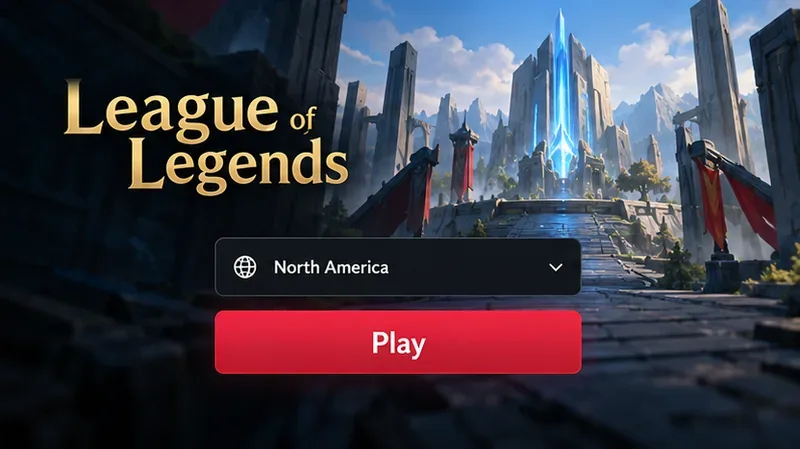
Sign in with your Riot Account or create one if you are new. When you enter League for the first time, choose North America if that is the region where you intend to play. Riot lists North America separately from Latin America North and Latin America South. The account region is not simply determined by your current location, and Riot says an account created for one region cannot log in to another region’s game client. If you already play on another region, use the correct regional account or review Riot’s account-transfer information before changing anything.
Once the client finishes patching and your account is set up, select Play. You can start with the in-client tutorial before joining regular matchmaking. On Windows, League requires Riot Vanguard. If the client asks you to restart the computer after Vanguard installs, restart before trying to play; Vanguard must be active while the League Client is open and during gameplay.
Fix common download and installation problems
- The download is slow or stops: Check that your internet connection is stable and that the device has the required free space. If Riot Client displays an error, restart the client and follow the error-specific instructions in Riot Player Support.
- The game opens in the wrong region: Sign out and verify which Riot Account you used. A Riot Account is associated with a League region; changing the launcher’s language or your computer’s location does not move game progress between regions. Consult Riot’s regional-server guide for account and region details.
- The Mac app will not open: Confirm that League of Legends.app was copied into Applications from the .dmg before you launched it. Then open it from Applications. Riot’s Mac installation and reinstallation guide covers the steps and common mistakes.
- Windows asks for a restart: If this appears after Vanguard installation, save your work and restart the PC. Riot says the Play button remains unavailable until the restart is complete. Use Riot’s restart troubleshooting guide if the prompt continues after rebooting.
Frequently asked questions
Is League of Legends free to download in North America?
Yes. The game is free to download and play. Optional purchases are available in the game, but you do not need to buy the game to install it.
How large is the League of Legends download?
Riot’s current system-requirements page specifies at least 16 GB of free storage on Windows and 40 GB on macOS. These are storage requirements for installation, not the exact amount transferred by the installer; patches can change the files downloaded.
Can I use my existing Riot Account on the North America server?
Use it if it is associated with North America. Riot states that accounts are tied to a League region, so an account associated with another region may need a separate regional account or an eligible account transfer.
Can I install League of Legends on Linux or SteamOS?
No. Riot’s current support page lists Windows and macOS as the supported operating systems and does not support Linux or SteamOS installations.









