How to Download League of Legends From Riot (2026)
To download League of Legends from Riot, use Riot’s official League download page, choose the Windows or Mac installer, open it, and complete setup in the Riot Client. Then sign in or create a Riot account, select League of Legends, install the game files, and click Play when the client is ready. The game is free to download and play.
The interface images below are illustrative views of the process. Riot can change the client’s layout or button wording between updates.
Check the current League of Legends requirements first
Riot’s support requirements page was updated September 22, 2026. Its listed minimums differ from older installation guides, so check your computer before starting. Minimum specs can run the game with performance limits; they do not guarantee smooth play.
| Platform | Riot-listed minimum |
|---|---|
| Windows | Windows 10 build 19041 or later, or Windows 11; x64; 2 GB RAM; 16 GB free storage; DirectX 11 feature-level 11_0 hardware. Windows 11 also requires TPM 2.0 to be enabled. |
| macOS | macOS 12; Apple M1; Metal-capable graphics; 8 GB unified memory; 40 GB available storage. |
Riot says Intel Mac users may still be able to play, but support is focused primarily on Apple silicon. Riot lists Windows and Mac as the supported operating systems; Linux, SteamOS, and similar systems are not supported. Read Riot’s current League of Legends system requirements for the full hardware details and any later changes.
How to download League of Legends from Riot
-
Step 1: Open Riot’s official League download page
Go to the official League of Legends download page. Starting there helps you avoid lookalike download buttons, modified installers, and third-party files. The page may redirect to a regional version; use the official Riot page rather than a file-sharing mirror.
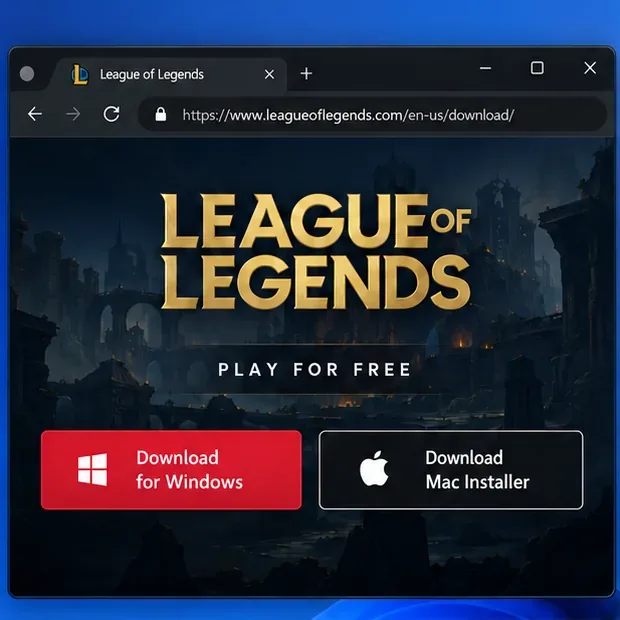
Riot’s download page provides separate Windows and Mac installer links. -
Step 2: Choose your operating system and download the installer
Select Download for Windows on a Windows PC or Download Mac Installer on a Mac. Save the file when your browser asks. The installer’s filename and format can vary by platform or release, so do not rely on a filename copied from an older guide. If you are unsure which file downloaded, open your browser’s Downloads list and use the file obtained from Riot’s page.
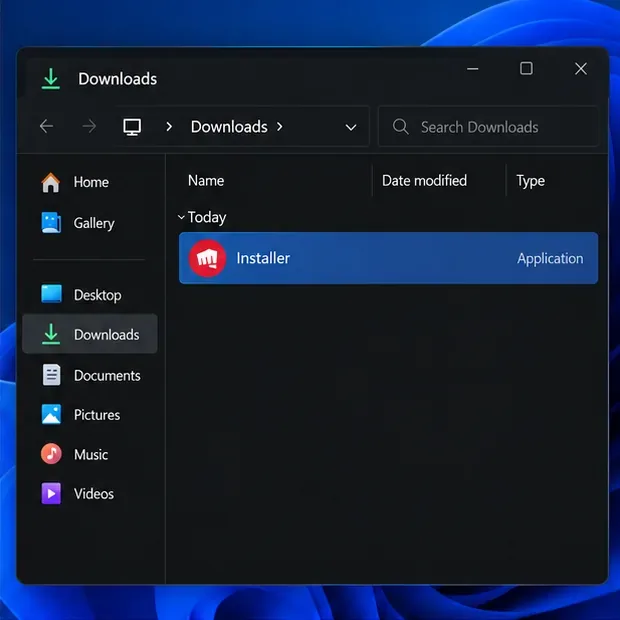
Find the installer you downloaded; its exact filename can vary. -
Step 3: Open the downloaded installer
On Windows, open the installer from your Downloads folder and follow the on-screen prompts. If Windows asks for permission, check that the file came from Riot’s official download page before approving it. On Mac, open the downloaded installer and follow macOS’s prompts. If the file will not open, first confirm that your operating system meets Riot’s requirements and download a fresh copy from Riot.
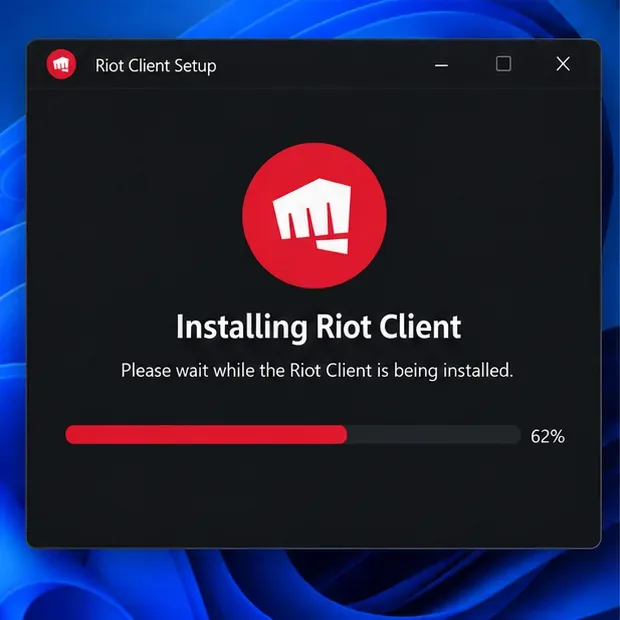
The setup window installs the Riot Client; the live progress display may differ. -
Step 4: Let Riot Client setup finish
Riot’s installer sets up the Riot Client, which is used to download and install League of Legends. Let setup finish, then open the client if it does not launch automatically. Keep an internet connection available because the game itself is installed through the client after this initial setup.
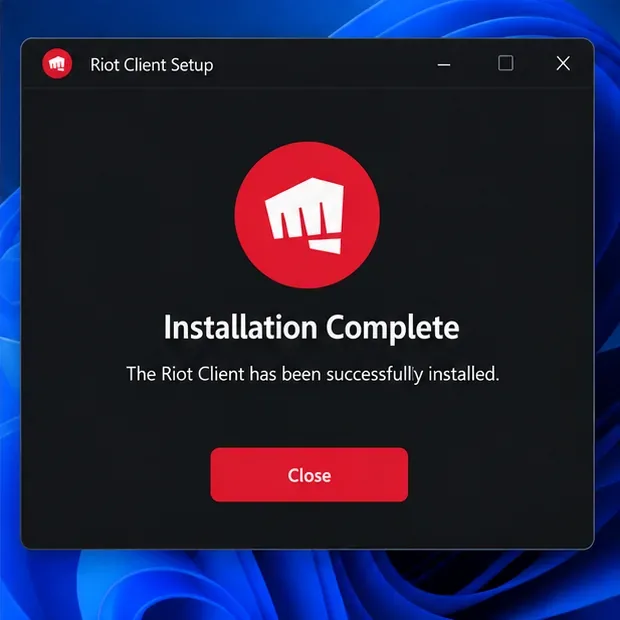
After setup completes, open the Riot Client to continue. -
Step 5: Sign in or create a Riot account
Sign in with the Riot account you want to use for League. If you are new to Riot, choose the account creation option and complete the registration prompts. Account creation is free. Use an email address you can access, and finish any verification the client or Riot account flow requests before continuing.
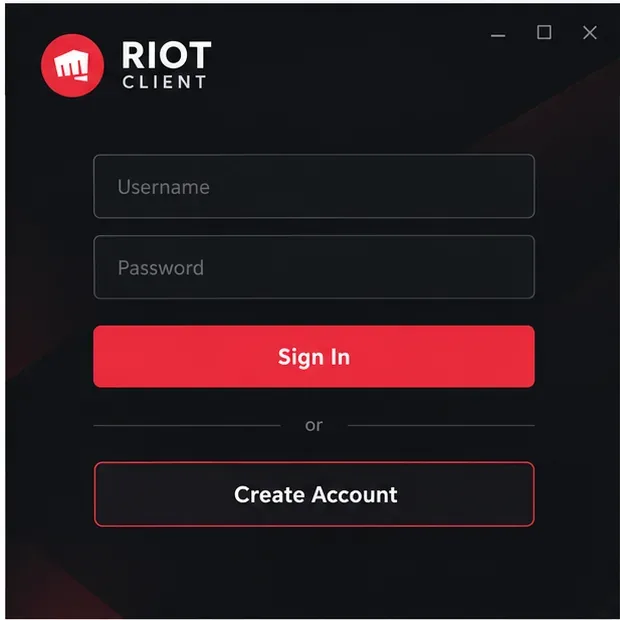
Use an existing Riot account or create one before installing the game. -
Step 6: Select League of Legends and choose Install
In the Riot Client, open the League of Legends game page and select Install. If the client asks you to choose an install location, select a drive with enough free space for your platform’s listed minimum and future updates. If League is already installed, the client may offer an update or repair action instead of a first-time installation.
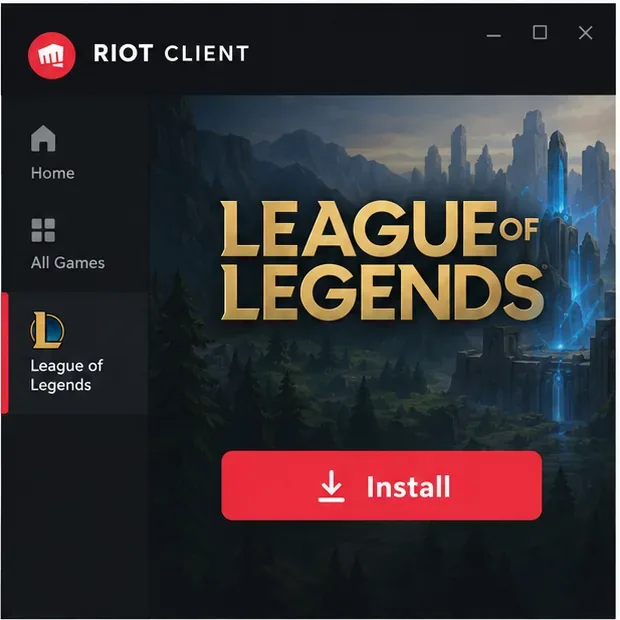
Choose League of Legends in the client and start the installation. -
Step 7: Let the game files download and update
The Riot Client displays installation progress while it downloads the game. The time varies with your connection, computer, and the current patch, so there is no reliable universal download-time estimate. Keep the client open and online until it reports that the installation or update is ready. If the progress stops, check your connection and Riot service status, then restart the client and follow any message it displays.
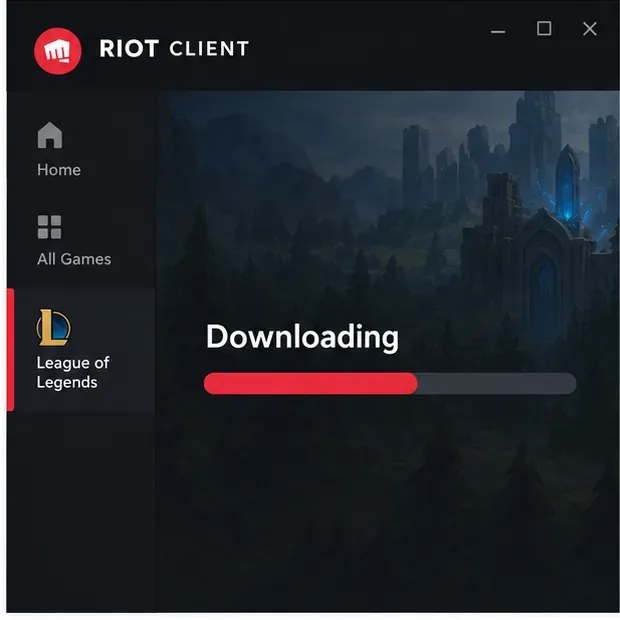
The client tracks the download and patch process in its progress view. -
Step 8: Click Play
When the client marks League of Legends as ready, select Play. The game may check for another update before opening. If Play is unavailable, let any remaining patch finish and review the message shown in Riot Client.
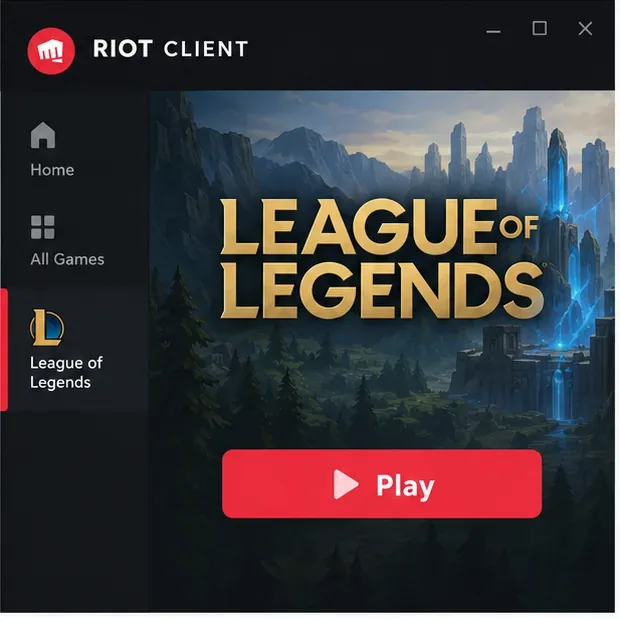
Launch League of Legends with Play once installation and updates are complete.
Fix common download and installation problems
The installer will not open
Check that you selected the correct Windows or Mac download and that your operating system meets Riot’s current requirements. If the file appears incomplete or produces an error, delete that download and get a new installer from Riot’s official page. Avoid third-party installers and do not turn off your security software to force an unknown file to run.
The download is stuck or fails
Confirm that your connection is working, then close and reopen Riot Client and check whether the download continues. A temporary service issue can also interrupt a patch; check Riot’s service status before repeatedly reinstalling. If the client shows a specific error code, use Riot Support’s instructions for that error.
The installation says there is not enough space
Check the free storage on the drive selected in the client. Riot’s published minimum is 16 GB on Windows and 40 GB on macOS as of September 22, 2026. Updates can change what is needed, so use the current requirements page as the authority rather than an older “22 GB” estimate.
The game still will not install
Restart your computer, reopen Riot Client, and follow any repair or update prompt it provides. For a persistent failure, use Riot’s official uninstall and reinstall instructions or contact Riot Support. Avoid manually deleting game folders unless Riot’s support instructions for your exact issue tell you to do so.
Frequently asked questions
Is League of Legends free to download?
Yes. Riot describes League of Legends as free to play. Download it from Riot’s official page and install it through Riot Client; you do not need to buy the installer.
Can I download League of Legends on Mac?
Yes. Riot provides a Mac installer. The current support page lists macOS 12, Apple M1, 8 GB unified memory, and 40 GB of available storage as minimums. Intel Mac players should check Riot’s current note because support is primarily focused on Apple silicon.
How long does the League of Legends download take?
It depends on your internet speed, the device, and the size of the current patch. Riot does not provide one fixed download time that applies to every installation. The client’s progress display is the best guide for your download.
Can I install League of Legends on Linux or Chromebook?
Riot lists Windows and Mac as supported operating systems. Linux and SteamOS are not supported, and Riot does not list ChromeOS as a supported platform. For a supported installation, use a Windows PC or Mac that meets Riot’s current requirements.
Use Riot’s current installer
The reliable way to install League of Legends from Riot is to begin on Riot’s official download page, choose the installer for your operating system, and let Riot Client install and update the game. Check the requirements page before downloading—especially if you are on Windows 11, an older Windows build, or an Intel Mac—then follow the client’s current prompts through to Play.









