How to Download Call of Duty: Warzone (2026)
Call of Duty: Warzone is free to download on PC, PlayStation 5, and Xbox Series X|S. Get it through Battle.net or Steam on PC, the PlayStation Store on PS5, or the Xbox Store on Xbox Series X|S. Sign in with your platform account, install the game, then use an Activision account to play online. There are two important 2026 exceptions: new Warzone downloads are no longer offered for PS4 or Xbox One, and Warzone Mobile has shut down.
This guide covers the supported download routes, the PC storage listing, first-launch setup, and what to try if an install stalls. The interface images are illustrations, not genuine screenshots; menu labels and layouts can vary by device or launcher version.
Where you can download Warzone in 2026
| Platform | Download status | Where to get it |
|---|---|---|
| PC | Available; free to play | Battle.net or Steam |
| PlayStation 5 | Available; free to play | PlayStation Store or Game Library |
| Xbox Series X|S | Available; free to play | Xbox Store or owned-games library |
| PlayStation 4 / Xbox One | New downloads unavailable since June 4, 2026. Previously owned copies can remain installable and playable until the end of Black Ops 7 Season 06, according to Activision. | Check your existing console library and Activision’s platform notice |
| iOS / Android | Warzone Mobile is no longer playable. Its servers went offline April 17, 2026. | No current Warzone Mobile download route |
Activision’s official Warzone page lists the current PC and console storefront choices. If you are on an older console, do not rely on an old store link: Activision says new PS4 and Xbox One downloads were removed, and those versions are scheduled to stop working after Black Ops 7 Season 06. Warzone Mobile was removed from the Apple App Store and Google Play in 2025, then its servers shut down in April 2026; installing an old app package cannot restore online play.
What to check before you download
- Storage: Activision’s current PC store listing shows 125 GB of storage in both its minimum and recommended specifications. The amount you need can change with updates and selected content, so check the number shown by your own launcher and leave extra room for patches.
- PC compatibility: Review the current operating-system and hardware requirements on the official Warzone store page before installing. Its listed minimum PC specs include Windows 10 64-bit, 8 GB RAM, a DirectX 12-compatible GPU, and broadband internet.
- Accounts: Have your Steam, Battle.net, PlayStation Network, or Xbox account ready. Activision requires an Activision account to play Warzone online. If you want cross-progression, link the platform account to the Activision account that already holds your progress; linking it to a different Activision account will not transfer progress.
- A reliable connection: Warzone is a large online game, and the launcher may need to download updates after the base install. Keep the device connected until all required downloads finish.
Warzone itself is free to play, although the storefront may also display optional add-ons and in-game purchases. You do not need to buy a paid Call of Duty game just to access the free Warzone listing.
How to download Warzone on PC
Activision’s setup guide currently gives install instructions for both Battle.net and Steam. Choose one launcher, and download its installer only from the official Warzone page or the launcher’s own website.
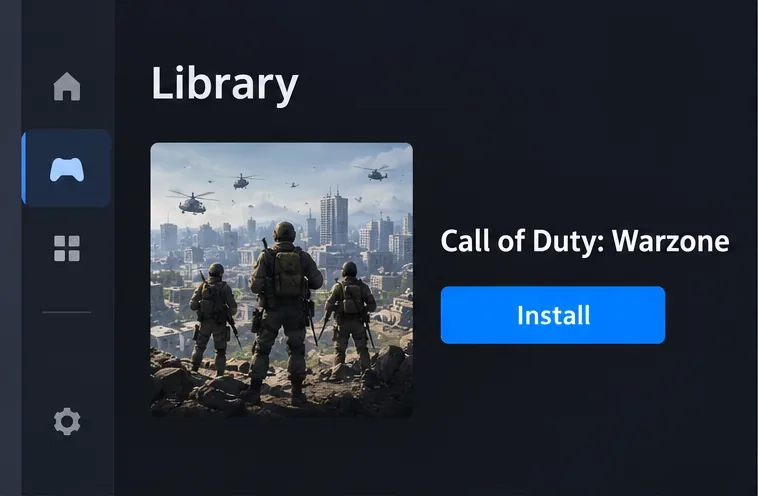
- Open the official Warzone page and choose Battle.net or Steam. Install and launch that app if you do not already have it.
- Sign in to your launcher. In Battle.net, open All Games; in Steam, open Library.
- Select Call of Duty: Warzone, then choose Install. Check the listed drive and required space before confirming.
- Leave the launcher open while it downloads. When the install finishes, launch Call of Duty and allow any required update to complete.
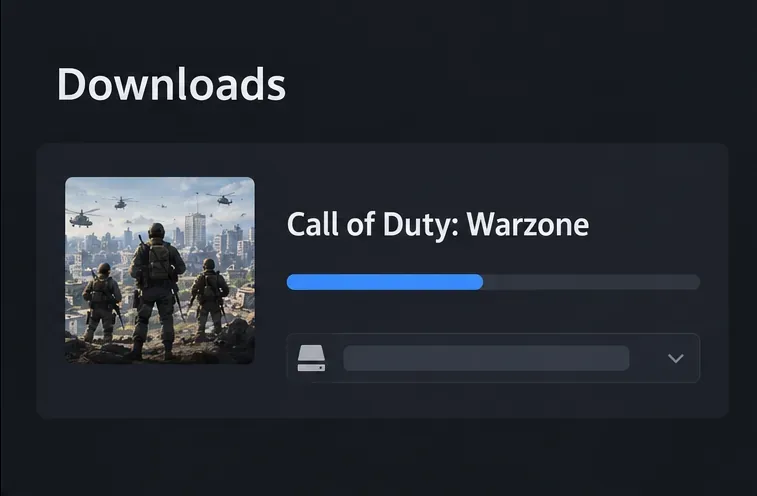
If Warzone appears within the larger Call of Duty launcher, follow the Warzone entry and the launcher’s required-file prompts. The file selection and total size can change between updates, so use the current choices shown in your app rather than an old size estimate from a guide.
How to download Warzone on PS5
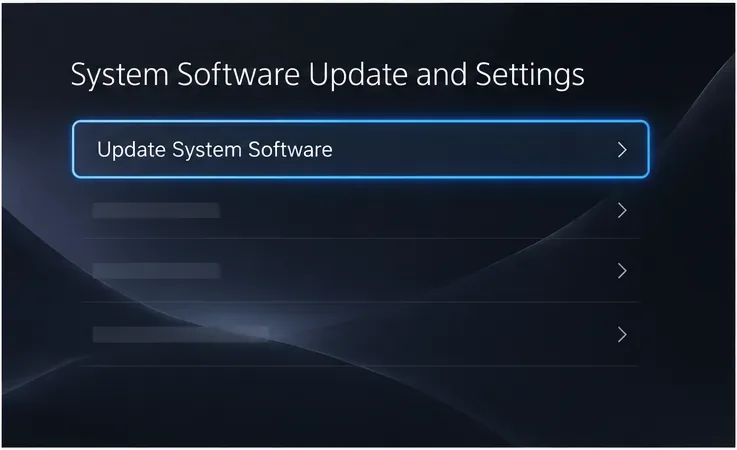
- From the PS5 home screen, open Settings > System > System Software > System Software Update and Settings. Install any available console update first. Activision recommends updating the console before installing the game.
- Open the PlayStation Store and search for Call of Duty: Warzone. Select the free Warzone listing and choose Download.
- If you already claimed Warzone, go to Game Library > Your Collection, select Call of Duty: Warzone, and choose Download.
- Keep the PS5 online until the download and any game updates are complete. You can check progress in the console’s downloads area.
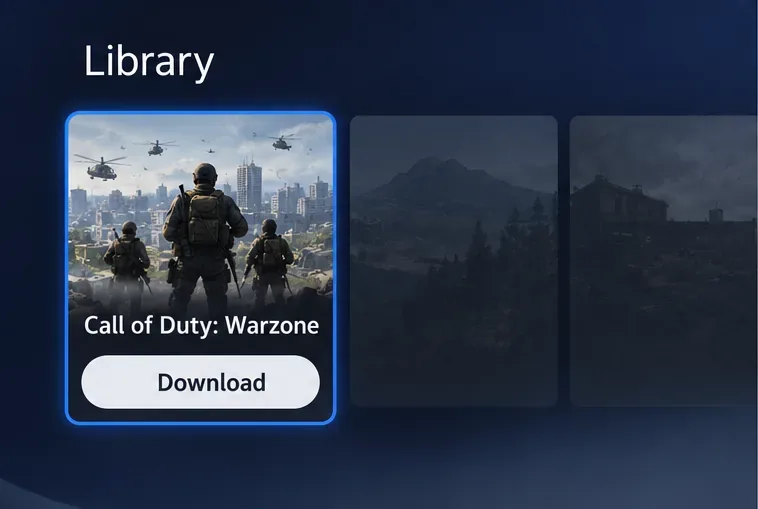
Make sure the listing is for Warzone itself, not a paid Call of Duty edition or add-on. If you cannot find it in a store search, open the official Warzone page and follow its PlayStation link for your region.
How to download Warzone on Xbox Series X|S
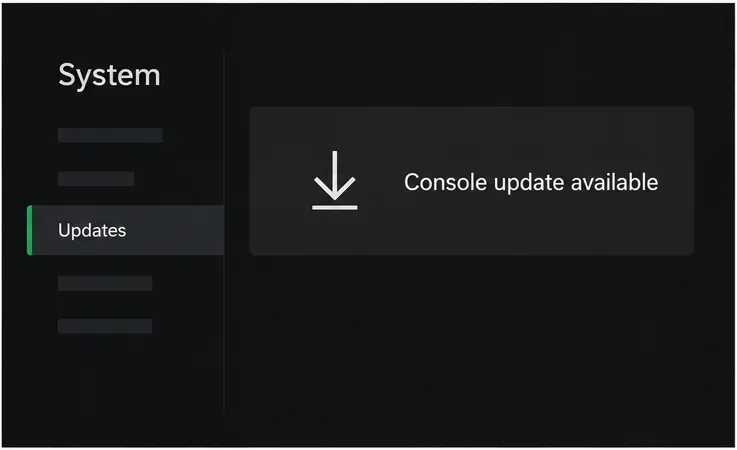
- Press the Xbox button, then open Profile & system > Settings > System > Updates. Install a console update if one is available.
- Open the Xbox Store and search for Call of Duty: Warzone. Select the free listing and choose the install or get option shown for your console.
- If Warzone is already in your library, open My games & apps > See all > Full library > All owned games, select Warzone, and choose Install all.
- Wait for the download and required updates to finish before starting the game.
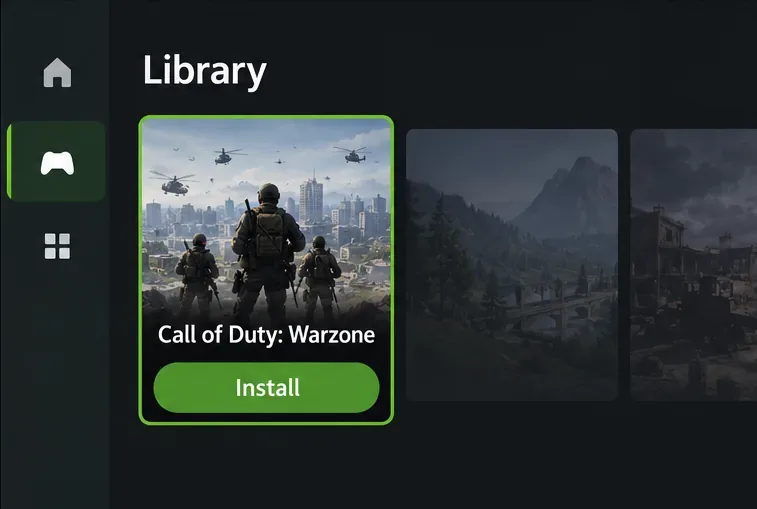
Activision’s Xbox listing says a Game Pass Core subscription is not required to play Warzone online. Store rules can vary for other online modes, so check the current Xbox listing if you are installing anything beyond Warzone.
First launch: sign in and finish the update
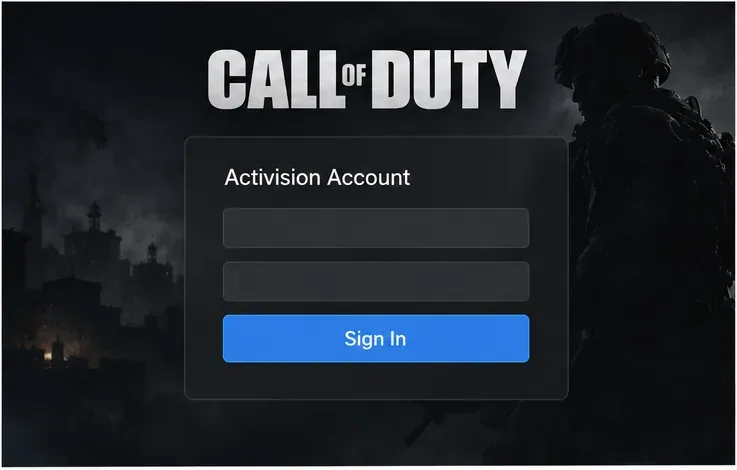
When Call of Duty opens, follow the on-screen prompt to sign in to or create a free Activision account. Warzone requires this account for online play. Use the same Activision account on each supported platform where you want your progression to carry over. Confirm that the correct platform account is linked before you start; changing the linked Activision account later does not move the progress from one account to another.
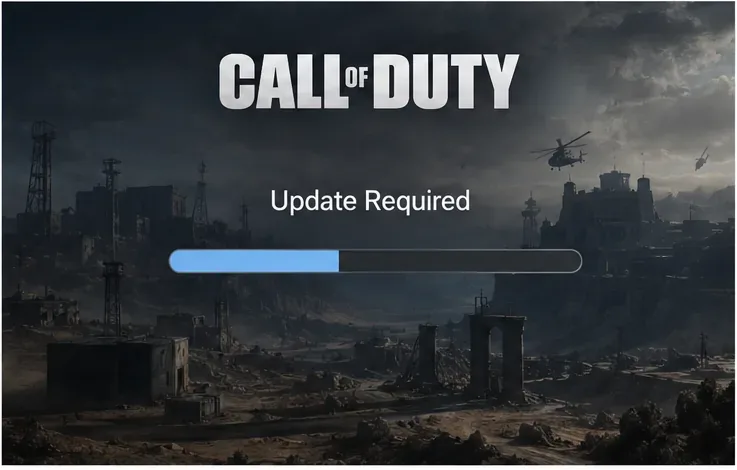
The game may check for an update or required files at launch. Let that process finish before selecting a mode. If the app returns to the launcher or reports that an update is missing, fully close Call of Duty, check for updates in your platform’s store or launcher, and reopen it after the patch installs.
Fix common Warzone download problems
The game does not appear in the store
First check your platform. New downloads are unavailable on PS4 and Xbox One, and Warzone Mobile is no longer playable. On PC, verify that you are searching in the launcher you chose. On PS5 or Xbox Series X|S, follow the store link from Activision’s official Warzone page.
The download says there is not enough space
Check the free space on the same drive or console where the game will install. Remove or move unused games, then restart the install. On PC, use the launcher’s current size estimate rather than treating the 125 GB listed on Activision’s store page as a fixed download size.
The download is slow or paused
Make sure the launcher or console has not paused the download, then pause and resume it once. If it remains stuck, restart the launcher or console and check your internet connection. Avoid repeatedly canceling and reinstalling unless the platform’s support instructions recommend it; a large game may need to re-check or download files again.
The game installed but will not start
Install available system and game updates, then sign in to the correct Activision account. If the issue continues, use Activision’s Warzone installation and setup guide or its support options.
Frequently asked questions
Is Call of Duty: Warzone free to download?
Yes. The current Warzone PC and console listings are free to play. Optional purchases may appear in the store, but they are not required to download the base game.
Can I download Warzone Mobile in 2026?
No. Activision removed Warzone Mobile from Google Play and the App Store in May 2025, and its servers went offline on April 17, 2026. Call of Duty: Mobile is a separate game and does not restore access to Warzone Mobile.
Can I still install Warzone on PS4 or Xbox One?
New downloads were removed from both digital storefronts on June 4, 2026. Activision says previously owned copies can remain installable and playable until the end of Black Ops 7 Season 06; check its platform notice for the current cutoff and service status.
Do I need an Activision account?
Yes. Activision says Warzone players must sign in to an Activision account to play online. Use the account already linked to your progress if you are moving between platforms.
For the latest platform links and supported PC specifications, start at the official Call of Duty: Warzone page. Activision’s platform update explains the PS4 and Xbox One changes, and its Warzone Mobile service notice confirms the shutdown.









