How to Download Call of Duty: Modern Warfare II (2026 Guide)
To download Call of Duty: Modern Warfare II, open the official store or game library for your device, find the 2022 Modern Warfare II title, confirm that you own it or have access to it, and select Download or Install. On Windows, you can use Steam, Battle.net, or the Microsoft Store; on consoles, use the PlayStation Store or Xbox library. The game is now a separate installation rather than content installed inside the main Call of Duty app.
That last detail matters in 2026. Activision made Modern Warfare II a standalone download in July 2025, so older instructions telling you to install it solely through Call of Duty HQ can lead you to the wrong screen. You can still find it from Call of Duty's All Games menu, but that selection redirects you to your platform's store. See the official announcement of the standalone release and Activision's Modern Warfare II installation guide for the official explanation.
Before you download: choose the correct version
Make sure you are selecting Call of Duty: Modern Warfare II (2022), not the original 2009 Modern Warfare 2, the 2020 Campaign Remastered release, or Modern Warfare III. If you previously bought MWII, sign in to the same store account used for that purchase before paying again.
| Platform | Where to download MWII | What to check |
|---|---|---|
| Windows PC | Steam, Battle.net, or Microsoft Store / Xbox app | Use the storefront tied to your purchase or eligible subscription. |
| PS5 / PS4 | PlayStation Store or Game Library | Check the game edition and your PSN account. |
| Xbox Series X|S / Xbox One | Microsoft Store or My games & apps | Check ownership, subscription eligibility, and available space. |
| Console game disc | Disc plus the Call of Duty experience | Keep the disc available; follow the disc-specific instructions below. |
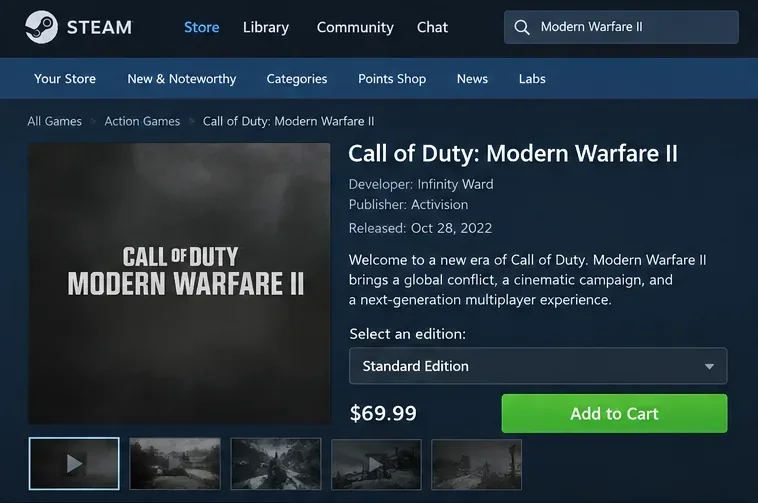
For reference, here are the Modern Warfare II on Steam, the PlayStation Store Cross-Gen Bundle, the official Xbox game listing, and the Microsoft Store PC edition. Listings and included editions vary by region and may change, so review the store page before purchasing.
How to download Call of Duty: Modern Warfare II in five steps
Step 1: Sign in and confirm that you have access
Open the storefront you used to buy the game. For a first purchase, find the full Modern Warfare II game or edition, check the platform shown on its page, and complete checkout. If you already own it, open your library instead of buying another copy. An eligible Game Pass subscription may also provide access through Microsoft's supported platforms; check the current product listing and your membership.
Important: A store entry marked Free or Free+ may be the standalone launcher, not a free license to the paid campaign and multiplayer content. Likewise, downloading free-to-play Warzone or DMZ Beta is not the same as owning all of MWII.
Step 2: Check system requirements and storage
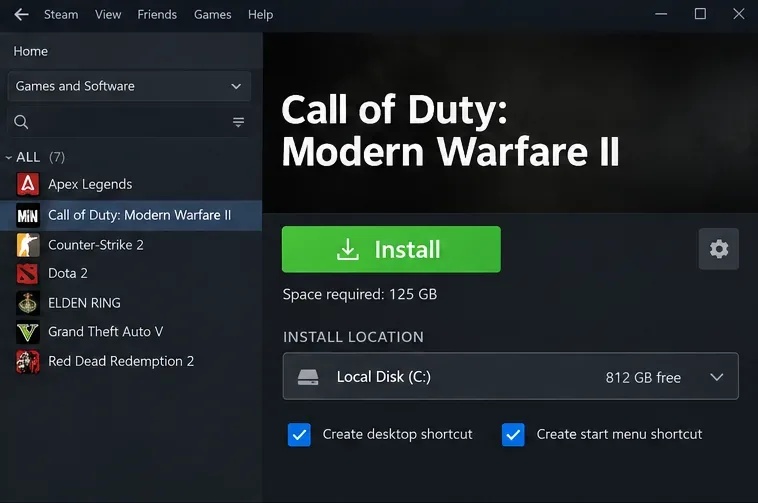
On PC, confirm that your Windows hardware meets the requirements shown on the game page. The standalone Modern Warfare II on Steam lists Windows 10 64-bit, 8 GB RAM, DirectX 12, and 125 GB of available storage among its minimum specifications. Storage needed for your particular installation can differ after updates or content selection, so leave extra room rather than planning around an exact download size.
On PlayStation or Xbox, use the space requirement shown by the console when you queue the download. Update the console's system software first, and use a reliable internet connection; an Ethernet cable can help if Wi-Fi is unstable. A platform account and an Activision account may be required for gameplay and online features.
Step 3: Locate MWII in the correct PC launcher
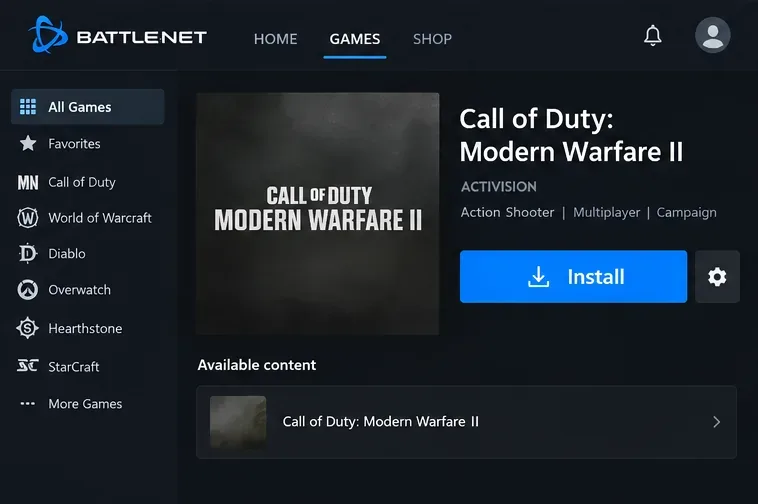
Battle.net: Open Battle.net, sign in, select All Games, find Call of Duty: Modern Warfare II, and choose Install. Follow the install location prompts. Battle.net is one supported PC route, but it is not the only way to get the game.
Steam: Open Library, select Modern Warfare II, and click Install. If you do not own it on Steam, follow the storefront purchase flow first. Your Battle.net purchase does not automatically appear as a Steam license.
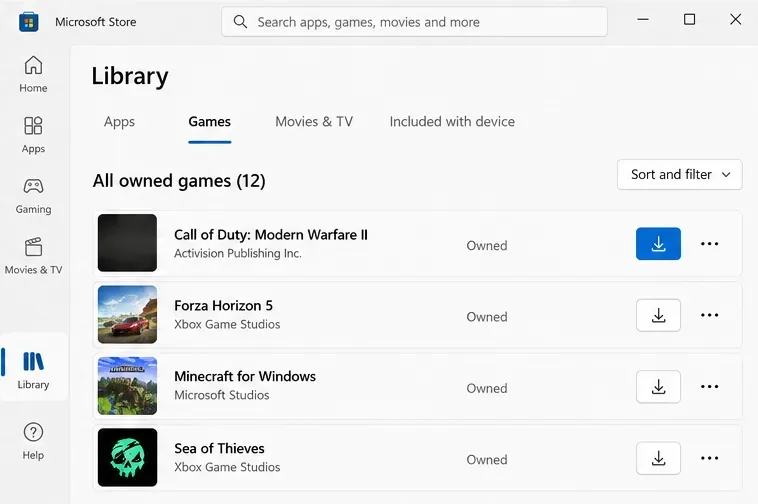
Microsoft Store on Windows: Open the Microsoft Store, go to Library or My Library, find MWII, and choose its Download icon. The Xbox app can also be useful for identifying access associated with your Microsoft account or subscription. Be sure the listing is for the Windows version.
Step 4: Download MWII on PlayStation or Xbox
PS5: Open Game Library from the Games home screen, look under Your Collection, select Modern Warfare II, then select Download. PS4: Open Library, locate the game in Purchased, and choose Download. If you are purchasing it now, check whether the PlayStation Cross-Gen edition covers your device.
Xbox One and Xbox Series X|S: Go to My games & apps → See all → Full library → All owned games. Find Call of Duty: Modern Warfare II, then select Install all. If you do not see it there, check the Microsoft Store listing and the account with which it was purchased. These console paths follow Activision's Modern Warfare II installation guide.
Step 5: Finish installation and launch the standalone game
Allow the game and any required updates or content downloads to finish. From your platform's dashboard or library, launch Call of Duty: Modern Warfare II directly. You can also open the central Call of Duty experience, visit All Games, select MWII, and follow its store or launch handoff, but that is not required for owners of the installed standalone digital title.
If a particular mode is unavailable, inspect the game's Manage Files or installation-content menu where supported. Install the content associated with the mode you want rather than assuming every mode was included in the first batch. Avoid deleting unfamiliar files while an installation or update is in progress.
How to install MWII if you own the disc
Disc copies have a special installation path. Activision says console disc owners still need the Call of Duty experience to obtain the standalone MWII installation.
- Insert the Modern Warfare II disc in a compatible console disc drive.
- If Call of Duty is not already installed, let the console download the Call of Duty experience, or obtain it through the official Warzone store listing.
- Launch Call of Duty and open the All Games tab.
- Select Modern Warfare II to go to your platform's store, then download the standalone title.
- Launch MWII from your game library once installation finishes, and keep the disc available when ownership verification is required.
A disc cannot be inserted into a digital-only console. If you have a PS5 Digital Edition or Xbox Series S, you need an appropriate digital entitlement or eligible subscription instead of relying on a physical disc.
Fix common Modern Warfare II download problems
The store asks me to buy MWII again
First verify the correct store account and edition. For PlayStation owners redirected to a full-price purchase page while reinstalling, Activision specifically recommends switching to the primary user account and finding MWII in that account's Library to install the free standalone launcher. Do not repurchase until you have checked that path. Owning MWII on one storefront does not automatically transfer a license to every other storefront.
The install stalls or says there is not enough space
Pause and resume the download, restart the game launcher, then check whether your drive or console still has enough free space for temporary installation files and updates. Close competing downloads and try a wired connection if your Wi-Fi connection is inconsistent. For console problems, install pending system updates before retrying.
MWII opens, but campaign or multiplayer is missing
Look for outstanding mode-specific downloads or content packs in the game's file management controls. The standalone launcher and the content entitlement are separate concepts: a free launcher alone does not unlock purchased gameplay modes. Verify ownership and restart the game after any content finishes downloading.
Frequently asked questions
Is Call of Duty: Modern Warfare II free to download?
The launcher can appear as a free download, and eligible subscriptions may include access, but the full MWII game is not universally free-to-play. Warzone and the separately listed DMZ Beta are different free offerings. Check the current store listing to see whether you need to purchase the game or can access it through your subscription.
How large is the Modern Warfare II download?
The standalone Steam listing specifies 125 GB of available storage in its PC requirements, not a guaranteed fixed download size. Actual download and installed sizes depend on platform, patches, and selected content. Check the estimate your launcher or console gives before downloading.
Can I use the same MWII purchase on Steam, Battle.net, Xbox, and PlayStation?
Do not assume so. Store licenses and platform entitlements are distinct, even when you use the same Activision account. Sign in where you originally purchased or received access to the game, and confirm the relevant license before changing launchers or devices.
Do I still need Call of Duty HQ to play Modern Warfare II?
No for a normal standalone digital installation. As of the 2025 change, you can launch Modern Warfare II from your platform's library. The central Call of Duty experience remains an optional route for digital owners and a required installation step for disc owners following Activision's published disc setup instructions.
For platform-specific issues or menu changes, consult Activision's Modern Warfare II installation guide. It documents the standalone setup, console and PC installation routes, and troubleshooting guidance.









