How to Check Real-Time Server Latency in the PUBG HUD

Enable PUBG’s network statistics HUD to monitor ping and packet loss in a match. See where to find it, what the numbers mean, and what they cannot diagnose.
You may open Halo Infinite, notice the weapon model sitting unusually low, high, close, or far to one side, and assume an animation setting is making it move. Another common situation is that the weapon itself looks fine, but menu backgrounds, sprint effects, camera shake, or full-screen visual effects create the motion you actually want to remove.
The important distinction is that Halo Infinite does not document a setting called Weapon Offset Animations. The official settings guide describes Weapon Offsets as position controls that change where a weapon is displayed on screen. Halo Support explicitly says these controls do not change how the weapon aims or functions. Separately, Halo Infinite has accessibility and sensory options that reduce menu animation and gameplay motion.
That means the correct fix depends on what you are seeing. Start with the easiest check: reset the weapon's on-screen position. If the unwanted movement remains, move on to menu and sensory settings.
According to the official Halo Infinite game settings guide, Weapon Offsets are split into four weapon types: Melee, Pistol, Rifle, and Heavy. Each category has three controls:
Those values change presentation only. They do not move the reticle, alter bullet behavior, change recoil, or modify weapon function. If you are trying to “disable” an offset effect, the practical equivalent is to remove the custom offset by returning the relevant values to neutral or restoring the tab's defaults.
Open Halo Infinite's Control Panel or Pause Menu, then choose Settings. Halo Support currently lists F1 as a shortcut from within the game on keyboard, ESC from the Main Menu, and the Menu button on an Xbox controller. Once Settings is open, go to the UI tab.
On controller, Halo Support says LB and RB cycle through settings tabs. On keyboard, Q and E can cycle tabs, or you can select the tab with the mouse.
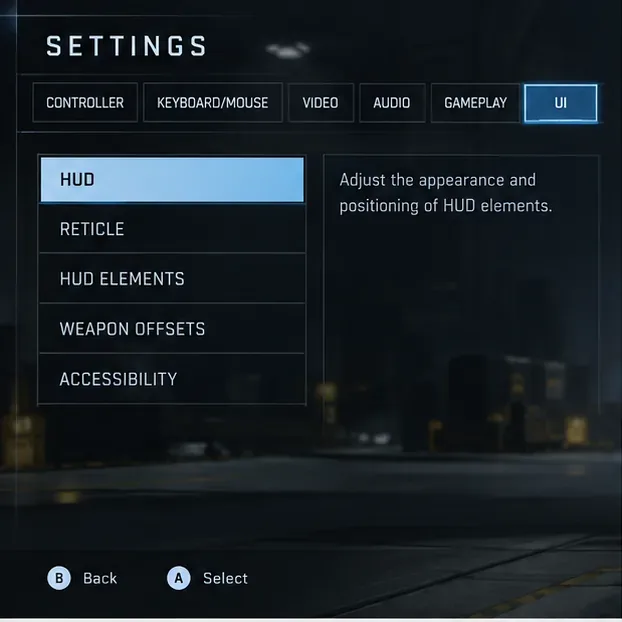
Scroll down until you reach Weapon Offsets. If you have never intentionally changed these values, do not assume the current visual position proves that an animation toggle is enabled. First verify the numbers.
Select the weapon category that looks wrong, then set Horizontal Offset, Vertical Offset, and Depth Offset to 0%. This is the most direct way to remove a custom positional shift without changing unrelated UI settings.
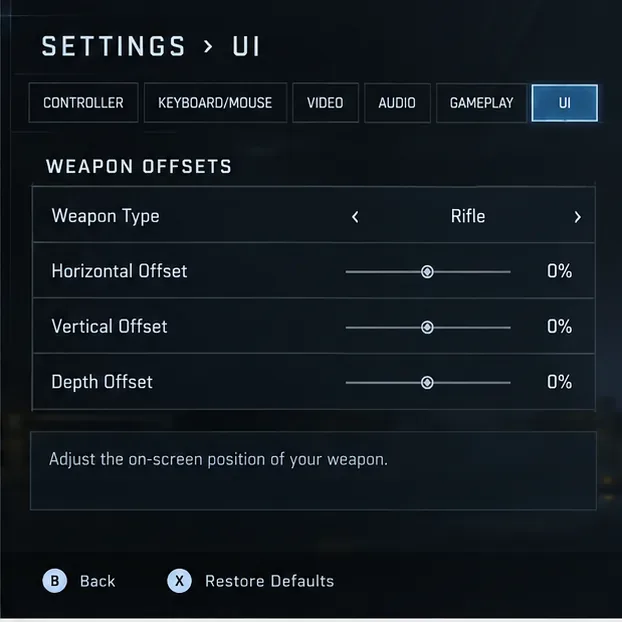
You can also use Restore Defaults for the entire UI settings tab. Halo Support lists F on keyboard and X on controller as the Restore Defaults shortcuts in settings. Use that option carefully because it resets more than just one offset value; if you have deliberately customized other UI options, write them down first.
If the weapon now appears in the expected default position but still bobs, recoils, or moves while you run, that behavior is not what the Weapon Offset sliders are designed to control. Continue to the next steps instead of pushing the offset sliders to extreme values.
Halo Infinite stores offsets by category. A rifle can be neutral while a pistol or heavy weapon still has a custom position. Cycle through Melee, Pistol, Rifle, and Heavy and check the three axes for each one.
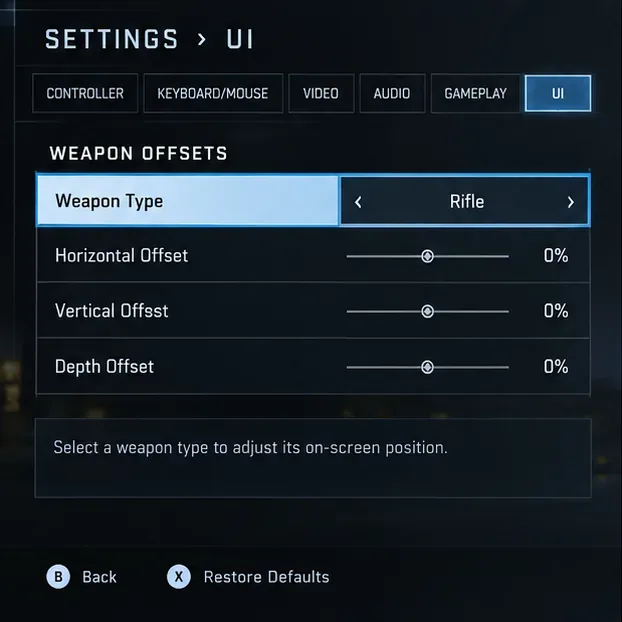
This matters because a player may test with an assault rifle, see that it looks normal, then pick up a launcher or melee weapon and think the setting “came back.” In reality, the Heavy or Melee category can simply have different saved values.
A good cleanup method is to set all four categories to 0% on all three axes, leave the menu, test several weapon classes, and only then reintroduce any custom offset you actually want. That gives you a known baseline and makes later troubleshooting much easier.
If your real complaint is animation or motion rather than weapon placement, Weapon Offsets are the wrong control. Halo's official Accessibility Features guide documents a Disable Visual Distractions option that stops background animations in the frontend menus.
For gameplay motion, Halo Infinite also provides sensory controls for Blur, Screen Shake, Exposure, Full Screen Effects, and Speed Lines. These are the settings to change when sprint effects, explosion shake, flashes, or full-screen overlays are creating unwanted movement.
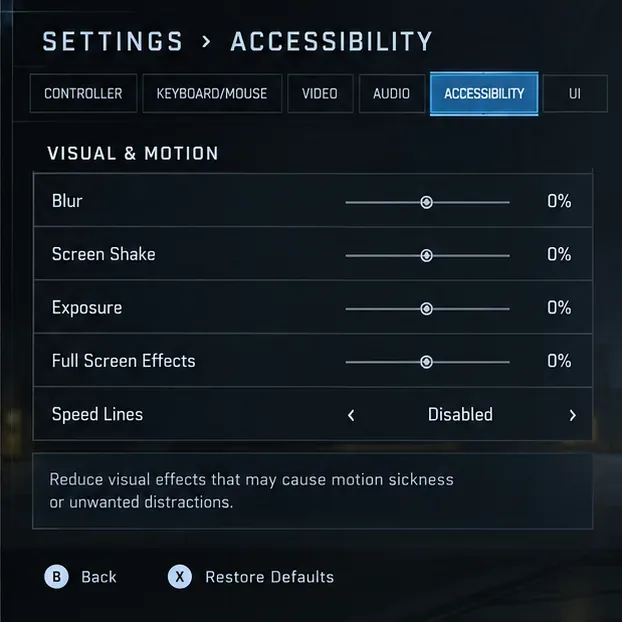
If you want a low-motion baseline, the official Halo Infinite competitive settings recommendations list Blur at 0%, Screen Shake at 0%, Exposure at 0%, Full Screen Effects at 0%, and Speed Lines disabled. Halo's own commentary notes that competitive players may reduce these effects to focus more on gameplay.
| What you see | Most relevant setting | What to do |
|---|---|---|
| Weapon sits too low, high, left, right, close, or far away | UI > Weapon Offsets | Return horizontal, vertical, and depth offsets to 0% for that weapon type. |
| Different weapon classes appear in different positions | Weapon Type | Check Melee, Pistol, Rifle, and Heavy separately. |
| Animated menu backgrounds are distracting | Accessibility > Disable Visual Distractions | Enable the option so frontend background animations do not play. |
| Sprinting, explosions, equipment, or shield effects create too much motion | Accessibility/Sensory | Reduce Blur, Screen Shake, Exposure, and Full Screen Effects; disable Speed Lines if desired. |
| You want to remove normal weapon recoil or first-person handling motion | No documented Weapon Offset animation toggle | Do not expect offset sliders to disable gameplay weapon animation. |
The phrase “weapon offset animation” mixes two separate concepts. An offset is the base position of the weapon model on the screen. An animation is movement over time, such as recoil, sprinting movement, equipment reactions, or other first-person presentation. Halo Support documents the former as a UI positioning feature, but it does not document a dedicated switch that disables all first-person weapon animation.
That distinction prevents a common troubleshooting mistake: moving the weapon lower to hide motion can make the screen feel less obstructed, but it does not actually disable the underlying animation. Likewise, turning off Blur or Screen Shake can make movement feel calmer without changing where the weapon model rests on screen.
If offsets do not appear to change correctly, use a controlled reset before assuming the game is broken. Restore the UI tab defaults, re-enter the Weapon Offsets section, and check all four weapon categories again. Then fully leave the settings screen and test in gameplay.
If you still see behavior that does not match the selected values, capture a short video or screenshots showing the settings and the resulting in-game view. Check the current Halo Infinite Multiplayer Known Issues page, and use Halo Support's ticket process if the issue persists. That is more useful than repeatedly reinstalling the game when the symptom may be a settings or account-state issue.
After making changes, test methodically rather than judging from one weapon. Equip or pick up at least one weapon from several categories and compare the resting screen position. The crosshair and aiming behavior should remain unchanged when only Weapon Offsets are adjusted, because Halo Support states those settings do not change how a weapon aims or functions.
Then perform a short sprint, trigger an explosion nearby in a safe test environment, and use equipment if available. If you reduced sensory settings, the screen should show less blur, shake, flashing exposure, or speed-line motion according to the options you changed. Finally, return to the frontend menu and confirm whether background motion has stopped if you enabled Disable Visual Distractions.
The key result is simple: use Weapon Offsets to control where the weapon appears, and use Accessibility/Sensory settings to control how much visual motion you experience. There is no separately documented “weapon offset animations” switch in Halo Infinite's current official settings references, so separating those two goals is the fastest way to get the UI and gameplay view you actually want.
Enable PUBG’s network statistics HUD to monitor ping and packet loss in a match. See where to find it, what the numbers mean, and what they cannot diagnose.
Learn how to import VALORANT crosshair codes, compare presets with manual settings and spectator copy, and fix common import issues.
Choose Dota 2 minimap size, hero icons, team colors, and background settings by readability, fewer misclicks, and clear results on your own display.
Fix Fortnite texture pop-in on PC with official steps for GPU drivers, file verification, DirectX 12, high-resolution textures, VRAM, SSDs, and stutter.
Learn what Heroes of the Storm minimap size and position options are verified, improve readability, and choose camera-click controls that suit you.
Set Super Smash Bros. Ultimate Quickplay to prefer hazards-off stages. Follow the Preferred Rules menu steps and learn why matchmaking may not always honor them.
Enable Server Latency and Packet Loss in Warzone to monitor connection quality, read the overlay, and use recurring spikes to guide troubleshooting.
Learn how to carry from mid lane in League of Legends by setting up waves, choosing safe roam windows, reading side lanes, and converting pressure into objectives.
Fix Minecraft Evoker spell problems with a safe vanilla test, version checks, log review, and a step-by-step way to isolate mod or datapack conflicts.
Fix PUBG stuck on Initializing on Steam with a focused checklist for PC service notices, launch options, game files, downloads, and connection issues.








