Home
» 🎮 Esports
»
How to Disable Radar Rotation in CS2
How to Disable Radar Rotation in CS2
To stop the minimap from turning as you rotate your view in Counter-Strike 2, open Settings > Game > Radar and set Radar rotates to No. The map will keep a fixed orientation while your player marker and view direction change. This does not turn the radar off, hide teammates, or change the map’s zoom.
Use the in-game control when you want a straightforward change. If you prefer the developer console, the related setting is cl_radar_rotate; the Valve Developer Community lists it in its Counter-Strike 2 console command reference. Menu wording and available options can change in future updates, so check the current Radar section if your screen differs.
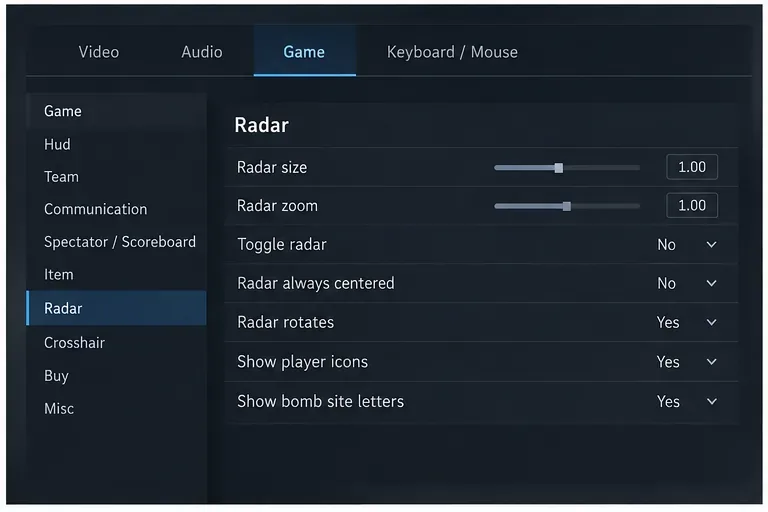
The Settings illustration shows the Game tab and Radar category, the starting point for the rotation option.
Disable radar rotation in the settings menu
Open Settings. From the main menu, select the gear-shaped Settings control.
Open Game, then Radar. Choose the Game tab and select Radar in its category list. This section groups radar behavior with other minimap controls.
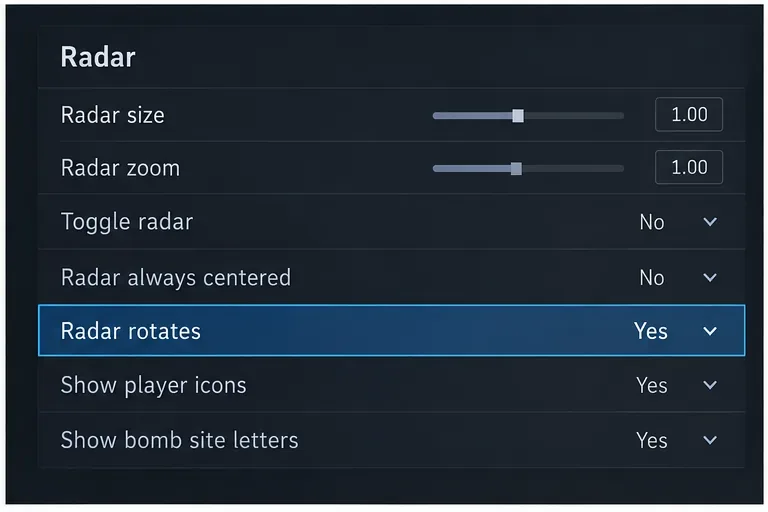
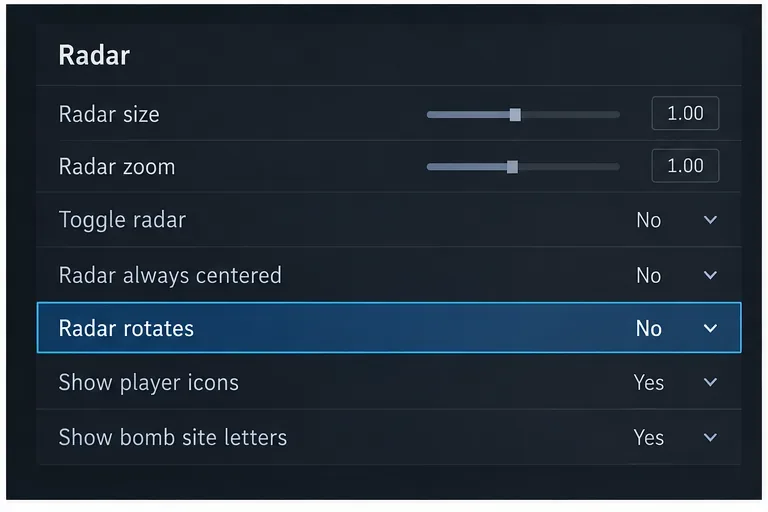
Set Radar rotates to No. Find the Radar rotates row and change its value from Yes to No. Leave nearby options such as radar zoom and centering alone unless you also want to adjust them.
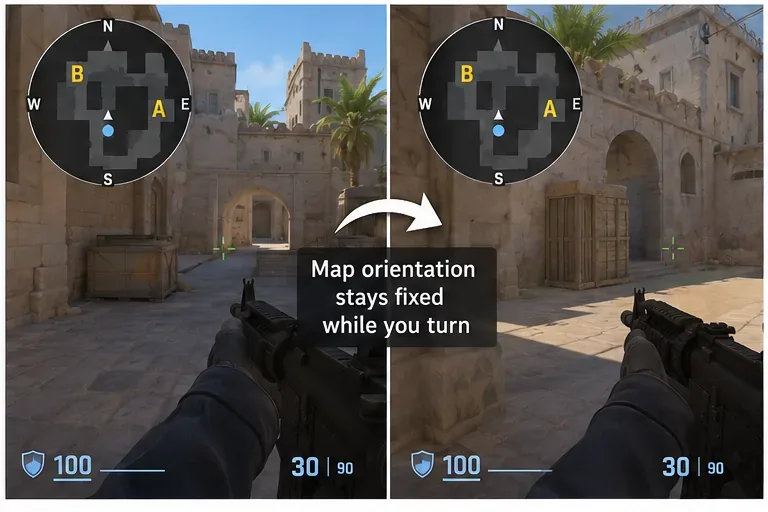
Return to a match or practice session and verify. Turn your view to a different direction while watching the radar. The map’s north-up orientation should stay fixed; your player marker changes direction or position on that fixed map.
The highlighted Radar rotates row is currently set to Yes; change this specific setting to stop map rotation.
Use the console command if you prefer typing
CS2 also exposes a console variable for this preference. Open the developer console and enter:
cl_radar_rotate 0
Press Enter to apply it. The value 0 turns rotation off; to turn rotation back on later, use cl_radar_rotate 1. If the console does not open, enable it in Settings under the Game options, then use the console key shown by your keyboard layout. The key is commonly the tilde/backtick key, but keyboard layouts and bindings can differ.
Use either the menu or the console for the same preference. Avoid adding the command to an autoexec file unless you specifically want it reapplied at launch; a file can make it harder to tell whether an in-game setting or startup configuration is controlling the result.
The setting now reads No. Keep other radar choices unchanged if your only goal is a fixed map orientation.
How to confirm the result
Check the radar in a safe practice session or a match where you can look around without pressure. Keep the map visible, then rotate your aim left and right. With rotation disabled, the map should not spin to follow your view. The player marker and teammate markers can still move as players change positions, and the radar can still zoom or recenter if those separate settings are enabled.
A useful success check has three parts:
The map stays in a consistent orientation as you turn your view.
Your own position and other radar information still appear normally.
The value remains No when you reopen Settings > Game > Radar.
The last check helps distinguish a saved preference from a temporary visual impression. If you use a launch configuration or another settings file, it may apply a radar command again when the game starts; reopen the menu after restarting to see which value is active.
The comparison illustration shows a fixed map orientation while the player’s view changes; teammates and position markers can still update.
Rotation and centering are separate
A rotating radar turns its map to match the direction your character faces, so the top of the display changes as you look around. A non-rotating radar keeps the map compass direction steady. Centering answers a different question: whether your own marker stays near the middle of the radar as you move around the map. If you want both a fixed compass direction and a centered marker, test those options independently. Changing centering is not required to turn rotation off, and changing zoom is not required either.
Troubleshoot the common mix-ups
What you notice
What to check
The radar still spins
Reopen the Radar section and confirm Radar rotates is set to No. If you used the console, enter cl_radar_rotate 0 again.
The map stays fixed, but your marker is not centered
That is controlled separately by Radar always centered. Rotation and centering are different preferences.
The radar looks zoomed in or out
Adjust Radar zoom separately. Zoom changes how much of the map is visible; it does not control rotation.
The radar disappears or is hidden
Check the radar visibility or HUD controls. Radar rotates changes orientation only; it does not switch the radar display on or off.
Quick reference
Menu path: Settings > Game > Radar > Radar rotates > No
Console:cl_radar_rotate 0
Re-enable rotation: Set the menu option to Yes or enter cl_radar_rotate 1
Expected result: The map orientation stays fixed as you turn your view.
Turning off radar rotation is useful if you prefer to read the map in one consistent orientation. It will not improve visibility by itself, and the fixed map may take a little practice if you are used to a radar that follows your facing direction. If your radar still rotates after changing the option, verify the active menu value and check whether a startup configuration is applying a different setting.