How to Check Real-Time Server Latency in the PUBG HUD

Enable PUBG’s network statistics HUD to monitor ping and packet loss in a match. See where to find it, what the numbers mean, and what they cannot diagnose.
The short answer: on Windows, close Paladins, find your user-side ChaosEngine.ini, make a backup, and—only if the file already contains the setting—change bEnableMouseSmoothing=True to bEnableMouseSmoothing=False. Save the file, relaunch the game, and test your aim. Epic’s Unreal Engine documentation identifies bEnableMouseSmoothing as the engine’s mouse-smoothing control, which is the technical basis for this tweak. See Epic’s UInputSettings documentation.
There is an important limitation: as of October 7, 2026, Hi-Rez’s current Paladins help center does not publish an official ChaosEngine.ini mouse-smoothing procedure or guarantee a single config path for every Windows installation. That means the safest approach is to edit an existing setting rather than inventing new keys or copying an old config from the web. If your installation does not contain the line described below, skip to the troubleshooting section instead of forcing it.
Exit the game first. If you are not sure whether it is still running in the background, open Task Manager and confirm that Paladins is no longer listed. Steam itself can remain open; the important part is that the game process is not writing to its configuration files while you edit them.
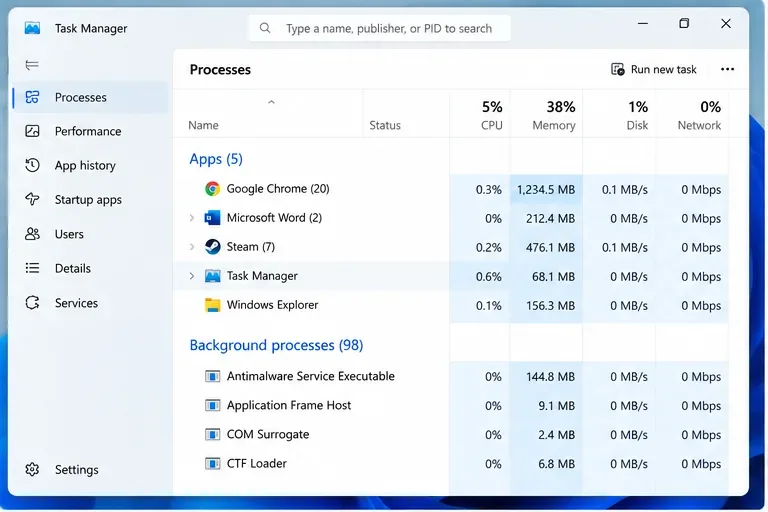
Task Manager can help confirm that Paladins is fully closed before you change its configuration.
This step matters because a running game may overwrite a manual edit when it exits. If you change the INI while Paladins is active, you can end up thinking the tweak “does not work” when the real issue is simply that the game restored its previous value during shutdown.
A commonly used Windows profile location is:
%USERPROFILE%\Documents\My Games\Paladins\ChaosGame\Config\ChaosEngine.ini
On some older or differently provisioned installations, the product folder may use a different name such as paladinslive. Because Hi-Rez does not currently document this tweak in its support articles, treat the path as something to verify on your own PC rather than as a guaranteed universal location. If the exact folder is not present, search inside Documents\My Games for ChaosEngine.ini instead of creating a new directory.
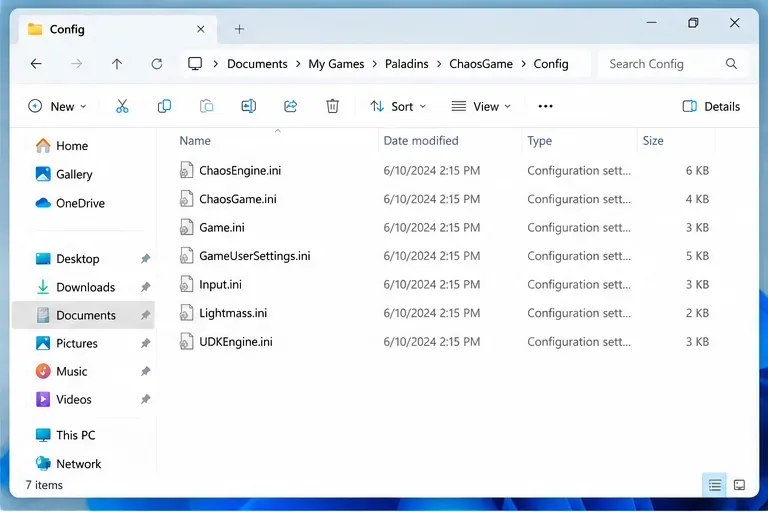
The configuration folder may contain several INI files; the target for this guide is the existing ChaosEngine.ini.
Do not confuse the user-side file with similarly named files inside the Steam installation directory. Editing files under steamapps\common can be undone by game verification or updates, while the file under your Windows profile is intended for generated or user-specific configuration.
Before editing, copy ChaosEngine.ini and give the copy an obvious name such as ChaosEngine - backup.ini. This gives you a clean rollback if the game fails to start, settings behave strangely, or a later patch changes how the file is parsed.
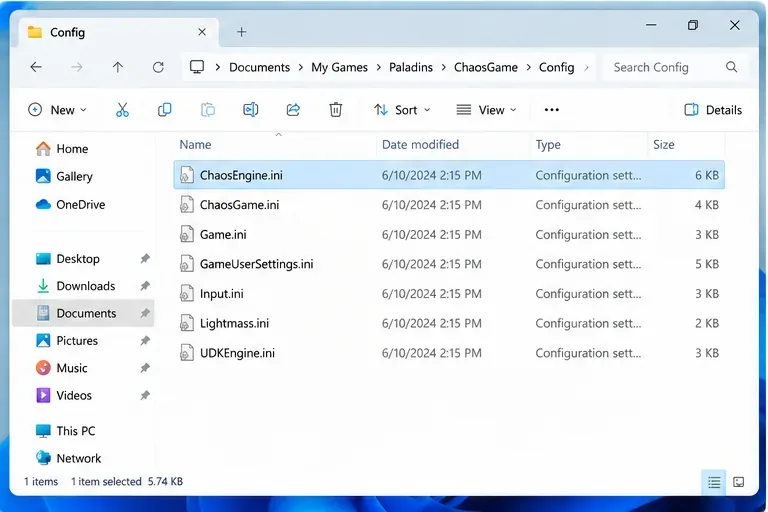
Select the existing ChaosEngine.ini rather than a similarly named game or input configuration file.
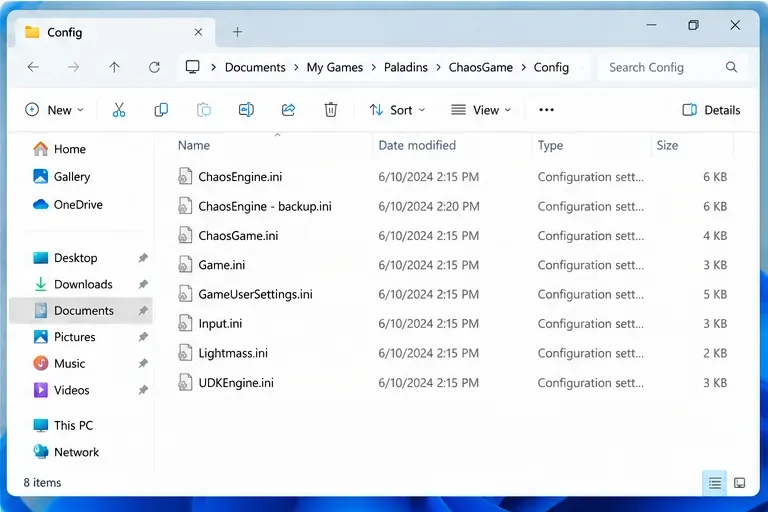
A separate backup lets you restore the original configuration without guessing which values changed.
Open ChaosEngine.ini in Notepad or another plain-text editor. Search for:
bEnableMouseSmoothing
If you find:
bEnableMouseSmoothing=True
change only that value to:
bEnableMouseSmoothing=False
Then save the file normally. Keep the spelling, equals sign, and surrounding section structure intact.
Do not change bSmoothFrameRate for this purpose. Despite the similar word “smooth,” that setting concerns frame-rate smoothing, not mouse input. Changing frame pacing at the same time would make it harder to tell which adjustment actually affected the feel of your aim.
Mouse smoothing generally modifies raw movement over time so abrupt input is blended rather than applied one-for-one at each instant. Some players prefer that feel, particularly at higher sensitivity or when they make broad camera movements. Others—especially players who rely on repeatable flicks and measured mouse-pad distances—prefer the more immediate response that comes from disabling smoothing.
The useful question is not whether smoothing is universally “bad.” It is whether you want a consistent relationship between a physical mouse movement and an on-screen turn. For example, if you practice moving your mouse a fixed 20 cm to rotate a specific amount, smoothing can make rapid and slow sweeps feel less alike. Disabling it may make that relationship easier to learn. On the other hand, a player using very high sensitivity may find unsmoothed micro-movements more abrupt.
Do not judge the result from one quick flick. Use a repeatable test:
This test is more useful than relying on “it feels faster,” because disabling smoothing can change perceived responsiveness without changing your configured sensitivity number.
If the key is not already present, do not assume that adding it anywhere in ChaosEngine.ini will work. Epic documents the property at the engine level, but that does not prove that every Paladins build reads a manually added copy from every INI section. Paladins has evolved over many years, and generated configuration layouts can change.
First, confirm you opened the user-side config for the account and installation you actually launch. Then search the whole file, not just the first screenful of text. If the setting still does not exist, leave the file unchanged and use supported in-game controls where available. For unresolved technical issues, Steam’s Paladins support page directs users to the publisher’s support resources: Steam Support for Paladins.
Reopen ChaosEngine.ini after closing the game and check the value. If it has returned to True, the game may be regenerating or overriding that setting. Reapplying the edit after an update is reasonable, but avoid immediately marking the entire file as read-only. A read-only INI can also prevent legitimate graphics, audio, input, or accessibility changes from being saved.
If the value stays False but the mouse still feels accelerated, the cause may be elsewhere: another input setting, Windows mouse behavior, mouse software, unstable frame pacing, or a difference between hip-fire and scoped sensitivity. Change one variable at a time so you can identify the actual source.
| Situation | Should you try the ChaosEngine.ini edit? | Why |
|---|---|---|
The file already contains bEnableMouseSmoothing=True | Yes | This is the clearest case because you are changing an existing engine-recognized flag. |
| The file exists but the key is missing | Use caution | Adding undocumented keys may be ignored or may belong in a different config scope. |
| You play on PlayStation or Xbox | No | This guide relies on editing Windows INI files. |
| Your problem is frame stutter rather than mouse response | Probably not | Mouse smoothing and frame-rate smoothing are different systems. |
| The mouse feels wrong only while scoped | Check sensitivity first | A separate scoped sensitivity can imitate the feeling of inconsistent input. |
Close Paladins, reopen ChaosEngine.ini, and change bEnableMouseSmoothing=False back to its original value. If you are unsure what else changed, replace the edited file with the backup you created before starting. Relaunch the game and test again.
Paladins remains actively available on Windows through Steam, where it is listed as developed by Evil Mojo Games and published by Hi-Rez Studios. For current platform information, use the official Paladins Steam store page and Hi-Rez’s Paladins support collection. These official sources are the better reference if a future patch changes where settings are stored or how input options behave.
If your current ChaosEngine.ini already contains bEnableMouseSmoothing=True, changing it to False is a focused way to test unsmoothed mouse input without altering unrelated graphics or frame-rate settings. Back up first, change only one value, and verify the result with repeatable mouse movements. If the key is absent or the game keeps overriding it, do not keep stacking undocumented tweaks; restore the file and move to supported settings or Hi-Rez support instead.
Enable PUBG’s network statistics HUD to monitor ping and packet loss in a match. See where to find it, what the numbers mean, and what they cannot diagnose.
Learn how to import VALORANT crosshair codes, compare presets with manual settings and spectator copy, and fix common import issues.
Choose Dota 2 minimap size, hero icons, team colors, and background settings by readability, fewer misclicks, and clear results on your own display.
Fix Fortnite texture pop-in on PC with official steps for GPU drivers, file verification, DirectX 12, high-resolution textures, VRAM, SSDs, and stutter.
Learn what Heroes of the Storm minimap size and position options are verified, improve readability, and choose camera-click controls that suit you.
Set Super Smash Bros. Ultimate Quickplay to prefer hazards-off stages. Follow the Preferred Rules menu steps and learn why matchmaking may not always honor them.
Enable Server Latency and Packet Loss in Warzone to monitor connection quality, read the overlay, and use recurring spikes to guide troubleshooting.
Learn how to carry from mid lane in League of Legends by setting up waves, choosing safe roam windows, reading side lanes, and converting pressure into objectives.
Fix Minecraft Evoker spell problems with a safe vanilla test, version checks, log review, and a step-by-step way to isolate mod or datapack conflicts.
Fix PUBG stuck on Initializing on Steam with a focused checklist for PC service notices, launch options, game files, downloads, and connection issues.








