Home
» 🎮 Esports
»
How to Disable Inventory Character Render in PUBG to Reduce FPS Drops
How to Disable Inventory Character Render in PUBG to Reduce FPS Drops
How to Disable Inventory Character Render in PUBG to Reduce FPS Drops
If PUBG runs smoothly until you open your inventory, try turning off Inventory Character Render on PC. Open Settings → Gameplay, find the option, and set it to Off. This removes the character preview from the inventory screen and may help if the slowdown happens specifically while that screen is open. PUBG has not published a guaranteed FPS increase for this setting, so treat it as a targeted check rather than a universal performance fix.
Quick answer
Open PUBG’s Settings menu from the lobby.
Select Gameplay.
Set Inventory Character Render to Off.
Open your inventory in a safe area and compare the result with the setting on.
PUBG’s Update 34.1 PC patch notes identify the option under Settings → Gameplay. The game’s menu layout can change, so look for the setting name on the Gameplay page rather than relying on a fixed row position.
How to disable the character preview
The interface panels below are illustrative guides, not official screenshots. PUBG confirms the setting name and Gameplay section, but its public notes do not guarantee a permanent layout for every build.
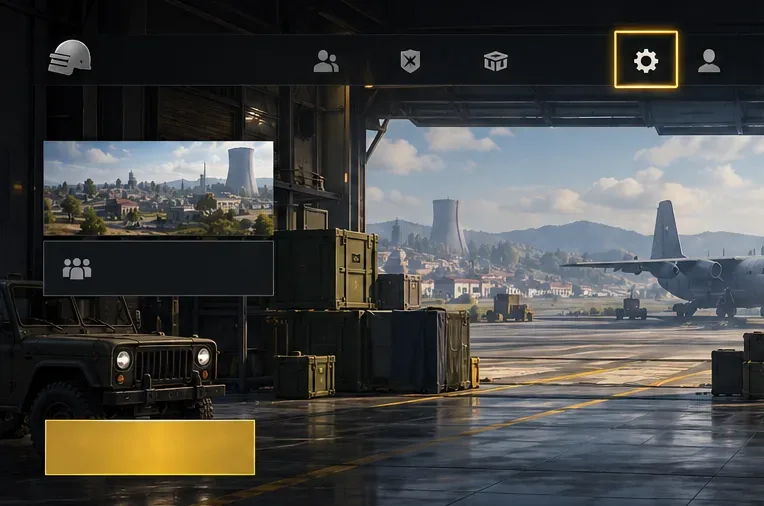
1. Open Settings
From the lobby, open Settings before joining a match. Making the change outside a live fight gives you time to confirm it and avoids standing still while you navigate menus.
Open Settings from the lobby before changing the inventory option. The menu artwork is illustrative.
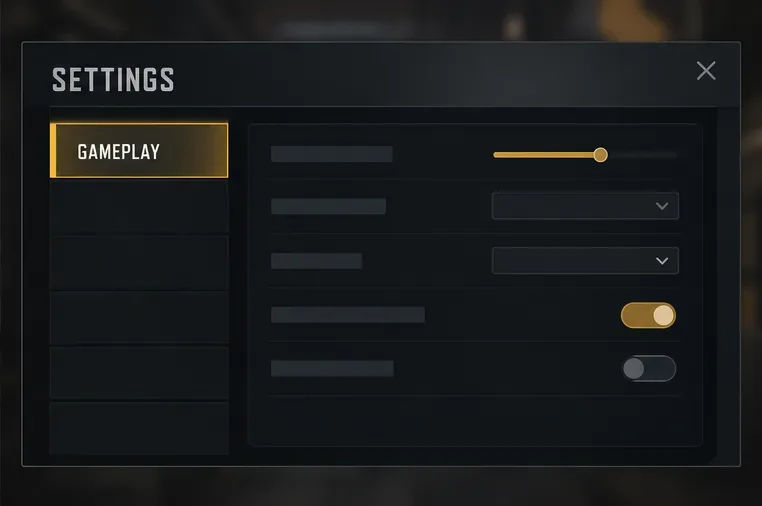
2. Go to Gameplay
Select the Gameplay section. Although the goal is to reduce a possible performance dip, this option is documented as a Gameplay setting, not as a general graphics-quality control.
Choose Gameplay; PUBG’s official PC notes place Inventory Character Render in this section.
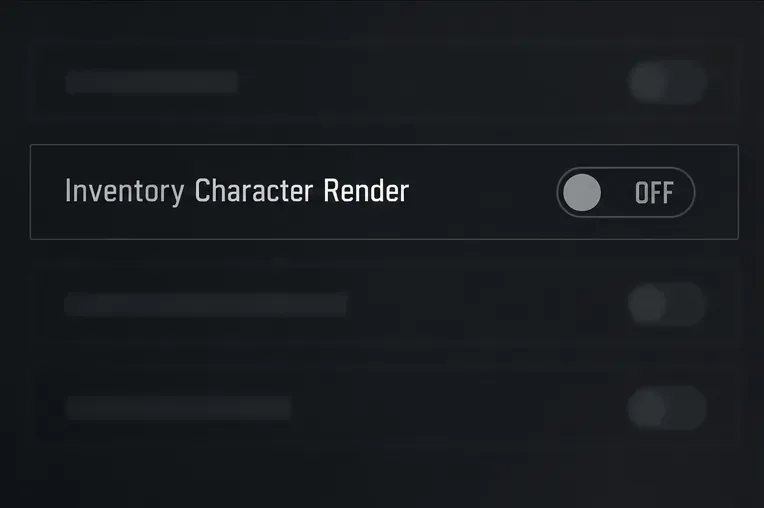
3. Turn Inventory Character Render off
Find Inventory Character Render and change it to Off. If your version presents a toggle, make sure its disabled state is selected. Confirm or apply the change only if your settings screen asks you to do so.
Turn off the character preview. The label and Off state are shown for reference; the exact controls can vary by build.
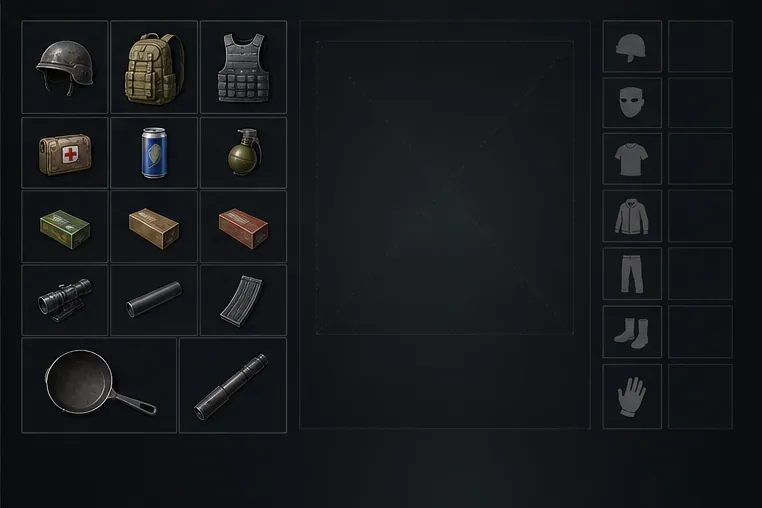
4. Open inventory and check what changed
In Training Mode or another low-risk situation, open the inventory with Tab or I, PUBG Support’s listed PC keys. Your items and equipment remain available; the change is meant to hide the full character preview inside that interface.
Check that the inventory still shows its items and equipment while the character preview is absent.
Performance expectations for this setting
Disabling the character render is most relevant when opening the inventory causes a repeatable hitch or frame-rate dip. It changes the preview shown in that menu; it does not remove the world, other players, effects, or the normal 3D scene. If performance is poor throughout a match, this option alone is unlikely to resolve the broader problem.
PUBG has discussed inventory rendering as a performance area before. In its Update 19.2 patch notes, the studio described changes to inventory preview textures, item-slot generation, and CPU workload to improve UI rendering and frame-drop issues. That history shows inventory UI performance has received attention; it does not establish a specific FPS gain from switching off the character preview.
What you notice
How to interpret the setting
FPS dips mainly when inventory opens
Turn it off and compare the same inventory action.
Stutter continues across the whole match
Look at broader graphics settings and system load.
No measurable change
Keep it off only if you prefer the simpler inventory view.
You want to preview your outfit
Turn it back on when you want the character model visible.
How to test whether it reduces inventory stutter
Use a repeatable comparison instead of judging a single FPS-counter reading. Frame rate can vary with the area, camera view, and background activity.
Choose Training Mode or another safe area and stand in one spot.
Keep your resolution, graphics settings, frame cap, and FPS counter the same.
With the option on, open the inventory a few times and note any visible hitch or sustained FPS drop.
Turn the option off, return to the same spot, and repeat the same inventory actions.
Compare the pattern, especially the dip or hitch while the inventory is open—not just the highest number shown.
If the menu opens more smoothly but match performance looks unchanged, that is consistent with a menu-specific benefit. If the two runs look the same, the toggle may not address your bottleneck. Avoid changing several graphics settings during this comparison, since that makes it harder to identify what helped.
If FPS is still low
For low frame rates outside the inventory, use broader performance checks. PUBG Support recommends lowering advanced video settings to seek more performance and specifically lists options such as anti-aliasing, shadows, and field of view. See its official guidance on lowering game settings. Change one setting at a time, then recheck the same area. Closing unnecessary overlays or background applications can also help you isolate unusually high system load.
If you cannot find Inventory Character Render, confirm that you are on the PC version and check the Gameplay page carefully. PUBG’s official reference is PC-specific; it does not establish that the same option is available on every console menu.
Frequently asked questions
Will turning it off increase FPS during combat?
Do not expect a general combat FPS boost. The option concerns the character preview in the inventory, so any benefit is most plausible while that menu is open. PUBG has not published a fixed FPS result for the toggle.
Can I still use my inventory with character rendering off?
Yes. The option concerns the character model preview, while the inventory remains the place to manage items and equipment. PUBG Support says PC players can open inventory with Tab or I in its inventory controls article.
Should I leave it off?
Keep it off if you prefer not to see the character preview or if a repeatable test shows smoother inventory use. Turn it back on if you value the outfit preview and see no performance difference.
Checklist
Use the PC Settings → Gameplay menu.
Set Inventory Character Render to Off.
Test inventory opening in the same safe location before and after.
Expect a possible inventory-specific change, not a promised FPS increase everywhere.
If the whole match runs poorly, tune broader graphics settings one at a time.