How to Check Real-Time Server Latency in the PUBG HUD

Enable PUBG’s network statistics HUD to monitor ping and packet loss in a match. See where to find it, what the numbers mean, and what they cannot diagnose.
You turn down Clash Royale's music, enter another battle, and still hear an opponent's emote. The likely problem is that you changed the wrong control for the result you wanted: music volume, sound-effects volume, and battle emote muting are different choices.
For distracting opponent emotes, try the battle mute control first: tap the Emote icon, then the Mute icon. For broader silence through settings, open Settings, look for Audio, and reduce SFX to its minimum. That affects sound effects more broadly rather than providing an emote-only audio filter. If you need immediate silence regardless of the game's settings, lower the device's media volume.
Official sources checked on October 8, 2026, confirm battle emote muting and separately document Music and SFX sliders. They do not establish a dedicated setting that disables only emote sounds while keeping every emote animation and all other battle effects. Menu appearance may vary with the installed version, so use the labels in your game rather than matching an older screenshot exactly.
| Your goal | First control to try | Tradeoff to check |
|---|---|---|
| Stop distracting opponent emotes | Emote icon, then Mute during battle | This mutes emotes, rather than promising a separate sound-only filter |
| Reduce game sound effects broadly | Audio settings: SFX at minimum | Other battle effects may become silent too |
| Keep effects but remove background music | Audio settings: Music at minimum | This is not the control to rely on for emote sounds |
| Silence game audio immediately | Device media volume at zero | Other media using that volume can also become silent |
Use this first when an opponent's repeated emotes are the problem and you want to avoid changing the entire game's audio mix. Supercell's current Emotes support article gives the two-button sequence: tap the Emote icon during Battle, then tap the Mute icon.
The support instructions describe muting emotes, not independently adjusting their sound and animation. Treat this as an emote-muting option. Do not assume that it preserves incoming emote visuals or changes every preview elsewhere in the game.
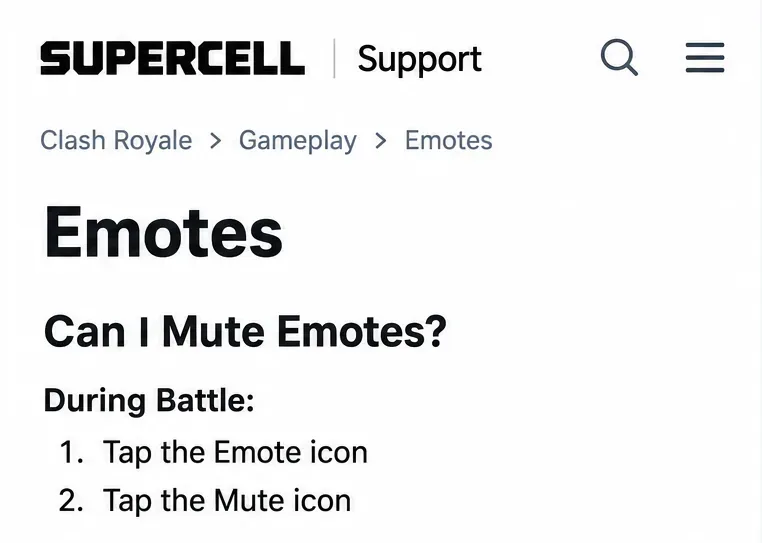
A friendly battle is a useful place to check the effect without experimenting during an important ranked match. For example, ask a friend to send an emote before and after you use Mute. This is a suggested comparison, not a test result reported by this article. Check the mute state again in your next battle; the cited documentation does not specify all persistence behavior across sessions and modes.
If you want to silence effects rather than mute incoming emotes, return to the main game interface and open Settings. Look for Audio and reduce the SFX slider to the far-left minimum. SFX means sound effects. Leave Music at the level you prefer, or lower it too if you want the game quieter overall.
Supercell introduced these separate sliders in its June 24, 2022, Summer Update notes, documenting the Settings-to-Audio path and independent Music and SFX volume controls. That establishes the feature's documented design; it does not verify the exact layout of every later client.
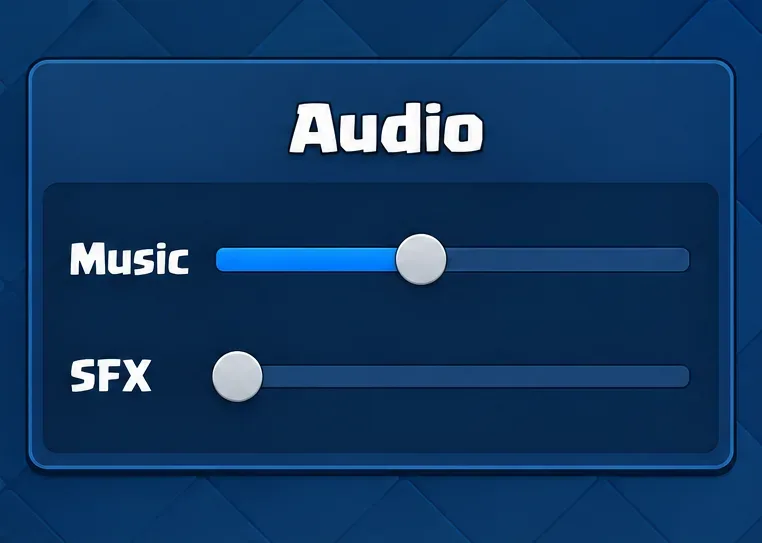
If your version presents a sound-effects switch or different wording instead, use the available sound-effects control and verify its result. Do not search indefinitely for a switch labeled Emote Sound: that specific control was not verified in the official sources reviewed.
The tradeoff matters. A broad SFX reduction is intended to lower effects as a category; it is not a selective filter for one opponent's laugh. If you miss useful battle audio afterward, restore the effects level and use the emote mute option instead. Turning Music down alone is the wrong starting point when your concern is an effect sound.
When silence matters right now, the device's media-volume control is the fallback. Lower it while the game is open, and check that you adjusted media rather than ringtone volume. This does not depend on locating a particular game menu, but it also does not selectively silence emotes.
Press a volume button, expand the volume controls if needed, and lower Media volume to zero. Google's Android volume instructions identify media volume as the control for music, videos, games, and other media. The panel layout varies by device. Ring, notification, and alarm controls are separate choices, so muting the ringtone alone is not the same adjustment.
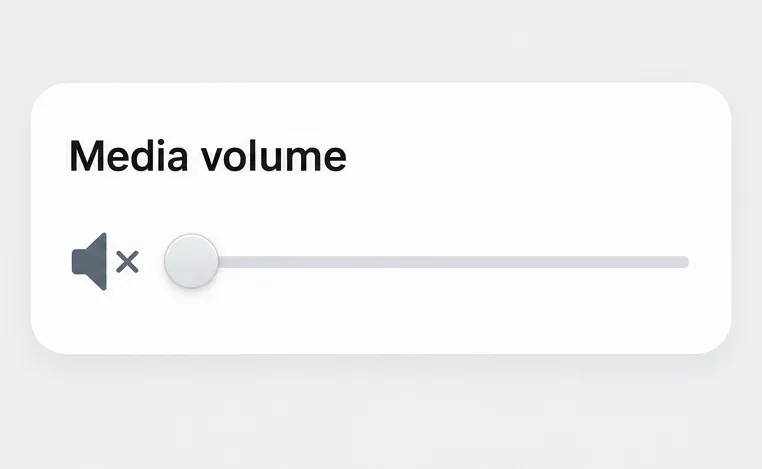
Use the playback-volume control while the game is active, or lower the volume slider in Control Center. Apple's iPhone volume guide explains the difference between playback volume and other volume adjustments. Verify the result rather than relying only on the phone's silent-mode indicator.
If you listen to a separate music app while playing, reducing device media volume may silence that audio too. In that situation, an in-game control is the more targeted choice. Also check the output you are actually listening through: a Bluetooth headset or speaker can make a change harder to judge if you are listening for sound from the phone itself.
Check one change at a time. If you mute emotes, reduce SFX, and lower device volume together, you will know the game is quiet but not which change solved your specific problem. Start with a short friendly-battle comparison and keep the other controls unchanged.
If effects remain audible despite the intended setting, recheck the slider or switch, reopen the game, and install any available official-store update before repeating the comparison. Do not conclude that an old audio bug is currently active just because a past discussion describes something similar. This article has not verified a current, universal emote-audio defect.
If the behavior persists, contact Supercell through the game's support entry or its official Clash Royale support portal. Include your device model, operating-system version, game version, the mode you were using, and exactly which control you changed. A screenshot of the audio setting and a short description of what remained audible are more useful than saying only that mute does not work.
Reinstalling is unnecessary for a normal preference change. Supercell's reinstallation guidance describes it as a last resort for constant crashes and says to connect the game to Supercell ID beforehand. Use support guidance for a persistent technical issue rather than deleting the app simply to find an audio control.
You have reached the right result when the unwanted emote distraction is gone and the sounds you still want remain available. If everything becomes silent but you wanted battle effects, undo the broad volume change and return to battle emote muting. If you specifically want visible emotes with only their sounds removed, recognize that this exact combination was not verified as a separate setting in the official documentation reviewed.
Enable PUBG’s network statistics HUD to monitor ping and packet loss in a match. See where to find it, what the numbers mean, and what they cannot diagnose.
Learn how to import VALORANT crosshair codes, compare presets with manual settings and spectator copy, and fix common import issues.
Choose Dota 2 minimap size, hero icons, team colors, and background settings by readability, fewer misclicks, and clear results on your own display.
Fix Fortnite texture pop-in on PC with official steps for GPU drivers, file verification, DirectX 12, high-resolution textures, VRAM, SSDs, and stutter.
Learn what Heroes of the Storm minimap size and position options are verified, improve readability, and choose camera-click controls that suit you.
Set Super Smash Bros. Ultimate Quickplay to prefer hazards-off stages. Follow the Preferred Rules menu steps and learn why matchmaking may not always honor them.
Enable Server Latency and Packet Loss in Warzone to monitor connection quality, read the overlay, and use recurring spikes to guide troubleshooting.
Learn how to carry from mid lane in League of Legends by setting up waves, choosing safe roam windows, reading side lanes, and converting pressure into objectives.
Fix Minecraft Evoker spell problems with a safe vanilla test, version checks, log review, and a step-by-step way to isolate mod or datapack conflicts.
Fix PUBG stuck on Initializing on Steam with a focused checklist for PC service notices, launch options, game files, downloads, and connection issues.








