Home
» 🎮 Esports
»
How to Disable Animated Background Models in the StarCraft II Menu
How to Disable Animated Background Models in the StarCraft II Menu
To remove the animated character or 3D scene from StarCraft II’s home screen, open Options > Graphics, find Background Model under Display, choose None if it appears in your dropdown, and select Apply. If None is not available, choose Space Clouds as the least character-focused built-in alternative. That replaces the selected home-screen model; it does not promise to stop every animation elsewhere in the interface.
“Background Model” is the name of the setting that controls the home-screen scene. Blizzard’s patch notes document the setting and say it was moved under Display in Graphics options. The notes confirm Space Clouds as one of the home-screen backgrounds, but do not provide a current list of every dropdown choice. Because the available choices can depend on the installed version or menu context, check what your own dropdown actually offers instead of assuming a setting that is not shown.
Before you change anything
Start from the main StarCraft II menu rather than from a match. You do not need to edit game files, install a mod, or change a graphics card setting for the first attempt. Keep the change limited to the Background Model dropdown; that makes it easier to tell whether the menu scene changed and to restore your previous selection.
There are two related goals that can sound the same. Choosing a different background model changes which scene appears on the home screen. Disabling animation means making the scene static or removing it. If the list includes None, that is the direct option to try for the second goal. Space Clouds is a substitute scene, so it may still include background motion or ambience.
Turn off the home-screen model
Use the following route on the desktop game. Menu labels can be localized, but the key control is called Background Model in the English interface.
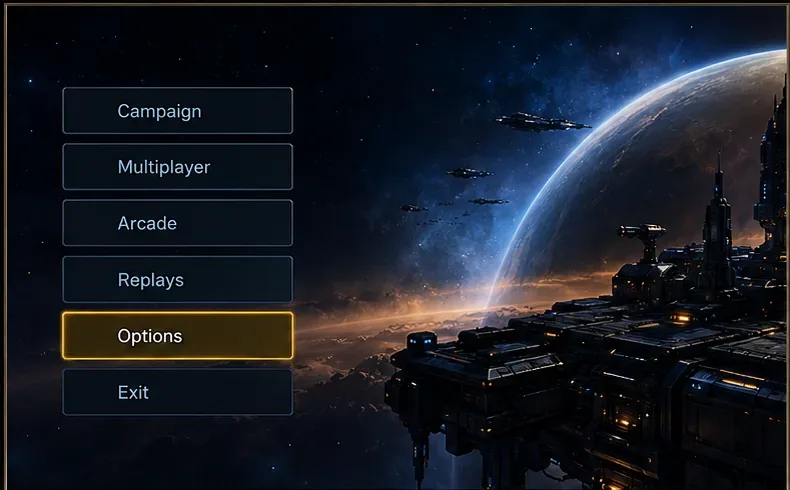
From the StarCraft II main menu, open Options.
Open Options from the main menu to reach StarCraft II’s graphics controls.
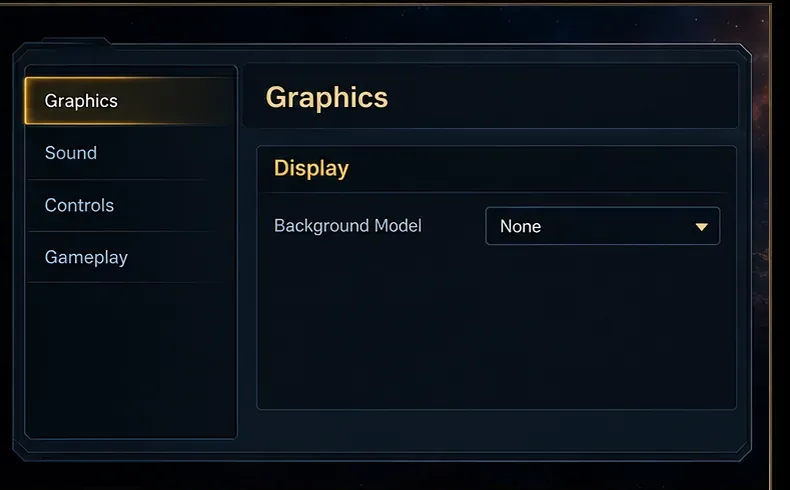
Choose Graphics. In the Graphics options, look under the Display section for Background Model.
The Background Model control is located in the Graphics options under Display.
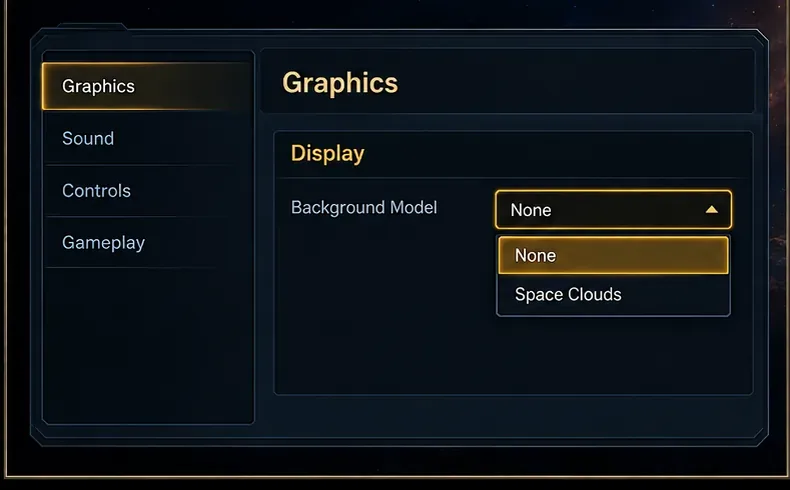
Open the dropdown. If it contains None, select it. This is the appropriate choice when you want the home-screen background model removed rather than swapped for a different scene.
If your dropdown offers None, choose it to remove the selected home-screen background model.
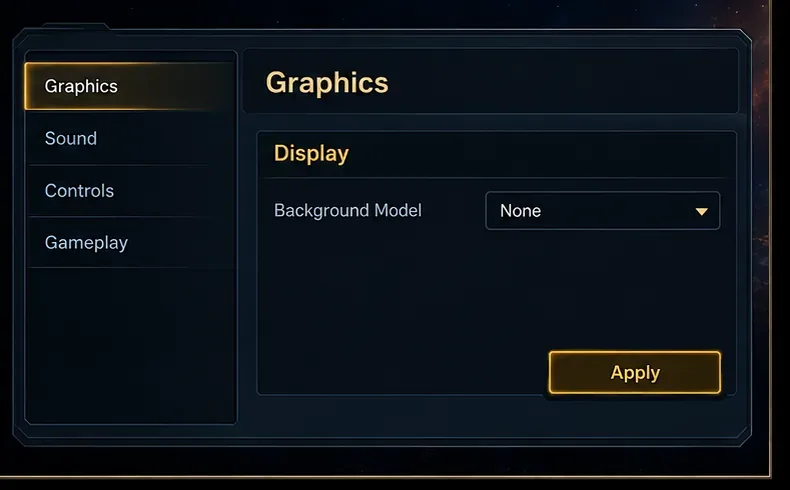
Select Apply. If the game prompts you to confirm a change, follow that prompt.
Apply the Background Model change before checking the main menu again.
Return to the home screen and wait a few seconds. Check whether the character or 3D scene is gone. If it remains, reopen Graphics and verify that the new selection was applied.
If you do not see “None”
Do not treat Space Clouds as an animation-off switch. Blizzard’s patch notes identify it as another home-screen background option, so selecting it can remove a specific character scene from view while leaving a space backdrop. This is a useful fallback if you mainly want a quieter, less character-centered menu.
If your goal is a fully static screen and the dropdown has no None entry, the checked official documentation does not establish a universal current toggle or a particular graphics level that reliably freezes the animation. Some players have discussed backgrounds becoming static when graphics quality is lowered, but Blizzard has not documented that as a guaranteed method. You can test a lower in-game graphics preset if you are comfortable with the overall visual-quality tradeoff, then restore your preferred settings if it does not help.
Avoid editing Variables.txt based on random command lists or copying another player’s configuration. That file stores multiple graphics preferences, and an unverified edit can change more than the menu scene. Use the in-game options first. If settings do not save, restart the game and check again before attempting a file-level repair.
Common problems and what to check
The background changed but still moves: You probably selected another scene, such as Space Clouds, rather than None. Reopen the dropdown and see whether None is offered.
The dropdown is in a different place: Blizzard’s patch notes note that Background Model was moved under Display. Look within Options > Graphics, not under Sound or Gameplay.
The old model comes back after navigating: Confirm that you pressed Apply. Then return to the main menu and check the selected value again.
Only one screen still has animated art: The home-screen Background Model setting may not govern every screen, campaign panel, or promotional surface. Blizzard’s patch notes describe 3D backgrounds across the interface as well as separate home-screen choices, so the dropdown should not be assumed to remove all UI animation.
You changed graphics quality to test for a static screen: Check in a match that the image quality is still acceptable. A broad graphics preset can affect the game beyond the menu, and the static-background behavior is not guaranteed.
How to confirm the result
Return to the StarCraft II home screen after applying the setting. The visible character or 3D scene should no longer appear if None was available and accepted. Navigate to another menu and back once to make sure the selected value persisted. If you chose Space Clouds, expect a different space backdrop rather than a blank screen; whether it feels still enough depends on the particular scene and game build.
Blizzard’s StarCraft II 3.0 patch notes are the primary reference for the Background Model control and the Space Clouds home-screen option. They also state that the control moved under Display in the Graphics options. The patch notes are historical, so use the labels shown in your current client if a later update changed the layout. Blizzard forum users have also described graphics quality affecting whether a background appears animated, but that is an anecdotal workaround, not an official guarantee.
For most players, the useful sequence is: check for None, apply it, and verify the home screen. Use Space Clouds only when None is absent or when replacing a particular character scene is enough. Lowering overall graphics quality is a last test because it may change in-game visuals and is not documented as a reliable animation toggle.