How to Check Real-Time Server Latency in the PUBG HUD

Enable PUBG’s network statistics HUD to monitor ping and packet loss in a match. See where to find it, what the numbers mean, and what they cannot diagnose.
If Heroes of the Storm suddenly feels choppy, takes unusually long to launch, or starts acting strangely after a Battle.net update, clearing the Blizzard cache is a reasonable low-risk troubleshooting step. Blizzard's own support guidance says corrupted cache data can cause problems with Blizzard games, and the standard Windows procedure is to close Blizzard processes, open %ProgramData%, remove the Blizzard Entertainment cache folder, and then restart Battle.net.
That does not mean cache deletion is a universal fix for every kind of “lag.” If your real problem is consistently high ping, packet loss, Wi-Fi instability, or an ISP route problem, deleting local temporary files is unlikely to solve the underlying network issue. The useful question is whether your symptoms point to stale local data or to connectivity.
Yes, if the problem appeared after an update, the Battle.net app is loading incorrectly, game launching is inconsistent, or Heroes of the Storm is stuttering in a way that feels different from ordinary network latency. Cache clearing is also worth trying before a full reinstall because it removes temporary Blizzard data rather than the installed game itself.
Blizzard's support article for deleting the Battle.net cache folder is the primary reference for this procedure. Blizzard's Heroes support area also lists current technical troubleshooting resources for the game at Heroes of the Storm Support.
No. The folder used by this cache procedure is under Windows ProgramData and stores Blizzard temporary/support data, not the main Heroes of the Storm installation. Blizzard states that deleting cache data does not affect game data. After Battle.net starts again, the app rebuilds the temporary files it needs.
There is one practical side effect worth knowing: after certain Battle.net file-reset procedures, the launcher can occasionally lose track of where a game is installed. If you see an Install button instead of Play, do not assume the game was erased. Use Battle.net's option to locate an existing installation before downloading everything again.
The safest workflow is to follow the order below. Closing Blizzard software first matters because active processes can keep cache files open or recreate them while you are trying to remove them.
Exit Heroes of the Storm and close the Battle.net desktop app. Then press Ctrl + Shift + Esc to open Task Manager. In the Processes list, look for Battle.net, Agent, Blizzard Update Agent, or any remaining Heroes of the Storm process. Select each relevant Blizzard process and choose End task.
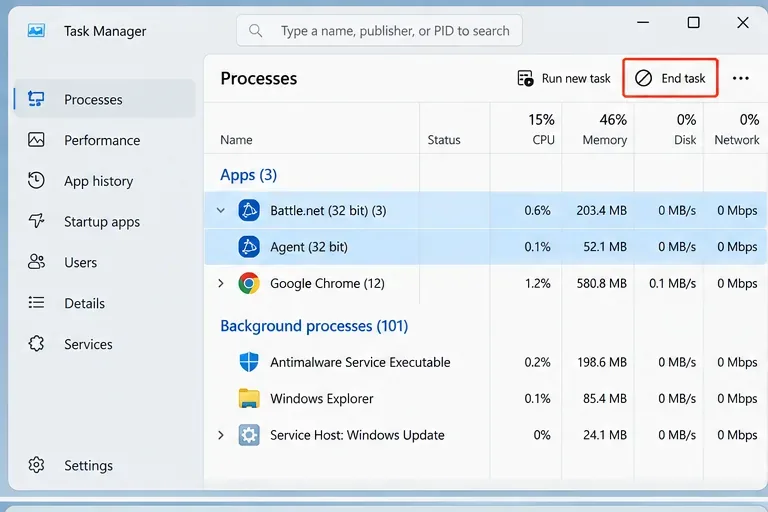
If nothing Blizzard-related is running, move on. You do not need to end unrelated Windows services or browser processes.
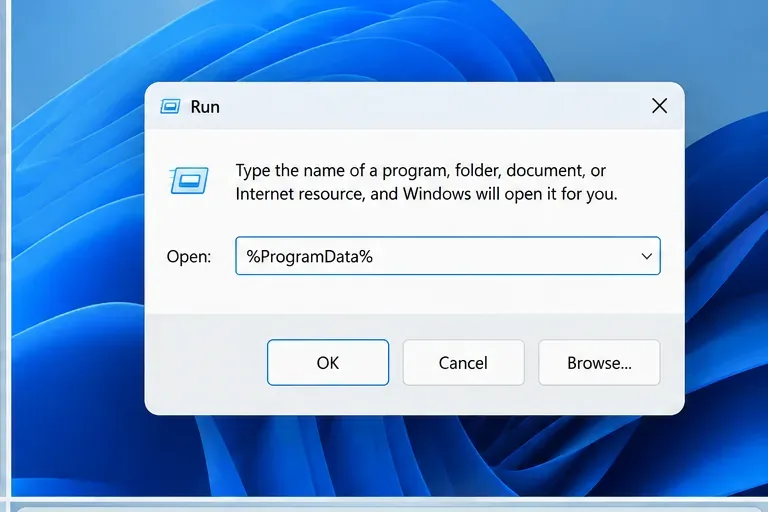
Press Windows key + R to open the Run dialog. Enter %ProgramData% and press Enter. Using the environment variable is easier than manually exposing hidden folders because Windows opens the correct ProgramData directory directly.
Inside ProgramData, find the folder named Blizzard Entertainment. Right-click it and choose Delete. This is the key step in Blizzard's cache-clearing instructions.
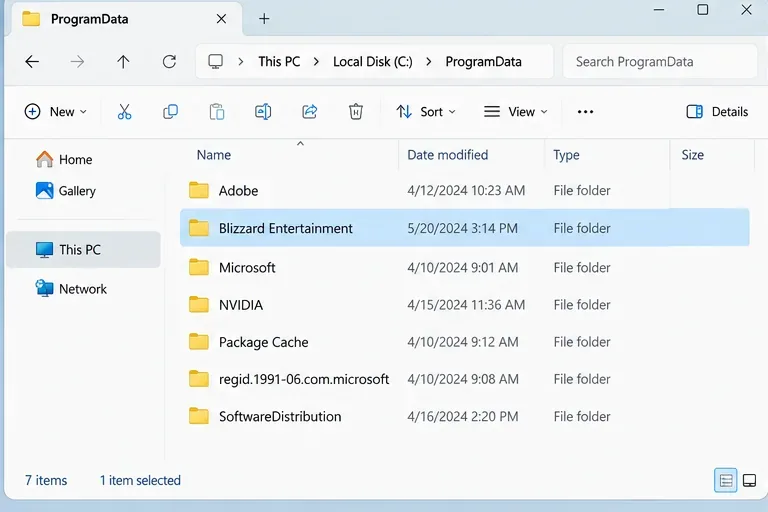
If Windows says the folder or a file is in use, return to Task Manager and check again for Battle.net or Agent processes. If necessary, restart Windows, do not open Battle.net yet, and repeat the ProgramData step.
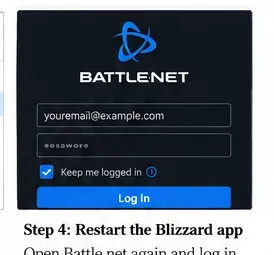
Open the Battle.net desktop app again and sign in if required. The app will recreate the cache data it needs. Launch Heroes of the Storm and test under the same conditions that previously caused the issue. Do not judge the result only by the first few seconds of the first launch, because rebuilding temporary files can make that launch slightly different from later ones.
Use a simple before-and-after test instead of relying on a vague impression. Reproduce the same situation: the same game mode, roughly the same background apps, and the same graphics settings. Then look for the symptom you were trying to fix.
If the symptom is unchanged, cache corruption was probably not the main cause. Repeating the deletion over and over is unlikely to add value.
First decide whether you are seeing performance stutter or network latency. They can feel similar but require different fixes. Performance stutter usually looks like uneven animation, frame skips, or momentary freezing. Network latency more often looks like delayed abilities, rubber-banding, commands arriving late, or other players moving unpredictably while your own rendering remains smooth.
Restart the PC, install pending Windows updates, update the graphics driver from the GPU manufacturer, close heavy background programs, and make sure the game is not being constrained by overheating or an overloaded storage device. Blizzard's current Heroes technical troubleshooting pages should be preferred over old forum fixes because recommended steps can change.
Test with Ethernet if possible, reboot the modem/router, stop large downloads and cloud synchronization, and compare another network if one is available. Cache deletion cannot correct packet loss occurring between your router, ISP, and Blizzard's servers.
Use Battle.net's repair function when you suspect damaged game files rather than damaged temporary cache data. Cache clearing and file repair solve different classes of problems: the first rebuilds temporary Blizzard data; the second checks the installed game files.
For a Windows PC, the Blizzard-supported cache reset is straightforward: completely close Blizzard software, end any remaining Agent process, open %ProgramData%, delete the Blizzard Entertainment folder, then restart Battle.net and retest Heroes of the Storm. It is a sensible first-line fix for stale or corrupted local Battle.net data, especially after launcher or update problems.
It is not a guaranteed cure for all Heroes of the Storm lag. If the same delay remains after the cache is rebuilt, use the symptom itself to choose the next branch: system performance troubleshooting for stutter and frame drops, or network troubleshooting for latency and packet loss.
Enable PUBG’s network statistics HUD to monitor ping and packet loss in a match. See where to find it, what the numbers mean, and what they cannot diagnose.
Learn how to import VALORANT crosshair codes, compare presets with manual settings and spectator copy, and fix common import issues.
Choose Dota 2 minimap size, hero icons, team colors, and background settings by readability, fewer misclicks, and clear results on your own display.
Fix Fortnite texture pop-in on PC with official steps for GPU drivers, file verification, DirectX 12, high-resolution textures, VRAM, SSDs, and stutter.
Learn what Heroes of the Storm minimap size and position options are verified, improve readability, and choose camera-click controls that suit you.
Set Super Smash Bros. Ultimate Quickplay to prefer hazards-off stages. Follow the Preferred Rules menu steps and learn why matchmaking may not always honor them.
Enable Server Latency and Packet Loss in Warzone to monitor connection quality, read the overlay, and use recurring spikes to guide troubleshooting.
Learn how to carry from mid lane in League of Legends by setting up waves, choosing safe roam windows, reading side lanes, and converting pressure into objectives.
Fix Minecraft Evoker spell problems with a safe vanilla test, version checks, log review, and a step-by-step way to isolate mod or datapack conflicts.
Fix PUBG stuck on Initializing on Steam with a focused checklist for PC service notices, launch options, game files, downloads, and connection issues.








