How to Check Real-Time Server Latency in the PUBG HUD

Enable PUBG’s network statistics HUD to monitor ping and packet loss in a match. See where to find it, what the numbers mean, and what they cannot diagnose.
If Hearthstone is stuck at launch, repeatedly disconnects, hangs while checking for updates, or behaves strangely after a patch, clearing local app files can be a sensible troubleshooting step. The important distinction is that Android gives you a dedicated Clear cache control, while iPhone and iPad do not provide the same per-app cache button. On iOS, the closest low-risk option is Offload App, but a full delete and reinstall is the stronger reset because offloading keeps the app's documents and data.
As of October 2026, Blizzard's current mobile connection troubleshooting specifically tells Android users to open the app's storage settings and clear Hearthstone cache/data. If the problem continues, Blizzard recommends uninstalling and reinstalling the game. Google separately documents that clearing an Android app's cache removes temporary data, while clearing storage removes all app data. Apple documents that Offload App removes the app while keeping documents and data, whereas Delete App removes the app and its related local data.
For most Android problems, start with Clear cache. It targets temporary files and is less disruptive than Clear storage. If Hearthstone still fails, you can escalate to Clear storage or reinstalling the app.
On iPhone or iPad, there is no general Hearthstone-specific Clear Cache button documented by Apple or Blizzard. Start with Offload App if your main goal is to free app space while preserving documents and data. If you are troubleshooting suspected corrupted local Hearthstone files, Delete App and reinstall it is more thorough because offloading intentionally preserves documents and data.
| Platform | Best first step | What it removes | When to escalate |
|---|---|---|---|
| Android | Clear cache | Temporary app data | If the same launch, update, or connection problem returns immediately |
| Android | Clear storage/data | Local app data and settings | Use after Clear cache fails, or follow Blizzard's troubleshooting sequence |
| iPhone/iPad | Offload App | The app itself, while retaining documents and data | If you need a stronger reset of local files |
| iPhone/iPad | Delete App, then reinstall | The app and related local data | Use when offloading does not resolve the issue |
Make sure you know how you sign in to Hearthstone. Blizzard states that Hearthstone progress is shared across devices when you log in with the same Battle.net account, including achievements, gold, decks, card collections, and Arena progress. That is useful protection when reinstalling. However, Blizzard also notes that mobile players can begin without a Battle.net account, so if you have never linked your progress, do that before deleting local app data whenever possible.
You should also check whether the problem is actually local. Blizzard's mobile troubleshooting recommends confirming the app is up to date, switching between Wi-Fi and cellular data, restarting the device, and checking device requirements before escalating to cache/data removal. A server outage or account-side issue will not be fixed by repeatedly deleting files on your phone.
Open Settings, then go to Apps or the equivalent app-management section on your phone. Select Hearthstone. Android manufacturers use slightly different labels, so you may see Apps, Applications, App management, or Apps & notifications.
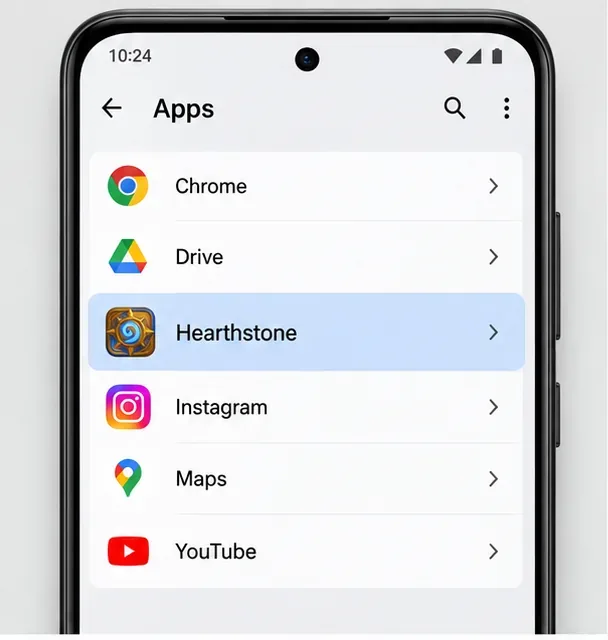
Google explicitly notes that Settings paths can vary by Android device. The goal is simply to reach Hearthstone's app information page rather than searching inside the game itself.
Tap Storage & cache, Storage, or the closest equivalent, then choose Clear cache. Do not choose Clear storage just because it appears next to it unless you intentionally want the stronger reset.
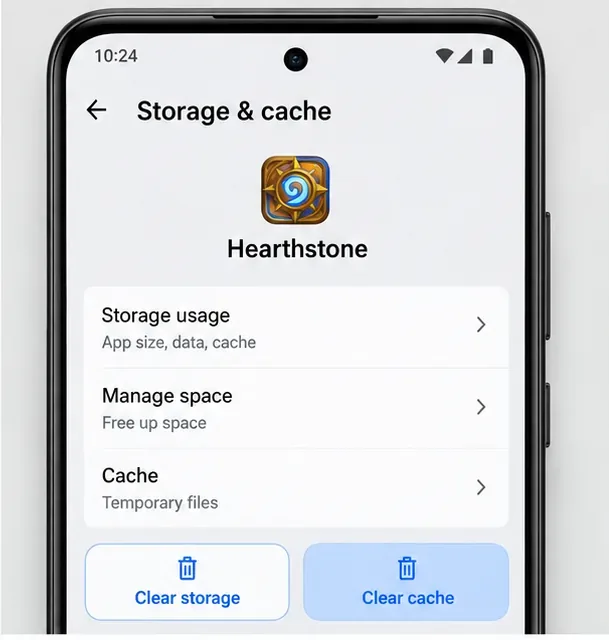
Google describes Clear cache as deleting temporary data and warns that an app may open more slowly the next time because those temporary files need to be rebuilt. That is expected. After clearing the cache, launch Hearthstone and allow it time to check files or download anything it needs.
If Clear cache does not change the behavior, Blizzard's support flow allows Android users to clear the Hearthstone app cache/data. On many devices this appears as Clear storage, Clear data, or Manage storage. Google distinguishes this from Clear cache: Clear storage permanently removes the app's local data.
A practical example: if Hearthstone crashes once after an update, Clear cache is the better first attempt. If it repeatedly loads the same broken local state after cache clearing and a device restart, Clear storage is a reasonable next step. Be prepared to sign in again and let game assets rebuild or redownload.
Go to Settings > General > iPhone Storage on iPhone, or the equivalent iPad Storage screen on iPad. Find and tap Hearthstone. Apple's storage documentation says this screen lists apps and lets you inspect how much local storage each one uses.
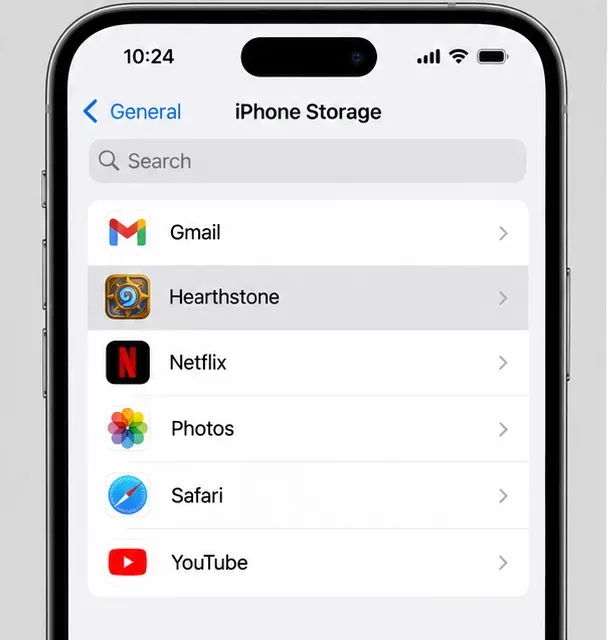
Unlike Android, Apple does not expose a universal per-app Clear Cache button here. Apple also notes that cached and temporary data may not always be counted as normal app usage and that iOS manages some temporary files automatically.
On Hearthstone's storage page, you may see Offload App and Delete App. They are not interchangeable:
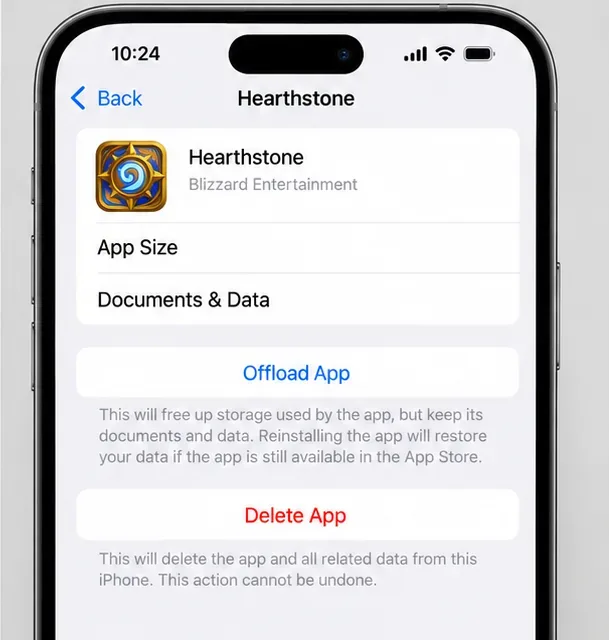
If your goal is simply to free device storage without discarding retained app data, try Offload App first. If your goal is to troubleshoot corrupted or stale local Hearthstone files, offloading may be too conservative because it intentionally keeps documents and data. In that case, deleting the app and reinstalling it is the closer iOS equivalent to a full local reset.
Clearing Android cache alone is not the same as deleting your Hearthstone collection. Blizzard says Hearthstone progress is shared across devices when you use the same Battle.net account. That includes your card collection, decks, achievements, gold, and other account progress.
The more important risk is account access. If you delete app data or uninstall the app, local sign-in state can be removed. Before doing that, verify that you know the correct Battle.net account, login method, and game region. If you started Hearthstone on mobile without creating or linking a Battle.net account, connect the progress to an account before deleting local data whenever you still have access to the game.
Do not judge success only by whether storage usage becomes smaller. A good result is behavioral: Hearthstone launches normally, gets past the screen where it was stuck, completes its update check, or reconnects without reproducing the same error. The first launch can take longer because temporary files may need to be rebuilt or game content may need to be downloaded again.
If the exact problem returns immediately after a clean reinstall, that is a sign to stop repeating the same reset. Test another network, confirm the game is current, restart the device, and check Blizzard's support channels for service problems. Cache clearing is useful for local file problems; it cannot repair a server outage, unsupported device, account issue, or unstable network.
Use cache clearing when the symptoms point to stale or damaged local files: a problem begins after an update, the app repeatedly hangs during loading, or Hearthstone behaves differently on one device while the same account works elsewhere. It is less likely to help when every device on the same network disconnects, when Blizzard is reporting an outage, or when the device no longer meets current requirements.
That distinction matters because repeated reinstalls can consume time and mobile data without addressing the real cause. A single measured progression—restart, update check, network test, cache reset, then reinstall—is usually more informative than repeatedly deleting the app.
For the current Hearthstone troubleshooting sequence, see Blizzard Support: Hearthstone Connection Issues on Mobile Devices. Blizzard's mobile information also explains cross-device progress through Battle.net in Blizzard's account setup guide.
For Android's distinction between cache and storage, see Google Android Help: Clear up space. For iPhone and iPad storage behavior, including Offload App and Delete App, see Apple Support: How to check the storage on your iPhone and iPad.
Enable PUBG’s network statistics HUD to monitor ping and packet loss in a match. See where to find it, what the numbers mean, and what they cannot diagnose.
Learn how to import VALORANT crosshair codes, compare presets with manual settings and spectator copy, and fix common import issues.
Choose Dota 2 minimap size, hero icons, team colors, and background settings by readability, fewer misclicks, and clear results on your own display.
Fix Fortnite texture pop-in on PC with official steps for GPU drivers, file verification, DirectX 12, high-resolution textures, VRAM, SSDs, and stutter.
Learn what Heroes of the Storm minimap size and position options are verified, improve readability, and choose camera-click controls that suit you.
Set Super Smash Bros. Ultimate Quickplay to prefer hazards-off stages. Follow the Preferred Rules menu steps and learn why matchmaking may not always honor them.
Enable Server Latency and Packet Loss in Warzone to monitor connection quality, read the overlay, and use recurring spikes to guide troubleshooting.
Learn how to carry from mid lane in League of Legends by setting up waves, choosing safe roam windows, reading side lanes, and converting pressure into objectives.
Fix Minecraft Evoker spell problems with a safe vanilla test, version checks, log review, and a step-by-step way to isolate mod or datapack conflicts.
Fix PUBG stuck on Initializing on Steam with a focused checklist for PC service notices, launch options, game files, downloads, and connection issues.








