How to Check Real-Time Server Latency in the PUBG HUD

Enable PUBG’s network statistics HUD to monitor ping and packet loss in a match. See where to find it, what the numbers mean, and what they cannot diagnose.
Fortnite can feel smooth at the start of a session and then hitch during camera turns, fights, or new areas. If the drops happen while the game is using DirectX 12, Epic documents one specific cause worth checking: the client may repeatedly compile DirectX shaders. Clearing the graphics driver’s shader cache can help in that situation, but it does not increase every laptop’s frame rate and it cannot fix a GPU that is overheating, power-limited, or simply below the game’s needs.
This guide separates the shader cache from the Epic Games Launcher cache, shows how to clear only the relevant files on Windows, and gives you a practical before-and-after check. The goal is a repeatable reduction in stutter during comparable play, not a guaranteed FPS number.
“Fortnite cache” can mean more than one thing. A DirectX shader cache stores data used by the graphics driver. Epic’s support instructions connect clearing this cache to heavy stuttering caused by repeated shader recompilation in DirectX 12. The same support page warns that the first match after cleanup may still stutter while the game compiles shaders again. That makes shader-cache cleanup a targeted troubleshooting step for persistent DX12 hitching, not routine maintenance to repeat before every match.
The Epic Games Launcher also has a web cache. Epic describes clearing that cache as a way to address launcher display issues or errors that prevent the launcher or games from working correctly. It is a different folder and is not documented as a direct fix for in-match FPS drops. If the launcher itself is blank, displaying incorrectly, or failing to load, use the launcher-cache instructions later in this article. If gameplay is the only problem, start with the graphics shader cache.
These steps apply to Windows PC. They do not describe a console cache procedure, and they do not establish a universal cache path for every graphics vendor. If you use an Intel GPU or cannot find the documented folder for your hardware, don’t guess at another driver folder; use the graphics maker’s support guidance instead.
Pick a short baseline that you can repeat. Note the rendering mode, resolution, graphics preset, frame-rate cap, and whether the laptop is plugged in. Play a comparable section or match and note when the problem appears: a brief hitch the first time an area loads is different from frame rate that stays low throughout a match. If you already use an FPS or frame-time overlay, record the same readings, but you do not need to install one just for this check.
Keep the comparison fair. Changing rendering mode, graphics settings, power mode, and cache folders all at once makes it hard to tell what helped. Keep the game settings and power conditions the same for the first retest. Also allow for the first post-cleanup match to rebuild shaders; judge the result after that initial pass rather than treating one early hitch as proof the cleanup failed.
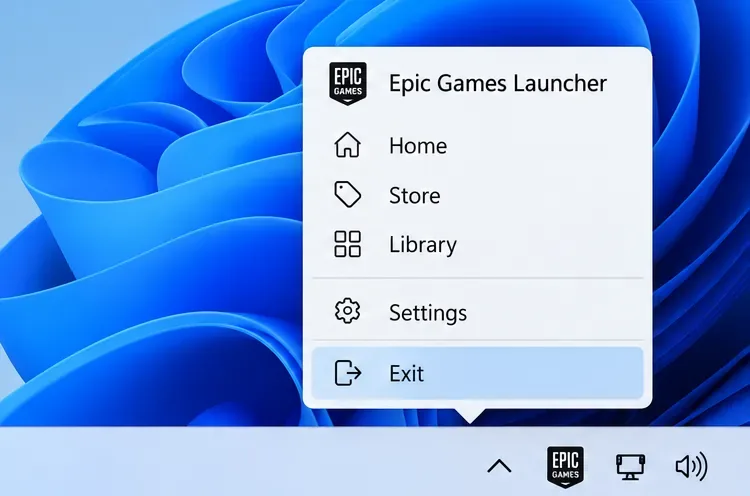
Exit Fortnite. Then close the Epic Games Launcher from its system-tray icon: select the small up-arrow near the clock, right-click the Epic Games icon, and choose Exit. Closing the window with its X may leave the launcher running in the tray, so confirm it has quit before deleting files.
Press Windows key + R, enter %appdata%, and press Enter. File Explorer opens in the Roaming folder. Use the address-bar breadcrumb or Up button to move to AppData, then open Local. This route follows Epic’s published steps and avoids typing a user-specific Windows path.
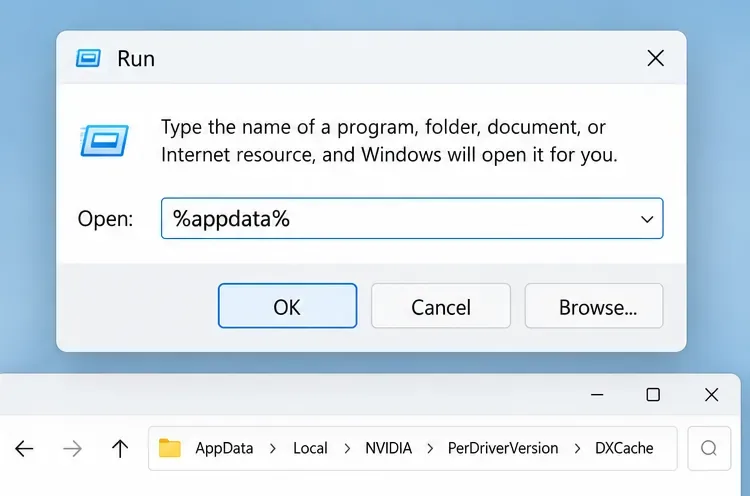
Choose the folder for your graphics hardware:
NVIDIA\PerDriverVersion\DXCache. Epic also says to check NVIDIA\DXCache if that folder exists.AMD\DxCache.In full, those locations are under AppData\Local. Epic’s current DX12 troubleshooting page lists both vendor paths. Folder names can vary by driver installation; if the listed location is absent, stop rather than deleting a similarly named folder elsewhere.
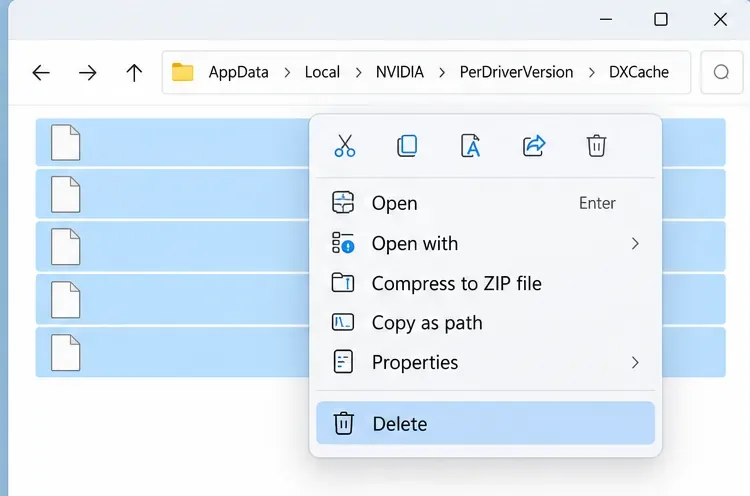
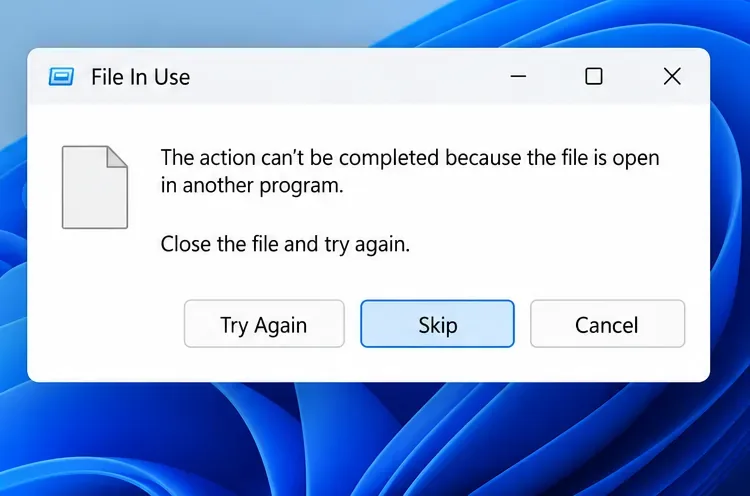
Inside the documented DXCache or DxCache folder, select the files and delete them. Leave the cache folder itself in place. If Windows reports that a file is in use, choose Skip or Ignore for that file and continue with the rest. Do not force-close unrelated Windows processes to remove a locked cache file.
Avoid deleting the whole FortniteGame folder as a shortcut for clearing shader data. Epic lists deleting that folder for a different launch-crash troubleshooting case and warns that it may reset in-game settings. It is broader than the targeted cache cleanup described here.
Open the Epic Games Launcher and start Fortnite. Play through a comparable section or match. The first run may hitch as new shader data is created; that is expected after removing the cache. Avoid clearing the cache again immediately just because the opening minutes are not perfectly smooth. Give the game a chance to rebuild and compare a later match with your baseline.
Look for a repeatable change in the symptom you recorded, not a dramatic number on one screen. A useful result might be fewer recurring pauses when turning the camera or entering familiar areas, smoother frame pacing after the initial match, or fewer sudden dips during a similar encounter. Average FPS may stay nearly the same even if brief shader-related hitches become less frequent.
If performance is unchanged after the shader-rebuild match, Epic’s guidance says to close the game and repeat the cache steps once, then launch and test again. If there is still no meaningful difference, stop repeating the deletion. Repeatedly clearing the same cache will make the game rebuild it again and is not evidence that the underlying issue has been fixed.
Move to the cause suggested by the pattern:
Epic’s low-FPS troubleshooting page explicitly notes that results depend on the computer and that its suggested steps may produce only a small improvement or none. That is the right expectation here too: cache cleanup is useful when the symptoms match repeated DX12 shader compilation, but it is not a general-purpose FPS optimizer.
If Epic Games Launcher itself has display problems or errors, exit it from the system tray, press Windows key + R, type %localappdata%, and press Enter. Open EpicGamesLauncher\Saved, then delete the folders named webcache, webcache_4147, or webcache_4430 if present. Relaunch the launcher. This is separate from the GPU shader-cache process and should not be presented as a guaranteed in-game FPS fix.
After the rebuild match, repeat the same settings and a similar gameplay situation you used for your baseline. Confirm whether the specific stutter happens less often, whether frame pacing feels more consistent, and whether the improvement lasts beyond one scene. If the answer is no, keep the cache in place and move to requirements, heat, power mode, drivers, background load, or game-file verification. That gives you a clear result and a sensible next step without promising that deleting cache files will fix every FPS drop.
Enable PUBG’s network statistics HUD to monitor ping and packet loss in a match. See where to find it, what the numbers mean, and what they cannot diagnose.
Learn how to import VALORANT crosshair codes, compare presets with manual settings and spectator copy, and fix common import issues.
Choose Dota 2 minimap size, hero icons, team colors, and background settings by readability, fewer misclicks, and clear results on your own display.
Fix Fortnite texture pop-in on PC with official steps for GPU drivers, file verification, DirectX 12, high-resolution textures, VRAM, SSDs, and stutter.
Learn what Heroes of the Storm minimap size and position options are verified, improve readability, and choose camera-click controls that suit you.
Set Super Smash Bros. Ultimate Quickplay to prefer hazards-off stages. Follow the Preferred Rules menu steps and learn why matchmaking may not always honor them.
Enable Server Latency and Packet Loss in Warzone to monitor connection quality, read the overlay, and use recurring spikes to guide troubleshooting.
Learn how to carry from mid lane in League of Legends by setting up waves, choosing safe roam windows, reading side lanes, and converting pressure into objectives.
Fix Minecraft Evoker spell problems with a safe vanilla test, version checks, log review, and a step-by-step way to isolate mod or datapack conflicts.
Fix PUBG stuck on Initializing on Steam with a focused checklist for PC service notices, launch options, game files, downloads, and connection issues.








