How to Check Real-Time Server Latency in the PUBG HUD

Enable PUBG’s network statistics HUD to monitor ping and packet loss in a match. See where to find it, what the numbers mean, and what they cannot diagnose.
If Clash Royale is taking longer than usual to load, showing odd visual behavior, or using more local storage than expected, clearing temporary files can be a reasonable troubleshooting step. The important part is that the process is different on Android and iPhone. Android normally gives you a direct per-app Clear cache control. iOS does not provide the same universal button for third-party apps, so you need to choose between offloading the app and deleting/reinstalling it.
Before doing anything that removes app data, protect your game progress. Supercell says Supercell ID is designed to safeguard your game account and bring you back to your progress after reinstalling or moving to another device. If your Clash Royale account is not connected yet, open the game, go to Settings, and connect it before using a delete/reinstall method. You can also note your Player Tag as an extra recovery reference.
Use the least destructive option that matches your device and problem. On Android, start with Clear cache because Google describes it as deleting temporary data, while Clear storage removes app data. On iPhone and iPad, Apple distinguishes between Offload App, which frees the app itself while keeping its documents and data, and Delete App, which removes the app and its related local data.
| Device | Best first step | What it removes | Main caution |
|---|---|---|---|
| Android | Clear cache | Temporary app data | The game may load some assets again on the next launch. |
| iPhone/iPad | Offload only if your goal is mainly to free app storage | The installed app binary; documents and data are kept | Offloading is not a guaranteed full cache purge. |
| iPhone/iPad | Delete and reinstall when you need the cleanest local reset | The app and related local data | Confirm Supercell ID access first. |
These steps can help when local temporary files are part of the problem, but they are not a guaranteed fix for server outages, account issues, network instability, or game bugs. If Clash Royale is failing for many players at once, clearing local files may not change anything.
On a typical recent Android device, the path is Settings > Apps > Clash Royale > Storage & cache > Clear cache. Google notes that menu names can vary by device manufacturer, so Samsung, Pixel, Xiaomi, OnePlus, and other phones may use slightly different wording.
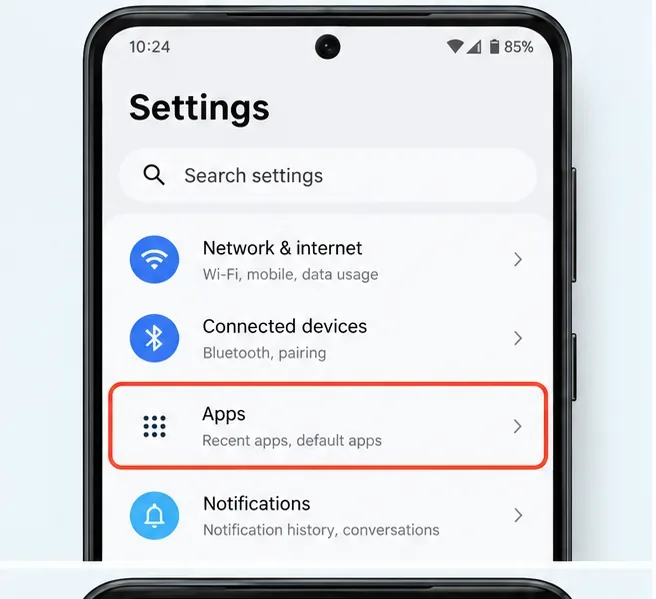
Open the system Settings app, then find the section that manages installed apps. On some phones it is simply called Apps; on others you may see Apps & notifications, App management, or a similar label.
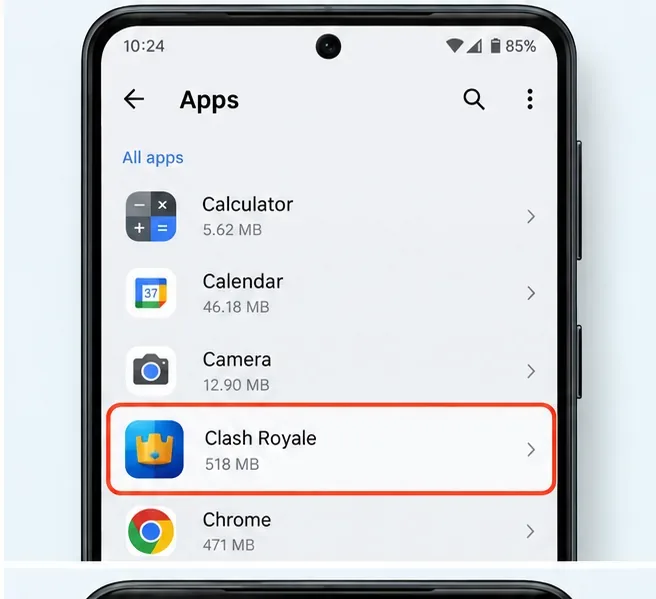
Open the complete app list if necessary, then tap Clash Royale. If you have many apps installed, use the settings search or the app-list search function instead of scrolling.
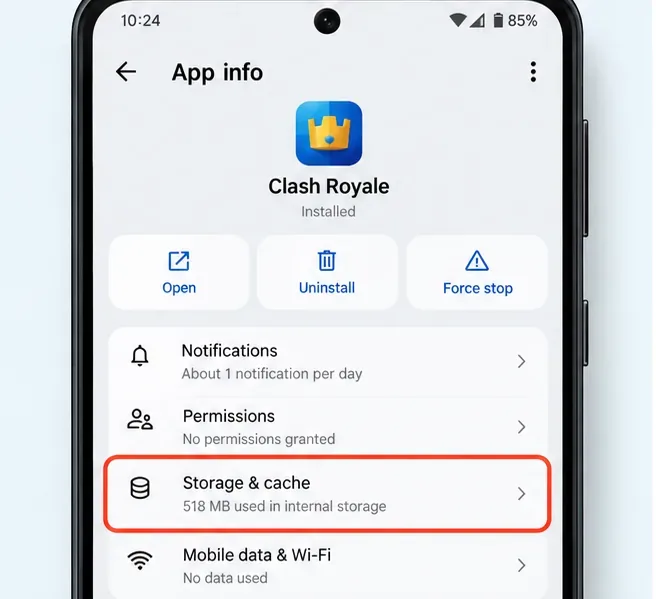
Tap Storage & cache, Storage, or the closest equivalent. This page separates temporary cached files from broader app data on Android versions and devices that expose both controls.
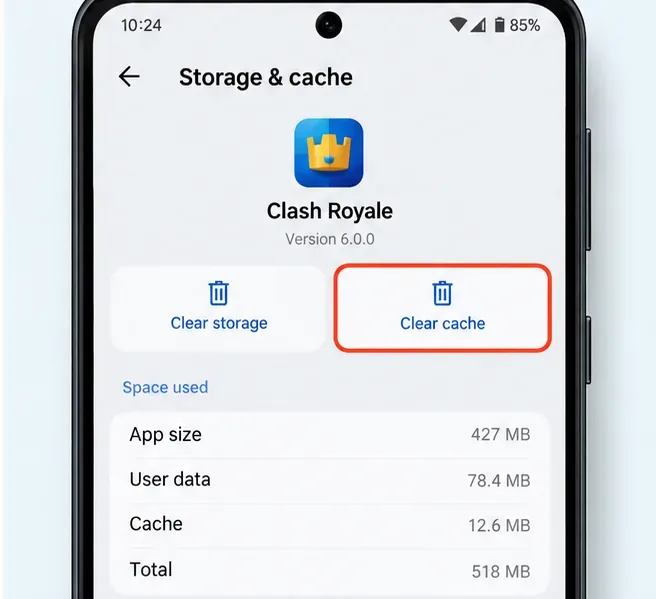
Tap Clear cache. Google explains that this deletes temporary data. The cache amount may immediately drop, although the game will build some cache again as you play. The first launch afterward can be slower because Clash Royale may need to recreate or redownload temporary resources.
Do not confuse Clear cache with Clear storage. Google states that Clear storage permanently deletes the app’s stored data on the device. If your goal is only to refresh temporary files, Clear storage is unnecessary. If you ever use it as a deeper troubleshooting step, make sure your Clash Royale progress is protected with Supercell ID first.
Not with a universal per-app “Clear cache” button like Android. Apple’s current storage controls let you inspect an app, offload it, or delete it. Apple also notes that cached and temporary data may not be fully reflected in the storage number shown for an app.
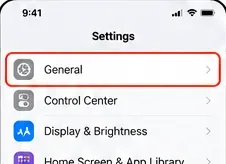
Start in the Settings app and tap General. This is the route Apple documents for viewing storage use by individual apps.
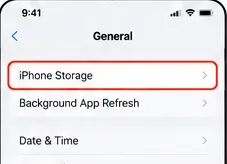
Tap iPhone Storage. On iPad, the wording is iPad Storage. Wait a moment if the device needs time to calculate app sizes.
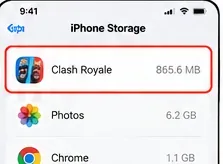
Scroll to Clash Royale and open its storage page. You will typically see the app size and the amount categorized as documents and data. Those numbers are useful for understanding local storage use, but they do not provide a dedicated Clash Royale cache-clearing button.
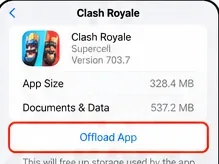
Offload App removes the installed app while keeping its documents and data. That makes it useful when your main goal is to free storage without discarding local documents and settings. However, because Apple explicitly says documents and data are retained, you should not treat offloading as a guaranteed complete cache wipe.
If you are troubleshooting a persistent local-file problem and want the cleanest reset available through iOS settings, verify that your game is connected to Supercell ID, then choose Delete App and confirm. Apple says deleting an app removes the app and its related data from the device. Afterward, reinstall Clash Royale from the App Store and sign back into your Supercell ID if prompted.
On Android, using Clear cache is specifically the temporary-data option, so it is different from clearing all app storage. Your safest practice is still to have Supercell ID connected before troubleshooting, especially if you might escalate from clearing cache to clearing storage or reinstalling.
On iOS, deleting the app removes local app data. That is why account protection matters more than relying on the device to preserve a local session. Supercell describes Supercell ID as a way to safeguard game accounts and restore access after reinstalling. If you cannot confirm your Supercell ID email or verification-code access, resolve that before deleting Clash Royale.
Cache cleanup is most reasonable when the problem looks local to one device: Clash Royale starts behaving strangely after an update, local storage has become tight, menus or assets are not loading normally, or the app repeatedly hangs while other apps and your connection work normally. It is also a quick Android maintenance step because it does not require reinstalling the game.
Do not expect cache clearing to fix every form of lag. Battle latency can come from Wi-Fi congestion, mobile-network quality, routing, server-side issues, or a wider Clash Royale service problem. Likewise, crashes may be caused by a specific game release or an operating-system issue rather than stale temporary files.
This guide reflects the platform behavior documented as of October 2026. Android menus can vary by manufacturer, and Apple can change Settings labels in future iOS releases. For the underlying platform rules, see Google’s Android storage guidance and Apple’s iPhone storage guide. Apple also documents how to delete apps on iPhone or iPad.
For account safety, use Supercell’s official Supercell ID page and the Clash Royale Support portal. Supercell’s support documentation explains that Supercell ID safeguards game accounts across devices and reinstalls. If any menu on your phone differs from the illustrations above, follow the wording on your current device rather than forcing an exact match.
Enable PUBG’s network statistics HUD to monitor ping and packet loss in a match. See where to find it, what the numbers mean, and what they cannot diagnose.
Learn how to import VALORANT crosshair codes, compare presets with manual settings and spectator copy, and fix common import issues.
Choose Dota 2 minimap size, hero icons, team colors, and background settings by readability, fewer misclicks, and clear results on your own display.
Fix Fortnite texture pop-in on PC with official steps for GPU drivers, file verification, DirectX 12, high-resolution textures, VRAM, SSDs, and stutter.
Learn what Heroes of the Storm minimap size and position options are verified, improve readability, and choose camera-click controls that suit you.
Set Super Smash Bros. Ultimate Quickplay to prefer hazards-off stages. Follow the Preferred Rules menu steps and learn why matchmaking may not always honor them.
Enable Server Latency and Packet Loss in Warzone to monitor connection quality, read the overlay, and use recurring spikes to guide troubleshooting.
Learn how to carry from mid lane in League of Legends by setting up waves, choosing safe roam windows, reading side lanes, and converting pressure into objectives.
Fix Minecraft Evoker spell problems with a safe vanilla test, version checks, log review, and a step-by-step way to isolate mod or datapack conflicts.
Fix PUBG stuck on Initializing on Steam with a focused checklist for PC service notices, launch options, game files, downloads, and connection issues.








