How to Check Real-Time Server Latency in the PUBG HUD

Enable PUBG’s network statistics HUD to monitor ping and packet loss in a match. See where to find it, what the numbers mean, and what they cannot diagnose.
If SMITE freezes during startup, gets stuck between menus, or stops responding after an update, clearing a cache may sound like the obvious fix. The key is knowing which cache you are clearing. Steam has a documented download-cache option, but Hi-Rez’s current PC troubleshooting guide does not publish a separate Windows folder or in-game command for clearing a SMITE-specific cache. Deleting folders with names such as “SMITE” or “HiRez” from AppData is therefore not a verified first step.
This guide walks through a cautious Windows PC routine: close the game, clear Steam’s download cache if you use Steam, verify SMITE’s installed files, then test the same situation again. These steps can address a stuck launcher download or damaged game files. They cannot guarantee a fix for every freeze, because freezes can also come from graphics drivers, background software, overheating, or a game-side problem.
A cache is temporary data that software keeps so it can reuse information instead of fetching or rebuilding it. Steam’s download cache is for Steam’s download process; it is different from installed SMITE game files, Windows temporary files, and a graphics driver’s shader cache. Clearing one does not automatically clear the others.
As of October 2026, Hi-Rez’s PC troubleshooting guide recommends verifying the game files for crashes and points players to launcher-specific steps. It does not identify a Windows SMITE cache folder for manual deletion. The steps below use the supported Steam cache control as an optional launcher cleanup, followed by the game-file check Hi-Rez does document.
Exit SMITE from its normal menu if it still responds. If it is frozen, press Ctrl + Shift + Esc to open Windows Task Manager. Select the SMITE entry under Processes and choose End task. Only end the game process; avoid terminating unfamiliar Windows or anti-cheat processes.
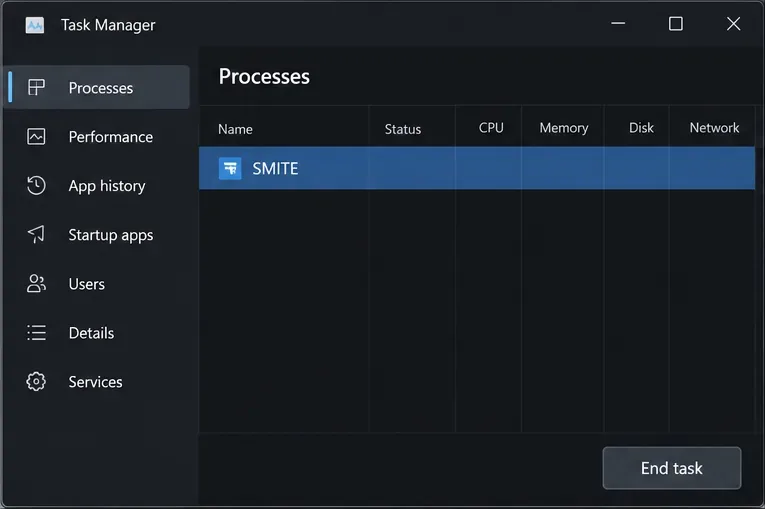
Wait a few seconds after ending the task, then check that the SMITE window has closed. If the launcher is still downloading or updating, let that activity finish before continuing. This simple check prevents a file repair from competing with a running game.
Use this step only for the Steam installation. Steam documents the path as Steam > Settings > Downloads > Clear Download Cache. Select the button and confirm when Steam prompts you. The client may restart; sign back in if asked. If the option is missing, update or restart the Steam client and check its Downloads settings again.
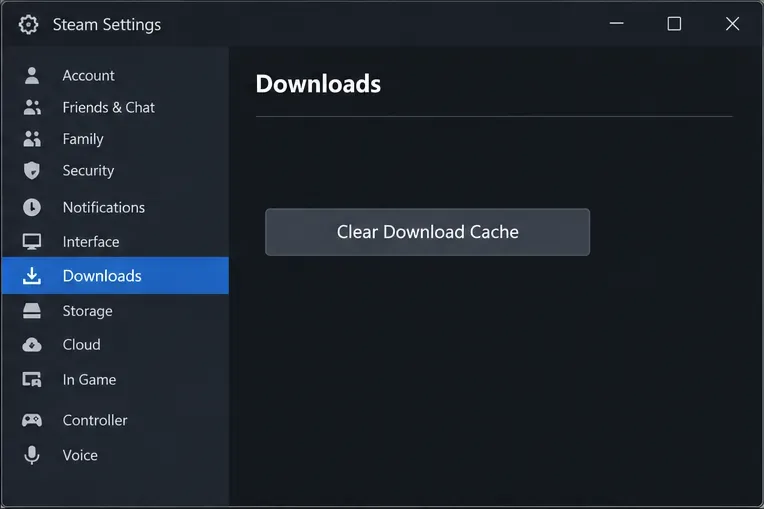
This removes Steam’s download cache, not a confirmed SMITE gameplay cache. Think of it as a targeted launcher cleanup that may help if the freeze began during a download, update, or launch handoff. Steam does not promise that clearing it will resolve in-game freezes. See the Steam Support instructions for clearing the download cache.
If you installed SMITE through Epic Games, skip this Steam-only step. Do not clear Steam’s download cache when Steam is not the launcher involved.
File verification checks the installed game files against the launcher’s expected version and replaces files it identifies as missing or damaged. Hi-Rez lists this as a PC troubleshooting step for crashes. In Steam, open your Library, right-click SMITE, choose Properties, select Installed Files, then choose Verify integrity of game files. The exact wording or tab placement can vary slightly as Steam updates its interface.
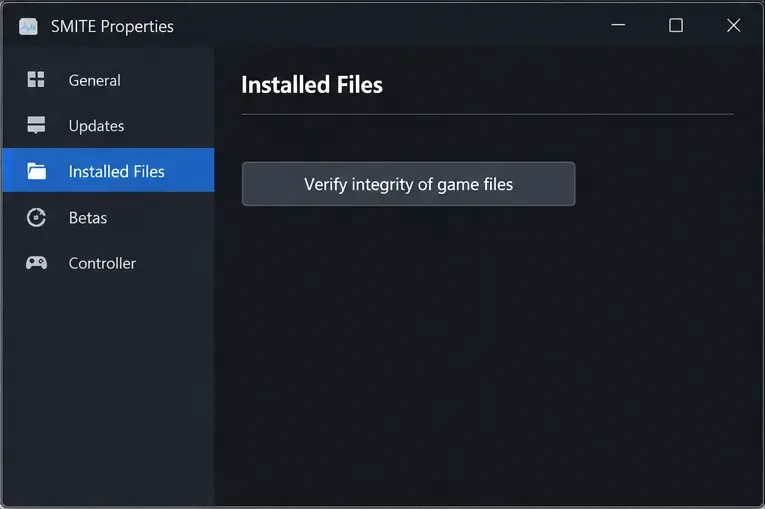
Wait for Steam to complete the check. If it downloads replacement files, let the download finish before launching. Do not manually delete the SMITE installation folder as a substitute; verification is designed to check and repair the managed installation.
For Epic Games, open the Epic Games Launcher Library, select the three-dot menu next to SMITE, choose Manage, and select Verify. Epic says verification checks for damaged or corrupted files and repairs differences; its support page says saved data is not affected. Follow Epic Games’ current file-verification instructions if the menus look different.
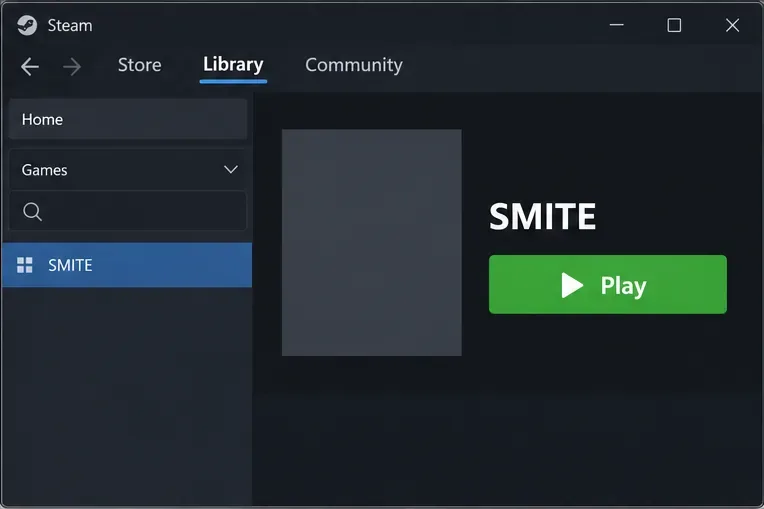
Restart Windows if the freeze persists after verification, especially if the launcher or a driver update was also pending. Open the launcher, wait for any update to complete, and start SMITE. First check whether it reaches the main menu and remains responsive. Then test the mode or screen where the freeze usually happened, using a low-risk option such as a practice or non-ranked mode when available. Avoid entering a ranked match as your first test.
Compare like with like: note where the freeze occurs, whether audio continues, whether the whole PC becomes unresponsive, and how long you played before it happened. If the game now passes the same point without freezing, keep the setup unchanged for a few sessions before changing additional settings. If it freezes again, record the time and any on-screen error rather than repeating cache cleanup over and over.
%localappdata%, Documents, or the SMITE install directory based only on a forum post. Hi-Rez does not document a universal Windows cache path in the current PC guide.Use the symptom to choose the next check. If only SMITE freezes while Windows remains usable, update your graphics driver from the GPU manufacturer and temporarily close overlays, recording software, browsers, and other resource-heavy apps. Hi-Rez’s PC guide also suggests lowering resolution or graphics settings for inconsistent frame rates; a repeatable hard freeze is different from low FPS, so treat that as a diagnostic test rather than proof of the cause.
If the whole computer locks, check Windows Reliability History for an error at the matching time. Hi-Rez recommends using Reliability History details when investigating Windows errors. If the freeze began directly after a game update and happens to multiple players, a local cache may not be the cause; check official SMITE announcements or contact Hi-Rez Support through its help center. Include your launcher, Windows version, graphics card, the exact freeze point, recent changes, and any error text. Do not attach account passwords or authentication codes.
For a PlayStation installation, these Windows and Steam steps do not apply. Hi-Rez publishes a separate PlayStation troubleshooting guide that covers saved data, cache, and reinstall steps for that console. Follow the platform-specific instructions instead of deleting PC files.
Enable PUBG’s network statistics HUD to monitor ping and packet loss in a match. See where to find it, what the numbers mean, and what they cannot diagnose.
Learn how to import VALORANT crosshair codes, compare presets with manual settings and spectator copy, and fix common import issues.
Choose Dota 2 minimap size, hero icons, team colors, and background settings by readability, fewer misclicks, and clear results on your own display.
Fix Fortnite texture pop-in on PC with official steps for GPU drivers, file verification, DirectX 12, high-resolution textures, VRAM, SSDs, and stutter.
Learn what Heroes of the Storm minimap size and position options are verified, improve readability, and choose camera-click controls that suit you.
Set Super Smash Bros. Ultimate Quickplay to prefer hazards-off stages. Follow the Preferred Rules menu steps and learn why matchmaking may not always honor them.
Enable Server Latency and Packet Loss in Warzone to monitor connection quality, read the overlay, and use recurring spikes to guide troubleshooting.
Learn how to carry from mid lane in League of Legends by setting up waves, choosing safe roam windows, reading side lanes, and converting pressure into objectives.
Fix Minecraft Evoker spell problems with a safe vanilla test, version checks, log review, and a step-by-step way to isolate mod or datapack conflicts.
Fix PUBG stuck on Initializing on Steam with a focused checklist for PC service notices, launch options, game files, downloads, and connection issues.








